
1. Introduction
The dgtenk L77 is a portable digital voice activated recorder designed for high-quality audio capture in various settings such as lectures, meetings, and personal notes. It features a large 72GB storage capacity (8GB built-in plus 64GB TF card), 1536kbps premium sound recording, password protection, and convenient AAA battery power. This manual provides detailed instructions for setup, operation, maintenance, and troubleshooting to ensure optimal performance of your device.
2. Package Contents
Please verify that all items are present in your package:
- dgtenk L77 Digital Voice Recorder
- 2 x AAA Batteries (included)
- 64GB TF Card (pre-installed or separate)
- Headphones
- Type-C USB Cable
- User Manual (this document)
3. Product Overview
Familiarize yourself with the components and controls of your dgtenk L77 recorder.

The device features a clear 1.33-inch screen, an omnidirectional microphone, and various control buttons for easy operation. A Type-C port is provided for data transfer and connection to a computer.
4. Setup
4.1 Battery Installation
The dgtenk L77 recorder is powered by two AAA batteries. Ensure correct polarity when inserting them.

The device is designed for convenience, allowing immediate use after battery replacement without waiting for charging. The battery indicator on the screen displays remaining power.
4.2 TF Card Installation
The recorder supports TF card expansion up to 64GB (a 64GB card is included). Locate the TF card slot on the side of the device. Gently insert the TF card until it clicks into place. To remove, push the card in slightly until it springs out.
4.3 Initial Power On
To power on the device, slide the power switch to the 'ON' position. The screen will illuminate, and the device will be ready for use.
5. Operating Instructions
5.1 Basic Recording
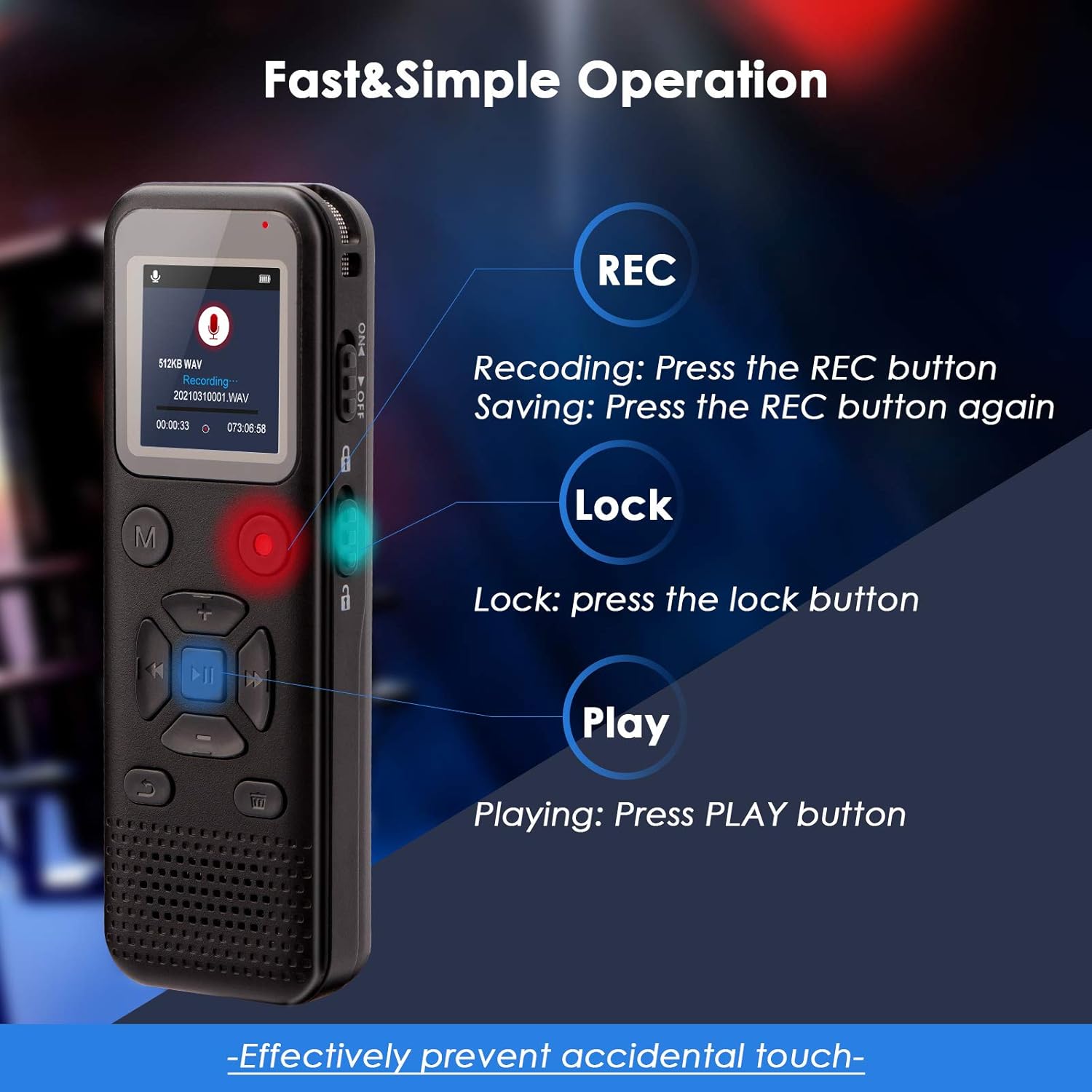
To start recording, press the REC button. The recording indicator will appear on the screen. To save the recording and stop, press the REC button again. To pause recording, press the PLAY/PAUSE button (II) during recording. Press it again to resume.
5.2 Voice Activated Recording (VOR)
The L77 features 7 levels of voice activation sensitivity. To enable VOR, navigate to the recording settings menu and select the desired sensitivity level. Once activated, press the REC button. The device will only record when sound is detected, pausing during silence to conserve memory and battery.

5.3 Playback
To play a recorded file, select the file from the menu and press the PLAY/PAUSE button. Use the volume buttons (+ / -) to adjust the playback volume. Use the skip buttons to navigate between files or fast forward/rewind within a file.
5.4 File Management
Connect the recorder to a computer using the supplied Type-C USB cable. The device will appear as a removable disk. You can then transfer, copy, delete, or rename recording files on your computer. The recorder supports MP3, WAV, FLAC, APE, OGG, and WMA formats for playback.

5.5 Password Protection
The L77 supports 4-digit password protection to secure your audio files. Access the security settings in the device menu to set or change your password. This feature helps protect sensitive recordings from unauthorized access.
5.6 Lock Function
To prevent accidental button presses during recording or playback, slide the LOCK switch on the side of the device. This will disable all buttons until the switch is returned to the unlocked position.
6. Maintenance
- Keep the device dry. Avoid exposure to moisture or liquids.
- Clean the device with a soft, dry cloth. Do not use abrasive cleaners or solvents.
- Avoid extreme temperatures. Store the device in a cool, dry place.
- Handle with care to prevent drops or impacts.
- Remove batteries if the device will not be used for an extended period to prevent leakage.
7. Troubleshooting
7.1 Device Does Not Power On
- Check if the AAA batteries are inserted correctly with the right polarity.
- Replace with fresh AAA batteries.
- Ensure the power switch is in the 'ON' position.
7.2 Poor Recording Quality
- Ensure the microphone is not obstructed.
- Reduce background noise in the recording environment.
- Adjust the microphone sensitivity settings, especially for voice activated recording.
- Ensure the device is within optimal recording range (e.g., 10-30 feet for clear stereo audio).

7.3 Cannot Transfer Files to Computer
- Ensure the Type-C USB cable is securely connected to both the recorder and the computer.
- Try a different USB port on your computer.
- Ensure the device is powered on when connected.
- Check if your computer's operating system recognizes new USB devices.
7.4 Device Buttons Are Unresponsive
- Check if the LOCK switch is engaged. Slide it to the unlocked position.
- Restart the device by powering it off and on again.
8. Specifications
| Feature | Specification |
|---|---|
| Model Number | L77 |
| Brand | dgtenk |
| Memory Storage Capacity | 72 GB (8GB Built-in + 64GB TF Card) |
| Recording Quality | 1536kbps |
| Microphone Form Factor | Built-In Omnidirectional |
| Microphone Operation Mode | Stereo |
| Power Source | 2 x AAA Batteries |
| Battery Average Life | 85 Hours (continuous recording) |
| Digital Recording Time | Up to 47123 hours (with 72GB capacity) |
| Screen Size | 1.33 Inches |
| Hardware Interface | USB 3.1 Type C |
| Headphone Jack | 3.5 millimeters |
| Compatible Devices | Laptop, Personal Computer (Windows, Mac) |
| Supported Audio Formats | MP3, WAV, FLAC, APE, OGG, WMA |
| Product Dimensions (D x W x H) | 15D x 33W x 102H millimetres |
9. Warranty and Support
For warranty information and technical support, please refer to the documentation provided with your purchase or contact dgtenk customer service through the retailer where the product was acquired. Keep your purchase receipt for warranty claims.