
1. Product Overview
The HARFO D02 Fingerprint Keyless Entry Door Lock provides multiple access methods for enhanced security and convenience. This smart lock integrates fingerprint recognition, keypad entry, access card, and traditional key access.

Image: Overview of HARFO D02 Smart Lock features, including English voice guide, intuitive OLED display, LED 3D live fingerprint sensor, anti-peep touchscreen, two indoor unlock ways, hidden backup keyhole, capacity for up to 300 users, and Micro USB emergency power supply.
Key Features:
- Multiple Unlock Methods: Fingerprint, Password, Access Card, Mechanical Key.
- User Capacity: Supports up to 300 unique users.
- OLED Display: Provides clear visual guidance and status updates.
- Anti-Peep Function: Allows entry of random digits before or after the actual password to prevent onlookers from guessing your code.
- Emergency Power: Micro USB port for temporary power supply in case of battery depletion.
2. Setup and Installation
Proper installation is crucial for the optimal performance of your HARFO D02 lock. Please follow these steps carefully.
2.1 Pre-Installation Checks
- Ensure your door thickness is between 35mm and 55mm (1-3/8" to 2-3/16").
- Verify the backset measurement (distance from door edge to center of bore hole) is compatible.
- Confirm all components listed in the user manual are present.
2.2 Door Handing Adjustment
The lock is designed to accommodate both left and right-hand opening doors. Adjust the rotary knob and the 'L/R' button on the interior unit as per your door's orientation before installation.
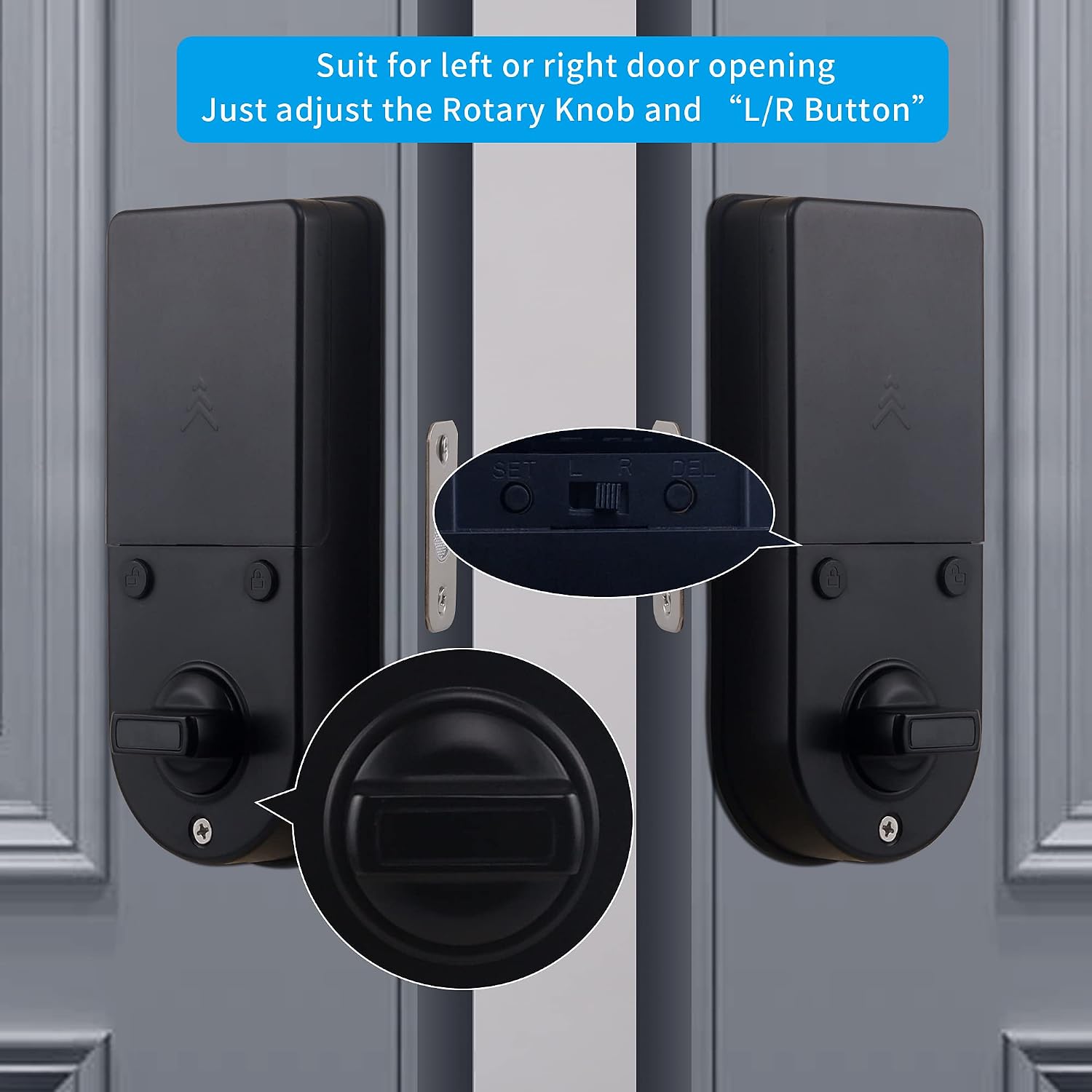
Image: Illustration showing how to adjust the rotary knob and L/R button on the interior unit to suit left or right door opening.
2.3 Installation Steps
Follow the detailed instructions provided in the included user manual for step-by-step installation. Basic tools are required, and a drill bit may be necessary for new installations or modifications.

Image: A person installing the HARFO D02 lock on a door using a screwdriver, demonstrating the ease of installation.
2.4 Battery Installation
The lock requires four (4) AA alkaline batteries (not included). Ensure to use new, non-rechargeable batteries for optimal performance and longevity. Install them into the battery compartment on the interior unit, observing correct polarity.
2.5 Initial Programming
After installation and battery insertion, follow the voice prompts and OLED display instructions to set up the administrator password and register initial fingerprints and access cards. Refer to the detailed programming section in your physical user manual for specific steps.
Video: An official HARFO video demonstrating the features and possibly the installation or setup process for the D02 Door Handlesets.
3. Operating Instructions
Understand the various ways to operate your HARFO D02 lock for daily use.

Image: Visual representation of the four unlock methods: Password, Access Card, Fingerprint, and Physical Key.
3.1 Unlocking with Fingerprint
- Place your registered finger squarely on the fingerprint sensor.
- The lock will emit a confirmation sound and the OLED display will show "Unlocking".
- Turn the handle to open the door.
3.2 Unlocking with Password
- Touch the keypad to activate it.
- Enter your registered password, optionally adding random digits before or after for anti-peep security.
- Press the '#' key to confirm.
- The lock will unlock, and you can turn the handle.

Image: Demonstrates the anti-peep password feature, where random digits can be entered before and after the actual password for security.
3.3 Unlocking with Access Card
- Present your registered access card to the card reader area on the lock.
- The lock will confirm successful reading and unlock.
3.4 Unlocking with Mechanical Key
In case of electronic malfunction or battery depletion, the lock can always be opened using the provided mechanical keys. Insert the key into the hidden keyhole and turn to unlock.
3.5 Automatic Locking
The lock features an auto-lock function that can be enabled or disabled. When enabled, the lock will automatically secure itself after a set period once the door is closed. Refer to your user manual for instructions on configuring auto-lock settings.
4. Maintenance
Regular maintenance ensures the longevity and reliable operation of your HARFO D02 lock.
4.1 Battery Replacement
The lock will provide low battery warnings via the OLED display and voice prompts. Replace all four AA alkaline batteries promptly when indicated. Typically, batteries last approximately one year with normal use. Avoid mixing old and new batteries or different battery types.
4.2 Cleaning
Clean the lock's exterior surfaces with a soft, dry cloth. Avoid using abrasive cleaners, solvents, or harsh chemicals, as these can damage the finish and electronic components. Keep the fingerprint sensor and keypad free from dirt and moisture.
4.3 Environmental Conditions
The lock is designed to operate within a temperature range of approximately -4°F to 140°F (-20°C to 60°C). Extreme temperatures outside this range may affect performance.

Image: Illustrates the operational temperature range of the HARFO D02 lock, from -4°F to 140°F.
5. Troubleshooting
If you encounter issues with your HARFO D02 lock, refer to the following common troubleshooting steps.
5.1 Lock Not Responding
- Check Batteries: Ensure batteries are correctly installed and not depleted. Replace if necessary.
- Emergency Power: If batteries are completely dead, connect a Micro USB power bank to the emergency power port at the bottom of the exterior unit to temporarily power the lock.

Image: Shows a Micro USB cable being connected to the bottom of the HARFO D02 lock for emergency power supply.
5.2 Fingerprint Not Recognized
- Ensure your finger is clean and dry.
- Place your finger squarely on the sensor, covering the entire area.
- Try re-registering your fingerprint if the issue persists.
5.3 Keypad Not Responding
- Ensure the keypad is activated by touching it.
- Verify the password entered is correct.
- Check for any physical damage to the keypad.
5.4 Lock Mechanism Issues
- If the latch or deadbolt is sticking, check for obstructions in the door frame or strike plate.
- Ensure the lock is properly aligned with the door frame.
- If the handle feels loose or unresponsive, re-check the internal mounting screws and connections.
For persistent issues not resolved by these steps, please refer to the comprehensive troubleshooting guide in your physical user manual or contact customer support.
6. Specifications
| Feature | Specification |
|---|---|
| Brand | HARFO |
| Model Number | D02 |
| Lock Type | Biometric |
| Special Feature | Fingerprint |
| Material | Metal |
| Color | Black |
| Connectivity Protocol | Wi-Fi |
| Control Method | Touch |
| Power Source | 4 x AA Batteries (not included) |
| Included Components | Deadbolt, handle set, mounting hardware, user manual |
Dimensions:
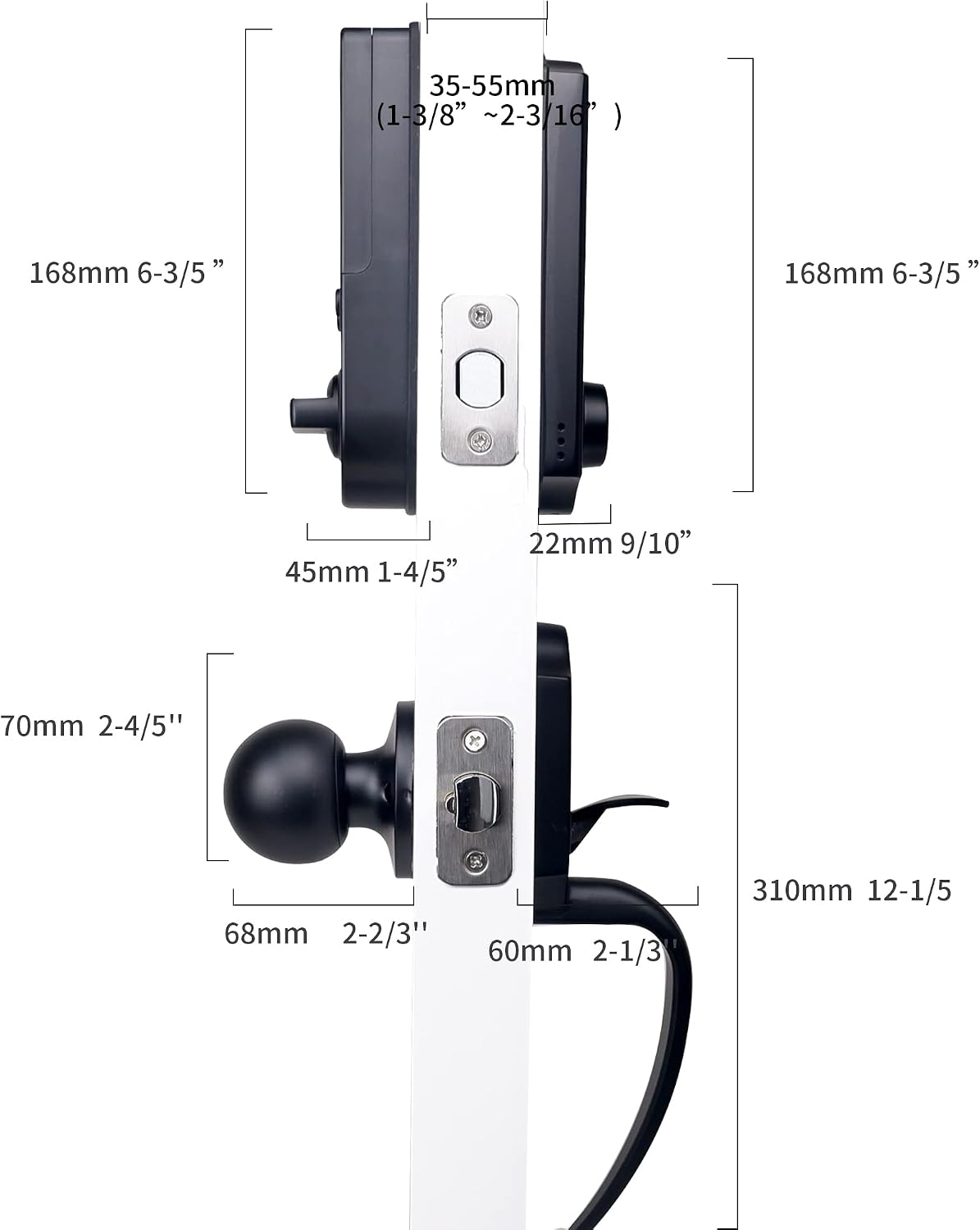
Image: Detailed diagram showing the dimensions of the HARFO D02 lock components, including overall height, width, and door thickness compatibility.
7. Warranty and Support
For information regarding product warranty, please refer to the warranty card included with your purchase or visit the official HARFO website. For technical support or assistance with your D02 lock, please contact HARFO customer service through the contact details provided in your product packaging or on the official website.

