
1. Introduction
This manual provides detailed instructions for the installation, operation, and maintenance of your CUSP 9-inch Android Car Stereo. This unit features a 1280x720 QLED IPS touchscreen, 4GB RAM, 64GB ROM, built-in GPS, wireless Apple Carplay, Android Auto, Bluetooth, WiFi, and supports a rear view camera. Please read this manual thoroughly before use to ensure proper functionality and safety.
2. Package Contents
Verify that all items are present in the package:
- Radio Unit (1)
- Power Cable (1)
- A/V Cable (1)
- Rear Camera Cable (1)
- USB Cable (2)
- GPS Antenna (1)
- 4G Antenna (1)
- Extra Microphone (1)
- Rear Camera (1)
- Mounting Brackets (2)
- Screws (6)

Image: CUSP 9-inch Android Car Stereo and its various cables and accessories.
3. Setup & Installation
3.1. Wiring Connections
Carefully connect all necessary cables to the corresponding ports on the back of the head unit. Ensure all connections are secure to prevent malfunctions.
Video: Demonstrates the correct wiring and cable connections for the CUSP Car Stereo unit.
3.2. Mounting the Unit
Use the provided brackets and screws to securely mount the head unit into your vehicle's double DIN slot. Ensure the unit is firmly in place before proceeding.

Image: Rear view of the CUSP car stereo showing mounting brackets attached.
3.3. CANBUS Settings
If your vehicle requires CANBUS integration for features like steering wheel controls or vehicle information display, configure the CANBUS settings through the factory settings menu. Access the factory settings by navigating to 'Settings' > 'About Device' and entering the code '887'. Then select 'CAN Type' and choose the appropriate vehicle model.
Video: Guide on how to access and configure CANBUS settings for various car models.
3.4. Custom Boot Logo
You can customize the boot logo of your car stereo. Prepare a 1280x720 pixel PNG image (32-bit) named 'zxdzlogo.png' and copy it to a USB drive. Insert the USB drive into the unit, navigate to 'Settings' > 'About Device' > enter code '887' > 'Boot Logo', and select your custom image.
Video: Instructions for customizing the boot logo on your CUSP Android Car Stereo.
4. Operating Instructions
4.1. Home Screen and Basic Navigation
The home screen provides quick access to essential functions. Swipe left or right to view all installed applications. Tap on an icon to launch the corresponding app.

Image: The main interface of the CUSP car stereo, displaying navigation, radio, video, music, and Bluetooth icons.
4.2. Radio Functionality
Access the radio application to tune into FM or AM stations. You can save your favorite stations for quick access. The unit supports RDS for displaying station information where available.
4.3. GPS Navigation
The unit comes with built-in GPS and supports both online and offline navigation apps like Google Maps, iGo, and Waze. Enjoy voice guidance and 2D/3D map views. The dual-zone function allows you to listen to music or radio while navigating.

Image: The car stereo screen showing a GPS navigation map and options for steering wheel control setup.
4.4. Bluetooth Connectivity
Pair your mobile phone via Bluetooth for hands-free calling and audio streaming. The system supports phonebook access, call history, and A2DP for high-quality music playback. Note: Bluetooth music does not support adjusting EQ.
4.5. Multimedia Playback
Play music and videos from various sources including USB drives. The unit supports multiple audio and video formats. Enjoy a rich audio experience with adjustable equalizer settings.
4.6. Wireless Carplay & Android Auto
Connect your iPhone wirelessly for Apple Carplay or your Android phone for Android Auto. This allows seamless integration of your smartphone's features, including navigation, music, messages, and calls, directly on the car stereo screen.
Image: The car stereo displaying both Apple Carplay and Android Auto interfaces, highlighting wireless connectivity.
4.7. Steering Wheel Control (SWC)
The unit supports analog steering wheel controls. Manual learning is required to map your vehicle's steering wheel buttons to the stereo functions. Refer to the 'SWC' section in the settings menu for configuration.
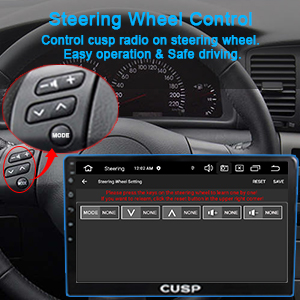
Image: The steering wheel control learning interface on the CUSP car stereo, allowing users to program buttons.
4.8. Rear View Camera
The car radio is equipped with a waterproof night vision reversing camera. When you engage reverse gear, the car stereo will automatically display the rear view video, assisting with parking and maneuvering.
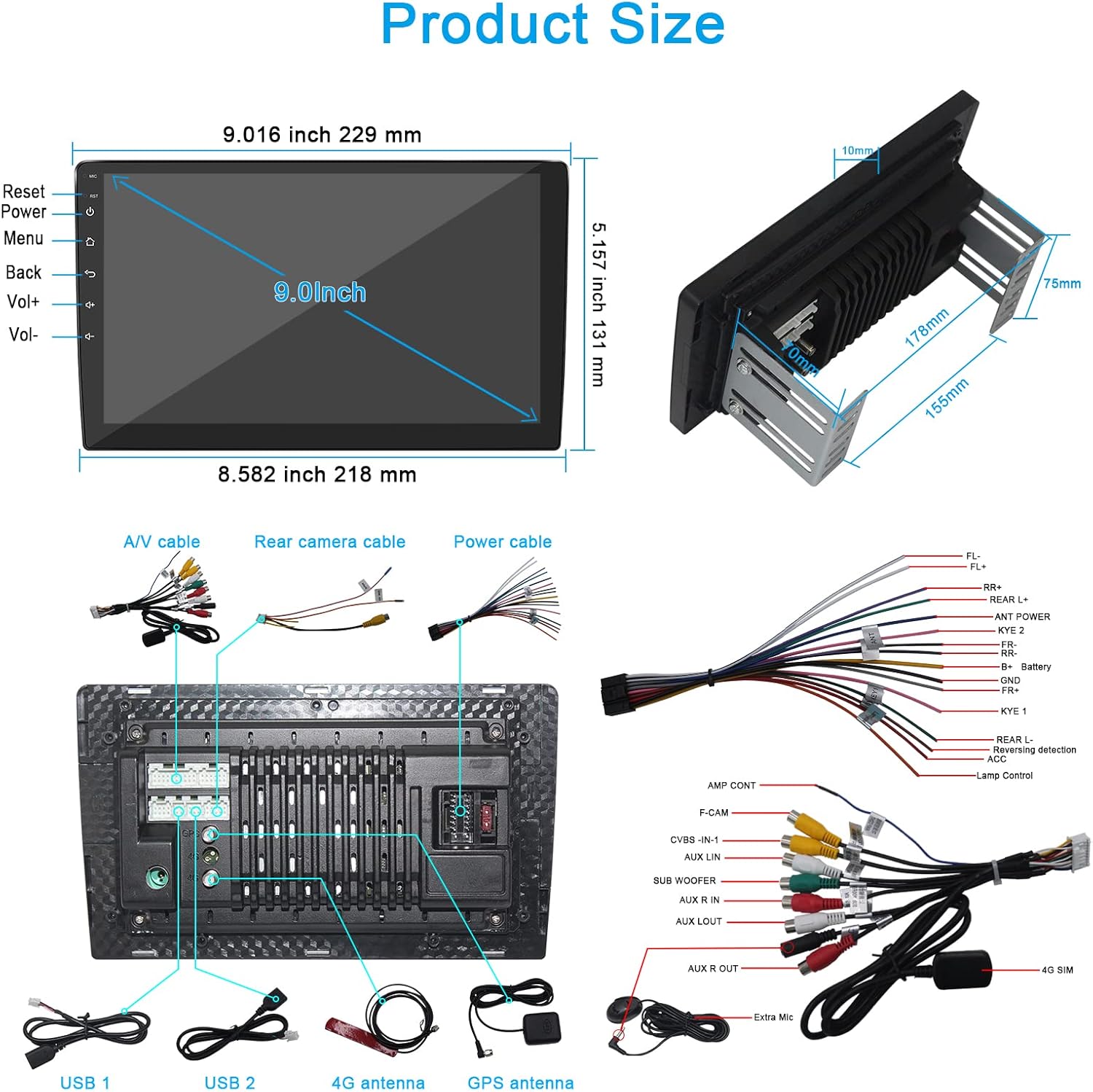
Image: The car stereo screen showing a clear rear view camera feed with parking guidelines, alongside WiFi connectivity options.
4.9. UI Customization
Personalize your user interface by selecting different theme styles. Navigate to 'Settings' > 'Display' > 'Theme style' to choose your preferred look.
Video: Demonstrates how to change and customize the user interface (UI) themes on the CUSP car stereo.
4.10. Split Screen Functionality
Utilize the split-screen feature to run two applications simultaneously, such as navigation on one side and a video player on the other, enhancing convenience and entertainment during your trip.

Image: The car stereo screen in split-screen mode, displaying a navigation map on the left and a video player on the right.
5. Maintenance
- Cleaning: Use a soft, dry cloth to clean the screen and exterior. Avoid abrasive cleaners or solvents.
- Software Updates: Periodically check for software updates to ensure optimal performance and access to new features. Updates are typically available through the system settings or the manufacturer's website.
- Temperature: Avoid exposing the unit to extreme temperatures. While designed for automotive use, prolonged exposure to very high or low temperatures can affect performance.
6. Troubleshooting
- Unit does not power on: Check all power connections. Ensure the vehicle's ignition is on. Verify the fuse is intact.
- Screen is blank or unresponsive when warm: This may indicate a temperature-related issue. Allow the unit to cool down. If the problem persists, contact support.
- Steering Wheel Controls not working: Ensure the SWC wires are correctly connected. Perform the manual learning process in the settings menu. If issues persist, verify CANBUS settings if applicable.
- WiFi disconnects frequently: Check the 4G antenna connection. Ensure the unit is within range of a strong WiFi signal or hotspot. Restart the unit and your WiFi source.
- GPS signal lost or inaccurate: Ensure the GPS antenna is properly installed and has a clear view of the sky. Check for any obstructions.
- Bluetooth music EQ not adjustable: This is a known limitation; EQ adjustments are not supported for Bluetooth audio.
- No video output: This unit may not support external video output. Refer to specifications for confirmation.
7. Specifications
| Feature | Detail |
|---|---|
| Item Weight | 4.07 pounds |
| Package Dimensions | 12 x 9 x 3 inches |
| Display Size | 9 Inches |
| Warranty | 1 Year |
| Voice Command | Touchscreen |
| ASIN | B0B81ZQ93F |
| Brand | CUSP |
| Model Name | CV-9213 |
| Vehicle Service Type | Car |
| Special Feature | Bluetooth, Touchscreen |
| Connectivity Technology | USB, Wi-Fi |
| Map Type | North America |
| Audio Output Mode | Speaker, Stereo |
| Mounting Type | Dashboard Mount |
8. Warranty & Support
This CUSP car stereo unit comes with a 1-year warranty from the date of purchase. For technical support, warranty claims, or any inquiries, please contact CUSP Auto Electronics directly through their official channels or the retailer where the product was purchased. Keep your purchase receipt as proof of warranty.