
1. Introduction
Thank you for choosing the Lomiluskr AK35i Wired Mechanical Gaming Keyboard. This manual provides essential information for setting up, operating, maintaining, and troubleshooting your new keyboard. Please read it carefully to ensure optimal performance and longevity of your device.
Package Contents:
- Lomiluskr AK35i Wired Mechanical Gaming Keyboard
- USB Cable
- User Manual (this document)
2. Product Overview
The Lomiluskr AK35i is a 104-key wired mechanical gaming keyboard designed for durability and customization. It features an aluminum panel, PBT keycaps, and hot-swappable switches, offering a responsive and personalized typing experience. The keyboard includes dedicated multimedia keys and elegant white backlighting with multiple effects.

Image 2.1: Lomiluskr AK35i Wired Mechanical Gaming Keyboard with purple and white keycaps.
Key Features:
- White LED Backlight: Features 21 distinct light effects and 15 adjustable brightness levels to enhance the gaming atmosphere.
- Hot-swappable Switches: Compatible with 3-pin switches, allowing for easy customization without soldering.
- Durable Construction: Built with a top-quality aluminum panel and two-color PBT keycaps for enhanced product quality and longevity.
- Dedicated Multimedia Keys: Includes 5 independent multimedia keys and 1 roller for convenient control of light and music, with three customizable settings (A1-A3).
- Macro Recording & Customization: Supports driver software for advanced backlight effects, macro settings, and key function remapping.

Image 2.2: Close-up of the keyboard's aluminum alloy panel and PBT keycaps.
3. Setup Instructions
Connecting your Lomiluskr AK35i keyboard is a straightforward process:
- Locate the USB cable provided with your keyboard.
- Connect the USB-A end of the cable to an available USB port on your computer (PC or laptop).
- Connect the other end of the cable to the USB port on the keyboard.
- The keyboard is plug-and-play and should be recognized automatically by your operating system.
For optimal performance, ensure the USB cable is securely connected. The 1.6m anti-interference braided wire ensures stable data transmission.
4. Operating Instructions
4.1 Multimedia Function Keys
The keyboard features 6 dedicated multimedia keys and a roller for quick access to various functions:

Image 4.1: Overview of Multimedia Function Keys and Indicators.
- Game Mode Indicator (G): Indicates when game mode is active.
- Numeric Keypad Indicator (N): Indicates when the numeric keypad is active.
- Caps Lock Indicator (C): Indicates when Caps Lock is active.
- WIN Key Lock Indicator (W): Indicates when the WIN key is locked.
Roller Function:
- Long press the roller button to switch between Game Mode and Office Mode.
- In Office Mode, short press to toggle between volume control and backlight brightness adjustment for the scroll wheel.
- In Game Mode, the roller controls volume adjustment.
Customizable Multimedia Keys (A1-A3):
- These keys can be customized via the driver software.
- By default, they control media playback (previous, play/pause, next).
- In Game Mode, they can switch between three customized profiles.
4.2 FN Function Key Combinations
The FN key allows access to secondary functions printed on certain keys. Below is a guide to common FN key combinations:

Image 4.2: FN Function Key Description.
| Key Combination | Function |
|---|---|
| FN + F1 | Open Computer |
| FN + F2 | Open Calculator |
| FN + F3 | Open E-mail |
| FN + F4 | Open Search |
| FN + F5 | Open Homepage |
| FN + F6 | Open Favorites |
| FN + F7 | Webpage Refresh |
| FN + F8 | Webpage Stop |
| FN + F9 | Back |
| FN + F10 | Forward |
| FN + F11 | Media Player |
| FN + F12 | Play/Pause |
| FN + L1~L6 | Lighting Effect Selection |
| FN + V- / V+ | Volume Control |
| FN + Arrow Key | Lighting Effect Control |
| FN + WIN Key | Lock WIN Key |
4.3 Backlight Control
The AK35i keyboard features a white LED backlight with 21 different effects and 15 levels of brightness. You can adjust these settings using FN key combinations or the dedicated roller in Office Mode.
For a visual demonstration of the backlight effects and other features, please refer to the official product video below:
Video 4.1: Demonstration of Lomiluskr AK35i Mechanical Keyboard features, including PBT keycaps, aluminum panel, sound tests for blue and black switches, multimedia controls, and various white backlight effects.
4.4 Macro Recording & Customization
The Lomiluskr AK35i supports advanced customization through its dedicated driver software. With the driver, you can:
- Choose and fine-tune backlight effects.
- Set up macro commands for complex key sequences.
- Change the function of individual keys to suit your preferences.
Please refer to the driver software's documentation for detailed instructions on macro recording and customization.
5. Hot-Swappable Switches
The AK35i keyboard features hot-swappable switches, allowing you to easily change the mechanical switches without soldering. This enables you to customize the tactile experience of your keyboard.

Image 5.1: Hot-swappable switch mechanism.
How to Change Switches:
- Gently remove the keycap using a keycap puller (not included, but commonly available).
- Use a switch puller (not included) to carefully grip the switch and pull it straight up to remove it from the PCB.
- Align the pins of the new 3-pin hot-swappable switch with the holes on the PCB.
- Press the new switch firmly into place until it clicks. Ensure the pins are not bent.
- Replace the keycap.
Always ensure the keyboard is disconnected from your computer before attempting to change switches.
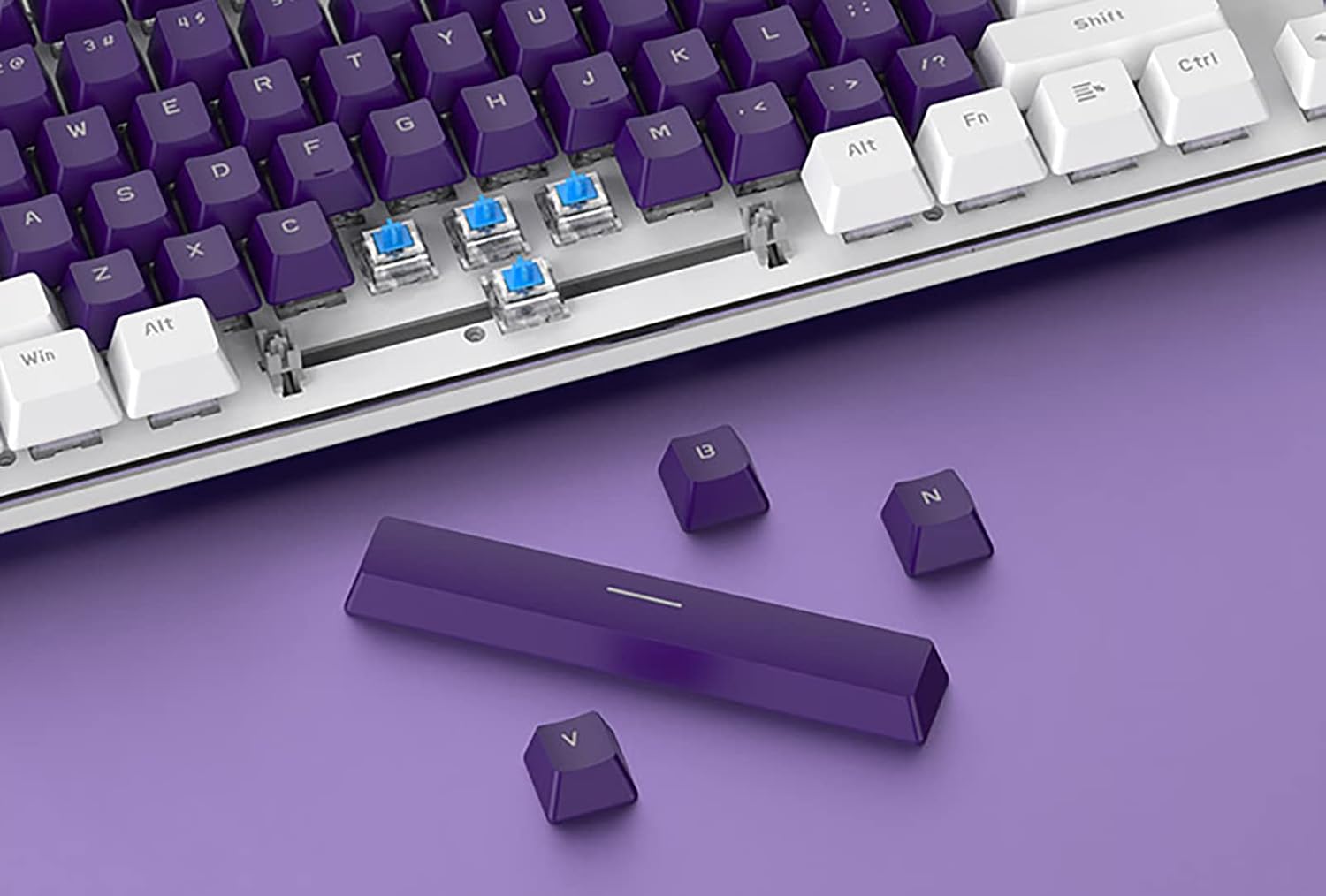
Image 5.2: Keycaps and switches removed, showing the hot-swappable sockets.
6. Maintenance
Proper maintenance ensures the longevity and performance of your keyboard:
- Cleaning: Regularly clean the keyboard with a soft, dry cloth. For deeper cleaning, you can remove keycaps and use compressed air to clear dust and debris.
- Avoid Liquids: Do not expose the keyboard to liquids. In case of spills, immediately disconnect the keyboard and allow it to dry completely before reconnecting.
- Storage: Store the keyboard in a cool, dry place away from direct sunlight and extreme temperatures.
7. Troubleshooting
If you encounter issues with your Lomiluskr AK35i keyboard, try the following solutions:
- Keyboard Not Responding:
- Ensure the USB cable is securely connected to both the keyboard and the computer.
- Try connecting the keyboard to a different USB port on your computer.
- Test the keyboard on another computer to rule out a computer-specific issue.
- Keys Not Registering:
- Check if the affected keycap or switch is properly seated. For hot-swappable switches, ensure the switch is fully inserted.
- Clean around the affected key to remove any debris that might be obstructing its movement.
- Backlight Not Working/Incorrect:
- Ensure the backlight is not turned off or set to the lowest brightness level using FN key combinations or the roller.
- If using custom settings, verify the driver software settings.
- Multimedia Keys Not Functioning:
- Ensure the keyboard is in the correct mode (Game Mode or Office Mode) for the desired multimedia function.
- Check if any software conflicts are preventing the keys from working.
If these steps do not resolve the issue, please contact Lomiluskr customer support for further assistance.
8. Specifications
| Feature | Detail |
|---|---|
| Brand | Lomiluskr |
| Model Number | AK35i |
| Connectivity Technology | USB Wired |
| Keyboard Description | Mechanical |
| Key Count | 104 Keys |
| Special Feature | Backlit (White LED, 21 effects, 15 brightness levels), Hot-swappable Switches, 6 Multimedia Keys |
| Compatible Devices | PC, Laptop |
| Material | Aluminum (Panel), PBT (Keycaps) |
| Color | Purple & White, Blue Switch |
| Item Weight | 2.64 pounds |
| Package Dimensions | 19.1 x 7.3 x 2.4 inches |
| Recommended Uses | Daily Use |
| Date First Available | July 28, 2022 |
9. Warranty and Support
Lomiluskr products are manufactured to high-quality standards. For information regarding warranty coverage, technical support, or service inquiries, please refer to the warranty card included with your product or visit the official Lomiluskr website. Please retain your proof of purchase for warranty claims.