
CP PLUS CP-E31A
CP PLUS CP-E31A 3 MP Wi-Fi PT Camera User Manual
Model: CP-E31A | Brand: CP PLUS
1. Product Overview
The CP PLUS CP-E31A is a versatile 3 MP Wi-Fi Pan-Tilt (PT) camera designed for indoor and outdoor security monitoring. It offers high-resolution video capture, Wi-Fi connectivity for mobile viewing, and integration with smart home assistants like Amazon Alexa and Google Assistant. This manual provides essential information for setting up, operating, and maintaining your camera.
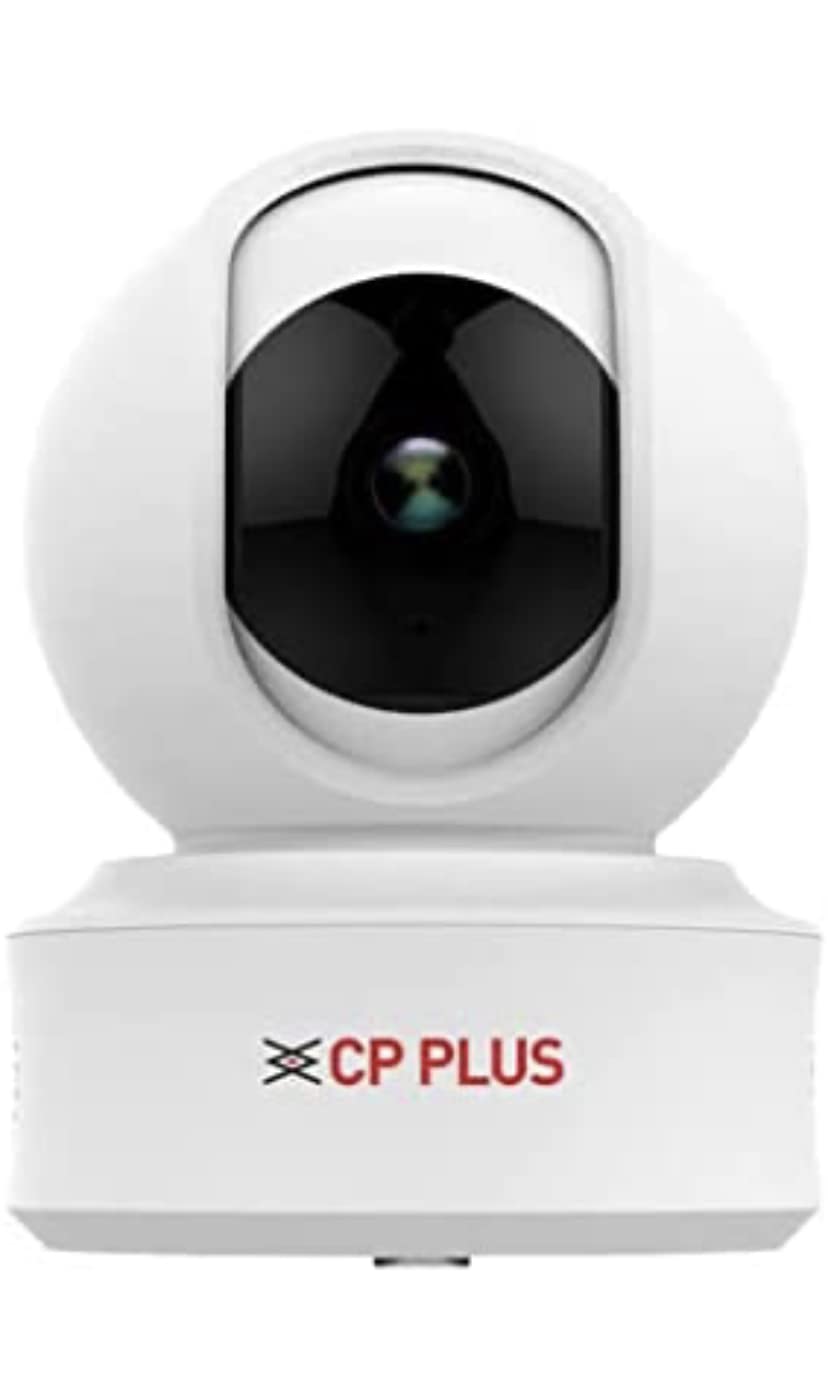
Figure 1: CP PLUS CP-E31A Wi-Fi PT Camera
This image displays the CP PLUS CP-E31A Wi-Fi PT Camera from a frontal perspective, highlighting its compact design and the prominent camera lens.


Figure 2: Various views of the CP PLUS CP-E31A Camera
These images provide different perspectives of the CP-E31A camera, including top, front, and side views, showcasing its design from multiple angles.
2. Package Contents
Please check the box for the following items:
- CP PLUS CP-E31A Wi-Fi PT Camera Unit
- Power Adapter
- Mounting Hardware (screws, wall plugs)
- User Manual (this document)
3. Product Features and Specifications
The CP-E31A camera is equipped with advanced features for reliable surveillance:

Figure 3: Key Features of CP PLUS CP-E31A Camera
This image highlights the main technical specifications and features of the CP-E31A camera, including sensor type, lens, video compression, and smart assistant compatibility.
| Feature | Description |
|---|---|
| Model Name | CP PLUS CP E31A |
| Image Sensor | 1/3" 3MP CMOS (0.84667cm) |
| Lens | 3.6mm |
| Video Compression | H.265 High Profile |
| Max. Frame Rate | 25fps@3MP |
| IR Distance | 15 Meter |
| Connectivity | Wi-Fi (2.4GHz only) |
| Power Source | Corded Electric |
| Controller Type | Amazon Alexa, Google Assistant |
| Usage Environment | Indoor/Outdoor |
| Dimensions (LxWxH) | 15 x 8 x 8 Centimeters |
| Weight | 350 g |
4. Setup Guide
4.1 Physical Installation
The CP-E31A camera supports embedded mounting for secure placement.

Figure 4: Mounting Type and Included Components
This image illustrates the embedded mounting type for the CP-E31A camera and confirms that an adapter is included for power.
- Choose a Location: Select a suitable indoor or outdoor location that provides the desired viewing angle and is within range of your Wi-Fi network. Ensure the surface is stable for mounting.
- Mounting: Use the provided mounting hardware to securely attach the camera to the chosen surface. The camera is designed for embedded mounting.
- Power Connection: Connect the included power adapter to the camera's power input and then plug it into a standard electrical outlet. The camera will power on.
4.2 Network Connection (Wi-Fi)
A stable Wi-Fi internet connection is mandatory for mobile viewing and full functionality of the camera.

Figure 5: Wi-Fi Requirement for Mobile Viewing Context
This image shows the CP-E31A camera in a typical home environment, emphasizing its reliance on a Wi-Fi internet connection for remote mobile viewing and operation.
- Download the App: Search for the official CP PLUS mobile application on your smartphone's app store (Google Play Store for Android or Apple App Store for iOS). Install the application.
- Create an Account: Open the app and follow the on-screen instructions to create a new user account or log in if you already have one.
- Add Device: In the app, select the option to "Add Device" or "Add Camera." Follow the prompts to scan the QR code on your camera (if available) or manually select your camera model.
- Connect to Wi-Fi: The app will guide you through connecting the camera to your 2.4GHz Wi-Fi network. Ensure your phone is connected to the same Wi-Fi network during this process.
- Pairing: Once connected, the camera will pair with your account. You can then name your camera and begin live viewing.
5. Operating the Camera
5.1 Mobile Viewing and Control
The CP-E31A camera is primarily controlled and viewed via its dedicated mobile application.
- Live View: Open the CP PLUS app and select your camera to access the live video feed.
- Pan-Tilt Control: Use the directional controls within the app to remotely pan (horizontal movement) and tilt (vertical movement) the camera lens to adjust the viewing area.
- Two-Way Audio: If supported, use the microphone and speaker icons in the app to communicate through the camera.
- Recording and Snapshots: Capture video recordings or still images directly from the live view interface.
- Playback: Access recorded footage stored on a microSD card (if installed) or cloud storage (if subscribed) through the app's playback feature.
5.2 Smart Assistant Integration
The camera supports integration with Amazon Alexa and Google Assistant for voice control and smart home automation.
- Enable Skill/Action: In your Alexa or Google Home app, search for and enable the "CP PLUS" skill or action.
- Link Account: Link your CP PLUS account with your Amazon or Google account by following the on-screen instructions.
- Discover Devices: Once linked, ask your smart assistant to "discover devices" or manually add the camera.
- Voice Commands: You can now use voice commands to view your camera feed on compatible smart displays (e.g., "Alexa, show me the living room camera") or perform other supported actions.
6. Maintenance
- Cleaning: Gently wipe the camera lens and body with a soft, dry cloth. Avoid using harsh chemicals or abrasive materials.
- Firmware Updates: Regularly check the CP PLUS app for available firmware updates. Keeping your camera's firmware up-to-date ensures optimal performance, security, and access to new features.
- Network Stability: Ensure your Wi-Fi network remains stable and strong for uninterrupted camera operation.
7. Troubleshooting
| Problem | Possible Solution |
|---|---|
| Camera not connecting to Wi-Fi |
|
| No live view or offline status |
|
| Camera not rotating (Pan-Tilt function) |
|
| Poor picture quality |
|
8. Warranty and Support
For product support, technical assistance, or warranty inquiries, please contact CP PLUS customer service.
- Customer Support Contact: +91 9031221921
- Please have your product model number (CP-E31A) and purchase details ready when contacting support.
Note: Warranty terms and conditions may vary. Please refer to your purchase documentation or contact customer support for detailed warranty information.
Related documentsCP-E31A


Ask a question about this manual
Ask about setup, troubleshooting, compatibility, parts, safety, or missing instructions. Manuals+ will review the question and use this page’s manual context to help answer it.