
ROFAVEZCO EZ-SP12H28S
ROFAVEZCO HDMI Splitter 1x2 User Manual
Model: EZ-SP12H28S
1. Introduction
The ROFAVEZCO HDMI Splitter 1x2 (Model EZ-SP12H28S) is an advanced device designed to duplicate a single HDMI input signal to two separate HDMI outputs simultaneously. It supports high-resolution video formats including 8K@60Hz and 4K@120Hz, along with advanced audio and video technologies such as HDR, Dolby Vision, VRR, G-Sync, and HDCP 2.3 bypass. This splitter is ideal for home theater setups, gaming environments, and professional AV distribution, allowing users to display content on multiple screens without signal degradation.

Figure 1.1: ROFAVEZCO HDMI Splitter 1x2
2. Package Contents
Please verify that all items are present in the package:
- 1 x ROFAVEZCO HDMI 2.1 Splitter
- 1 x Power Adapter
- 2 x Reusable Cable Ties
- 1 x User Manual

Figure 2.1: What's in the Box
3. Product Overview
The HDMI Splitter features clearly labeled ports and indicators for easy setup and operation. Understanding these components is essential for proper use.
Front Panel
- OUT2 4K/1080P Switch: Selects output resolution for OUT2 (4K or 1080P downscaled).
- HDMI IN: Connects to your HDMI source device.
- HDMI OUT1: Primary HDMI output. Supports full resolution and CEC.
- HDMI OUT2: Secondary HDMI output. Supports downscaling.
- EDID Select Button: Cycles through EDID modes (4K 7.1CH, 4K 5.1CH, 4K 2.1CH, Copy).
- UPDATE Port: Micro USB port for firmware updates.
Rear Panel
- DC/5V Power Input: Connects to the provided power adapter.

Figure 3.1: HDMI Splitter Port Layout and Functions
4. Setup
Follow these steps to set up your HDMI Splitter:
- Power Off Devices: Ensure all HDMI source devices (e.g., game console, PC) and display devices (e.g., TV, monitor) are powered off before making connections.
- Connect HDMI Source: Connect an HDMI cable (HDMI 2.1 recommended for 4K@120Hz/8K@60Hz) from your source device to the HDMI IN port on the splitter.
- Connect HDMI Displays:
- Connect an HDMI cable from the HDMI OUT1 port on the splitter to your primary display.
- Connect an HDMI cable from the HDMI OUT2 port on the splitter to your secondary display.
- Connect Power: Connect the provided power adapter to the DC/5V input on the splitter, then plug the adapter into a power outlet.
- Power On Devices: Power on your display devices first, then your HDMI source device.
Important Note: For optimal performance with 4K@120Hz or 8K@60Hz signals, use high-quality HDMI 2.1 cables shorter than 3 meters (approximately 10 feet).

Figure 4.1: Typical Setup with Gaming Console
5. Operation
The HDMI Splitter allows for flexible configuration of video and audio outputs through its EDID and scaler settings.
5.1 EDID Settings
The EDID (Extended Display Identification Data) setting determines the video and audio capabilities reported to the source device. Use the EDID Select button to cycle through the following modes:
| Mode | Description |
|---|---|
| 4K@120Hz 7.1CH | Outputs 4K@120Hz video with 7.1 channel audio (e.g., Dolby Atmos). |
| 4K@120Hz 5.1CH | Outputs 4K@120Hz video with 5.1 channel audio. |
| 4K@120Hz 2.1CH | Outputs 4K@120Hz video with 2.1 channel audio (stereo). |
| COPY | Learns and copies the EDID from the display connected to HDMI OUT1. This is recommended for most setups to ensure compatibility. |

Figure 5.1: EDID Setting Options
5.2 Scaler Settings (OUT2)
The OUT2 4K/1080P switch on the front panel controls the downscaling behavior for the HDMI OUT2 port:
- Switch to "4K": HDMI OUT2 will pass through the 4K signal without downscaling.
- Switch to "1080P": HDMI OUT2 will downscale a 4K signal to 1080P. This is useful when connecting to a 1080P display while your primary display (OUT1) is 4K.
Note:
- HDMI OUT2 does not support 8K@60Hz; 8K@60Hz is only available on HDMI OUT1.
- If the HDMI source is 4K@60Hz (e.g., PS5, Xbox), OUT2 can downscale to 1080P@60Hz.
- If the HDMI source is 4K@120Hz (e.g., PS5, Xbox), OUT2 can downscale to 1080P@120Hz.
- The splitter does NOT downscale HDR Dolby Vision (4K60 4:2:2) and frequency.

Figure 5.2: Scaler Setting for OUT2
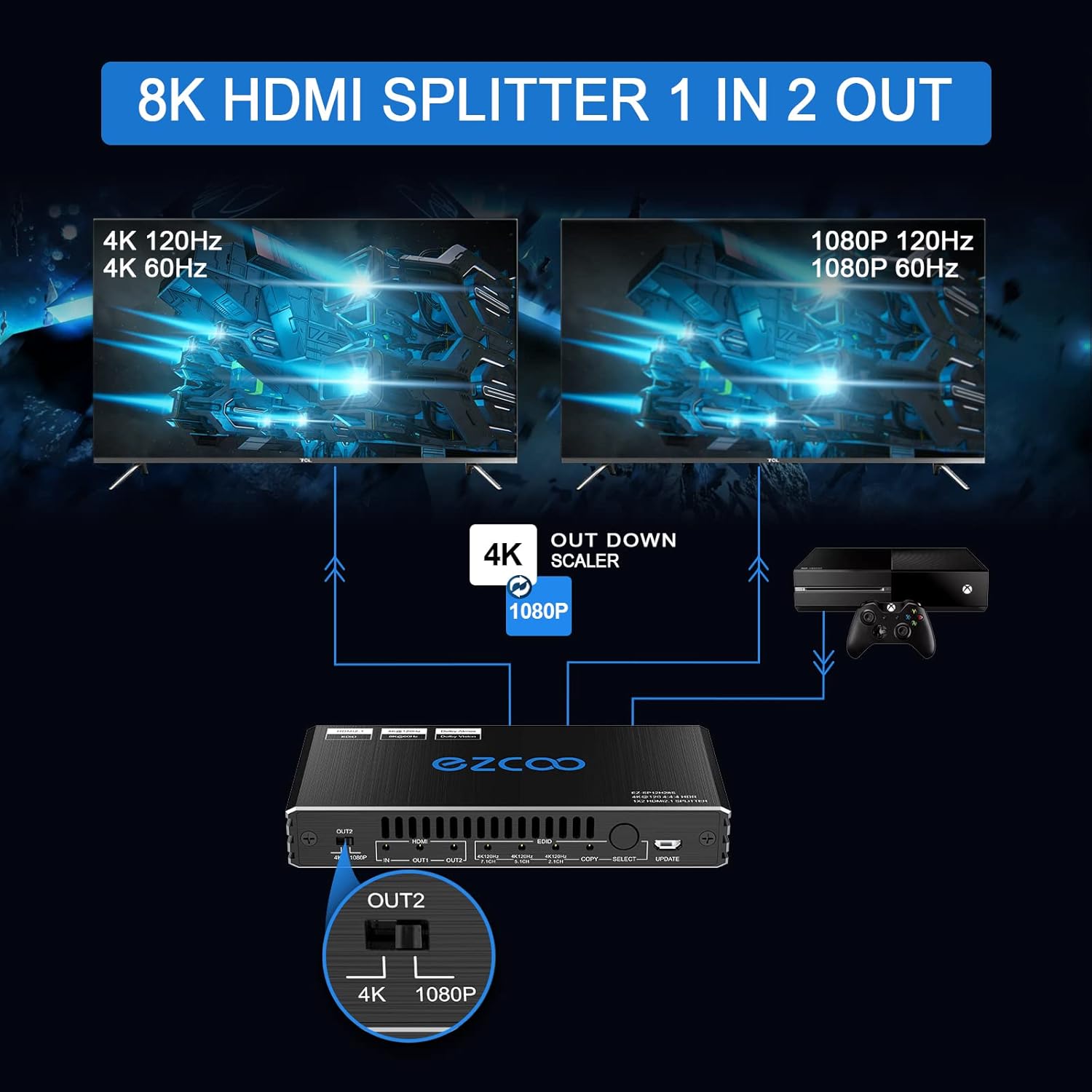
Figure 5.3: Simultaneous Output with Downscaling
6. Compatibility
The ROFAVEZCO HDMI Splitter is widely compatible with various HDMI source and display devices:
- Source Devices: Game consoles (PS5, PS4 Pro, Xbox One S, Xbox Series X, Nintendo Switch), PCs, laptops, projectors, Apple TV, Roku, Fire TV, Nvidia Shield, Xfinity box, Android TV Box, Blu-ray players, 4K cameras.
- Display Devices: 4K TVs, 8K TVs, 1080P TVs, monitors (including VRR, G-Sync, Free Sync compatible monitors like Odyssey G7).
- Audio Formats: Dolby Digital 7.1CH, Dolby Atmos, DTS:X, TrueHD, DTS-HD Master.
- Video Technologies: HDR, HDR10+, Dolby Vision, VRR (Variable Refresh Rate), ALLM (Auto Low Latency Mode), 3D Vision, HDCP 2.3.

Figure 6.1: 8K UHD Input Source Compatibility
7. Firmware Update
Firmware updates can improve product performance and compatibility. To update the firmware:
- Obtain the latest firmware file (e.g., EZ-SP12H28EAS-V0.99.20.bin) and the update tool (UartAssist, GigaDevice_MCU_ISP_Programmer) from the manufacturer's official website or contact customer support.
- Connect a Micro USB cable from your computer to the UPDATE port on the front panel of the splitter.
- Follow the specific video guide or instructions provided with the firmware update package to enter update mode and run the programming software.
Note: Ensure stable power supply during the update process. Do not disconnect the device or power off your computer until the update is complete.

Figure 7.1: Firmware Update Process
8. Troubleshooting
If you encounter issues with your HDMI Splitter, please refer to the following common problems and solutions:
- No Signal on Display:
- Ensure all HDMI cables are securely connected and are HDMI 2.1 certified for high resolutions.
- Verify the power adapter is correctly connected and the splitter is receiving power.
- Try setting the EDID mode to "COPY" to match the capabilities of your primary display.
- Test with different HDMI cables or source/display devices to isolate the issue.
- Flickering Screen or Unstable Signal:
- Use shorter, high-quality HDMI 2.1 cables (less than 3m).
- Ensure the power supply is stable.
- Reboot the splitter by disconnecting and reconnecting the power.
- Audio Issues (No Audio or Incorrect Channels):
- Adjust the EDID setting to match your audio setup (e.g., 7.1CH, 5.1CH, 2.1CH).
- Ensure your source device's audio output settings are configured correctly.
- Downscaling Not Working on OUT2:
- Verify the OUT2 4K/1080P switch is set to "1080P".
- Note that OUT2 does not support 8K@60Hz and does not downscale HDR Dolby Vision.
- CEC Not Functioning:
- Only HDMI OUT1 supports CEC. Ensure your primary display is connected to OUT1 and supports CEC.
- Check CEC settings on your connected devices.
If problems persist, please contact ROFAVEZCO customer support for assistance.
9. Specifications
| Feature | Specification |
|---|---|
| Model Number | EZ-SP12H28S |
| HDMI Version | HDMI 2.1 |
| HDCP Version | HDCP 2.3, HDCP 2.2 Bypass |
| Max Resolution | 8K@60Hz, 4K@120Hz (4:4:4 8bit) |
| Color Depth | Deep Color, 3D |
| HDR Support | HDR, HDR10+, Dolby Vision |
| VRR/ALLM | Supported |
| Audio Support | Dolby Digital 7.1CH, Dolby Atmos, DTS:X, TrueHD, DTS-HD Master |
| EDID Management | 4K5.1/4K7.1/Copy Mode |
| Downscaling | OUT2 only: 4K@120Hz to 1080P@120Hz, 4K@60Hz to 1080P@60Hz |
| CEC Support | OUT1 only |
| Product Dimensions | 6 x 5 x 3.3 inches |
| Item Weight | 13 ounces |
| Power Supply | DC 5V |
10. Safety Information
To ensure safe and reliable operation of your HDMI Splitter, please observe the following:
- Do not expose the device to high temperatures, humidity, or direct sunlight.
- Avoid dropping or subjecting the device to strong impacts.
- Do not disassemble or attempt to repair the device yourself. Refer all servicing to qualified personnel.
- Use only the provided power adapter.
- Keep the device away from water or other liquids.
- Ensure proper ventilation around the device to prevent overheating.
11. Warranty and Support
ROFAVEZCO products come with a standard warranty. For specific warranty terms and conditions, please refer to the warranty card included with your product or visit the official ROFAVEZCO website.
For technical support, troubleshooting assistance, or any inquiries regarding your HDMI Splitter, please contact ROFAVEZCO customer service. Contact information can typically be found on the product packaging, the official website, or the included user manual.
You may also find additional resources and FAQs on the EZCOOTECH Brand Store on Amazon.
Related documentsEZ-SP12H28S


Ask a question about this manual
Ask about setup, troubleshooting, compatibility, parts, safety, or missing instructions. Manuals+ will review the question and use this page’s manual context to help answer it.