
1. Product Overview
The WYYHAA SR11 is an upgraded Bluetooth 5.0 audio receiver designed to add wireless audio streaming capabilities to non-Bluetooth devices. It features a 3.5mm AUX output, TF card playback, CVC noise cancellation for calls, and a long-lasting battery, making it suitable for car audio systems, home stereos, wired headphones, and more.
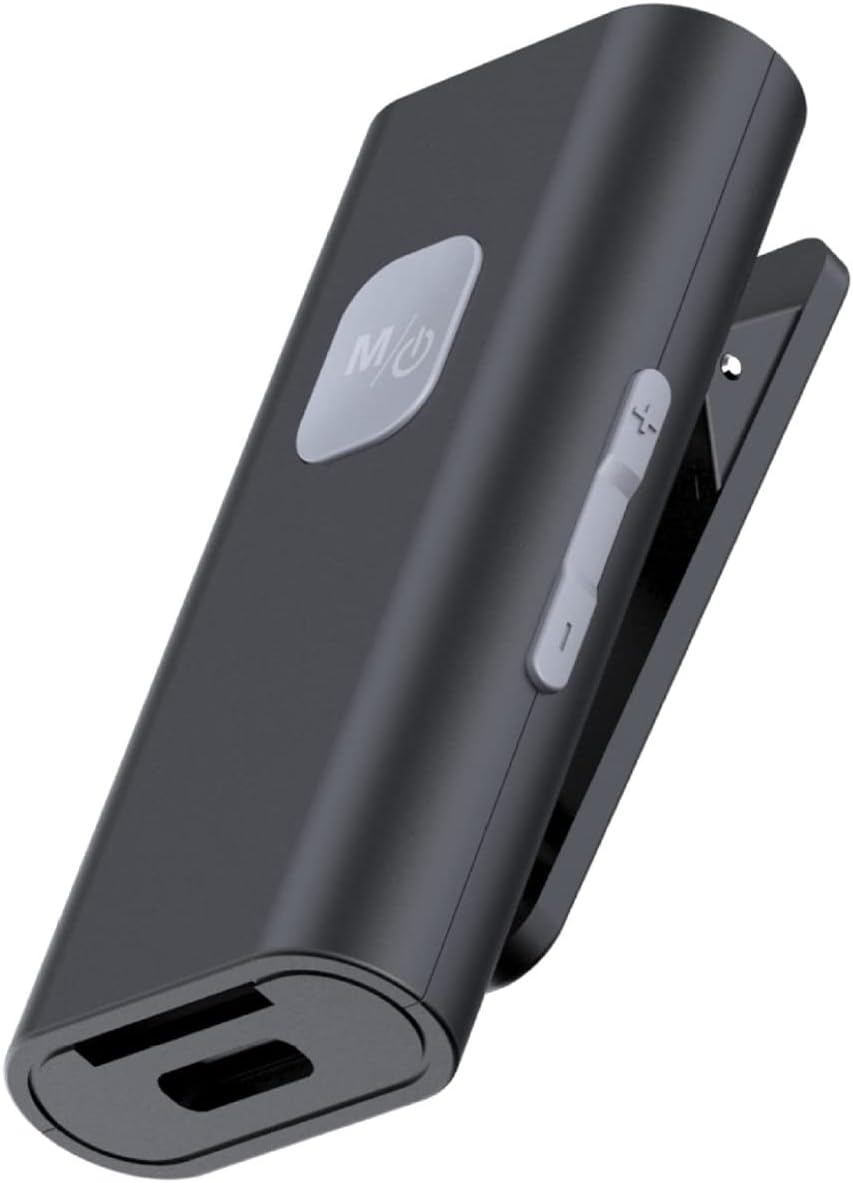
Figure 1.1: The WYYHAA SR11 Bluetooth 5.0 Audio Receiver. This image displays the compact, black rectangular device with a clip on the back, a power/mode button on the front, and volume/track control buttons on the side. The bottom features a TF card slot and a charging port.
2. Safety Information
Please read and follow these safety guidelines to ensure proper use and prevent damage:
- Do not dispose of the battery in a fire.
- Keep away from heat, sparks, and open flames.
- Do not expose to temperatures above 140°F (60°C).
- Do not short-circuit the device.
- Recycle batteries according to local regulations.
- Always turn off the device when not in use.
- Do not use the device while charging.
3. Package Contents
Verify that all items are present in the package:
- WYYHAA SR11 Bluetooth 5.0 Audio Receiver
- USB data cable (for charging)
- 3.5mm audio adapter (if included with your specific model)
- User Manual
4. Device Layout

Figure 4.1: The WYYHAA SR11 receiver showing the 3.5mm audio output port. The device is a black rectangular unit with a power/mode button on the top surface and a 3.5mm audio jack protruding from one end, ready for connection to an audio input.
- Power/Mode Button (M/⏻): Press and hold to power on/off. Short press to play/pause or switch modes.
- Volume Up (+)/Next Track: Short press for next track. Long press to increase volume.
- Volume Down (-)/Previous Track: Short press for previous track. Long press to decrease volume.
- 3.5mm Audio Output: Connects to your car stereo, home stereo, or wired headphones.
- TF Card Slot: Insert a Micro SD card for direct music playback.
- Micro USB Charging Port: For charging the device.
- Integrated Clip: For attaching the device to clothing or other surfaces.
5. Charging the Device
Before first use, fully charge the WYYHAA SR11 receiver.

Figure 5.1: An illustration showing the battery life and charging status of the WYYHAA SR11. It indicates a 200mAh battery, approximately 30 minutes charging time, and 120 days standby time. The device is shown with a charging cable connected.
- Connect the provided USB data cable to the Micro USB charging port on the receiver.
- Connect the other end of the USB cable to a standard USB power adapter (e.g., phone charger, computer USB port).
- The charging indicator light will illuminate during charging and turn off when fully charged.
- A full charge typically takes approximately 2 hours and provides up to 20 hours of usage.
6. Setup and Pairing
6.1 Bluetooth Pairing

Figure 6.1: A smartphone screen displaying available Bluetooth devices, with 'SR11' highlighted, indicating the pairing process for the WYYHAA Bluetooth receiver.
- Power On: Press and hold the Power/Mode button (M/⏻) for approximately 3 seconds until the indicator light flashes blue and red, indicating pairing mode.
- Activate Bluetooth: On your smartphone, tablet, or other Bluetooth-enabled device, go to the Bluetooth settings and turn on Bluetooth.
- Select Device: Look for 'SR11' in the list of available devices and select it to connect.
- Confirmation: Once paired, the indicator light on the receiver will flash blue slowly, and you may hear an audio confirmation.
- Automatic Reconnection: The receiver will automatically attempt to reconnect to the last paired device when powered on.
6.2 Connecting to Audio Systems

Figure 6.2: A diagram illustrating how the WYYHAA SR11 Bluetooth receiver connects to different audio sources and outputs. It shows a phone, tablet, and laptop connecting wirelessly to the receiver, which then connects via a 3.5mm jack to car AUX, home stereo, or wired headphones.
- For Car Stereo/Home Stereo: Plug the 3.5mm audio adapter into the receiver's 3.5mm audio output port, then plug the other end into the AUX input of your car stereo or home stereo system.
- For Wired Headphones: Plug your wired headphones directly into the receiver's 3.5mm audio output port.
7. Operating Instructions
7.1 Basic Controls
- Power On/Off: Press and hold the M/⏻ button for 3 seconds.
- Play/Pause: Short press the M/⏻ button.
- Next Track: Short press the '+' button.
- Previous Track: Short press the '-' button.
- Volume Up: Long press the '+' button.
- Volume Down: Long press the '-' button.
- Switch Modes (Bluetooth/TF Card): Short press the M/⏻ button when both Bluetooth and TF card are active.
7.2 TF Card Playback

Figure 7.1: The WYYHAA SR11 receiver with a TF (Micro SD) card partially inserted into its dedicated slot, demonstrating the TF card playback feature.
The WYYHAA SR11 supports direct music playback from a TF (Micro SD) card.
- Insert a TF card with MP3 audio files into the TF card slot.
- The device will automatically switch to TF card playback mode, or you can manually switch using the M/⏻ button.
- Use the '+' and '-' buttons for track navigation and volume control as described above.
7.3 Hands-Free Calling

Figure 7.2: The WYYHAA SR11 connected in a car, with a smartphone displaying an active call. This illustrates the device's 'HD Talking' feature with CVC noise reduction for clear calls.
When connected to your phone via Bluetooth, the SR11 allows for hands-free calling with CVC noise cancellation technology.
- Answer Call: Short press the M/⏻ button when a call comes in.
- End Call: Short press the M/⏻ button during a call.
- Reject Call: Long press the M/⏻ button when a call comes in.
- Redial Last Number: Double-press the M/⏻ button.
8. Maintenance
- Clean the device with a soft, dry cloth. Do not use abrasive cleaners or solvents.
- Keep the device dry. Do not expose it to moisture or liquids.
- Store the device in a cool, dry place when not in use.
- Avoid dropping or subjecting the device to strong impacts.
9. Troubleshooting
| Problem | Possible Cause | Solution |
|---|---|---|
| Device does not power on. | Low battery. | Charge the device fully. |
| Cannot pair with Bluetooth device. | Receiver not in pairing mode; Bluetooth off on source device; too far apart. | Ensure receiver is flashing blue/red. Turn on Bluetooth on your device. Keep devices within 10 meters. |
| No sound after connecting. | Volume too low; incorrect input selected on stereo; 3.5mm cable not fully inserted. | Increase volume on both receiver and source device. Select correct AUX input. Ensure 3.5mm cable is securely connected. |
| Low volume output. | Receiver volume or source device volume is low. | Long press the '+' button on the receiver to increase its independent volume. Also, increase volume on your connected phone/device. |
| TF card not playing. | Incorrect file format; card not inserted correctly; device in Bluetooth mode. | Ensure files are MP3 format. Reinsert TF card. Short press M/⏻ button to switch to TF card mode. |
| Poor call quality. | Environmental noise; microphone obstruction. | Ensure the microphone is not covered. Move to a quieter environment if possible. |
10. Specifications
| Feature | Detail |
|---|---|
| Model Number | SR11 |
| Bluetooth Version | 5.0 |
| Connectivity Technology | Bluetooth, USB (for charging) |
| Audio Output | 3.5mm AUX |
| Special Features | Portable, Fast Charging, TF Card Playback, CVC Noise Cancellation |
| Battery Life | Up to 20 hours |
| Charging Time | Approximately 2 hours |
| Material | Acrylonitrile Butadiene Styrene (ABS) |
| Item Weight | 1.44 ounces |
| Dimensions | Approximately 55mm (L) x 25mm (W) x 11mm (H) |
11. Warranty and Support
WYYHAA products are designed for reliability and performance. For specific warranty details, please refer to the documentation included with your purchase or contact WYYHAA customer support directly. Support contact information can typically be found on the official WYYHAA website or through your retailer.
For further assistance, please visit the WYYHAA Store on Amazon.