
1. Introduction
Thank you for choosing the NITHO Drive Pro ONE Racing Wheel. This multi-platform gaming accessory is designed to enhance your racing simulation experience across various consoles and PC. This manual provides essential information for proper setup, operation, and maintenance of your racing wheel, shifter, and pedals. Please read these instructions carefully before use.
2. Package Contents
Ensure all items listed below are present in your package:
- NITHO Drive Pro ONE Racing Wheel
- Pedal Unit (Accelerator and Brake)
- Sequential Gear Shifter
- Mounting Clamp
- Suction Cups (pre-installed or separate)
- USB Connection Cable
- Instruction Manual

Figure 2.1: Contents of the NITHO Drive Pro ONE package.
3. Setup
3.1 Mounting the Racing Wheel
The Drive Pro ONE offers two mounting options for stability:
- Suction Cups: Place the racing wheel on a smooth, flat surface. Press down firmly to engage the suction cups located on the base of the wheel. Ensure all suction cups are securely attached.
- Mounting Clamp: For enhanced stability, use the included clamp. Attach the clamp to the bottom of the racing wheel and secure it to a desk or table edge. Tighten the screw until the wheel is firmly in place.

Figure 3.1: Removable suction cups for stable mounting.

Figure 3.2: Clamp mounting system for secure attachment.
3.2 Connecting Pedals and Shifter
- Connect the pedal unit cable to the designated port on the racing wheel.
- Connect the sequential gear shifter cable to its dedicated port on the racing wheel. The shifter can be installed on either the right or left side of the wheel.

Figure 3.3: Sequential gear shifter mounted next to the racing wheel.

Figure 3.4: Analog foldable pedals.
3.3 Connecting to Your System
Connect the racing wheel's USB cable to an available USB port on your console (PlayStation 4, PlayStation 3, Xbox Series X/S, Xbox One, Nintendo Switch) or PC. The system should automatically detect the device.
For PC users, ensure the necessary drivers are installed. These can typically be found on the NITHO official support website.
Note: For optimal performance and compatibility, ensure your console or PC operating system is up to date.
4. Operating Instructions
4.1 Basic Controls
- Steering: The wheel provides 270 degrees of lock-to-lock rotation for precise control.
- Acceleration: Use the right pedal on the pedal unit.
- Brake: Use the left pedal on the pedal unit. The brake pedal features a non-linear response for realistic feel.
4.2 Shifting Gears
The Drive Pro ONE offers two methods for gear shifting:
- Paddle Shifters: Use the paddles located behind the steering wheel for quick and precise gear changes.
- Sequential Gear Shifter: Utilize the separate sequential shifter for a more immersive experience. Push forward to shift up, pull back to shift down.
4.3 Action Buttons and Navigation
The racing wheel features 28 action buttons, a D-Pad, and an analog stick, all conveniently located on the wheel for easy access to in-game controls and menu navigation.
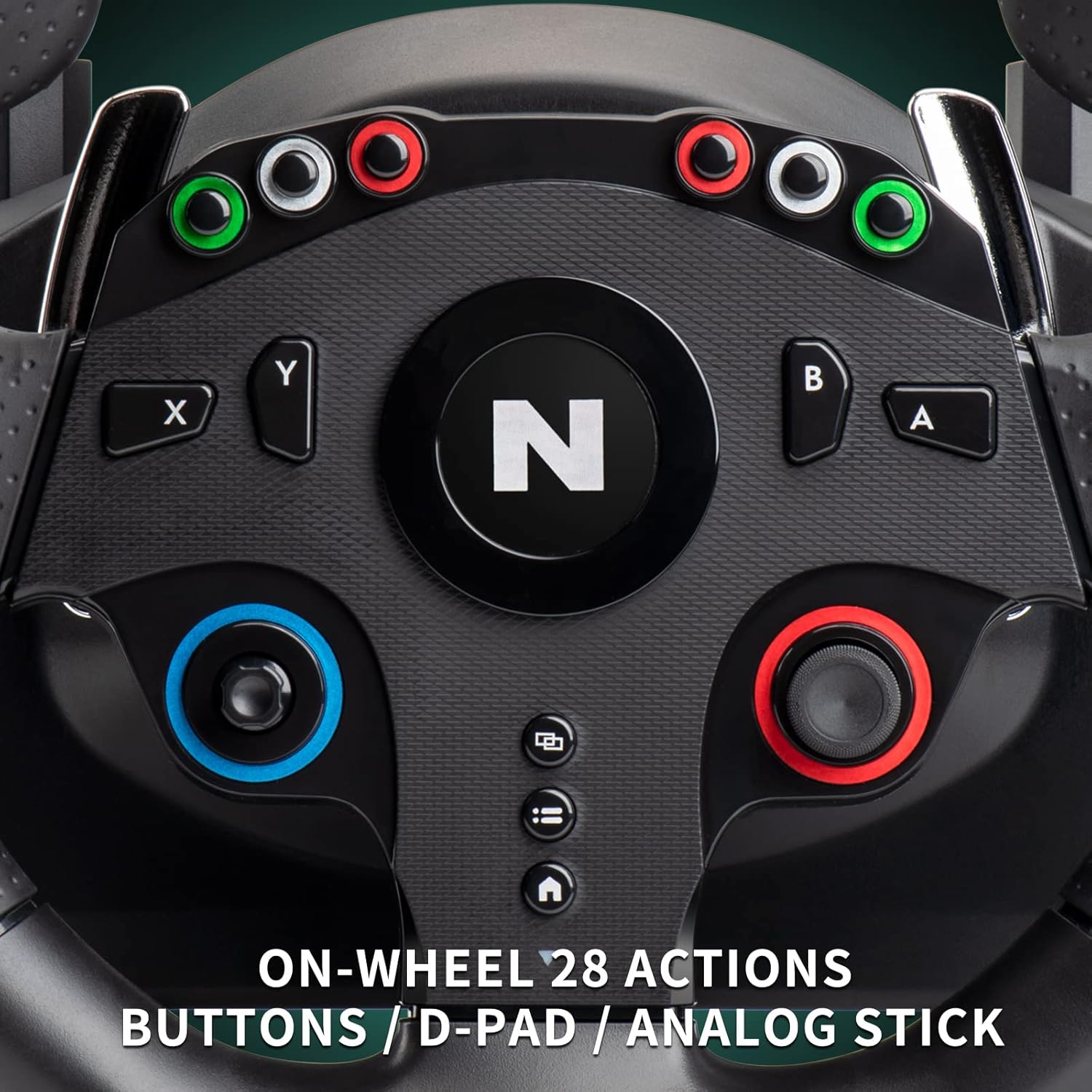
Figure 4.1: On-wheel 28 action buttons, D-Pad, and analog stick.
4.4 Control Mapping and Calibration
For optimal gameplay, it is recommended to configure the controls within your game's settings. Most racing games allow for custom button mapping and wheel calibration. Refer to your game's specific control options for detailed instructions.
Video 4.1: Demonstration of control mapping for the NITHO Drive Pro ONE in a racing game.
5. Features
- Multi-Platform Compatibility: Compatible with PlayStation 4, PlayStation 3, Xbox Series X/S, Xbox One, Nintendo Switch, and PC (D-Input & X-Input).
- 270-Degree Rotation: Provides a realistic steering angle for immersive driving.
- Zero Dead Zone Technology: Ensures precise and responsive steering input on PlayStation 4, Xbox (all versions), and PC (D-Input). The anti-backlash system maintains tight wheel and pedal control.
- High-Quality Construction: Durable mechanisms for the wheel, paddles, separate shifter, and pedals ensure racing precision and long-lasting reliability. The wheel features high-quality rubber grips for comfort and performance.
- Realistic Spring-Loaded Paddles: For smooth and accurate gear changes.
- Analog Foldable Pedals: The pedal unit includes an accelerator and a non-linear brake pedal for a realistic driving feel. The base is foldable for easy storage and includes a textured surface for grip.
- Separate Sequential Gear Shifter: Enhances racing realism and can be positioned on either side of the wheel.

Figure 5.1: Multi-platform compatibility.

Figure 5.2: 270-degree lock-to-lock steering angle.

Figure 5.3: Zero Dead Zone technology for enhanced realism.

Figure 5.4: Realistic spring-loaded paddle shifters.
Video 5.1: Overview of NITHO Drive Pro ONE features including compatibility, steering angle, and controls.
6. Compatibility
The NITHO Drive Pro ONE Racing Wheel is compatible with the following platforms:
- PlayStation 4
- PlayStation 3
- Xbox Series X/S
- Xbox One (all versions)
- Nintendo Switch
- PC (Windows 7, 8, 8.1, 10, 11 - D-Input & X-Input)
7. Maintenance
To ensure the longevity and optimal performance of your NITHO Drive Pro ONE Racing Wheel, follow these maintenance guidelines:
- Cleaning: Use a soft, dry cloth to clean the wheel, pedals, and shifter. Avoid using abrasive cleaners or solvents, as they may damage the surfaces.
- Storage: When not in use, store the device in a clean, dry place away from direct sunlight and extreme temperatures. Disconnect all cables to prevent damage.
- Cable Care: Avoid sharp bends or kinks in the cables. Do not pull on the cables to disconnect them; always grasp the connector.
8. Troubleshooting
If you encounter any issues with your NITHO Drive Pro ONE Racing Wheel, please refer to the following common solutions:
| Problem | Possible Cause | Solution |
|---|---|---|
| Wheel not recognized by system | Loose USB connection, incorrect port, outdated drivers (PC) | Ensure USB cable is securely connected. Try a different USB port. For PC, check for and install the latest drivers from the NITHO support website. Restart your system. |
| No response from pedals/shifter | Loose connection to the racing wheel | Verify that the pedal and shifter cables are firmly connected to their respective ports on the racing wheel. |
| Incorrect in-game behavior/mapping | Game controls not configured, calibration needed | Access the game's control settings and configure the racing wheel. Perform any in-game calibration steps if available. Ensure the correct input device is selected. |
| Lack of steering precision (dead zone) | Game settings, specific game engine behavior | While the Drive Pro ONE features Zero Dead Zone technology, some games may have their own internal dead zone settings. Adjust these settings within the game's control options to minimize any perceived dead zone. |
If the problem persists after trying these solutions, please contact NITHO customer support for further assistance.
9. Specifications
- Model Number: MLT-DP16-K
- Dimensions (L x W x H): 40 x 30.5 x 25.5 cm
- Weight: 5 kg
- Steering Angle: 270 degrees lock-to-lock
- Buttons: 28 action buttons, D-Pad, Analog Stick
- Pedals: Analog accelerator, non-linear brake
- Shifter: Separate sequential gear shifter
- Connectivity: USB
- Origin: China

Figure 9.1: Product dimensions.
10. Warranty and Support
The NITHO Drive Pro ONE Racing Wheel comes with a manufacturer's warranty. For detailed information regarding warranty terms, conditions, and duration, please refer to the warranty card included in your package or visit the official NITHO website.
For technical support, troubleshooting assistance, or spare parts inquiries, please contact NITHO customer service through their official channels. Contact information can typically be found on the product packaging or the NITHO support website.


