1. Introduction
This manual provides detailed instructions for the installation, operation, and troubleshooting of the ROFAVEZCO HDMI 2.0 Audio Extractor. This device allows you to extract audio from an HDMI source and output it to separate audio systems, while simultaneously passing the video signal to a display. It supports advanced features like 4K@60Hz video, HDR, various audio formats, EDID management, HDCP control, and video downscaling.
2. Features
- Professional Audio Extraction: Extracts audio from HDMI to SPDIF Optical (5.1CH) and 3.5mm L/R Stereo Audio (2.1CH).
- Advanced Audio Support: Compatible with Dolby Digital 7.1CH, Dolby Atmos, DTS:X, True HD, DTS-HD Master, LPCM 2.1/5.1/7.1CH.
- High Resolution Video Passthrough: Supports HDMI 2.0 with 4K@60Hz 4:4:4 18Gbps 8bit HDR, Dolby Vision, HDR10, HDCP2.2, HDCP 2.3, DVI, 1080p 120Hz/60Hz 3D, 1080p 144Hz, 3840x2160 60Hz, and 1440p 60Hz.
- EDID Management: Configurable EDID settings via DIP switches to fit various video and audio formats for monitors, projectors, and TVs.
- HDCP Control: DIP switch for HDCP management.
- Video Downscaling: Supports downscaling 4K video to 1080p.
- CEC Control: Supports Consumer Electronics Control (CEC) for integrated system control.
- Wide Compatibility: Plug & Play with no drivers required. Works with devices like Nvidia Shield, Xfinity box, Game Capture, Apple TV, Amazon Fire TV, PS3/PS4 Pro, Xbox series, desktop PCs, and Nintendo Switch.
- Compact Design: Mini size for portable and flexible installation.
3. Package Contents
Please verify that all items are present and in good condition upon opening the package:
- ROFAVEZCO HDMI 2.0 Audio Extractor Unit
- USB Type-C Power Cable
- User Manual
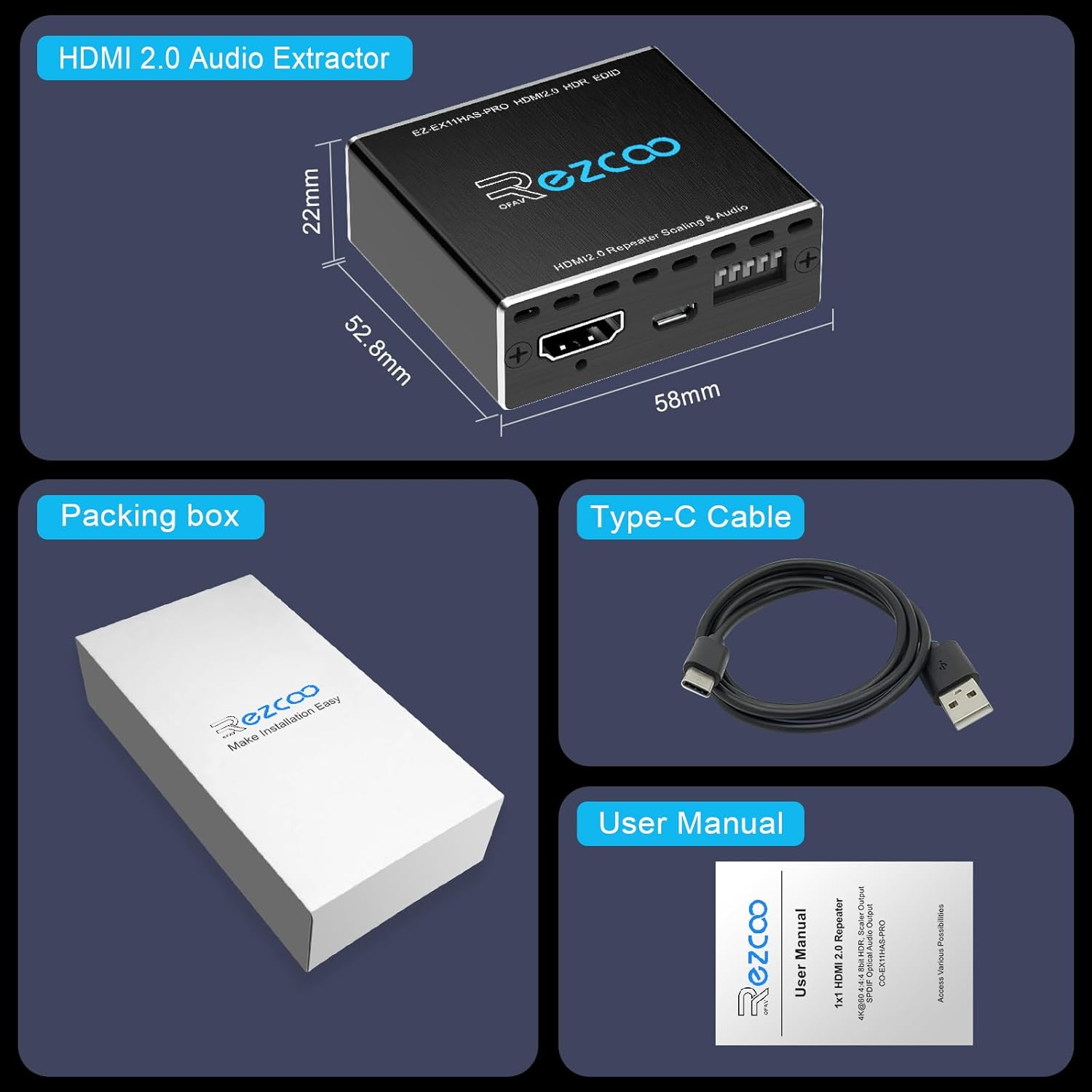
Image: The package contents, including the HDMI audio extractor unit, a Type-C power cable, and the user manual.
4. Product Overview
4.1 Front Panel

Image: Front view of the HDMI audio extractor. It features an HDMI IN port, a POWER/FW (firmware update) port, and a row of five DIP switches labeled 'SETTING' for configuration.
- HDMI IN: Connect your HDMI source device (e.g., PS5, PC, Blu-ray player).
- POWER/FW: USB Type-C port for power supply and firmware updates.
- SETTING (DIP Switches 1-5): Used to configure HDCP, downscaling, and EDID audio modes.
4.2 Rear Panel

Image: Rear view of the HDMI audio extractor. It includes an HDMI OUT port, an OPTICAL (SPDIF) audio output, and a STEREO (3.5mm L/R) audio output.
- HDMI OUT: Connect to your display (TV, monitor, projector).
- OPTICAL (SPDIF): Digital audio output for 5.1CH audio systems.
- STEREO (3.5mm L/R): Analog audio output for 2.1CH stereo systems or headphones.
5. Setup and Installation
Follow these steps to connect your HDMI Audio Extractor:
- Connect your HDMI source device (e.g., PS5, PC, Blu-ray player) to the HDMI IN port on the extractor using a high-quality HDMI 2.0 cable (less than 3 meters recommended for optimal performance).
- Connect your display (TV, monitor, projector) to the HDMI OUT port on the extractor using another high-quality HDMI 2.0 cable.
- For audio output, choose one or both of the following:
- Connect your 5.1CH audio system (e.g., soundbar, AV receiver) to the OPTICAL (SPDIF) port using an optical cable.
- Connect your 2.1CH stereo system or headphones to the STEREO (3.5mm L/R) port using a 3.5mm audio cable.
- Connect the provided USB Type-C power cable to the POWER/FW port on the extractor and then to a 5V USB power adapter (not included) or a USB port on your source device/display.
- Power on all connected devices.
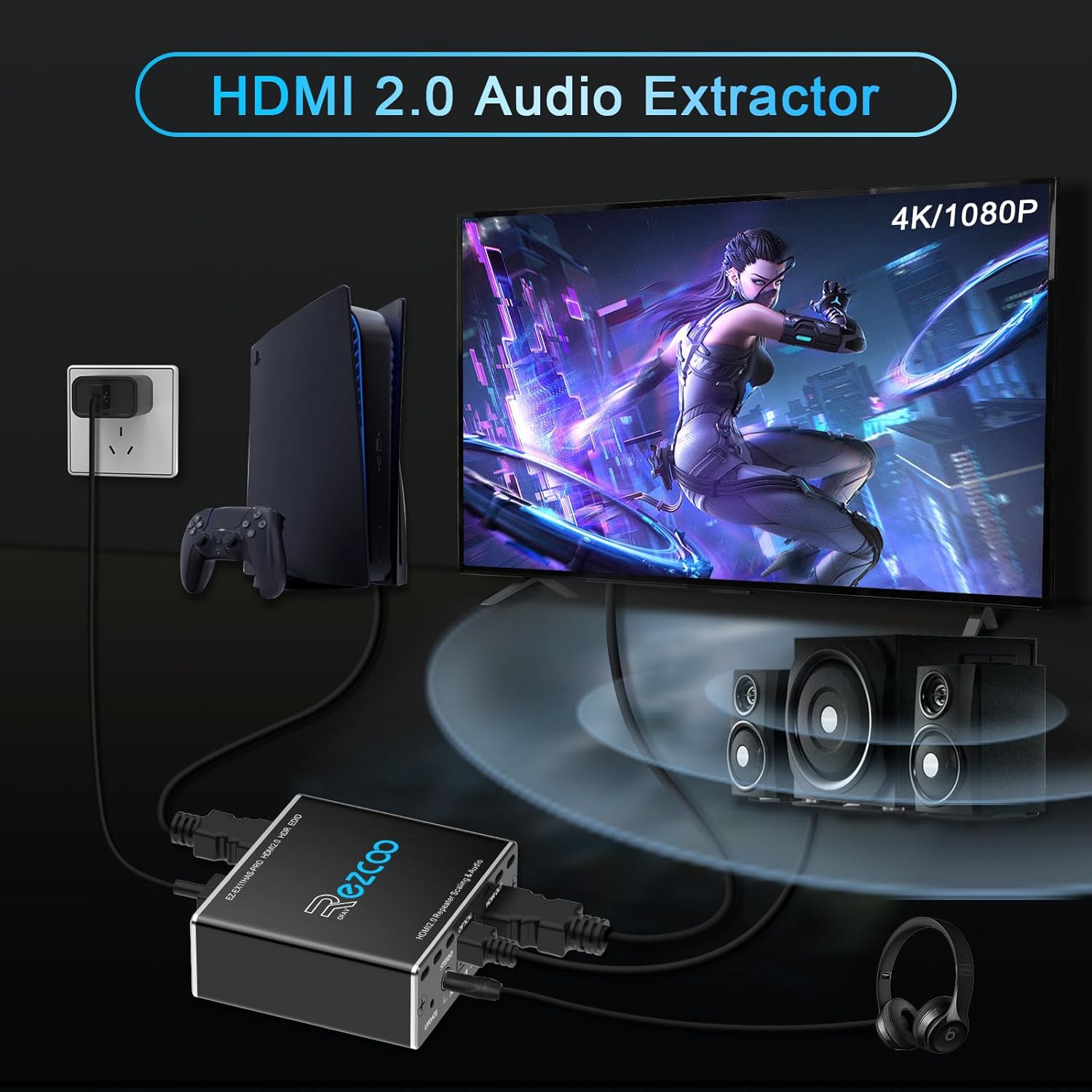
Image: A setup diagram illustrating the connection of a PS5 to the HDMI audio extractor, which then connects to a TV for video and to external speakers and headphones for audio.
Video: This video demonstrates the connection process of the HDMI Audio Extractor, showing how to connect it to a PS5, TV, and various audio output devices like headphones and soundbars. It also highlights the use of DIP switches for different configurations.
6. Operating Instructions (DIP Switch Configuration)
The HDMI Audio Extractor features five DIP switches on the front panel for advanced configuration of HDCP, video downscaling, and EDID audio modes. Ensure the device is powered off before changing DIP switch settings, then power it back on for changes to take effect.

Image: A detailed diagram explaining the functionality of each of the five DIP switches. It shows how switches 1, 2, and 3-5 control HDCP, downscaling, and EDID audio combinations, respectively, with various example settings.
6.1 DIP Switch Functions
- DIP 1 (HDCP): Controls HDCP (High-bandwidth Digital Content Protection).
- ON: HDCP enabled (default).
- OFF: Strips out HDCP. Useful for capturing protected content (note: may prevent display of protected content on some devices).
- DIP 2 (Downscaling): Controls video resolution downscaling.
- ON: Downscales 4K video to 1080p.
- OFF: No downscaling (passthrough original resolution).
- DIP 3, 4, 5 (EDID Audio): These three switches control the EDID (Extended Display Identification Data) settings for audio output. This tells the source device what audio formats the connected display/audio system supports.
6.2 EDID Audio Mode Examples
The EDID settings determine how the source device outputs audio. Adjust these based on your audio system's capabilities.

Image: A diagram showing various EDID audio modes. It illustrates how different DIP switch combinations (EDID Mode 1, 2, 3) affect the audio output, including 2CH stereo, 5.1CH, and copy mode from HDMI OUT.
| DIP 3 | DIP 4 | DIP 5 | Audio Mode | Description |
|---|---|---|---|---|
| OFF | OFF | OFF | Copy Mode | Copies EDID from HDMI OUT. Use if your display supports the desired audio format. |
| ON | OFF | OFF | 2CH Mode | Forces source to output 2-channel stereo audio. SPDIF and 3.5mm output 2.1CH in sync. |
| ON | ON | OFF | 5.1CH Mode | Forces source to output 5.1-channel audio. SPDIF outputs 5.1CH, 3.5mm is off. Connect 5.1CH audio system first. |
| ON | ON | ON | 7.1CH/Atmos Mode | Forces source to output 7.1CH/Atmos audio. Only HDMI OUT streams this audio. Not an audio down-mixer. |
Important Notes:
- For PS5 1080P 120Hz, set DIP 3, 4, 5 to ON.
- If playing 2.1CH audio, SPDIF & 3.5mm audio play in sync.
- If playing 5.1CH audio, SPDIF 5.1CH is on, 3.5mm 2.1CH is off.
- If playing 7.1CH/Atmos, only HDMI OUT will stream the audio. The extractor is not an audio down-mixer.
7. Specifications
| Feature | Specification |
|---|---|
| Product Dimensions | 2.3 x 2 x 0.1 inches |
| Item Model Number | EZ-EX11HAS-PRO |
| Weight | 3.53 ounces |
| Maximum Supply Voltage | 5 Volts (DC) |
| Minimum Supply Voltage | 5 Volts |
| Mounting Type | Wall Mount |
| Number of Pins | 24 |
| Country of Origin | China |
8. Troubleshooting
If you encounter issues with your HDMI Audio Extractor, please refer to the following common problems and solutions:
- No Video Output:
- Ensure all HDMI cables are securely connected and are high-quality HDMI 2.0 cables (less than 3m).
- Verify the power supply is connected and the unit is receiving power.
- Check DIP Switch 1 (HDCP). If your display requires HDCP, ensure DIP 1 is ON. If you are trying to bypass HDCP for capture, ensure your capture device supports the non-HDCP signal.
- Try connecting the HDMI source directly to the display to confirm the source and display are working correctly.
- No Audio Output:
- Ensure your audio cables (optical or 3.5mm) are securely connected to the correct ports on the extractor and your audio system.
- Check the EDID Audio Mode DIP switches (3, 4, 5). Adjust them according to your audio system's capabilities (e.g., 2CH, 5.1CH, 7.1CH).
- Verify your source device's audio output settings match the EDID mode set on the extractor. For example, if you set the extractor to 5.1CH, ensure your source is outputting 5.1CH.
- Remember that HDMI output ATMOS will not work simultaneously with SPDIF 5.1ch or 3.5mm 2.1CH. The device is not an audio down-mixer.
- If using SPDIF for 5.1 sound, ensure your 5.1ch audio system is connected and powered on first.
- Picture Quality Issues (Flickering, No HDR):
- Ensure all HDMI cables are certified HDMI 2.0 and are not excessively long.
- Check DIP Switch 2 (Downscaling). If you intend to pass through 4K, ensure DIP 2 is OFF.
- Verify your display supports the resolution and HDR format being sent by the source.
- CEC Not Working:
- Ensure CEC is enabled on your source device and display.
- Some devices may have limited CEC compatibility.
9. Support
For technical support or further assistance, please contact EZCOOTECH directly through their online message system. Efficient online technical support is available to help with any product-related inquiries.


