
SBS Universal Bluetooth Keyboard (ASIN: B0B7RBBJ42)
SBS Universal Bluetooth Keyboard User Manual
Model: Universal Bluetooth Keyboard (ASIN: B0B7RBBJ42)
Introduction
This manual provides comprehensive instructions for the SBS Universal Bluetooth Keyboard. Please read this manual carefully before using the product to ensure proper operation and to maximize its lifespan. This universal wireless keyboard is designed for compatibility with a wide range of devices, including those running iOS, Android, and Windows operating systems, provided they support a wireless connection.
Product Overview
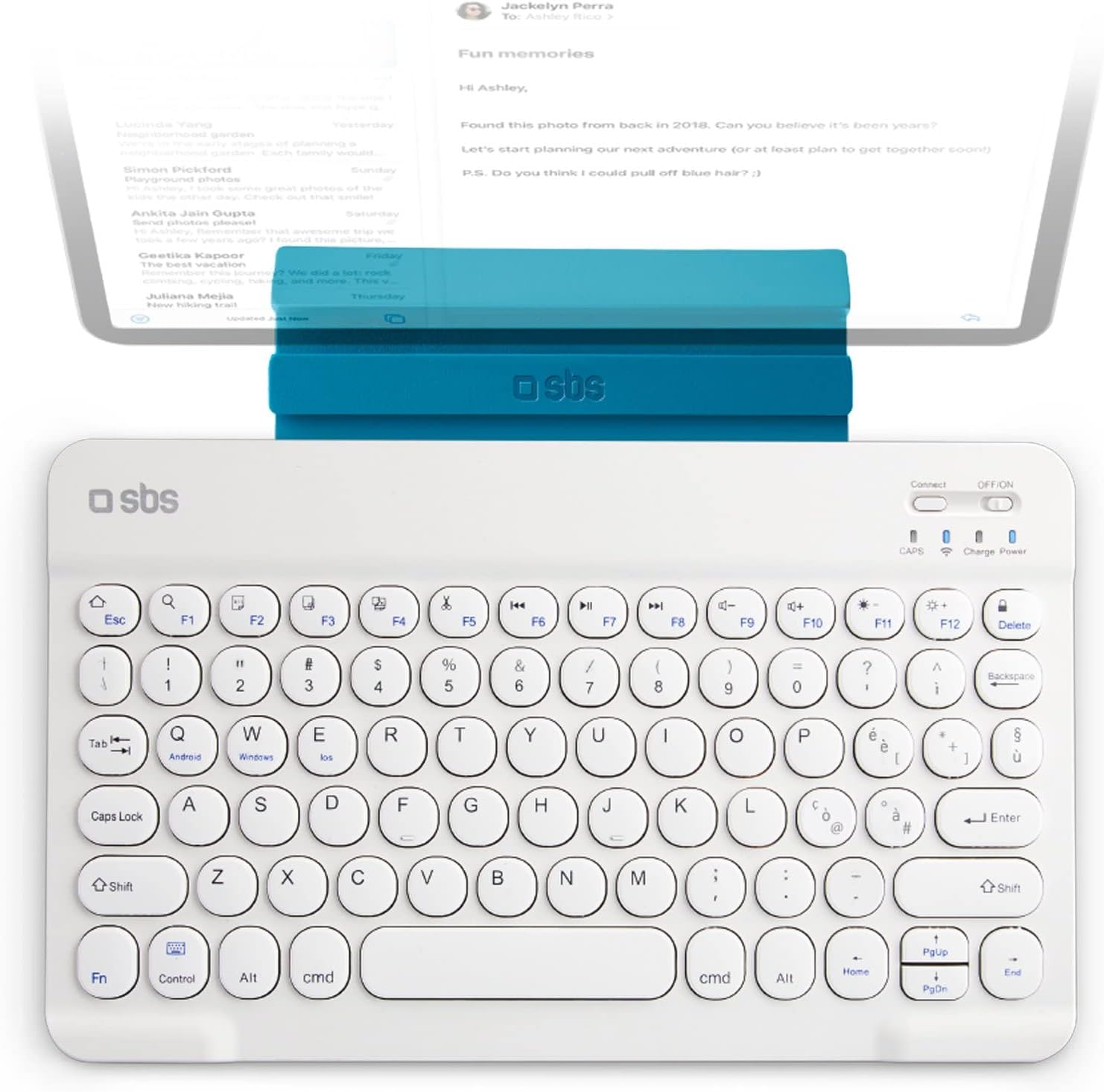
Figure 1: The SBS Universal Bluetooth Keyboard in white, shown with a tablet securely placed in its integrated stand. This image highlights the compact design and the practical stand feature for mobile device use.

Figure 2: An illustration demonstrating the universal compatibility of the keyboard with various devices, including smartphones, tablets, and televisions. This emphasizes its versatility across different platforms.

Figure 3: The retail packaging for the SBS Wireless Keyboard Ultraslim, showcasing the product and its key features. The packaging indicates an IT QWERTY layout and compatibility with Smart TV, PC, Tablet, and Smartphone.
Key Features:
- Universal Compatibility: Works with iOS, Android, and Windows devices that support wireless connectivity.
- Extended Range: Offers a transmission distance of up to 10 meters, providing flexibility in usage.
- Long Battery Life: Features a durable battery for extended use, rechargeable via the included Micro-USB cable.
- Lightweight and Compact: Extremely thin (6mm) and portable, ideal for on-the-go use.
- Integrated Stand: Includes a built-in stand for convenient placement of tablets or smartphones.
Setup
1. Charging the Keyboard
- Locate the Micro-USB charging port on the side of the keyboard.
- Connect the supplied Micro-USB cable to the keyboard and the USB-A end to a power source (e.g., computer USB port, USB wall adapter).
- The charging indicator light will illuminate. Once fully charged, the light may change color or turn off.
- A full charge provides approximately two days of continuous use.
2. Pairing with a Device
- Ensure the keyboard is charged and powered on. The power switch is located on the top right of the keyboard.
- Activate Bluetooth on your device (smartphone, tablet, PC, Smart TV).
- On the keyboard, press the "Connect" button (usually near the power switch) to enter pairing mode. The Bluetooth indicator light will start blinking.
- On your device, search for available Bluetooth devices. The keyboard should appear as "SBS Keyboard" or similar.
- Select the keyboard from the list to pair. Your device may prompt you to enter a code displayed on the screen using the keyboard, then press Enter.
- Once paired, the Bluetooth indicator light on the keyboard will stop blinking and remain solid or turn off, indicating a successful connection.
Operating Instructions
1. Switching Operating Systems
The keyboard supports multiple operating systems. To optimize key functions for your specific OS, use the following key combinations:
- For Android devices: Press Fn + Android key.
- For Windows devices: Press Fn + Win key.
- For iOS (Apple) devices: Press Fn + iOS key.
2. Using Function Keys (F1-F12)
Many keys have dual functions. To access the secondary function (e.g., media controls, volume), press and hold the Fn key, then press the desired function key (F1-F12).
| Key Combination | Function |
|---|---|
| Fn + F1 | Home Screen |
| Fn + F2 | Search |
| Fn + F3 | Select All |
| Fn + F4 | Copy |
| Fn + F5 | Paste |
| Fn + F6 | Cut |
| Fn + F7 | Previous Track |
| Fn + F8 | Play/Pause |
| Fn + F9 | Next Track |
| Fn + F10 | Mute Volume |
| Fn + F11 | Volume Down |
| Fn + F12 | Volume Up |
3. Using the Integrated Stand
The keyboard features an integrated stand designed to hold your smartphone or tablet at an optimal viewing angle. Simply pull up the stand from the top edge of the keyboard and place your device into the groove.
Maintenance
- Cleaning: Use a soft, dry, lint-free cloth to clean the keyboard surface. For stubborn dirt, slightly dampen the cloth with water or a mild, non-abrasive cleaner. Avoid excessive moisture.
- Storage: When not in use for extended periods, store the keyboard in a cool, dry place away from direct sunlight and extreme temperatures.
- Battery Care: To prolong battery life, avoid fully discharging the battery frequently. Recharge it when the low battery indicator appears. If storing for a long time, charge it to about 50% every few months.
- Avoid Liquids: Do not expose the keyboard to liquids. In case of accidental spills, immediately power off the keyboard and allow it to dry completely before attempting to use it again.
- Handle with Care: Avoid dropping the keyboard or subjecting it to strong impacts, as this can damage internal components.
Troubleshooting
| Problem | Possible Cause | Solution |
|---|---|---|
| Keyboard does not turn on. | Battery is depleted. | Charge the keyboard using the provided USB cable. |
| Cannot pair with device. | Bluetooth is off on device; keyboard not in pairing mode; device too far. | Ensure Bluetooth is enabled on your device. Press the "Connect" button on the keyboard. Move the keyboard closer to the device (within 10 meters). |
| Keyboard disconnects frequently. | Low battery; interference; device out of range. | Recharge the keyboard. Move away from other wireless devices. Ensure device is within 10 meters. |
| Keys are not responding or typing incorrectly. | Incorrect operating system mode selected; software glitch. | Ensure you have selected the correct OS mode (Fn + Android/Win/iOS). Try unpairing and re-pairing the keyboard. Restart your device. |
| Some function keys do not work. | Not pressing Fn key; OS specific function. | Ensure you are holding the Fn key when pressing function keys. Some functions may not be supported by all operating systems or applications. |
Specifications
| Feature | Detail |
|---|---|
| Brand | SBS |
| Model | Universal Bluetooth Keyboard (ASIN: B0B7RBBJ42) |
| Color | White |
| Connectivity Technology | Bluetooth, USB (for charging) |
| Special Features | Portable, Integrated Stand, Lightweight |
| Compatible Devices | Laptop, Smartphone, Tablet, Smart TV (iOS, Android, Windows) |
| Keyboard Description | Wireless |
| Number of Keys | 78 |
| Included Components | Wireless Keyboard, Stand Holder, Micro-USB to USB-A Charging Cable |
| Power Source | Battery Powered |
| Switch Type | Tactile |
| Transmission Range | Up to 10 meters |
| Thickness | 6 mm |
Warranty and Support
Specific warranty details for the SBS Universal Bluetooth Keyboard are not provided within this manual. For information regarding warranty coverage, terms, and conditions, please refer to the product packaging or visit the official SBS website. For technical support, troubleshooting assistance beyond this manual, or to inquire about replacement parts, please contact SBS customer service through their official channels.
You can typically find contact information for SBS customer support on their official website or on the product's retail packaging.
Ask a question about this manual
Ask about setup, troubleshooting, compatibility, parts, safety, or missing instructions. Manuals+ will review the question and use this page’s manual context to help answer it.