
Introduction
This manual provides comprehensive instructions for the operation and maintenance of your AbergBest Mini Digital Camera. Designed for ease of use, this compact camera is ideal for capturing everyday moments with its 21-megapixel sensor and HD 720P video recording capabilities. Please read this manual thoroughly to ensure proper usage and to maximize your camera's potential.
What's in the Box
Upon unboxing your AbergBest Mini Digital Camera, please verify that all the following components are included:
- AbergBest Mini Digital Camera (Model: New2022ABDC5100)
- 2 x Lithium Batteries
- Charging Brick (USB Wall Adapter)
- USB Cable (for charging and data transfer)
- Wrist Strap
- Driver Disk (CD)
- User Manual
- Carrying Satchel

Image: All components included in the AbergBest Mini Digital Camera package.
Setup
1. Battery Installation
The camera comes with two rechargeable lithium batteries. To install a battery:
- Locate the battery compartment door on the bottom of the camera.
- Slide the latch to open the compartment.
- Insert the battery, ensuring the contacts align correctly.
- Close the battery compartment door securely until it clicks.

Image: Visual guide for inserting the battery into the camera.
2. SD Card Installation (Not Included)
An SD memory card is required to store photos and videos. The camera supports up to a 64GB SD memory card. For optimal performance, use a certified brand SD card with a Class 4 speed or above.
- Locate the SD card slot, typically near the battery compartment or on the side of the camera.
- Insert the SD card with the metal contacts facing down until it clicks into place.
- To remove, gently push the card in until it springs out.

Image: Recommended SD card types and capacity for the camera.
3. Charging the Camera
Use the provided USB cable and charging brick to charge the camera. A fully charged battery can support the camera for over 60 minutes of use.
- Connect the small end of the USB cable to the camera's USB port.
- Connect the large end of the USB cable to the charging brick.
- Plug the charging brick into a wall outlet.
- The charging indicator light will illuminate during charging and turn off when complete.
Operating Instructions
1. Powering On/Off
Press and hold the Power button (usually located on the top or side of the camera) to turn the camera on or off.
2. Using the LCD Screen
The camera features a 2.7-inch TFT LCD screen for framing shots, reviewing photos, and navigating menus.
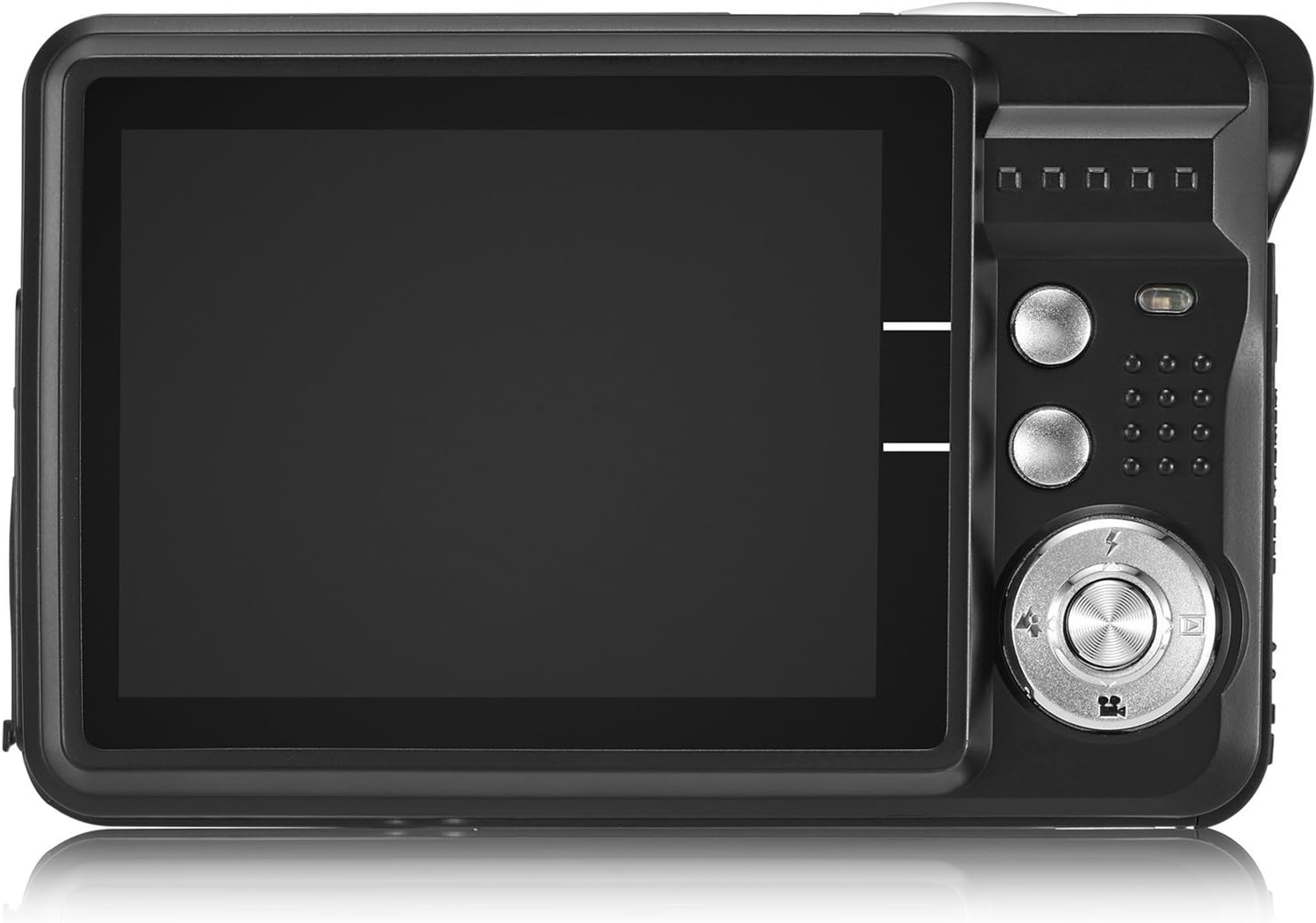
Image: The camera's 2.7-inch LCD screen and rear controls.
3. Taking Photos
To capture a still image:
- Frame your subject using the LCD screen.
- Press the Shutter button halfway down to focus.
- Press the Shutter button fully to take the picture.
The camera captures images at 21 megapixels in JPEG format.
4. Recording Videos
To record a video:
- Switch the camera to video mode (refer to the on-screen icons or user manual for specific button).
- Press the Shutter button to start recording.
- Press the Shutter button again to stop recording.
Videos are recorded in HD 720P resolution in AVI format.

Image: The camera displaying video recording functionality.
5. Zoom Function
The camera features 8X digital zoom. Use the zoom buttons (often labeled with a magnifying glass icon or 'W' for Wide and 'T' for Telephoto) to adjust the zoom level.

Image: Demonstrating the camera's 8X digital zoom capability.
6. Scene Modes and Settings
Access the camera's menu to select various scene modes and adjust settings for different shooting conditions. Available modes include:
- Night Portrait: For clear portraits in low light.
- Night Scenery: Optimizes for landscapes at night.
- Sport: Reduces blur for fast-moving subjects.
- Scenery: Enhances outdoor landscape shots.
- Party: Ideal for indoor events with mixed lighting.
- Beach: Adjusts for bright, reflective environments.
- High Sensitivity: Improves performance in very low light.
Other adjustable settings include ISO (Auto, 100, 200, 400), Anti-Shake for stable images, and Flash options (Auto, On, Off, Red-eye Reduction). The camera also features Face Detection, Smile Capture, and a 2-second Self-Timer.

Image: The camera's 2.7-inch screen highlighting the face detection feature.

Image: Illustrating the effect of the built-in flash in low-light conditions.
Connecting to a Computer
To transfer photos and videos to your computer:
- Ensure the camera is powered off.
- Connect the camera to your computer using the provided USB cable.
- Turn on the camera. It should appear as a removable disk drive on your computer.
- Alternatively, you can remove the SD card and insert it into a compatible card reader connected to your computer.
The camera is compatible with Windows XP/VISTA/7/8/10 and Mac operating systems. A driver disk is included for older systems or specific software needs, though most modern operating systems will recognize the camera automatically.

Image: Connecting the camera to a personal computer for data transfer.
Maintenance
Proper care will extend the life of your camera:
- Cleaning: Use a soft, lint-free cloth to clean the camera body and screen. For the lens, use a specialized lens cleaning cloth and solution. Avoid harsh chemicals.
- Storage: Store the camera in a cool, dry place away from direct sunlight and extreme temperatures. Remove the battery if storing for extended periods.
- Battery Care: Fully charge batteries before first use. Avoid overcharging or completely draining the battery frequently to prolong its lifespan.
Troubleshooting
If you encounter issues with your camera, try the following common troubleshooting steps:
- Camera not turning on: Ensure the battery is correctly installed and fully charged. Try using the second provided battery.
- Poor image quality: Check lighting conditions. Ensure the lens is clean. Adjust scene modes or ISO settings as needed.
- Memory card error: Ensure the SD card is properly inserted and not full. Try formatting the card (this will erase all data, so back up first). Use a compatible SD card (Class 4 or above, up to 64GB).
- Camera freezes: Remove and reinsert the battery to reset the camera.
If problems persist, please refer to the detailed user manual or contact customer support.
Specifications
| Feature | Detail |
|---|---|
| Brand | AbergBest |
| Model Name | ABCAM218UPDATED |
| Model Number | New2022ABDC5100 |
| Maximum Webcam Image Resolution | 21 MP |
| Photo Sensor Technology | CMOS |
| Video Resolution | 720p |
| Supported File Format | AVI (Video), JPEG (Photo) |
| Image Stabilization | Digital |
| Screen Size | 2.7 inch TFT LCD |
| Digital Zoom | 8x |
| Flash Memory Type | SD (up to 64GB, Class 4+) |
| Battery Type | Lithium Polymer (2 included) |
| Connectivity Technology | USB |
| Compatible Devices | Windows XP/VISTA/7/8/10/MAC |
| Special Feature | Face Detection, Smile Capture, Anti-Shake, Self-Timer |
| Item Weight | 309 Grams |
| Item Dimensions (D x W x H) | 3.74"D x 2.4"W x 0.94"H |
Warranty and Support
Your AbergBest Mini Digital Camera comes with a 1-year manufacturer warranty. For warranty claims, technical support, or any questions regarding your product, please refer to the contact information provided in the included user manual or visit the official AbergBest website.
Please retain your proof of purchase for warranty purposes.