1. Introduction
Thank you for choosing the Seenda Wireless Backlit Keyboard, Model JP300W. This keyboard is specifically designed for Mac OS systems, offering a full-size layout with 110 scissor-flex keys, including a numeric keypad and 20 Mac OS-specific shortcuts. It features a 2.4GHz wireless connection, adjustable backlighting, and a rechargeable battery. This manual provides detailed instructions for setup, operation, maintenance, and troubleshooting to ensure optimal performance.
2. Package Contents
Please verify that all items are present in your package:
- Seenda Wireless Backlit Keyboard (JP300W)
- USB-A Receiver
- Type-C Adapter
- USB-A to USB-C Charging Cable
- User Manual (this document)
3. Product Overview
The Seenda JP300W keyboard features a comprehensive layout designed for efficiency and comfort.

Figure 3.1: Full layout of the Seenda Wireless Backlit Keyboard, showing all keys including the numeric keypad and function row.
Key features include:
- Full-Size Layout: 110 keys with a dedicated numeric keypad.
- Mac OS Specific Keys: Includes 20 shortcuts for common Mac functions.
- Scissor Switches: Provides a responsive and comfortable typing experience.
- Adjustable Backlight: Three levels of white backlighting for various environments.
- Dual Connectivity Adapters: USB-A receiver and a Type-C adapter for broad compatibility.
- Rechargeable Battery: Built-in 1300mAh Lithium battery.

Figure 3.2: Keyboard dimensions: 17 inches (length), 4.8 inches (width), 0.8 inches (height at thickest point), 0.3 inches (height at thinnest point).
4. Setup Instructions
4.1. Initial Charging
Before first use, it is recommended to fully charge the keyboard. Connect the provided USB-A to USB-C charging cable to the keyboard's USB-C port and the other end to a USB-A power source (e.g., computer USB port, USB wall adapter). The charging indicator light will show the charging status.
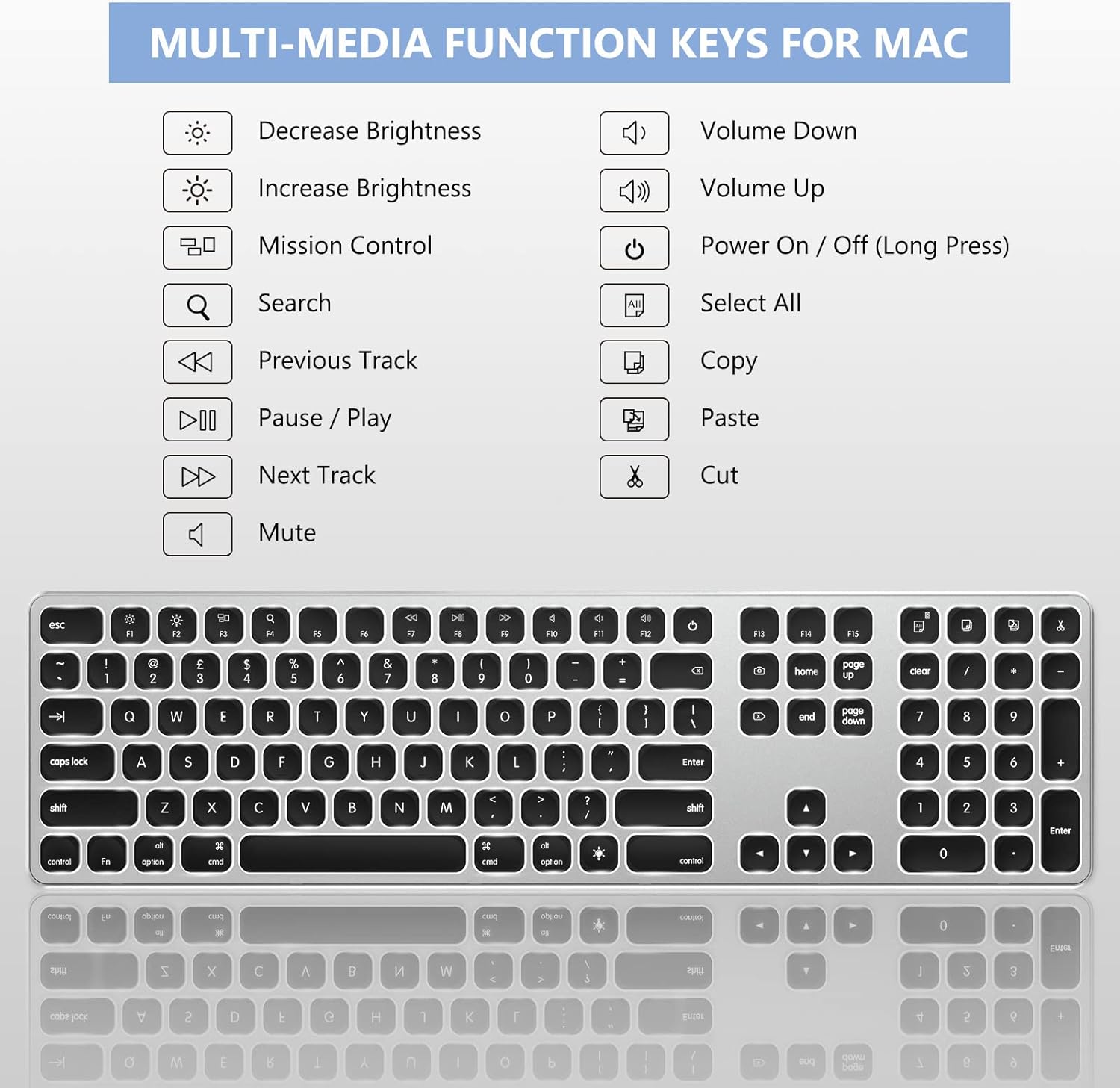
Figure 4.1: The keyboard features a USB-C charging port and a 1300mAh built-in battery.
4.2. Connecting the Keyboard
The keyboard connects wirelessly via a 2.4GHz USB receiver. It includes both a standard USB-A receiver and a Type-C adapter for wider compatibility with Apple devices.
- Locate the USB-A receiver and the Type-C adapter in the package.
- For devices with a USB-A port: Plug the USB-A receiver directly into an available USB-A port on your Mac device.
- For devices with a USB-C port (e.g., newer MacBooks): Attach the Type-C adapter to the USB-A receiver, then plug the combined unit into an available USB-C port on your Mac device.
- Turn on the keyboard using the ON/OFF switch, usually located on the top edge of the keyboard.
- Your Mac device should automatically detect and connect to the keyboard. No additional drivers are typically required.

Figure 4.2: The 2.4GHz USB-A receiver and Type-C adapter facilitate stable wireless connection to various Apple devices.
5. Operating Instructions
5.1. Power On/Off
Locate the ON/OFF switch on the keyboard. Slide it to the 'ON' position to power on the keyboard. Slide it to 'OFF' to conserve battery when not in use.
5.2. Backlight Control
The keyboard features an adjustable white backlight. To control the backlight:
- Press the dedicated light button (often marked with a light bulb icon) to cycle through backlight levels: Low, Medium, High, and Off.
- Adjust the brightness according to your preference and ambient lighting conditions.

Figure 5.1: The keyboard offers three adjustable backlight levels (Low, Medium, High) and an off setting.
5.3. Mac OS Specific Shortcuts and Multimedia Keys
The keyboard includes a row of function keys (F1-F12) that double as Mac OS specific shortcuts and multimedia controls. These keys allow quick access to functions such as brightness adjustment, Mission Control, media playback, volume control, and more.

Figure 5.2: Overview of the multimedia and function keys, including Decrease Brightness, Increase Brightness, Mission Control, Search, Previous Track, Pause/Play, Next Track, Mute, Volume Down, Volume Up, Power On/Off (long press), Select All, Copy, and Cut.
Common shortcuts include:
- F1/F2: Decrease/Increase Brightness
- F3: Mission Control
- F4: Search
- F7/F8/F9: Previous Track/Play-Pause/Next Track
- F10/F11/F12: Mute/Volume Down/Volume Up
- Power Button (F13): Long press to power on/off.
- Select All (F14), Copy (F15), Cut (F16): Dedicated keys for these common actions.
5.4. Numeric Keypad Usage
The dedicated numeric keypad functions as expected for number entry. If you experience issues with the numeric keypad not responding or behaving unexpectedly (e.g., controlling the mouse cursor), refer to the Troubleshooting section (Section 7.2).
6. Charging and Battery Information
The Seenda JP300W keyboard is equipped with a built-in 1300mAh Lithium battery, providing extended usage times.
- Battery Capacity: 1300mAh.
- Charging: Use the provided USB-A to USB-C cable to charge the keyboard. Connect the USB-C end to the keyboard and the USB-A end to a power source.
- Battery Life: Up to 800 hours on a single charge without backlight. Approximately 18 hours of continuous use with the backlight on.
- Automatic Sleep Mode: To conserve power, the keyboard will automatically enter sleep mode after 30 minutes of inactivity. Press any key to wake it up.
- Power Indicator: A low battery indicator light will notify you when charging is required.
7. Troubleshooting
7.1. Keyboard Not Responding or Disconnecting
- Check Power: Ensure the keyboard is turned ON and has sufficient battery charge. Recharge if necessary.
- Check Connection: Verify that the USB receiver (with or without Type-C adapter) is securely plugged into your Mac's USB port. Try a different USB port if available.
- Power Cycle: Turn the keyboard OFF, wait a few seconds, then turn it back ON.
- Interference: Move the keyboard closer to the USB receiver and away from other wireless devices that might cause interference.
7.2. Numeric Keypad Not Working or Controlling Mouse
If your numeric keypad is not functioning correctly or is controlling the mouse cursor, it is likely due to the "Mouse Keys" accessibility feature being enabled in macOS. To resolve this:
- Go to System Settings (or System Preferences on older macOS versions) on your Mac.
- Navigate to Accessibility.
- In the sidebar, select Pointer Control (or Mouse & Trackpad).
- Locate the option for Enable Mouse Keys and ensure it is unchecked.
- Close System Settings. Your numeric keypad should now function normally.
8. Specifications
| Feature | Detail |
|---|---|
| Model Number | JP300W |
| Brand | Seenda |
| Connectivity Technology | 2.4GHz Wireless (USB-A, USB-C) |
| Compatible Devices | iMac, MacBook, iPad, iPhone (Mac OS + iOS) |
| Keyboard Layout | Full-Size, 110 Scissor Flex Keys, Mac OS Layout |
| Backlight | White, 3 Adjustable Levels |
| Battery Type | Built-in Lithium Battery |
| Battery Capacity | 1300mAh |
| Charging Port | USB-C |
| Battery Life (No Backlight) | Up to 800 hours |
| Battery Life (With Backlight) | Approx. 18 hours (continuous use) |
| Automatic Sleep Mode | After 30 minutes of inactivity |
| Dimensions | 44.6 x 13.59 x 3.3 cm (approx. 17 x 4.8 x 0.8 inches) |
| Item Weight | 630 g |
| Material | Plastic, Aluminum |
9. Maintenance
To ensure the longevity and optimal performance of your keyboard, follow these maintenance guidelines:
- Cleaning: Use a soft, dry, lint-free cloth to wipe the keyboard surface. For stubborn dirt, slightly dampen the cloth with water or a mild, non-abrasive cleaner. Avoid excessive moisture.
- Avoid Liquids: Do not expose the keyboard to liquids. Spills can cause damage to internal components.
- Storage: When not in use for extended periods, store the keyboard in a cool, dry place.
- Handle with Care: Avoid dropping the keyboard or subjecting it to strong impacts.
10. Warranty and Support
This Seenda product is covered by a 12-month warranty from the date of purchase. This warranty covers manufacturing defects and workmanship under normal use.
For technical support, warranty claims, or any questions regarding your Seenda Wireless Backlit Keyboard, please contact Seenda customer service. Refer to the product packaging or the official Seenda website for the most current contact information.


