
1. Introduction
The CZUR Shine 1300 A3 Pro is a versatile book scanner designed for efficient digitization of documents, books, and 3D objects. It features advanced technologies such as Optical Character Recognition (OCR), automatic page flattening, and deskewing. This manual provides detailed instructions for setting up, operating, maintaining, and troubleshooting your scanner to ensure optimal performance.

Image 1.1: The CZUR Shine 1300 A3 Pro Book Scanner set up with a book on its scanning mat.

Image 1.2: Overview of scanner features including 13 Megapixel camera, 1 second per page scan speed, curve flatten technology, and 180+ language OCR.
2. Setup
2.1 Unpacking and Components
Carefully unpack all components from the box. Ensure the following items are present:
- CZUR Shine 1300 A3 Pro Scanner Unit
- Black Scanning Mat
- USB Cable
- Foot Pedal
- Power Adapter (if applicable)
- Software Installation Guide
2.2 Physical Setup
- Place the scanner on a stable, flat surface.
- Unfold the scanner arm to its upright position. The scanner is 90-degree foldable for portability.
- Position the black scanning mat directly beneath the scanner arm, aligning it with the scanner's base. The mat has markings for A3 and A4 document sizes.
- Connect the USB cable from the scanner to your computer.
- Connect the foot pedal to the designated port on the scanner (if using).
- Connect the power adapter to the scanner and a power outlet.

Image 2.1: The scanner's adjustable height and foldable design for A3 and A4 scanning areas.

Image 2.2: The scanner in its folded position, highlighting its portability.
2.3 Software Installation
The CZUR Shine 1300 A3 Pro is compatible with Windows XP, 7, 8, 10, and macOS 10.11 or later (macOS 10.13 or later recommended).
- Insert the provided software CD or download the latest software from the official CZUR website.
- Follow the on-screen instructions to install the CZUR scanning software.
- Restart your computer after installation if prompted.

Image 2.3: The scanner's compatibility with various operating systems and video conferencing platforms for diverse applications.
3. Operating Instructions
3.1 Basic Scanning Procedure
- Launch the CZUR scanning software on your computer.
- Place the document or book you wish to scan on the black scanning mat, ensuring it is within the marked A3 or A4 boundaries.
- Adjust the scanner's height if necessary to ensure the entire document is visible in the software's preview window. The scanner has a 2-level height adjustable neck.
- Use the control knob on the base to adjust brightness or other settings as needed.
- Click the 'Scan' button in the software or press the foot pedal to initiate scanning. The scanner captures images at an ultra-fast speed, less than 1 second per page.
- Review the scanned image in the software.
- Save the scanned document in your desired format (JPG, PDF, Searchable PDF, Word, Excel, TIFF).
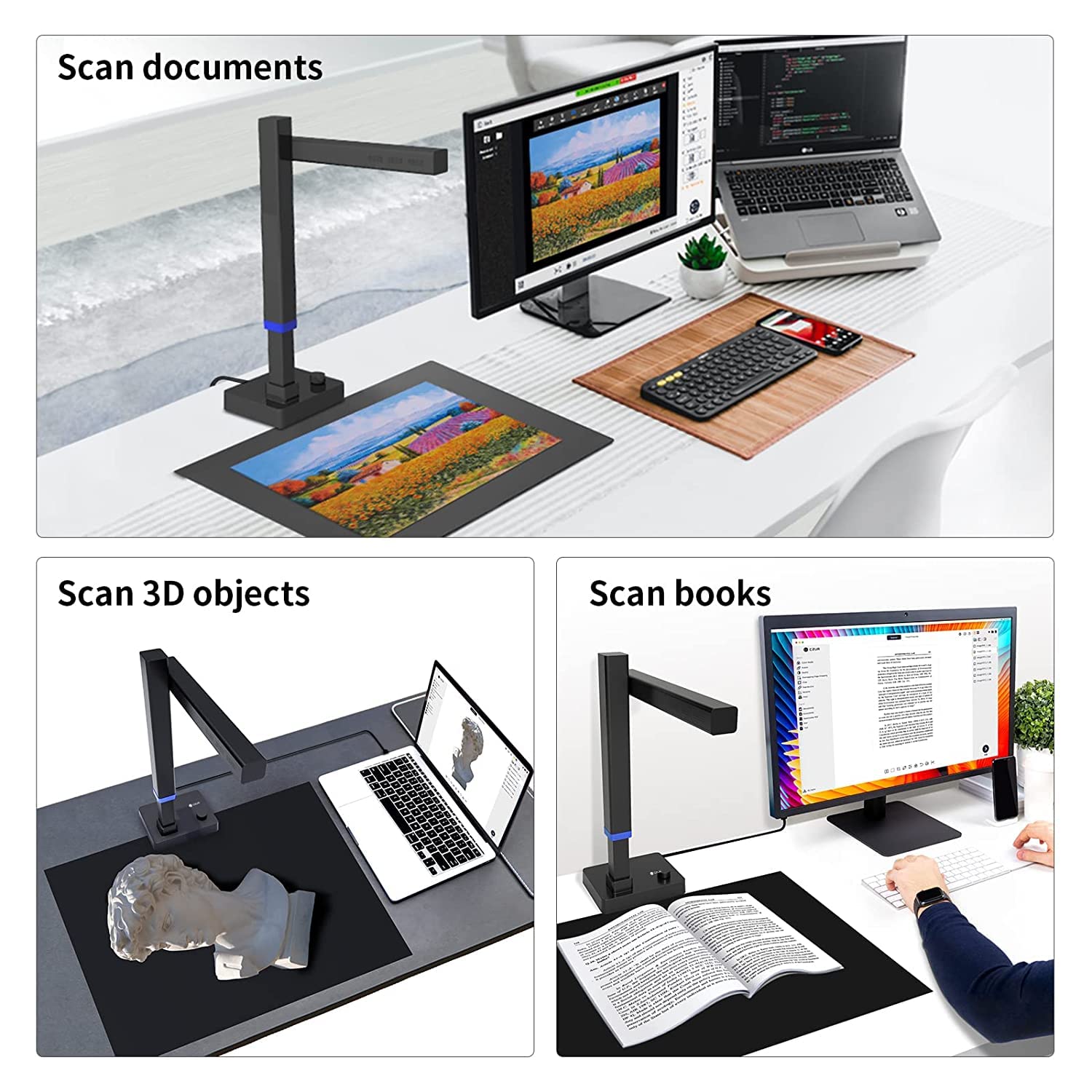
Image 3.1: The scanner's versatility in scanning various items including documents, books, and three-dimensional objects.

Image 3.2: The control knob on the scanner base, used for adjustments.
3.2 Advanced Scanning Features
- Patented Flattening Curved Book Page Technology: For scanning books, the software automatically flattens the 3D curved surface of open pages, correcting distortion and removing finger images.
- Optical Character Recognition (OCR): The scanner's software, powered by ABBYY, can recognize text in over 180 languages and convert scanned images into editable formats like Word, Excel, and Searchable PDF.
- Smart Paging and Auto Cropping: The software intelligently detects page boundaries and crops images automatically.
- Combine Sides: This feature allows combining scans of two facing pages into a single, continuous document.
- Stamp Mode and Multiple Color Modes: Utilize various processing modes for different document types and desired output.

Image 3.3: Explanation of the patented Curve Flatten Technology, which corrects curved book pages.

Image 3.4: The software interface, demonstrating its capabilities for scanning various document types and converting them.
3.3 Document Camera Function
The CZUR Shine 1300 A3 Pro can also function as a document camera for remote teaching, learning, and online meetings. It is compatible with platforms like ZOOM, Google Meet, and Skype.
- Ensure the scanner is connected to your computer and the software is running.
- In your video conferencing software, select the CZUR scanner as your camera input.
- Place documents or objects under the scanner to display them live during your session.
4. Maintenance
- Cleaning: Use a soft, dry cloth to clean the scanner's exterior. For the camera lens and LED lights, use a lens cleaning cloth and solution. Avoid abrasive cleaners or solvents.
- Storage: When not in use, fold the scanner arm down for compact storage. Store in a dry, dust-free environment.
- Software Updates: Regularly check the official CZUR website for software updates to ensure optimal performance and access to new features.
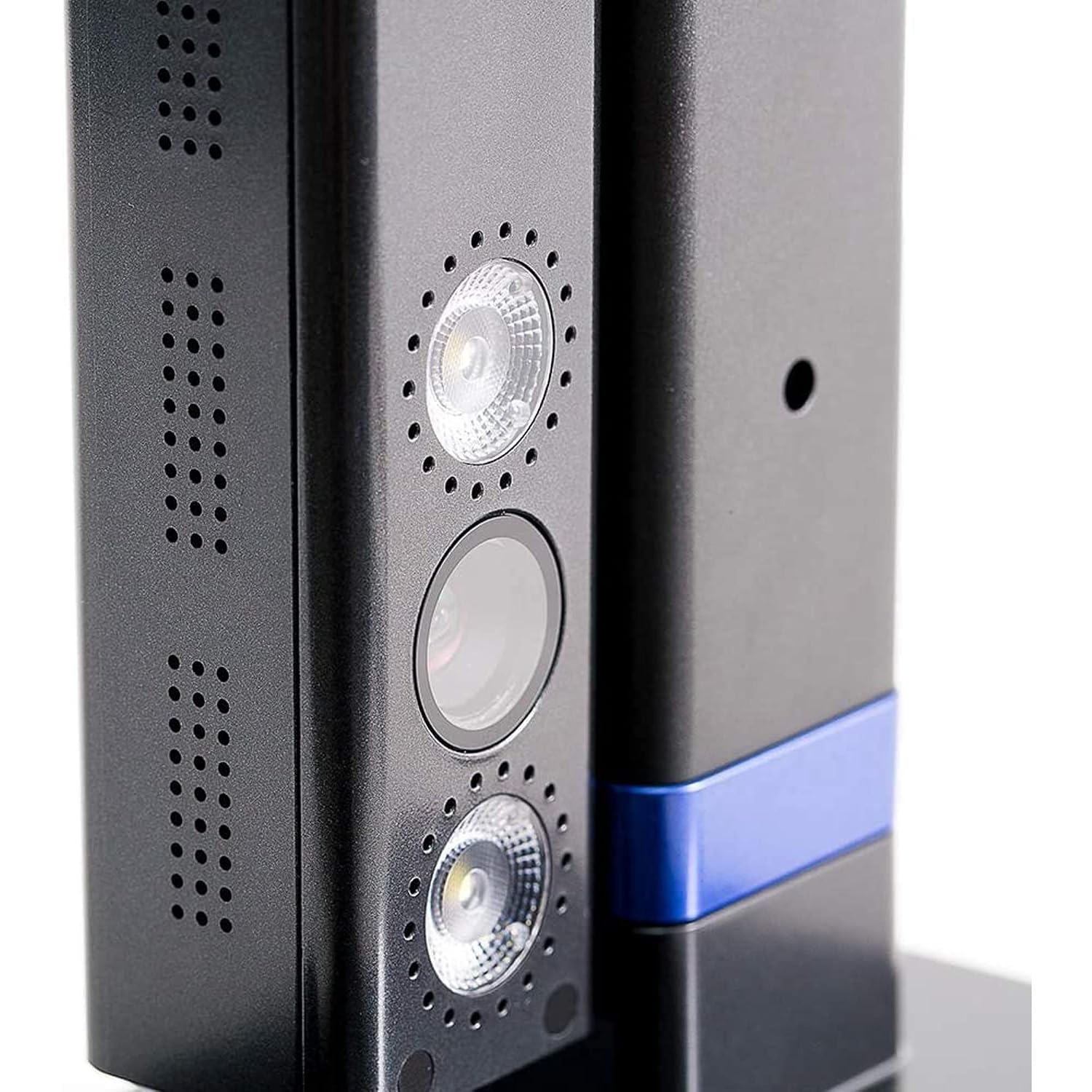
Image 4.1: Close-up of the scanner's camera and integrated LED lights, which should be kept clean for clear scans.
5. Troubleshooting
5.1 Common Issues and Solutions
| Problem | Possible Cause | Solution |
|---|---|---|
| Scanner not detected by computer | Loose USB connection, driver issue, power issue | Check USB cable connection. Reinstall scanner drivers. Ensure power adapter is connected and scanner is powered on. Try a different USB port. |
| Scanned images are blurry or unclear | Dirty lens, insufficient lighting, incorrect focus, document not flat | Clean the camera lens. Ensure adequate lighting (use built-in LEDs). Adjust scanner height. Ensure documents are flat on the mat. |
| OCR not working or inaccurate | Software settings, language pack missing, poor scan quality | Verify OCR language settings in the software. Ensure the scanned text is clear and legible. Update software to the latest version. |
| Scanner not powering on | Power adapter issue, power outlet issue | Check power adapter connection. Try a different power outlet. |
6. Specifications
| Feature | Detail |
|---|---|
| Model | Shine 1300 A3 Pro |
| Scanner Type | Book Scanner |
| Sensor | CMOS 13 Megapixel (4160*3120) |
| Resolution | A4≈340 DPI, A3≈245 DPI |
| Max Scan Size | A3 (16.5 x 11.69 inches) |
| Scan Speed | Less than 1 second per page |
| Light Source | LED |
| Connectivity | USB |
| Operating System | Windows XP/7/8/10, macOS 10.11+ (10.13+ recommended) |
| Weight | Approximately 4 lbs |
| Features | OCR, Auto-Flatten, Deskew, Auto Cropping, Smart Paging, Document Camera Function |


Image 6.1: Visual representation of key specifications: A3 maximum scanning size and 1 second per page scan speed.
7. Warranty Information
The CZUR Shine 1300 A3 Pro Book Scanner comes with a 1-year warranty from the date of purchase. This warranty covers manufacturing defects and malfunctions under normal use. Please retain your proof of purchase for warranty claims. For detailed warranty terms and conditions, refer to the warranty card included with your product or visit the official CZUR website.
8. Support
For technical assistance, software downloads, or further inquiries, please visit the official CZUR support website. You may also contact CZUR customer service through the contact information provided on their website or in your product packaging.


