
1. Product Overview
The Alacrity 2D Bluetooth Wireless Barcode Scanner is a versatile and portable device designed for efficient barcode scanning. It features a retractable back clip for easy attachment to smartphones, offering multiple connectivity options including Bluetooth, 2.4G wireless, and USB wired. This scanner is capable of decoding a wide range of 1D, 2D, and QR codes from both printed materials and digital screens.

Image: The Alacrity 2D Back Clip Bluetooth Barcode Scanner in use, attached to a smartphone and scanning a barcode.
2. Setup
2.1 Charging the Scanner
Before first use, fully charge the scanner. Connect the scanner to a power source using the provided USB cable. A full charge takes approximately 4 hours. The charging indicator light will provide status updates.

Image: Battery specifications including 3000 mAh capacity, 4 hours charging time, 720 hours standby time, and 48 hours scanning time.
2.2 Attaching to a Smartphone
The scanner features a retractable back clip designed to securely attach to smartphones. Adjust the clip to fit phones with lengths between 147mm (5.8 inches) and 181mm (7.1 inches). The protective flannel inside the clip helps prevent scratches to your phone.
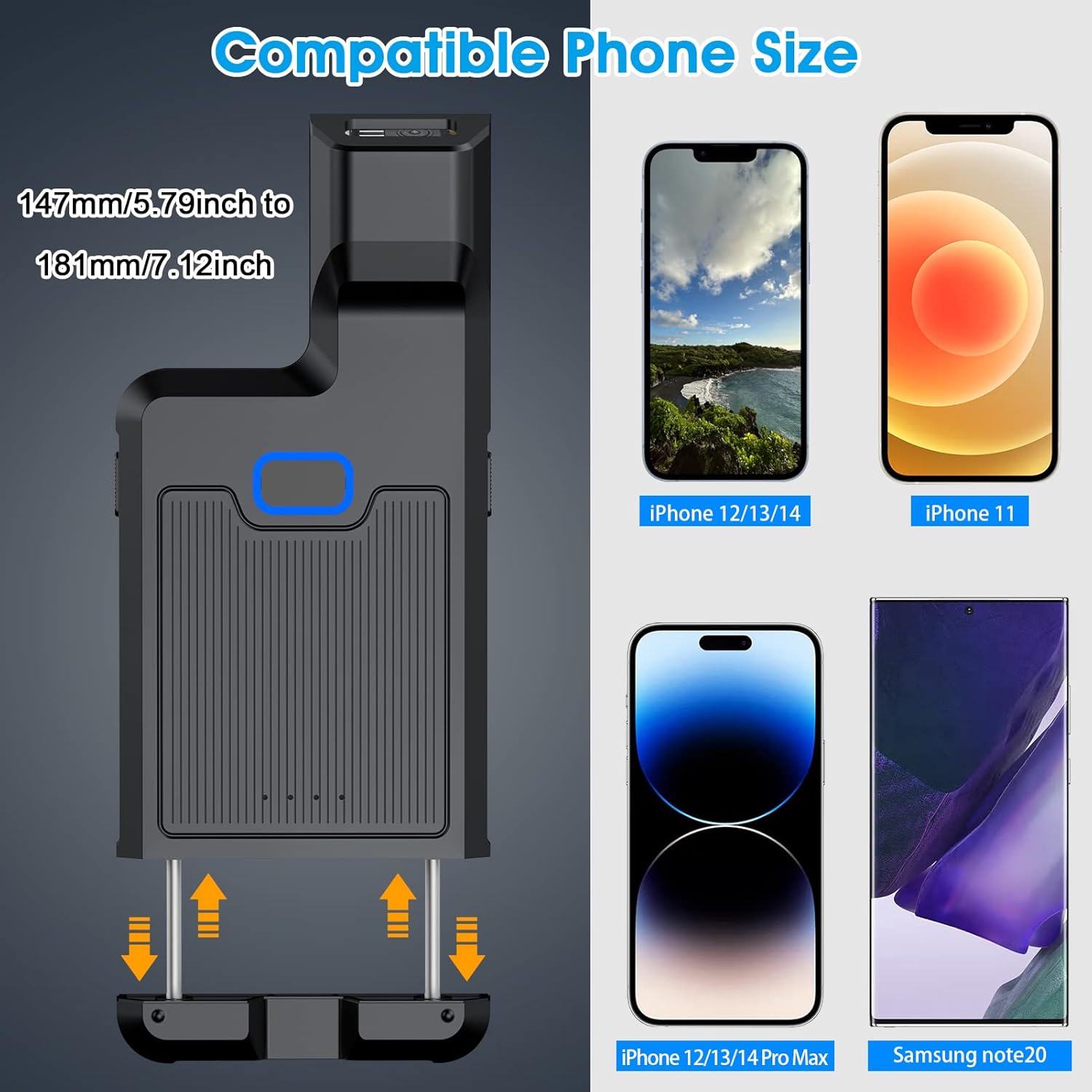
Image: Illustration of the scanner's adjustable clip and compatible phone sizes.
2.3 Connection Modes
The Alacrity barcode scanner supports three connection methods: Bluetooth, 2.4G Wireless, and USB Wired.

Image: Overview of the 3-in-1 connection options: Bluetooth, 2.4G Wireless, and USB Cable.
2.3.1 Bluetooth Pairing
- Press the middle button on the scanner. The Bluetooth signal light will flash once the scanner is turned on.
- On your device (smartphone, tablet, or computer), open Bluetooth settings and search for 'Fsc-barcodescanner'.
- Click on 'Fsc-barcodescanner' to initiate the pairing process.
- Once you hear a beep, the connection is successful, and the blue indicator light on the scanner will remain solid.

Image: Step-by-step guide for Bluetooth pairing the scanner with a smartphone.
2.3.2 2.4G Wireless Connection
For devices without Bluetooth or for a dedicated wireless connection, plug the 2.4G USB dongle into your computer or POS system. The scanner will automatically connect to the dongle.
2.3.3 USB Wired Connection
Connect the scanner directly to your computer or POS system using the USB cable for a wired connection. This mode also charges the device.

Image: Visual representation of the three ways to use the scanner: with phone, standalone, and with 2.4G dongle.
2.4 System Compatibility
The Alacrity barcode scanner is compatible with a wide range of operating systems, including iOS, Android, Windows, macOS, and Linux.

Image: Icons indicating broad operating system compatibility.
3. Operating Instructions
3.1 Scanning Barcodes
The scanner uses an advanced CMOS sensor to decode most 1D, 2D, and QR barcodes, whether printed on paper or displayed on screens. It can also scan damaged, distorted, colored, and reflective barcodes.
Supported Barcode Types:
- 2D Barcodes: QR, PDF417, Data Matrix, Aztec
- 1D Barcodes: UPC/EAN, Code39, Interleaved 2 of 5, Code93, Code 128, Codabar, etc.

Image: Examples of various 1D and 2D barcodes the scanner can decode.
3.2 Scanning Buttons
The scanner is equipped with three scanning buttons: left, middle, and right. You can use any of these buttons to initiate a scan, offering flexibility in how you hold and operate the device.

Image: Depiction of the three scanning buttons for flexible operation.
3.3 Scanning Modes
The scanner supports continuous scan mode for rapid, successive barcode reading. This mode is ideal for high-volume scanning tasks.
3.4 Adding Prefix/Suffix
The scanner can be configured to add custom prefixes or suffixes to scanned data. This feature is useful for data organization and integration with various software systems. Refer to the advanced settings in the full manual for detailed instructions on this feature.
3.5 Power Bank Function
The scanner's built-in 3000 mAh battery can also function as a power bank to charge your smartphone in emergency situations. Connect your phone to the scanner using a compatible USB cable.
4. Maintenance
4.1 Battery Management
The scanner is equipped with a 3000 mAh rechargeable battery, providing approximately 48 hours of continuous scanning or 720 hours of standby time on a single charge. Charging takes about 4 hours.
4.2 Power Saving Mode
To conserve battery life, the scanner automatically powers off after 5 minutes of inactivity. This auto-shutdown time can be adjusted or disabled through specific configuration barcodes (refer to the full manual for details).
4.3 Cleaning
To clean the scanner, use a soft, dry cloth. Do not use abrasive cleaners, solvents, or excessive moisture, as these may damage the device or its internal components. Keep the scanning window clear of dust and debris for optimal performance.
5. Troubleshooting
5.1 Scanner Not Turning On
- Ensure the battery is charged. Connect the scanner to a power source using the USB cable and allow it to charge for at least 30 minutes before attempting to power it on again.
- Check the power button for proper function.
5.2 Bluetooth Connection Issues
- Ensure the scanner is in Bluetooth pairing mode (blue light flashing).
- Verify Bluetooth is enabled on your host device (smartphone, tablet, PC).
- Forget previous 'Fsc-barcodescanner' connections on your device and attempt to re-pair.
- Ensure your computer supports Bluetooth functionality if connecting to a PC.
- Move the scanner closer to the host device to ensure a strong signal.
5.3 Scanning Inaccuracies or Failures
- Ensure the barcode is clean and not excessively damaged or distorted. While the scanner supports damaged barcodes, severe damage may prevent scanning.
- Adjust the distance between the scanner and the barcode. Optimal scanning distance varies by barcode type and size.
- Check for sufficient lighting conditions. Avoid direct glare or very dim environments.
- Ensure the scanner's lens is clean and free of obstructions.
5.4 Device Not Charging
- Check the USB cable and power adapter for damage. Try a different cable or power source.
- Ensure the charging port on the scanner is clean and free of debris.
6. Specifications
| Brand | Alacrity |
| Model Number | B0B7JRF38T |
| Compatible Devices | Smartphone |
| Power Source | Battery |
| Connectivity Technology | Bluetooth, 2.4G Wireless, USB Cable |
| Battery Type | 1 Lithium Polymer (included) |
| Battery Capacity | 3000 mAh |
| Charging Time | 4 hours |
| Standby Time | 720 hours |
| Scanning Time | 48 hours |
| Operating Voltage | 4 Volts |
| Real View Angle | 66 Degrees |
| Item Dimensions (L x W x H) | 15 cm x 6.9 cm x 2.3 cm (5.9 in x 2.7 in x 0.9 in) |
| Weight | 89 g (3.14 oz) |
| Adjustable Phone Length | 147mm - 181mm (5.8 in - 7.1 in) |
| UPC | 719986949974 |
| ASIN | B0B7JRF38T |
| Manufacturer | Gaona |

Image: Detailed dimensions and weight of the scanner.
7. Warranty and Support
7.1 Warranty Information
For detailed warranty information, please refer to the product packaging or contact Alacrity customer support directly. Keep your proof of purchase for warranty claims.
7.2 Customer Support
If you encounter any issues or have questions not covered in this manual, please contact Alacrity customer support through the retailer where the product was purchased or visit the official Alacrity website for support resources. Please have your model number (B0B7JRF38T) and UPC (719986949974) ready when contacting support.


