
8Bitdo Lite Bluetooth Gamepad
8Bitdo Lite Bluetooth Gamepad User Manual
Model: Lite Bluetooth Gamepad
Introduction
This manual provides detailed instructions for the 8Bitdo Lite Bluetooth Gamepad. It covers product features, setup procedures, operational guidelines, maintenance tips, and troubleshooting information to ensure optimal performance and longevity of your device. The 8Bitdo Lite is designed for multi-platform compatibility, offering a compact and versatile gaming experience.
Product Overview
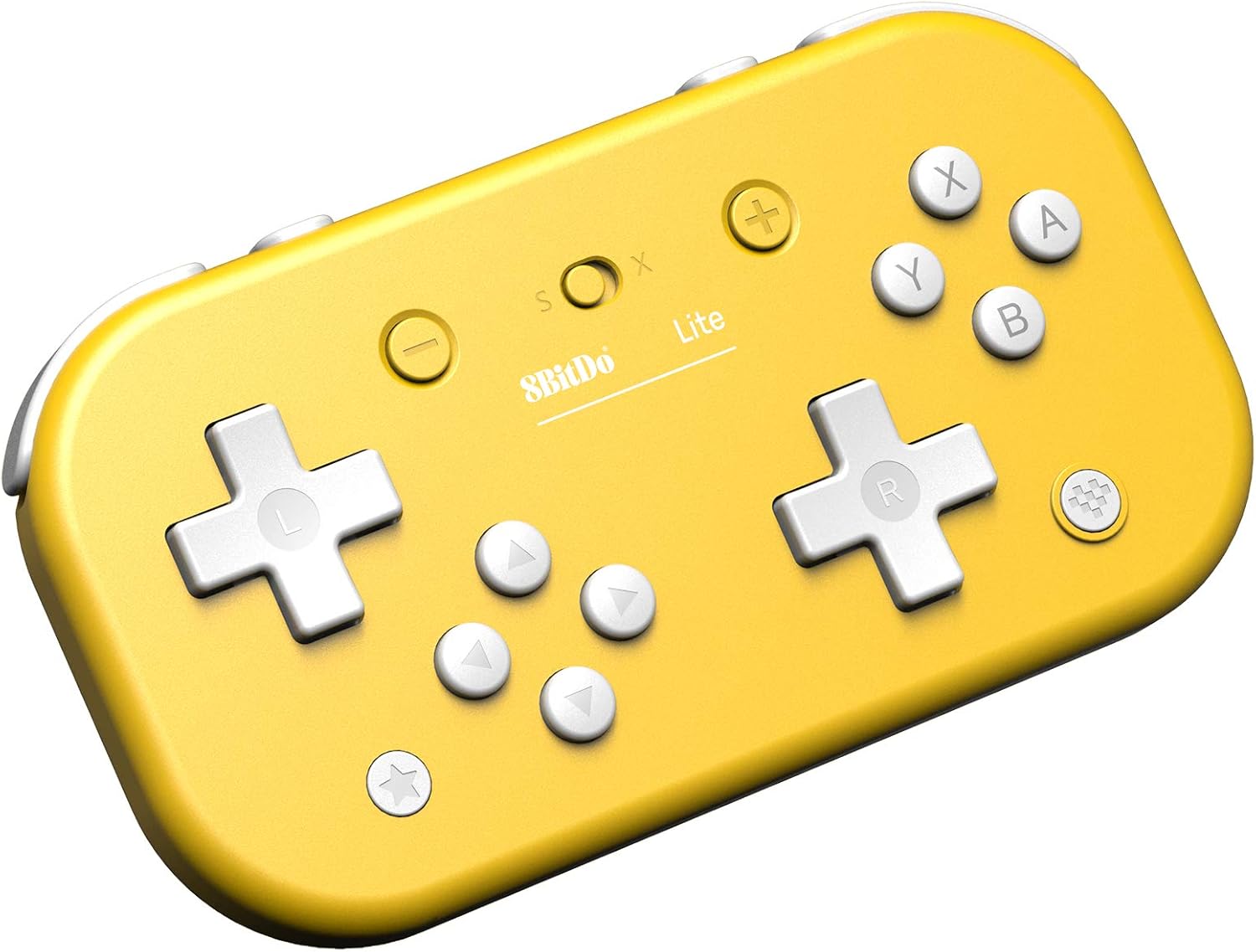
The 8Bitdo Lite Bluetooth Gamepad is a compact wireless controller featuring a unique split D-pad design for precise input. It is equipped with standard gaming buttons and shoulder triggers, designed for comfortable use across various gaming platforms.



Setup and Connectivity
The 8Bitdo Lite supports multiple platforms. Follow the instructions below to connect your gamepad to your desired device.


Pairing Instructions:
- Nintendo Switch:
- Ensure your Switch firmware is 1.0.0 or above (9.0.0 or above for Switch Lite).
- On your Switch, go to System Settings > Controllers and Sensors > Disconnect Controllers.
- Press and hold the Y button and the START button simultaneously on the 8Bitdo Lite until the LED indicator blinks rapidly.
- On your Switch, go to Controllers and Sensors > Change Grip/Order.
- The gamepad should appear and connect. The LED will become solid.
- Windows PC:
- Requires Windows 7 or above and Bluetooth 4.0.
- Press and hold the X button and the START button simultaneously on the 8Bitdo Lite until the LED indicator blinks rapidly.
- On your PC, go to Bluetooth & other devices settings and select "Add Bluetooth or other device".
- Choose "Bluetooth" and select "8Bitdo Lite" from the list.
- The LED will become solid upon successful connection.
- Steam:
- Requires Windows 7 or above.
- Connect the gamepad to your PC using the Windows PC pairing method.
- Ensure Steam is running and configured to recognize the gamepad.
- Raspberry Pi:
- Requires Bluetooth 2.0 or above (2B, 2B+, 3B, Zero models).
- Press and hold the A button and the START button simultaneously on the 8Bitdo Lite until the LED indicator blinks rapidly.
- Follow your Raspberry Pi's specific Bluetooth pairing instructions to connect to "8Bitdo Lite".
Note: Additional system support may require downloading and installing firmware available at support.8bitdo.com. Switch compatibility does not support HD rumble or amiibo scanning.
Operating Instructions
The 8Bitdo Lite offers several features to enhance your gaming experience.

Key Features:
- Split D-pad: Designed for more accurate game action, particularly useful for 2D games.
- Customisable Turbo Functionality: Allows you to assign turbo functions to specific buttons for rapid input. Refer to the official 8Bitdo software for detailed customization options.
- Wireless Connectivity: Provides a lag-free gaming experience via Bluetooth.
Button Layout:
| Button | Function |
|---|---|
| Left D-pad (L) | Directional input (Left) |
| Right D-pad (R) | Directional input (Right) |
| A, B, X, Y Buttons | Action buttons (functions vary by game/platform) |
| L1, L2, R1, R2 | Shoulder/Trigger buttons |
| Minus (-) / Plus (+) | Select / Start buttons |
| Home Button (Star icon) | System menu / Home screen access |
| Screenshot Button (Camera icon) | Capture screenshots (Switch only) |
Maintenance
Proper care will extend the life of your 8Bitdo Lite Gamepad.
- Cleaning: Use a soft, dry cloth to wipe the surface of the gamepad. For stubborn dirt, slightly dampen the cloth with water. Avoid using harsh chemicals or abrasive cleaners.
- Storage: Store the gamepad in a cool, dry place away from direct sunlight and extreme temperatures.
- Battery Care: To maintain battery health, avoid fully discharging the battery frequently. If storing for a long period, charge the battery to about 50% every few months.
- Avoid Drops: Protect the gamepad from physical shocks and drops, which can damage internal components.
Troubleshooting
If you encounter issues with your 8Bitdo Lite Gamepad, try the following solutions:
- Gamepad not connecting/pairing:
- Ensure the gamepad is fully charged.
- Verify you are using the correct pairing mode for your device (Y+START for Switch, X+START for Windows, A+START for Raspberry Pi).
- Turn off and on the gamepad, and restart the Bluetooth function on your device.
- Remove previous pairings from your device's Bluetooth settings and try pairing again.
- Update the gamepad's firmware via the official 8Bitdo support website.
- Input lag or disconnection:
- Ensure there are no strong wireless interferences nearby (e.g., Wi-Fi routers, other Bluetooth devices).
- Move closer to the connected device.
- Ensure the gamepad is fully charged.
- Update the gamepad's firmware.
- Buttons not responding:
- Test the buttons using a gamepad tester application on your PC or Switch.
- Ensure the gamepad is properly connected.
- If specific buttons are stuck, gently clean around them.
- Consider a firmware update.
For further assistance, visit support.8bitdo.com.
Specifications
| Feature | Detail |
|---|---|
| Model Name | 8Bitdo Lite Bluetooth Gamepad |
| Connectivity | Wireless Bluetooth |
| Compatibility | Nintendo Switch (1.0.0+), Switch Lite (9.0.0+), Windows (7+ with BT 4.0+), Steam, Raspberry Pi (BT 2.0+ for 2B, 2B+, 3B, Zero) |
| Special Features | Split D-pad, Customisable Turbo Functionality |
| ASIN | B0B7HR1MX6 |
Warranty and Support
8Bitdo products typically come with a limited warranty. For specific warranty terms and conditions, please refer to the documentation included with your product or visit the official 8Bitdo support website.
For technical support, firmware updates, and frequently asked questions, please visit the official 8Bitdo support page:
Related documentsLite Bluetooth Gamepad


Ask a question about this manual
Ask about setup, troubleshooting, compatibility, parts, safety, or missing instructions. Manuals+ will review the question and use this page’s manual context to help answer it.