
1. Introduction
This manual provides detailed instructions for the installation, operation, and maintenance of your CUSP 10-Inch Android Car Stereo Radio GPS. Please read this manual thoroughly before using the product to ensure proper functionality and to prevent damage. Keep this manual for future reference.
2. Product Overview
The CUSP 10-Inch Android Car Stereo is a versatile in-dash multimedia system designed to enhance your driving experience. Key features include:
- 10-inch high-resolution touch screen display (1280*720 pixels)
- Integrated GPS navigation with support for various map applications
- Wireless Apple CarPlay and Android Auto compatibility
- Bluetooth for hands-free calling and audio streaming
- FM radio receiver
- WiFi and Mirror Link functionality
- Rear camera input with automatic display
- Steering wheel control support
- Built-in Digital Sound Processor (DSP) for audio customization
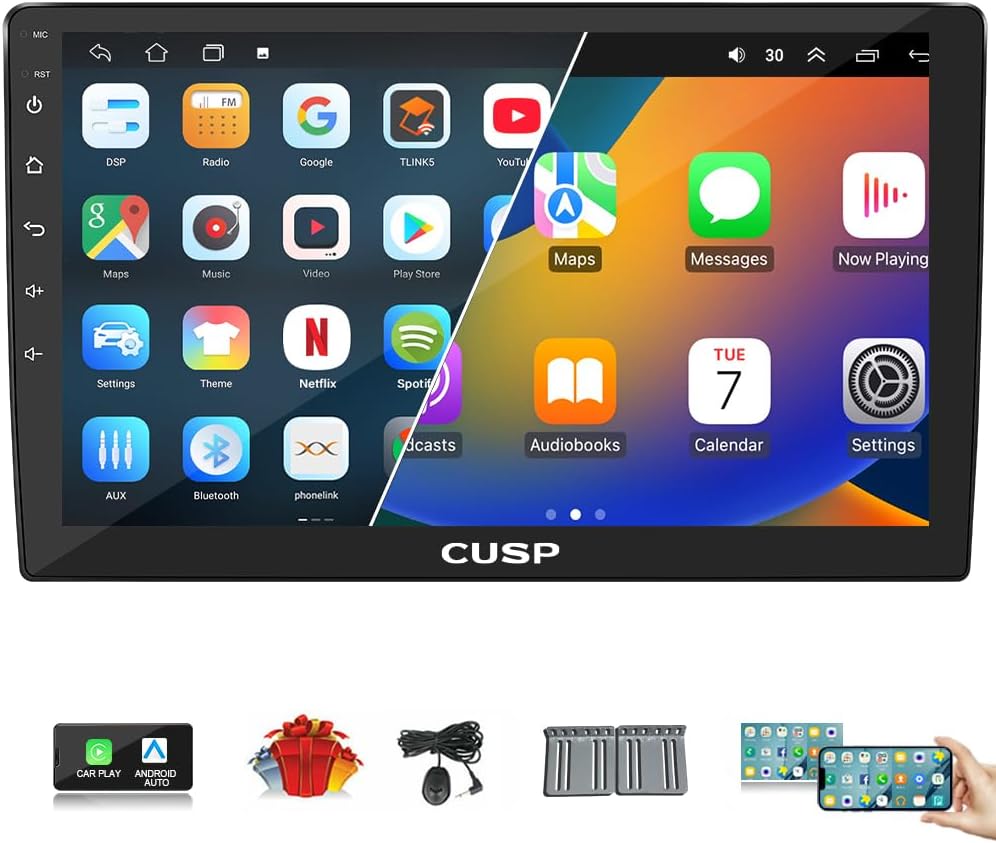
Image 2.1: Front view of the CUSP 10-Inch Android Car Stereo showing the main interface with app icons.
3. Package Contents
Verify that all items are present in the package:
- Radio Unit (1)
- Power Cable (1)
- A/V Cable (1)
- Rear Camera Cable (1)
- USB Cables (2)
- GPS Antenna (1)
- External Microphone (1)
- Rear Camera (1)
- Mounting Brackets (2)
- Screws (6)

Image 3.1: Product dimensions and included accessories such as power cables, USB cables, GPS antenna, and rear camera.
4. Installation
Professional installation is recommended for this product. Incorrect wiring or installation can cause damage to the unit or your vehicle. Ensure the vehicle's battery is disconnected before beginning installation.
4.1 Wiring Diagram
Refer to the provided wiring diagram for correct connections. Each cable is labeled for ease of identification.
- Power Cable: Connect to the vehicle's power supply (ACC, B+, GND).
- A/V Cable: For audio and video input/output connections.
- Rear Camera Cable: Connect the included rear camera for reversing functionality.
- USB Cables: For connecting USB devices or charging.
- GPS Antenna: Mount in a location with a clear view of the sky for optimal signal reception.
- External Microphone: Connect for improved hands-free call quality.
4.2 Mounting
Use the provided mounting brackets and screws to secure the head unit in your vehicle's dashboard. Ensure the unit is firmly in place to prevent vibrations and movement.

Image 4.1: The CUSP car stereo after installation in a vehicle's dashboard.
5. Initial Setup
After installation, reconnect the vehicle battery and power on the unit.
- First Boot: The system will perform an initial boot-up. This may take a few moments.
- Language Settings: Navigate to 'Settings' to select your preferred language.
- Time and Date: Set the correct time zone, date, and time.
- WiFi Connection: Connect to an available WiFi network or mobile hotspot to enable online features, app downloads, and map updates.
6. Operating Instructions
6.1 GPS Navigation
The unit supports various navigation applications. With a WiFi connection, you can download and use apps like Google Maps or iGO. Ensure the GPS antenna is properly installed for accurate positioning.

Image 6.1: The car stereo displaying a navigation map, with icons for various GPS applications.
6.2 Radio Mode
Access the FM radio application from the main menu. You can scan for stations, save presets, and adjust audio settings. The unit supports FM1, FM2, and FM3 bands.
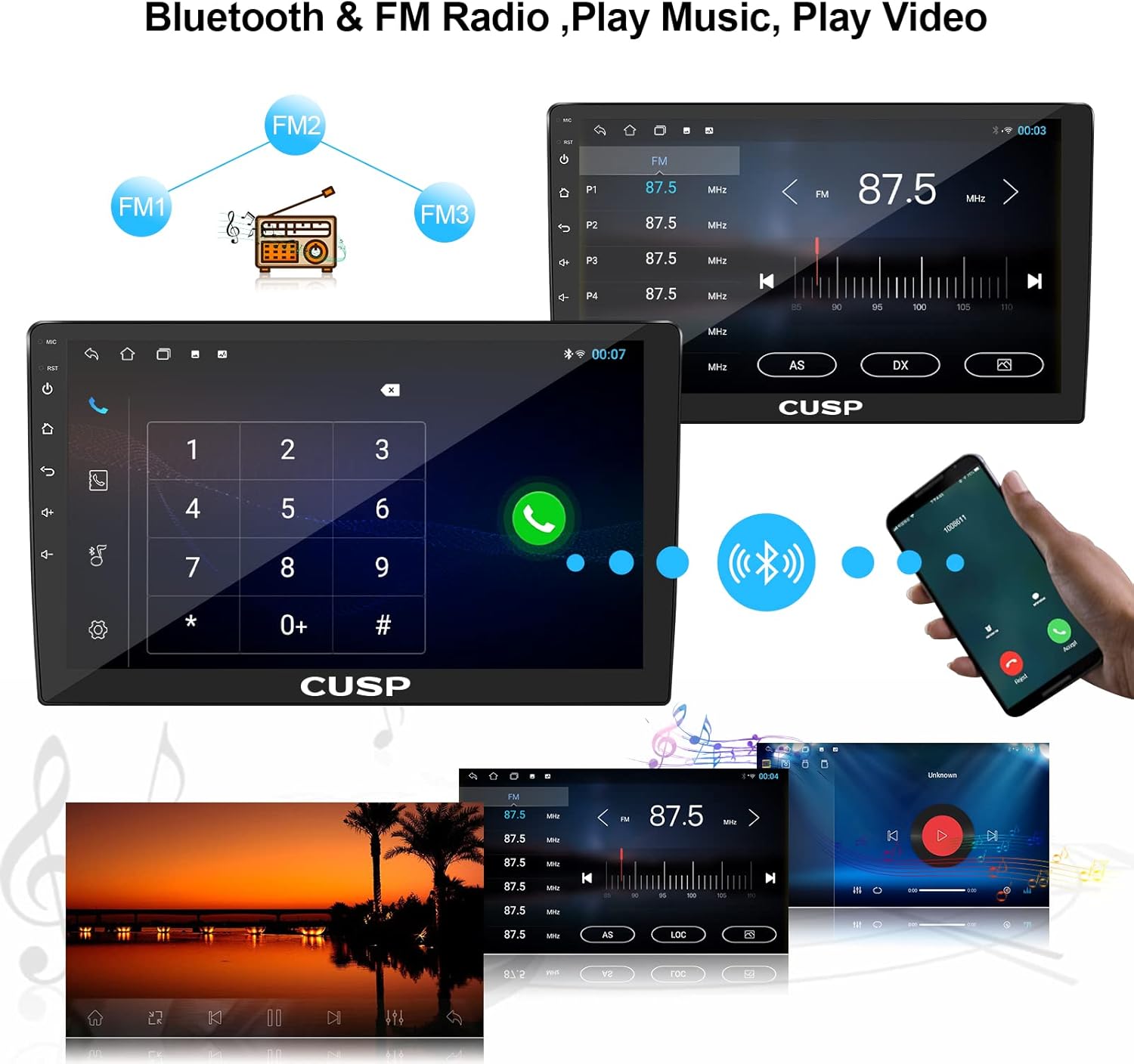
Image 6.2: The car stereo showing the FM radio interface and a Bluetooth phone call screen.
6.3 Bluetooth Function
Pair your mobile phone via Bluetooth for hands-free calling and music streaming (A2DP). The system supports phonebook synchronization, call history, and caller ID display.
- Go to 'Settings' > 'Bluetooth' on the head unit.
- Enable Bluetooth on your mobile phone and search for available devices.
- Select the head unit (e.g., 'CUSP_BT') from your phone's list and pair.

Image 6.3: Bluetooth phone function showing a dial pad on the stereo screen.
6.4 Phone Link (Mirror Link)
This feature allows you to mirror your smartphone's screen onto the car stereo display.
- iOS: Supports one-way projection (phone to stereo).
- Android: Supports two-way connection (control from stereo).

Image 6.4: Phone Link feature demonstrating screen mirroring for iOS and Android devices.
6.5 Wireless Apple CarPlay & Android Auto
Connect your iPhone or Android phone wirelessly for seamless integration of navigation, music, calls, and messages.
- Ensure Bluetooth and WiFi are enabled on both your phone and the head unit.
- Follow the on-screen prompts to establish the wireless connection.

Image 6.5: Display of Apple CarPlay and Android Auto interfaces on the car stereo.
6.6 Steering Wheel Control
The unit supports connection to your vehicle's steering wheel controls, allowing you to manage functions like volume, track skipping, and mode selection without taking your hands off the wheel.
- Access 'Steering Wheel Settings' in the system menu.
- Follow the instructions to program the buttons according to your vehicle's configuration.
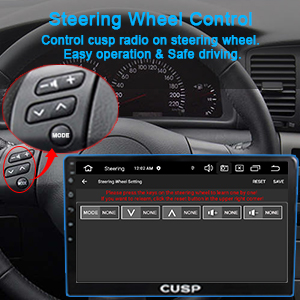
Image 6.6: Steering wheel control interface for programming vehicle controls.
6.7 Reversing Function
When a compatible rear camera is connected and the vehicle is shifted into reverse, the stereo automatically displays the rear view on the screen. This feature includes a wide-angle view and night vision capabilities.
Image 6.7: Rear camera display with parking guidelines and camera feature icons.
6.8 WiFi and Hotspot
Connect the unit to a WiFi network or your phone's hotspot to access online features, stream content, and download applications from the Play Store.
6.9 Split Screen
The split-screen function allows you to run two applications simultaneously, such as navigation on one side and a video player on the other.
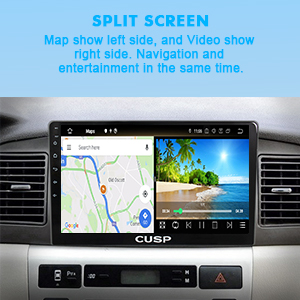
Image 6.8: Split screen functionality showing navigation and video playback simultaneously.
6.10 Built-in DSP
The Digital Sound Processor allows for advanced audio adjustments, including equalizer settings, bass boost, and sound field customization, to optimize your listening experience.
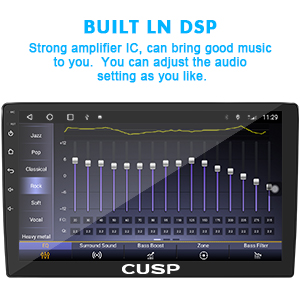
Image 6.9: DSP interface showing various audio adjustment options.
6.11 Video Player
The unit supports various video formats including MKV, MP4, 3GP, and AVI. You can play videos from USB drives or other connected storage.
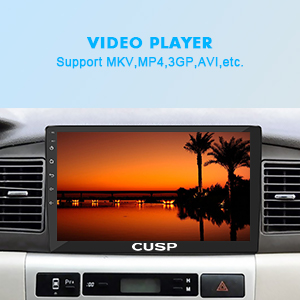
Image 6.10: The car stereo displaying video playback.
6.12 Customization
You can customize the unit's appearance, including selecting different car logos for the boot screen or setting a custom background image.

Image 6.11: Customization option for car logos or DIY pictures.
7. Maintenance
- Cleaning: Use a soft, dry cloth to clean the screen and unit. Avoid abrasive cleaners or solvents.
- Software Updates: Periodically check for software updates to ensure optimal performance and access to new features. Updates can typically be found in the system settings or on the manufacturer's website.
- Temperature: Avoid exposing the unit to extreme temperatures, as this can affect performance and lifespan.
8. Troubleshooting
If you encounter issues, refer to the following common problems and solutions:
| Problem | Possible Cause | Solution |
|---|---|---|
| Unit does not power on | Incorrect wiring; Blown fuse; Vehicle battery issue | Check power cable connections; Inspect vehicle fuses; Verify vehicle battery charge. |
| No sound | Volume too low; Speaker wiring issue; Mute enabled | Increase volume; Check speaker connections; Disable mute function. |
| GPS signal weak or lost | GPS antenna improperly installed or obstructed | Ensure GPS antenna has a clear view of the sky; Check antenna connection. |
| Bluetooth connection unstable | Interference; Phone too far; Software glitch | Move phone closer; Restart both devices; Clear Bluetooth cache. |
| Rear camera not displaying | Camera wiring issue; Incorrect camera input selected | Check rear camera cable connection; Ensure reverse trigger wire is connected; Select correct camera input. |
| Touch screen unresponsive | System freeze; Calibration issue | Restart the unit (press reset button if available); Check for software updates. |
If the problem persists after attempting these solutions, please contact customer support.
9. Specifications
| Feature | Specification |
|---|---|
| Model Number | CV-101301 |
| Display Size | 10.1 inches |
| Resolution | 1280*720 Pixels |
| Operating System | Android (version not specified, typically Android 10 or newer) |
| Memory (RAM) | 2GB |
| Storage (ROM) | 32GB |
| Connectivity | Bluetooth, Cellular, USB, Wi-Fi |
| Special Features | Bluetooth, Touchscreen, Wireless CarPlay, Android Auto, GPS, Mirror Link, DSP |
| Audio Output Mode | AUX, Speaker, Stereo |
| Mounting Type | Dashboard Mount |
| Item Weight | 3.5 pounds |
| Package Dimensions | 11.97 x 9.33 x 3.23 inches |
10. Warranty and Support
10.1 Warranty Information
This CUSP product comes with a 1-year manufacturer's warranty from the date of purchase. This warranty covers defects in materials and workmanship under normal use. It does not cover damage caused by improper installation, accident, misuse, abuse, neglect, or unauthorized modification.
10.2 Customer Support
For technical assistance, troubleshooting, or warranty claims, please contact CUSP customer support. Refer to your purchase documentation or the manufacturer's website for contact details.