
Introduction
This manual provides detailed instructions for the safe and efficient operation of the Deviser EP310 PON Power Meter. Please read this manual thoroughly before using the device to ensure proper functionality and to prevent damage.
Product Overview
The Deviser EP310 is a specialized power meter designed for Passive Optical Network (PON) systems. It simultaneously measures the power levels of all PON wavelengths (1310nm, 1490nm, and 1550nm), providing essential data for network installation and maintenance. Its features include:
- Power measurement ranges: 1310nm: -45 to +10dBm (BW) / -30 to +8dBm (CW), 1490nm: -45 to +12dBm, 1550nm: -40 to +25dBm.
- Simultaneous measurement of 1310nm, 1490nm, and 1550nm wavelengths.
- Pass/Fail analysis with Green/Red light LED indicators for quick result interpretation.
- Supports SC/APC or FC connectors.
- Powered by 2 x AA rechargeable batteries with 5VDC USB charging.
Safety Information
Always observe the following safety precautions to prevent injury or damage to the device:
- Do not expose the device to extreme temperatures, humidity, or direct sunlight.
- Avoid dropping or subjecting the device to strong impacts.
- Do not attempt to open or repair the device yourself. Refer to qualified service personnel.
- Use only the specified battery type and charging method.
- Keep the optical connector clean to ensure accurate measurements.
Package Contents
Verify that all items are present in the package:
- Deviser EP310 PON Power Meter
- 2 x AA Rechargeable Batteries
- 5VDC USB Charger
- User Manual (this document)
- Soft Carrying Case (may vary by region)
Device Components
Control Panel
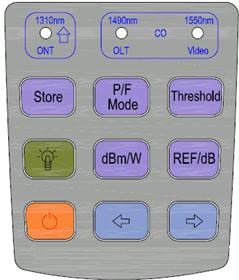
Figure 1: Deviser EP310 PON Power Meter Control Panel. This image displays the button layout and their primary functions, including wavelength selection (1310nm, 1490nm, 1550nm), Store, P/F Mode, Threshold, backlight, dBm/W, REF/dB, Power On/Off, and navigation buttons.
- 1310nm (ONT) / Up Arrow: Selects 1310nm wavelength mode or navigates up/increases value.
- 1490nm (OLT) / CO: Selects 1490nm wavelength mode or CO (Central Office) setting.
- 1550nm (Video): Selects 1550nm wavelength mode or Video setting.
- Store: Saves current measurement data.
- P/F Mode: Toggles Pass/Fail analysis mode.
- Threshold: Sets or adjusts Pass/Fail threshold values.
- Backlight (Lightbulb icon): Activates or deactivates display backlight.
- dBm/W: Switches between dBm and Watt units for power measurement.
- REF/dB: Sets reference power or displays relative dB value.
- Power On/Off (Orange button): Turns the device on or off.
- Left Arrow: Navigates left or decreases value.
- Right Arrow: Navigates right or increases value.
Display Interface

Figure 2: Deviser EP310 PON Power Meter Display Interface. This image illustrates the various indicators and data points on the device's screen, including Self Adjustment, Store, Auto Off, Wavelength, Burst indicator, Storage Setting, Reference Power, Threshold Mode, USB Battery indicator, Unit, Measured data, and Threshold Status (Pass/Fail).
- Self Adjustment (Cal): Indicates automatic calibration status.
- Store: Icon indicating data storage function.
- Auto Off: Icon indicating automatic power-off feature is active.
- Wavelength (1310nm, 1550nm, 1490nm): Displays the currently selected or measured wavelengths.
- Burst indicator: Indicates detection of burst signals (for 1310nm ONT).
- Storage Setting (JOB NO): Displays the current job number for stored data.
- Reference Power (REF): Indicates reference power mode.
- Threshold Mode: Indicates that threshold settings are active.
- USB Battery: Battery level indicator and USB charging status.
- Unit (dBm, W): Displays the current measurement unit.
- Threshold Status (Checkmark/X): Green checkmark for Pass, Red X for Fail, based on set thresholds.
Setup
Battery Installation and Charging
- Open the battery compartment cover on the back of the device.
- Insert the two AA rechargeable batteries, ensuring correct polarity (+/-).
- Close the battery compartment cover securely.
- Connect the 5VDC USB charger to the device's USB port and to a power source to charge the batteries before first use. The battery icon on the display will indicate charging status.
Powering On/Off
- To power on, press and hold the orange Power On/Off button (Figure 1) until the display illuminates.
- To power off, press and hold the orange Power On/Off button until the display turns off.
Operating Instructions
Connecting to a PON Network
- Ensure the optical connector on the EP310 is clean. Use a suitable fiber optic cleaner if necessary.
- Connect the fiber optic cable from the PON network to the optical input port of the EP310. Ensure a secure connection. The device supports SC/APC or FC connectors.
Taking Measurements
- Power on the device.
- The device will automatically begin measuring and displaying power levels for 1310nm, 1490nm, and 1550nm simultaneously (Figure 2).
- To switch between dBm and Watt units, press the dBm/W button (Figure 1).
- The 1310nm measurement will show a burst indicator if a burst signal from the ONT is detected.
Using Pass/Fail Analysis
- Press the P/F Mode button (Figure 1) to activate Pass/Fail analysis.
- To set or adjust thresholds, press the Threshold button (Figure 1). Use the arrow keys to navigate and adjust values. Press Threshold again to confirm.
- Once thresholds are set, the display will show a green checkmark for "Pass" or a red "X" for "Fail" next to each wavelength measurement (Figure 2).
- The Green/Red light LED on the device will also indicate the overall Pass/Fail status.
Storing Measurement Data
- To store the current measurement data, press the Store button (Figure 1).
- The "Store" icon and "JOB NO" on the display (Figure 2) will indicate successful storage and the assigned job number.
- Refer to the device's internal menu (if available, not detailed in provided data) for recalling stored data.
Maintenance
Cleaning the Optical Connector
Regularly clean the optical input port to ensure accurate measurements. Use a specialized fiber optic cleaning tool or lint-free wipes with isopropyl alcohol. Never use abrasive materials.
Battery Care
- Recharge batteries when the low battery indicator appears.
- If the device will not be used for an extended period, remove the batteries to prevent leakage.
- Dispose of used batteries according to local regulations.
Storage
Store the device in a cool, dry place, away from direct sunlight and extreme temperatures. Use the provided carrying case to protect it from dust and physical damage.
Troubleshooting
| Problem | Possible Cause | Solution |
|---|---|---|
| Device does not power on. | Low or depleted batteries; Incorrect battery installation. | Charge or replace batteries; Check battery polarity. |
| Inaccurate measurements. | Dirty optical connector; Damaged fiber cable; Incorrect measurement mode. | Clean the optical connector; Inspect and replace fiber cable if damaged; Ensure correct wavelength mode is selected. |
| Pass/Fail LED always red (Fail). | Power levels are outside set thresholds; Incorrect threshold settings. | Verify network power levels; Adjust threshold settings using the Threshold button. |
| Display is dim or flickering. | Low battery. | Recharge the batteries. |
Specifications
| Feature | Detail |
|---|---|
| Brand | Deviser |
| Model | EP310 |
| Measurement Type | PON Power Meter |
| Wavelengths Measured | 1310nm, 1490nm, 1550nm (simultaneously) |
| Power Range (1310nm) | -45 to +10dBm (BW), -30 to +8dBm (CW) |
| Power Range (1490nm) | -45 to +12dBm |
| Power Range (1550nm) | -40 to +25dBm |
| Connector Type | SC/APC or FC |
| Power Source | 2 x AA rechargeable batteries |
| Charging | 5VDC USB charger |
| Color | Blue |
| Style | Industrial |
Warranty and Support
Warranty Information
This product comes with a standard manufacturer's warranty against defects in materials and workmanship. Please refer to the warranty card included with your purchase or contact your retailer for specific warranty terms and conditions. The warranty does not cover damage caused by misuse, accidents, unauthorized modifications, or improper maintenance.
Customer Support
For technical assistance, troubleshooting, or service inquiries, please contact your authorized Deviser distributor or retailer. Provide your product model number (EP310) and a detailed description of the issue when seeking support.