
1. Introduction
Thank you for purchasing the Eaglerich 1Din Android Car Stereo, Model SP-7082. This device features a 7-inch manual telescopic touchscreen, offering a range of functionalities including FM radio, USB and AUX playback, Bluetooth connectivity, GPS navigation, and support for reversing cameras and Android DVRs. This manual provides detailed instructions for installation, operation, and maintenance to ensure optimal performance and user experience.
2. Safety Information
- Professional Installation Recommended: Due to the complexity of car audio systems, professional installation is highly recommended to prevent damage to the unit or your vehicle.
- Driving Safety: Do not operate the device in a way that distracts you from driving. Always prioritize road safety.
- Wiring: Ensure all wiring is correctly connected according to the wiring diagram to avoid short circuits or electrical damage. Incorrect wiring can cause fire or malfunction.
- Power Supply: Connect the unit to a 12V DC power supply with negative grounding.
- Temperature: Avoid exposing the unit to extreme temperatures or direct sunlight for prolonged periods.
3. Package Contents
Please check the package for the following items:
- Car Radio Unit (Model SP-7082)
- User Manual
- Installation Keys (2)
- Power Cords (3)
- Remote Control
- GPS Antenna
- 4 LED Camera (if included in your specific package)
- Android DVR (if included in your specific package)
4. Product Overview
The Eaglerich SP-7082 features a single DIN chassis with a retractable 7-inch touchscreen. The front panel includes essential controls and ports for easy access.

Image: Front view of the Eaglerich SP-7082 car stereo with the 7-inch screen extended, displaying a music playback interface.
4.1 Front Panel Controls and Ports
- Power/Volume Knob: Turn on/off, adjust volume.
- USB Port: Connect USB drives for media playback.
- AUX Input: Connect external audio devices.
- SD Card Slot: Insert SD cards for media playback.
- Reset Button: For system reset (use a thin object to press).
4.2 Rear Panel Connections
The rear panel houses various connectors for power, speakers, antenna, and external devices.

Image: Rear view of the car stereo unit, illustrating the various wiring harnesses and connection ports for power, speakers, and external devices.
5. Setup and Installation
Proper installation is crucial for the functionality and safety of your car stereo. It is highly recommended to have this unit installed by a qualified professional.
5.1 Pre-Installation Checks
- Ensure your vehicle's electrical system is 12V DC with negative grounding.
- Disconnect the vehicle's battery negative terminal before starting installation.
- Verify all package contents are present.
5.2 Physical Installation
- Remove the existing car stereo from your dashboard.
- Mount the SP-7082 unit into the single DIN slot. Ensure it is securely fastened using the provided installation keys or mounting hardware.
- Connect the wiring harnesses as per the wiring diagram (refer to the separate wiring diagram provided with the unit).
- Connect the GPS antenna, reversing camera input, and any other external devices.
- Reconnect the vehicle's battery negative terminal.
- Test the unit's functionality before fully reassembling the dashboard.

Image: Diagram illustrating the dimensions of the car stereo unit and a sequence of images demonstrating how to manually extend and retract the telescopic screen.
5.3 Wiring Connections (General Guide)
- Power: Connect the yellow wire to constant 12V, red wire to accessory 12V, and black wire to ground.
- Speakers: Connect speaker wires to the corresponding vehicle speaker wires (e.g., front left +, front left -).
- GPS Antenna: Connect the GPS antenna to the dedicated GPS input on the rear of the unit and mount it in a location with a clear view of the sky.
- Reversing Camera: Connect the camera's video output to the 'CAM IN' port and the camera's power to the reverse light circuit.
- Steering Wheel Control: Connect the SWC wires to your vehicle's steering wheel control wires.
6. Operating Instructions
6.1 Power On/Off and Volume
- Power On: Press the power/volume knob briefly.
- Power Off: Press and hold the power/volume knob.
- Volume Adjustment: Rotate the power/volume knob.
6.2 Manual Telescopic Screen Operation
The 7-inch screen is manually retractable. Gently pull the screen out from the unit to extend it, and push it back in to retract it. Ensure the screen is fully extended or retracted to avoid damage.
6.3 FM Radio
- From the main menu, select the 'Radio' icon.
- Use the on-screen controls to scan for stations or manually tune to a frequency.
- Press and hold a preset button to save the current station. The unit supports 18 preset FM stations.
6.4 Bluetooth Connectivity
Connect your mobile phone via Bluetooth for hands-free calling and music streaming.
- From the main menu, select the 'Bluetooth' icon.
- Enable Bluetooth on your mobile phone and search for available devices.
- Select 'Topway(3A30)' or a similar device name from your phone's list.
- Enter the PIN '0000' if prompted.
- Once paired, you can make/receive calls and play music through the car stereo.

Image: The car stereo display showing the Bluetooth connection screen, with a smartphone icon and pairing instructions.
6.5 USB and AUX Playback
- USB: Insert a USB flash drive into the USB port. The unit will automatically detect and play compatible media files.
- AUX: Connect an external audio device (e.g., MP3 player) to the AUX input using a 3.5mm audio cable. Select 'AUX' from the main menu.
6.6 Mirror Link Function
The Mirror Link function allows you to display your smartphone's screen on the car stereo's display.
- Connect your smartphone to the car stereo via a USB cable.
- Select the 'Mirror Link' icon from the main menu.
- Follow the on-screen prompts on both the car stereo and your smartphone to establish the connection.
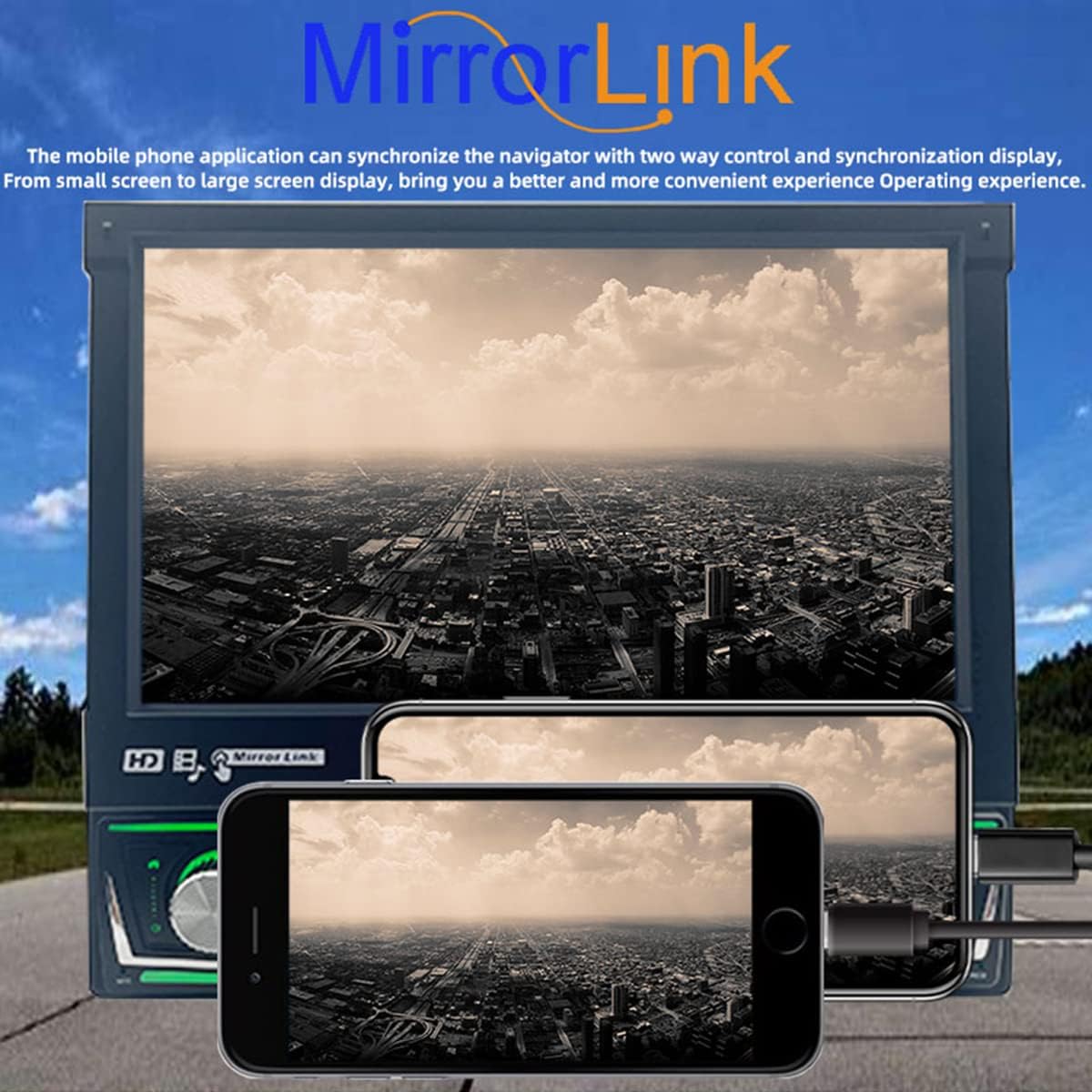
Image: The car stereo display showing a mirrored smartphone screen, demonstrating the Mirror Link functionality.
6.7 GPS Navigation
The unit supports multiple navigation applications. Ensure the GPS antenna is properly connected and positioned for optimal signal reception.
- From the main menu, select the 'GPS' or 'Navigation' icon.
- Choose your preferred navigation application (e.g., Google Maps, Waze) and follow its instructions for route planning.

Image: The car stereo display showing a GPS navigation map with route information, indicating the unit's navigation capabilities.
6.8 Steering Wheel Control
The unit supports learning functions for your vehicle's original steering wheel buttons.
- Go to 'Settings' and locate the 'Steering Wheel Control' option.
- Follow the on-screen instructions to program each button on your steering wheel to the desired function on the car stereo.
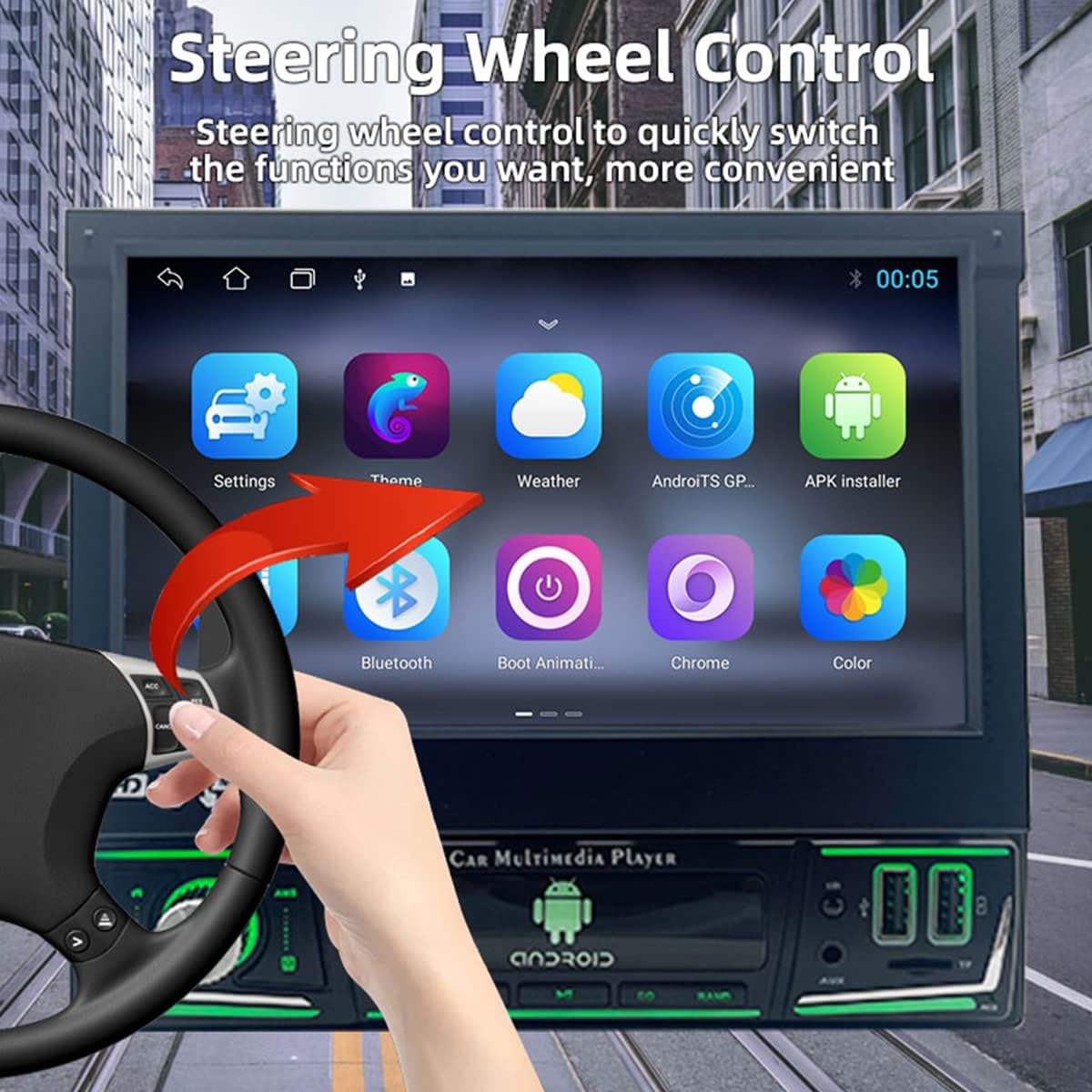
Image: The car stereo display showing various application icons, with a hand on a steering wheel in the foreground, illustrating the steering wheel control feature.
6.9 Reversing Camera Input
When a reversing camera is connected, the unit will automatically display the rear view image when the vehicle is shifted into reverse gear.
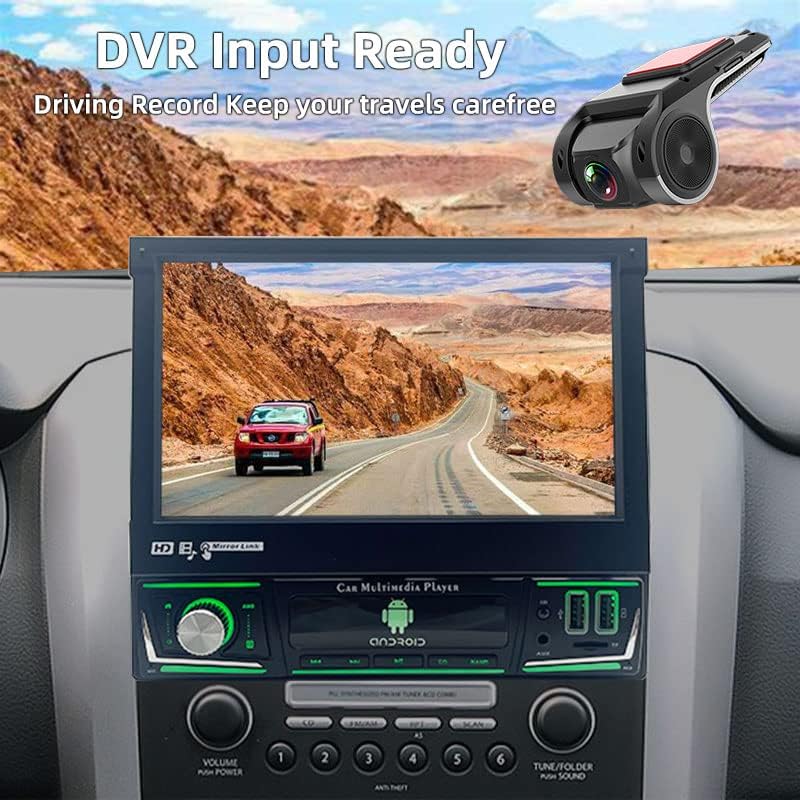
Image: The car stereo display showing a clear rear view from a connected reversing camera, with parking guidelines visible.
6.10 Android DVR Input
The unit supports connection to an Android DVR for recording driving footage.
- Connect the compatible Android DVR to the designated USB port.
- Access the DVR application from the main menu to view live footage or recorded videos.

Image: The car stereo display indicating 'DVR Input Ready' with a dash camera icon, suggesting readiness for a connected driving recorder.
7. Maintenance
- Cleaning the Screen: Use a soft, lint-free cloth to gently wipe the touchscreen. Do not use abrasive cleaners or solvents.
- General Cleaning: Keep the unit free from dust and debris. Use a dry cloth to wipe the exterior.
- Software Updates: Periodically check the manufacturer's website for any available software updates to ensure optimal performance and access to new features.
8. Troubleshooting
| Problem | Possible Cause | Solution |
|---|---|---|
| No power | Incorrect wiring; Blown fuse; Vehicle battery low. | Check power connections; Replace fuse; Charge vehicle battery. |
| No sound | Volume too low; Speaker wires disconnected; Incorrect audio source. | Increase volume; Check speaker connections; Select correct audio source. |
| Bluetooth not connecting | Bluetooth not enabled; Incorrect pairing process; Device out of range. | Ensure Bluetooth is on; Re-attempt pairing; Bring devices closer. |
| GPS signal lost | GPS antenna obstructed or disconnected; Poor satellite coverage. | Check GPS antenna connection and placement; Move to an open area. |
| Screen unresponsive | System crash; Dirt on screen. | Press the reset button; Clean the screen. |
9. Specifications
| Feature | Detail |
|---|---|
| Brand | Eaglerich |
| Model Number | SP-7082 |
| Screen Size | 7 inches |
| Display Type | LCD |
| Resolution | 800 x 480 |
| Operating System | Android |
| Connectivity Technology | Auxiliary, Bluetooth, USB |
| Audio Output Mode | Stereo |
| FM Function | FM87.5M-108M |
| Power Supply | 12V DC |
| Compatible Flash Memory Type | SD |
| Human Interface Input | Buttons, Touchscreen |
10. Warranty and Support
For warranty information and technical support, please refer to the documentation provided at the time of purchase or contact your retailer. Keep your purchase receipt as proof of purchase.
For further assistance, you may also visit the Eaglerich official website or contact their customer service department.