
1. Compatibility
This Earto Keyboard Case is designed for specific iPad Mini models. Please verify your iPad model number before use.
- iPad Mini 7th Generation (8.3-inch, 2024 A17 Pro): Model Numbers A2993, A2995, A2996
- iPad Mini 6th Generation (8.3-inch, 2021): Model Numbers A2567, A2568, A2569
To find your iPad's model number, check the back of your device.

Image 1.1: Compatibility chart illustrating supported iPad Mini models (6th and 7th generation) and incompatible older models (4th and 5th generation).
2. Key Features
- Smart Touchpad: Integrated touchpad supports multi-gesture controls for enhanced navigation.
- 7-Color Backlit Keyboard: Adjustable backlight with 7 colors and 3 brightness levels for typing in various lighting conditions.
- 360-Degree Rotation: Features a 360° rotatable hinge and 180° flip cover, allowing multiple viewing angles and modes.
- Energy Saving: Automatic sleep function activates after 30 minutes of inactivity to conserve battery.
- Apple Pencil Charging Support: Designed to allow magnetic attachment and charging of the Apple Pencil.

Image 2.1: Overview of the Earto Keyboard Case highlighting its key features such as precise cutouts, 360-degree rotation, multimedia keys, 7-color backlight, Type-C charging port, and smart trackpad.
3. Setup Instructions
3.1 Initial Charging
Before first use, fully charge the keyboard case. Connect the provided USB-C charging cable to the keyboard's charging port and a power source. The charging indicator light will show the charging status.

Image 3.1: The USB-C charging port on the keyboard case with a charging cable inserted.
3.2 Inserting Your iPad
- Open the keyboard case.
- Carefully align your iPad Mini with the case's frame.
- Gently press the iPad into the case until it is securely seated. Ensure all ports and buttons are accessible.
3.3 Bluetooth Pairing
- Turn on the keyboard by sliding the power switch to the 'ON' position.
- Press the Fn + C keys simultaneously on the keyboard. The Bluetooth indicator light will start blinking, indicating it is in pairing mode.
- On your iPad, go to Settings > Bluetooth.
- Turn on Bluetooth. Your iPad will search for available devices.
- Select "Bluetooth Keyboard" (or similar name) from the list of devices.
- Once connected, the Bluetooth indicator light on the keyboard will stop blinking.
4. Operating Instructions
4.1 Using the Smart Touchpad
The integrated touchpad supports various multi-touch gestures for navigation and control.
- Single Finger Tap: Left-click.
- Two Finger Tap: Right-click (context menu).
- Two Finger Scroll: Scroll up/down or left/right.
- Pinch to Zoom: Zoom in/out on content.
- Three Finger Swipe Up: Open App Switcher.
- Three Finger Swipe Down: Return to Home Screen.

Image 4.1: A user interacting with the precision touchpad on the Earto keyboard case, demonstrating its functionality.
4.2 Adjusting Backlight
The keyboard features a 7-color backlight with 3 adjustable brightness levels.
- Press the Light Bulb key (often located near the spacebar or function keys) to cycle through backlight colors.
- Press Fn + Light Bulb key to adjust brightness levels (Low, Medium, High, Off).
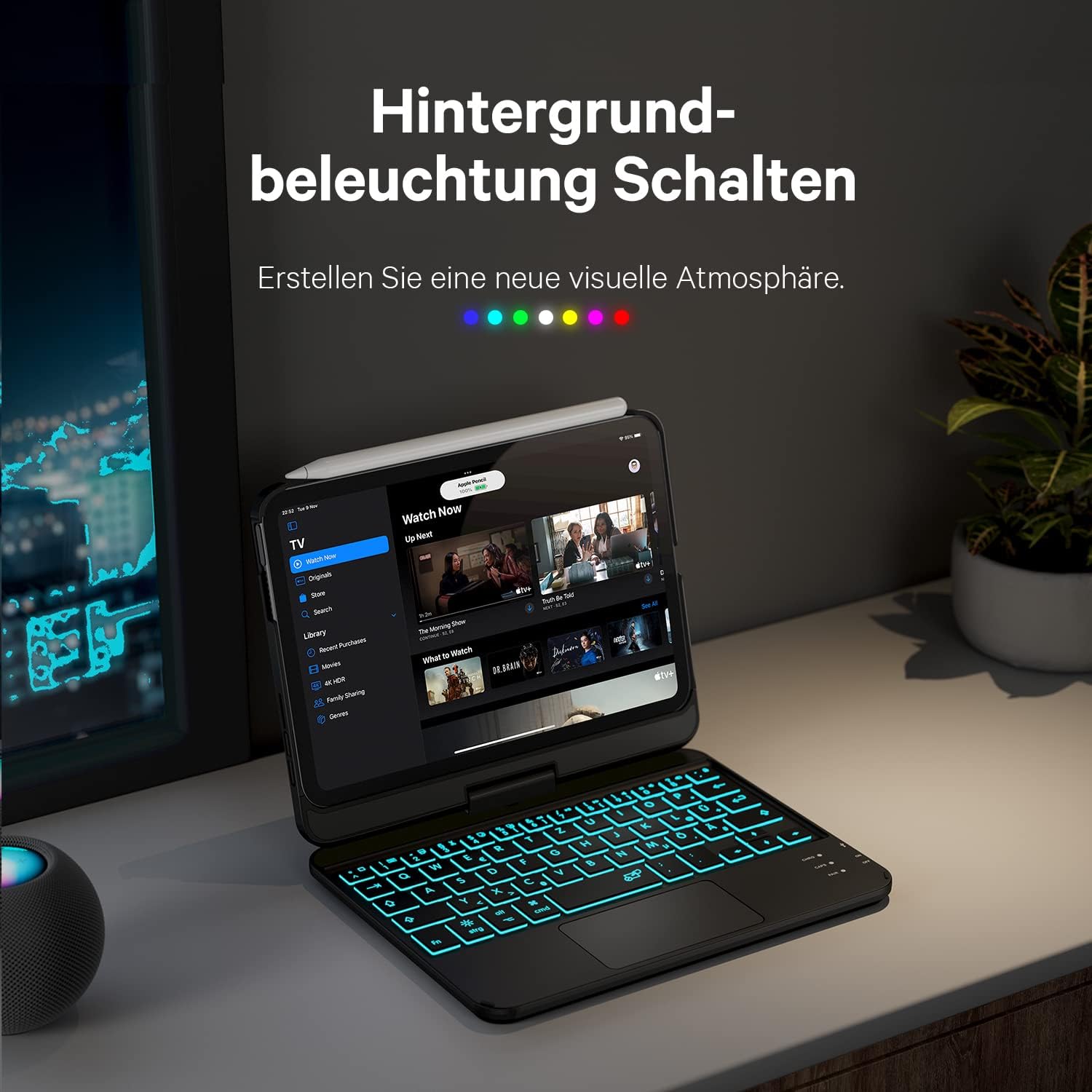
Image 4.2: The keyboard backlight feature illuminated in a dark environment, showcasing the adjustable lighting.
4.3 360-Degree Rotation
The case's hinge allows for versatile positioning of your iPad.
- Laptop Mode: Position the iPad upright for typing.
- Tablet Mode: Fold the keyboard behind the iPad for a tablet-like experience.
- Viewing Mode: Rotate the iPad to various angles for media consumption or presentations.

Image 4.3: A user demonstrating the 360-degree rotation of the Earto keyboard case, allowing for flexible viewing and usage angles.
4.4 Apple Pencil Charging
The case is designed with precise cutouts to allow the Apple Pencil to magnetically attach to your iPad and charge wirelessly.

Image 4.4: The Apple Pencil magnetically attached to the side of the iPad Mini within the Earto case, indicating its charging capability.
5. Maintenance
5.1 Cleaning
To clean the keyboard case, use a soft, damp cloth. Avoid using harsh chemicals or abrasive materials that could damage the surface or electronic components.
5.2 Battery Care
To prolong battery life:
- Avoid fully discharging the battery frequently.
- Store the device in a cool, dry place when not in use for extended periods.
- Recharge the battery periodically if stored for a long time.
6. Troubleshooting
6.1 Keyboard Not Connecting via Bluetooth
- Ensure the keyboard is turned 'ON' and fully charged.
- Press Fn + C to put the keyboard into pairing mode.
- On your iPad, turn Bluetooth off and then on again.
- Forget the device in iPad Bluetooth settings and attempt to re-pair.
- Restart both your iPad and the keyboard.
6.2 Touchpad Not Responding
- Ensure the keyboard is connected via Bluetooth.
- Check iPad settings for pointer control and touchpad gestures.
- Restart the keyboard and iPad.
6.3 Backlight Not Working
- Ensure the keyboard has sufficient battery charge.
- Press the Light Bulb key to cycle through colors and brightness levels.
6.4 Keyboard Enters Sleep Mode Too Quickly
The keyboard is designed to enter sleep mode after approximately 30 minutes of inactivity to save power. To reconnect, simply press any key and wait 3 seconds.
7. Specifications
| Brand | Earto |
| Model Number (Compatible iPads) | A2567/A2568/A2569 (iPad Mini 6), A2993/A2995/A2996 (iPad Mini 7) |
| Color | Black |
| Connectivity Technology | Bluetooth |
| Special Features | Smart Touchpad, 7-Color Backlight, 360° Rotation, Energy Saving |
| Battery Composition | Lithium-Polymer |
| Battery Life (Backlit) | Approximately 3 hours |
| Battery Life (Non-Backlit) | Approximately 6 hours |
| Product Dimensions | 21.6L x 16.4W x 3.1H centimeters |
8. Warranty and Support
For warranty information or technical support, please refer to the product packaging or contact Earto customer service directly through their official website or the retailer where the product was purchased. Specific warranty details are not provided in this manual.


