
1. Introduction
The ZTE ZXHN H196A Mesh Router 2 Pack provides a high-performance, dual-band Wi-Fi 5 (802.11ac) solution designed to deliver seamless and reliable internet connectivity throughout your home. With combined speeds up to 1200Mbps and Gigabit Ethernet ports, this system is ideal for demanding applications such as HD video streaming and online gaming. The H196A integrates with NetSphere technology to create a unified whole-home Wi-Fi network, ensuring consistent coverage and a single SSID for effortless roaming.
2. Safety Information
Please read and follow all safety instructions carefully to prevent injury or damage to the device.
- Do not expose the device to water or moisture.
- Do not open or attempt to repair the device yourself. Refer all servicing to qualified personnel.
- Use only the power adapter provided with the device.
- Place the device in a well-ventilated area, away from direct sunlight and heat sources.
- Keep the device away from children and pets.
3. Package Contents
Verify that all items are present in your package:
- 2 x ZTE ZXHN H196A Mesh Routers
- 2 x Power Adapters
- 1 x Ethernet Cable
- 1 x Quick Start Guide
4. Product Overview
Familiarize yourself with the components and indicators of your ZTE ZXHN H196A Mesh Router.

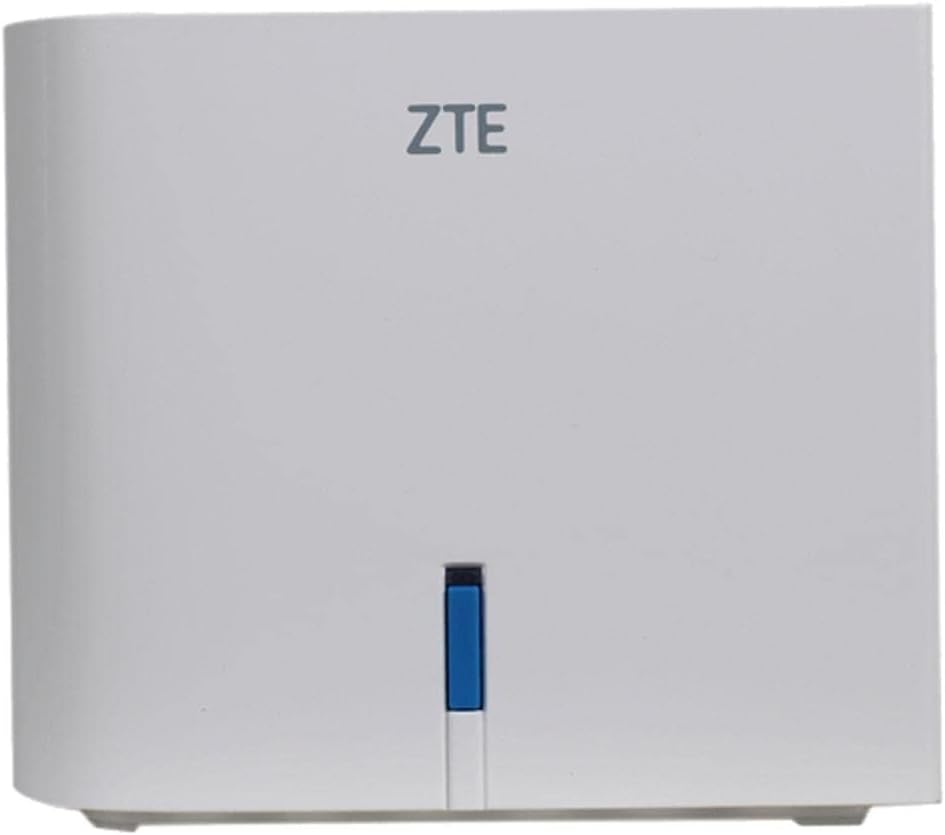


LED Indicators
- Solid Blue: Internet connection is active and working normally.
- Blinking Blue: Device is starting up or connecting to the internet.
- Solid Red: No internet connection or a system error.
- Off: Device is powered off.
Ports and Buttons
- Power Port: Connects to the power adapter.
- WAN Port: Connects to your modem or main internet source.
- LAN Ports (x2): Connects to wired devices like computers, gaming consoles, or smart TVs.
- Reset Button: Used to restore factory default settings. Press and hold for 5-10 seconds while the device is powered on.
5. Setup
5.1 Initial Router Placement
For optimal performance, place your primary mesh router in a central location in your home, away from obstructions, large metal objects, and other electronic devices that may cause interference.
5.2 Connecting the Primary Router
- Connect one end of the provided Ethernet cable to the WAN port of one ZTE ZXHN H196A router.
- Connect the other end of the Ethernet cable to a LAN port on your existing modem or optical network terminal (ONT).
- Connect the power adapter to the Power port of the router and plug it into an electrical outlet.
- Wait for the LED indicator on the router to turn solid blue, indicating a successful internet connection.
5.3 Setting Up the Mesh Network (Secondary Router)
The ZTE ZXHN H196A routers are designed to automatically form a mesh network. Follow these steps to add the second router:
- Place the second ZTE ZXHN H196A router in an area where you need extended Wi-Fi coverage, ideally within range of the primary router.
- Connect the power adapter to the Power port of the second router and plug it into an electrical outlet.
- Wait for the LED indicator on the second router to turn solid blue. This indicates it has successfully connected to the primary router and joined the mesh network.
- If the LED does not turn solid blue, try moving the secondary router closer to the primary unit or refer to the troubleshooting section.
6. Operating the Router
6.1 Connecting Devices to Wi-Fi
Locate the Wi-Fi network name (SSID) and password printed on the label at the bottom of your router. Use these credentials to connect your wireless devices (smartphones, tablets, laptops) to the mesh network.
6.2 Connecting Wired Devices
Use an Ethernet cable to connect devices such as desktop computers, gaming consoles, or smart TVs to the LAN ports on either of your mesh routers.
6.3 Accessing Router Settings (Web Interface)
To manage advanced settings, you can access the router's web interface:
- Ensure your device is connected to the router's Wi-Fi or via an Ethernet cable.
- Open a web browser (e.g., Chrome, Firefox, Edge).
- Type the default IP address (usually
192.168.1.1or192.168.0.1) into the address bar and press Enter. Refer to the router's label for the exact IP address. - Enter the default username and password when prompted. These are typically found on the router's label.
- Once logged in, you can configure settings such as Wi-Fi name (SSID), password, guest networks, and parental controls.
6.4 Dual-Band Operation and Access Point Mode
The ZXHN H196A operates as a dual-band router, supporting both 2.4 GHz and 5 GHz Wi-Fi frequencies for optimal performance and compatibility. It also supports Access Point Mode, allowing it to extend an existing wired network wirelessly.
7. Maintenance
7.1 Firmware Updates
Periodically check for firmware updates through the router's web interface. Firmware updates can improve performance, add new features, and enhance security.
7.2 Cleaning
Clean the router's exterior with a soft, dry cloth. Do not use liquid cleaners or aerosols. Ensure ventilation holes are free from dust and debris.
7.3 Resetting the Router
If you encounter persistent issues or wish to restore all settings to their factory defaults, you can perform a factory reset:
- With the router powered on, use a paperclip or a thin object to press and hold the recessed Reset button on the back of the router for approximately 5-10 seconds.
- Release the button when the LED indicator blinks rapidly or changes color.
- The router will restart with factory default settings. You will need to reconfigure your internet connection and Wi-Fi settings.
8. Troubleshooting
8.1 No Internet Connection (LED is Red)
- Check if the Ethernet cable from your modem is securely connected to the WAN port of the primary router.
- Ensure your modem is powered on and working correctly.
- Restart both your modem and the router by unplugging them from power for 30 seconds and then plugging them back in.
- Contact your Internet Service Provider (ISP) to confirm there are no service outages in your area.
8.2 Slow Wi-Fi Speed
- Ensure your devices are connected to the 5 GHz band if they support it, as it offers faster speeds.
- Relocate the routers to minimize interference from other electronic devices or physical obstructions.
- Check for any background applications or devices consuming significant bandwidth.
- Perform a speed test to verify your internet speed from your ISP.
8.3 Devices Cannot Connect to Wi-Fi
- Verify that you are entering the correct Wi-Fi password.
- Ensure the router's Wi-Fi is enabled (check via the web interface).
- Restart the router and the device you are trying to connect.
- If the issue persists, try resetting the router to factory defaults (see Section 7.3).
9. Specifications
| Feature | Description |
|---|---|
| Brand | ZTE |
| Model | ZXHN H196A |
| Color | White |
| Included Components | 2 Routers |
| Special Features | Access Point Mode, Dual-band |
| Product Weight | 800 g |
| Package Dimensions | 5 x 5 x 5 cm |
| Frequency Band Class | Dual-Band |
| Wireless Communication Standard | 802.11ac |
| Compatible Devices | Notebook, Tablet, Smartphone |
10. Warranty and Support
For warranty information and technical support, please refer to the warranty card included in your product package or visit the official ZTE website. You can also contact ZTE customer service for assistance with product setup, troubleshooting, and general inquiries.
Please retain your proof of purchase for warranty claims.


