
Introduction
The TechniSat DIGITRADIO 371 IR is a comprehensive audio system designed for versatile listening experiences. It combines traditional radio reception (DAB+, FM) with modern internet radio capabilities, Bluetooth audio streaming, and USB playback. Additionally, it features a convenient wireless charging function for compatible smartphones and a clear color display. This manual provides essential information for setting up, operating, and maintaining your device to ensure optimal performance and enjoyment.
Key Features
- Digital Radio Reception: Enjoy clear, noise-free radio via DAB+ and traditional FM radio with RDS and PLL.
- Internet Radio: Access thousands of radio stations worldwide via integrated Wi-Fi connectivity.
- Bluetooth Audio Streaming: Wirelessly stream music from your smartphone or tablet.
- Wireless Charging: Conveniently charge compatible smartphones using the integrated wireless charging pad.
- USB Playback & Charging: Play MP3 files from a USB stick and charge external devices via the USB port.
- AUX-in: Connect external audio sources using the auxiliary input.
- Color Display: A 2.4-inch TFT color display provides clear information and is adjustable for brightness.
- Stereo Sound: Equipped with 2 x 5 Watt stereo speakers and an equalizer for fine-tuning audio.
- Control Options: Operate the device using the on-unit buttons, rotary knobs, included remote control, or the UNDOK/OKTIV app.
- Alarm Clock Functions: Features a comprehensive alarm clock with alarm, sleep timer, and snooze functions.
Setup
Unpacking and Initial Inspection
Carefully remove all components from the packaging. Verify that all items listed in the 'Scope of Delivery' are present: the DIGITRADIO 371 IR unit, remote control, and user manual. Inspect the device for any signs of damage during transit. If any components are missing or damaged, contact your retailer.
Power Connection
Connect the provided power cable to the DC IN port on the rear of the radio and then to a suitable wall outlet. Ensure the power supply matches the voltage requirements specified on the device.
Antenna Placement
Extend the telescopic antenna located at the rear of the unit for optimal DAB+ and FM radio reception. Adjust its position to achieve the best signal quality.
First Time Setup Wizard
Upon first power-on, the device will guide you through an initial setup wizard. Follow the on-screen prompts to:
- Select your preferred language.
- Configure Wi-Fi network settings to enable Internet radio and app control.
- Set the date and time.

Image: Rear view of the DIGITRADIO 371 IR, highlighting the telescopic antenna, USB port, headphone jack, and AUX-in port for various connections.
Operating the Radio
Controls Overview
The DIGITRADIO 371 IR can be controlled via the buttons and rotary knobs on the front panel, the included remote control, or the UNDOK/OKTIV smartphone app.
- Power Button: Turns the unit on/off or puts it into standby.
- Mode Button: Cycles through available audio sources (DAB+, FM, Internet Radio, Bluetooth, USB, AUX-in).
- Preset Buttons: Access stored favorite radio stations.
- Volume Knobs: Adjust the audio output level.
- Tuning/Navigation Knobs: Navigate menus, tune radio stations, and confirm selections.
- Info/Menu Button: Access system settings and display additional information.
- Scan/Play/Pause Button: Initiates station scans or controls media playback.
- Back Button: Returns to the previous menu or screen.
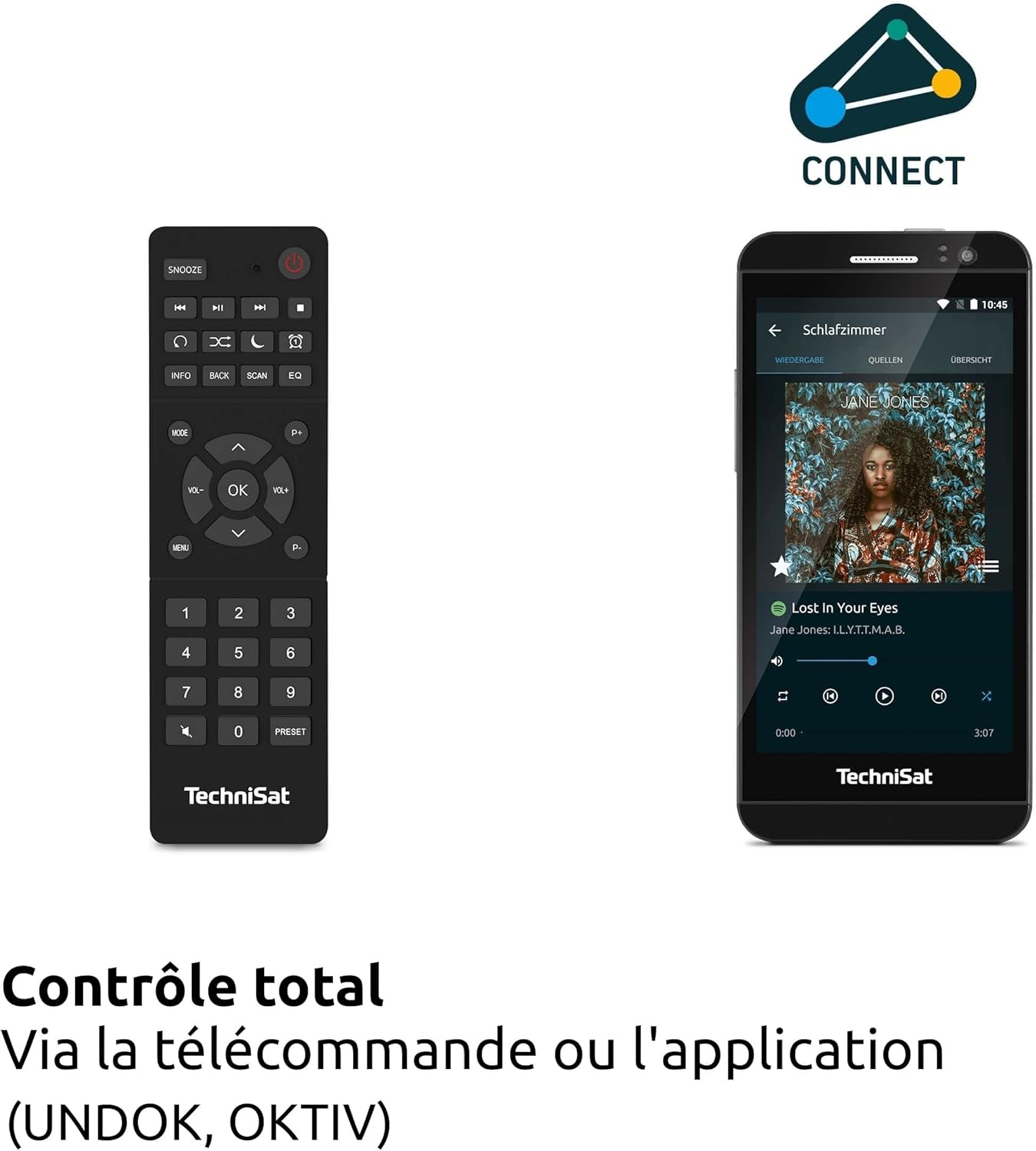
Image: The remote control and a smartphone showing the UNDOK app, illustrating the various control options for the radio.
Radio Modes (DAB+, FM, Internet Radio)
Press the Mode button to select your desired radio source. For DAB+ and FM, the radio will automatically scan for available stations. For Internet Radio, navigate through the menu to browse stations by genre, location, or search for specific stations.

Image: Visual representation of the radio's ability to receive DAB+, Internet Radio, and FM broadcasts, offering a wide range of listening options.
Bluetooth Audio Streaming
Select Bluetooth mode. On your smartphone or tablet, enable Bluetooth and search for 'DIGITRADIO 371 IR'. Pair the devices. Once connected, you can stream audio from your device to the radio.

Image: A smartphone wirelessly connected to the DIGITRADIO 371 IR, demonstrating the Bluetooth audio streaming feature for playing music from personal devices.
USB Playback and Charging
Insert a USB stick containing MP3 files into the USB port. Select USB mode to browse and play your music. The USB port also functions as a charging port for external devices like smartphones.
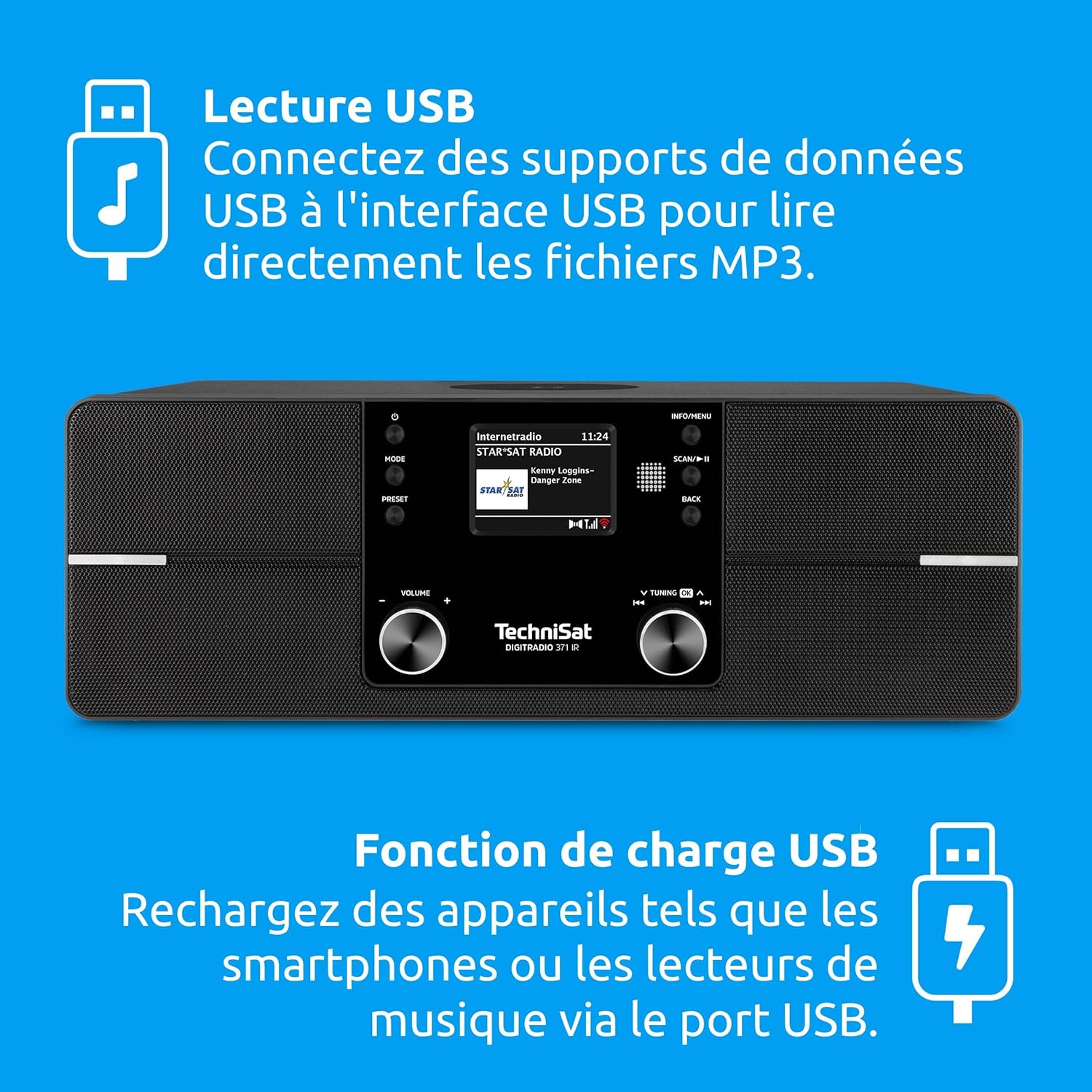
Image: Icons indicating USB playback and charging capabilities, showing how the radio supports playing MP3s from a USB drive and charging devices.
AUX-in Connection
Connect an external audio device (e.g., an MP3 player) to the AUX-in port on the rear of the radio using a 3.5mm audio cable. Select AUX-in mode to play audio from the connected device.
Wireless Charging Function
Place your Qi-compatible smartphone on the designated wireless charging area on top of the radio. Ensure the phone is centered for optimal charging. The radio will automatically begin charging the device.

Image: A hand placing a smartphone on the radio's top surface, demonstrating the wireless charging feature for compatible devices.
Alarm Clock and Sleep Timer
Access the alarm settings through the menu to set multiple alarms with customizable sources (e.g., buzzer, radio station). The sleep timer allows you to set a duration after which the radio will automatically turn off.
Maintenance
Cleaning
To clean the radio, gently wipe the surfaces with a soft, dry, or slightly damp cloth. Do not use abrasive cleaners, solvents, or chemical sprays, as these can damage the finish. Ensure the device is unplugged before cleaning.
Software Updates
The DIGITRADIO 371 IR may receive software updates to improve performance or add new features. Check the system settings menu for available updates and follow the on-screen instructions to install them. Ensure a stable internet connection during the update process.
Troubleshooting
| Problem | Possible Cause | Solution |
|---|---|---|
| No power | Power cable not connected; power outlet faulty. | Check power cable connection; try a different outlet. |
| Poor DAB+/FM reception | Antenna not extended or poorly positioned; weak signal area. | Fully extend and adjust the telescopic antenna; try relocating the radio. |
| Cannot connect to Wi-Fi | Incorrect password; router too far; Wi-Fi network issues. | Verify Wi-Fi password; move radio closer to router; restart router. |
| Bluetooth pairing fails | Bluetooth not enabled on device; radio not in pairing mode. | Ensure Bluetooth is active on your device; select Bluetooth mode on radio. |
| Wireless charging not working | Phone not Qi-compatible; phone not centered; foreign objects on pad. | Check phone compatibility; reposition phone; remove any obstructions. |
| No sound | Volume too low; mute activated; incorrect source selected. | Increase volume; check mute status; ensure correct audio source is selected. |
Specifications
| Feature | Detail |
|---|---|
| Brand | TechniSat |
| Model Number | 0000/2971 |
| Color | Black |
| Connectivity Technology | Auxiliary, Bluetooth, USB, Wi-Fi |
| Special Features | DAB+ Digital Radio, FM Radio with RDS and PLL, Internet Radio, 2.4" TFT Color Display, 20 DAB+/20 FM Station Presets, USB Interface (charging & MP3 playback), Wireless Charging, Integrated Wi-Fi, Bluetooth Audio Streaming |
| Total USB Ports | 1 |
| Compatible Devices | Headphones, Smartphone, Tablet |
| Power Source | Corded Electric |
| Supported Radio Bands | DAB+, FM, Internet Radio |
| Tuning Technology | FM/DAB+/Internet |
| Product Dimensions (L x W x H) | 35 x 21 x 12 centimeters |
| Included Components | DIGITRADIO 371 IR unit, User Manual, Remote Control |
| Batteries Required | 2 AAA (for remote control) |
Warranty and Support
The TechniSat DIGITRADIO 371 IR comes with a 2-year manufacturer's warranty (Gewährleistung). For warranty claims or technical support, please contact your retailer or visit the official TechniSat website for further assistance. Information regarding spare parts availability and guaranteed software updates is not explicitly provided.


