
HATOKU ID732
HATOKU Stylus Pen User Manual
Model: ID732 | Brand: HATOKU
1. Introduction
Thank you for choosing the HATOKU Stylus Pen. This high-performance stylus is designed to enhance your digital experience on compatible iPad models, offering precision, smooth writing, and intuitive features. Please read this manual carefully to ensure proper use and to maximize the potential of your new stylus.

Image: The HATOKU Stylus Pen in Cool White, showcasing its sleek design and included replaceable tips.
2. Compatibility
The HATOKU Stylus Pen is specifically designed for a wide range of iPad models released from 2018 to 2025. Please verify your iPad model before use to ensure full functionality.
Compatible iPad Models:
- iPad (6th, 7th, 8th, 9th, 10th, 11th Generation)
- iPad Air (3rd, 4th, 5th Generation, M2, M3)
- iPad Mini (5th, 6th Generation)
- iPad Pro 11" (1st, 2nd, 3rd, 4th Generation, M4)
- iPad Pro 12.9" (3rd, 4th, 5th, 6th Generation)
- iPad Pro 13" (M4)
Incompatible iPad Models:
- iPad Pro 12.9" (1st/2nd Gen)
- iPad Pro 10.5"/9.7"
- iPad (1st/2nd/3rd/4th/5th Generation)
- iPad Mini (1st/2nd/3rd/4th/7th Generation)
- iPad Air (1st/2nd Generation)
- Not compatible with iPhone, Android, or Microsoft devices.

Image: A detailed chart illustrating compatible iPad models and their corresponding model numbers.
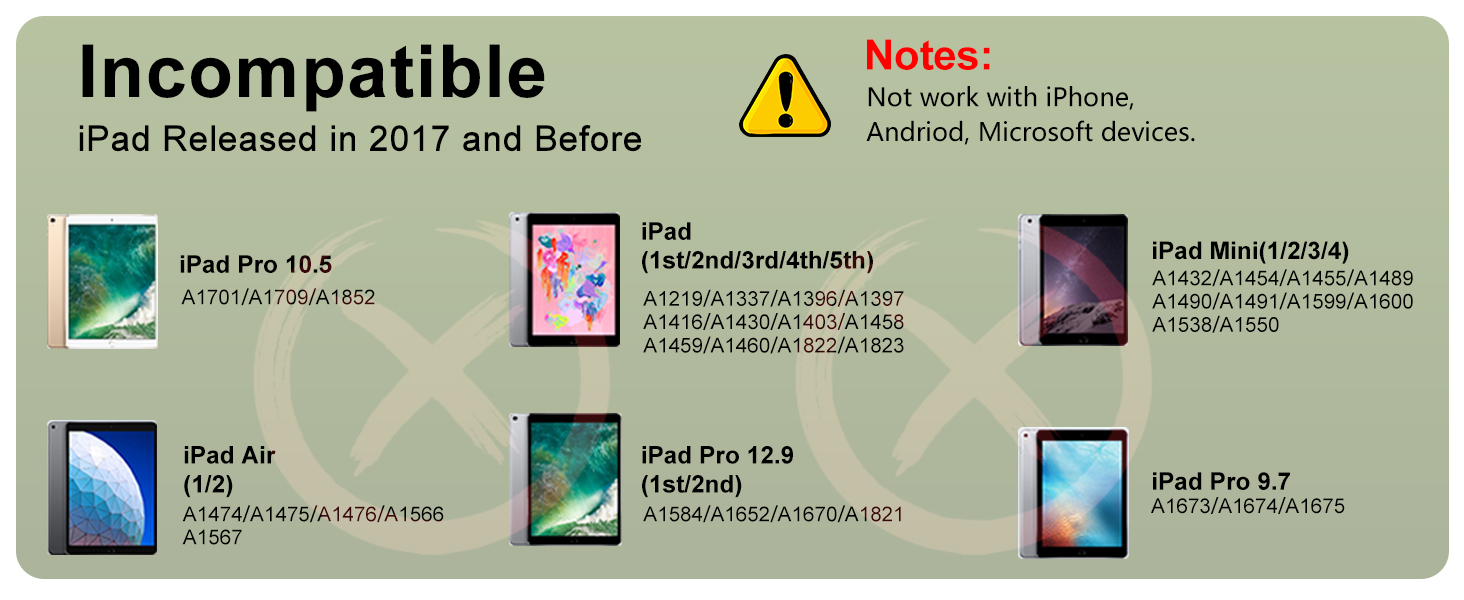
Image: A visual guide showing iPad models that are not compatible with the HATOKU Stylus Pen.
How to Recognize Your iPad Model:
To check your iPad model, go to Settings > General > About. Look for 'Model Name' and 'Model Number'.

Image: A step-by-step visual guide on how to locate your iPad's model information within the settings menu.
3. Package Contents
Upon opening your HATOKU Stylus Pen package, you will find the following items:
- 1 x HATOKU Stylus Pen (1st Generation)
- 3 x Replaceable Pen Tips (1.5mm POM)
- 1 x Type-C Charging Cable
- 1 x User Manual

Image: An overview of all items included in the HATOKU Stylus Pen package: the pen, extra tips, charging cable, and user manual.
4. Setup
4.1. Initial Charging
Before first use, it is recommended to fully charge your HATOKU Stylus Pen.
- Connect the provided Type-C charging cable to the stylus's charging port.
- Plug the other end of the cable into a USB power source (e.g., computer, wall adapter).
- The stylus features a new, improved battery that allows up to 8 hours of writing and drawing time on a full charge in approximately 15 minutes.
Battery Indicator:
- 3 Blue Lights: 70% to Full charge
- 2 Blue Lights: 30% to 70% charge
- 1 Blue Light: 5% to 30% charge
- Blue Lights Flashing: Battery remaining <5%, requires charging.

Image: The stylus connected to a charging cable, illustrating the fast charging capability and the meaning of the blue LED battery indicator lights.
4.2. Turning On/Off
The HATOKU Stylus Pen features a smart touch switch for easy operation.
- To Turn On: Simply tap the top button of the stylus. The blue indicator lights will illuminate.
- To Turn Off: Tap the top button again. The stylus will also automatically turn off after 5-10 minutes of inactivity to conserve power.
- No Bluetooth pairing or app connection is required for basic functionality.

Image: A diagram highlighting the 1.5mm fine tip, aluminum alloy body, indicator lights, USB-C port, and the top button for turning the pen on/off.
5. Operating Instructions
5.1. Basic Use
Once powered on, the HATOKU Stylus Pen is ready for immediate use. Simply touch the tip to your compatible iPad screen to write, draw, mark, sign, or take notes.
5.2. Palm Rejection
The stylus supports palm rejection technology, allowing you to rest your hand naturally on the iPad screen without worrying about accidental marks or interference while writing or drawing.

Image: A hand drawing on an iPad with the palm resting on the screen, illustrating the effective palm rejection feature.
5.3. Tilt Sensitivity
The HATOKU Stylus Pen features tilt sensitivity, which means the thickness of the line you draw or write can vary based on the angle at which you hold the pen. This allows for more natural and expressive strokes, similar to using a traditional pencil.

Image: Visual representation of how the stylus's tilt angle (60°, 30°, 15°) affects the thickness of the drawn line.
5.4. Magnetic Adsorption
For convenient storage and to prevent loss, the stylus can magnetically attach to the side of compatible iPad models. This feature works with iPad Pro 12.9" (3rd/4th/5th Gen), iPad Pro 11"/13", iPad Air (M2/M3/4th/5th Gen), and iPad Mini 6.

Image: The stylus attached magnetically to the side of an iPad, demonstrating its convenient storage feature.
5.5. Applications
The HATOKU Stylus Pen is versatile for various tasks:
- Taking Notes: Ideal for handwritten notes in digital notebooks.
- Drawing: Perfect for digital art and sketching.
- Making Charts: Useful for creating diagrams and flowcharts with precision.

Image: A composite image demonstrating the stylus's utility across various applications, including note-taking, drawing, and creating charts.
5.6. Product Demonstration Video
Video: An official product video from HATOKU demonstrating the stylus pen's features, including unboxing, power on/off, tilt sensitivity, high precision, palm rejection, and charging.
Video: An official product video from HATOKU highlighting the stylus as a great alternative to the Apple Pencil, showcasing its various functionalities and ease of use.
6. Maintenance
6.1. Replacing Pen Tips
The HATOKU Stylus Pen comes with replaceable 1.5mm POM tips, which are highly conductive and abrasion resistant. If your tip becomes worn or damaged, follow these steps to replace it:
- Gently twist the old tip counter-clockwise to remove it.
- Align a new tip with the stylus and twist it clockwise until it is securely in place.
Image: A visual guide demonstrating the process of replacing the stylus pen tip by twisting it off and on.
6.2. Cleaning
To maintain optimal performance, wipe the stylus body and tip with a soft, dry, lint-free cloth. Avoid using harsh chemicals or abrasive materials.
7. Troubleshooting
If you encounter any issues with your HATOKU Stylus Pen, please refer to the following common solutions:
| Problem | Possible Solution |
|---|---|
| Stylus not responding | Ensure the stylus is charged and turned on. Verify iPad compatibility. Restart your iPad. |
| Inaccurate or delayed response | Check if the pen tip is securely attached. Replace the pen tip if it appears worn. Ensure your iPad screen is clean. |
| Stylus not charging | Ensure the Type-C cable is properly connected to both the stylus and the power source. Try a different USB port or power adapter. |
| Magnetic adsorption not working | Confirm your iPad model supports magnetic adsorption (iPad Pro 12.9" 3rd/4th/5th, iPad Pro 11"/13", iPad Air M2/M3/4th/5th, iPad Mini 6). |
8. Specifications
| Feature | Detail |
|---|---|
| Model Number | ID732 |
| Product Dimensions | 0.28 x 0.28 x 6.54 inches |
| Item Weight | 0.49 ounces |
| Material | Plastic (Body), POM (Tip) |
| Battery Type | 1 Lithium Polymer battery (included) |
| Charging Time | Approx. 15 minutes for full charge |
| Working Time | Up to 8 hours (on full charge) |
| Standby Time | 1 Year |
| Auto Shutdown | After 5-10 minutes of inactivity |
| Connectivity | No Bluetooth or app required |
9. Warranty & Support
9.1. Warranty Information
The HATOKU Stylus Pen comes with a 1-year warranty from the date of purchase. This warranty covers manufacturing defects and ensures your satisfaction with the product.
9.2. Customer Support
For any questions, concerns, or assistance with your HATOKU Stylus Pen, please do not hesitate to contact our customer service team. We offer 24/7 online support to ensure all our customers are satisfied. We are committed to providing refunds or replacements for any issues you may encounter.
Contact Information:
- Please refer to the contact details provided on the product packaging or our official website.
Related documentsID732

Ask a question about this manual
Ask about setup, troubleshooting, compatibility, parts, safety, or missing instructions. Manuals+ will review the question and use this page’s manual context to help answer it.