
1. Product Overview
The NEWYES 991ES is an advanced scientific calculator integrated with a convenient writing tablet, designed to enhance productivity for students, educators, and professionals. It combines powerful computational capabilities with the flexibility of a digital notepad, allowing for seamless calculation and note-taking.

Image 1.1: The NEWYES 991ES Scientific Calculator with integrated writing tablet.
2. Key Features
- 417 Computing Functions: Includes CALC, SOLVE, Base-N, EQN, MATRIX, TABLE, VECTOR, fractions, variable statistics, complex number calculations, linear regression, base arithmetic, computer science, standard deviation, and polar-rectangular conversions.
- Natural Textbook Display: Displays fractions, equations, and calculation results as they appear in textbooks, facilitating easier comprehension.
- 3-Line Display: Allows entry of up to 199 characters at a time, displaying formulas and results simultaneously for convenience.
- Integrated 6.5-inch Writing Tablet: Enables real-time note-taking during calculations, complete with a dedicated pen, erase button, and lock function.
- Solar Energy & Sensitive Keys: Features a solar panel for extended battery life, supplemented by a replaceable button battery. Premium plastic keys offer a more sensitive and precise tactile experience.

Image 2.1: Visual representation of the 417 computing functions available.
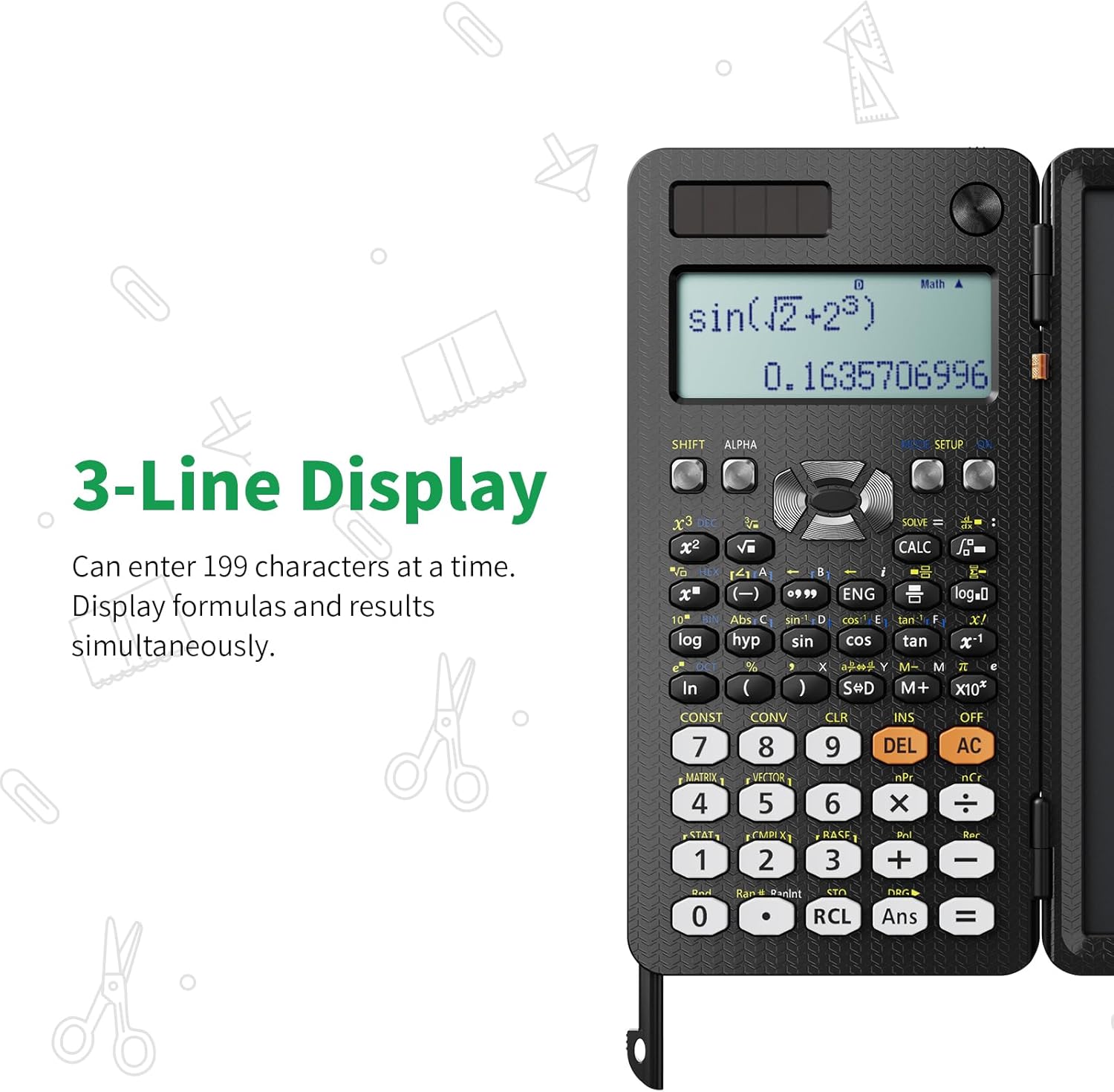
Image 2.2: The 3-line display showing simultaneous input and output.
3. Setup
3.1 Battery Installation
The NEWYES 991ES calculator is powered by both solar energy and two CR2032 button batteries (included). While solar power extends battery life, the button batteries ensure consistent operation in low-light conditions.
- Locate the battery compartment on the back of the calculator unit.
- Using a small screwdriver, open the battery compartment cover.
- Insert two CR2032 batteries, ensuring correct polarity (+/-).
- Replace the battery compartment cover and secure it.

Image 3.1: Key components including solar panels and battery location.
4. Operation Guide
4.1 Scientific Calculator Functions
The calculator features a comprehensive set of 417 functions. Refer to the key labels for direct functions and the 'SHIFT' or 'ALPHA' keys for secondary functions. The 'MODE SETUP' button allows you to switch between different calculation modes (e.g., COMP, STAT, TABLE, EQN, MATRIX, VECTOR, BASE-N).
- Natural Textbook Display: Input expressions exactly as they appear in textbooks. For example, to enter a fraction, use the fraction key (a b/c).
- 3-Line Display: The top line displays the input expression, the middle line shows the current calculation, and the bottom line shows the result.
- CALC/SOLVE: Use these functions for solving equations and performing calculations with variables.
- Statistical Calculations: Access statistical modes to perform regressions, standard deviations, and other statistical analyses.
4.2 Writing Tablet Usage
The integrated 6.5-inch writing tablet is ideal for jotting down notes, drawing diagrams, or performing scratch work without wasting paper.
- Writing: Use the included stylus pen to write directly on the tablet surface.
- Erasing: Press the 'Clear' button located above the writing tablet to erase all content.
- Lock Function: Slide the 'LOCK KEY' switch (located on the side of the writing tablet) to prevent accidental erasure of your notes. Slide it back to unlock and enable erasing.
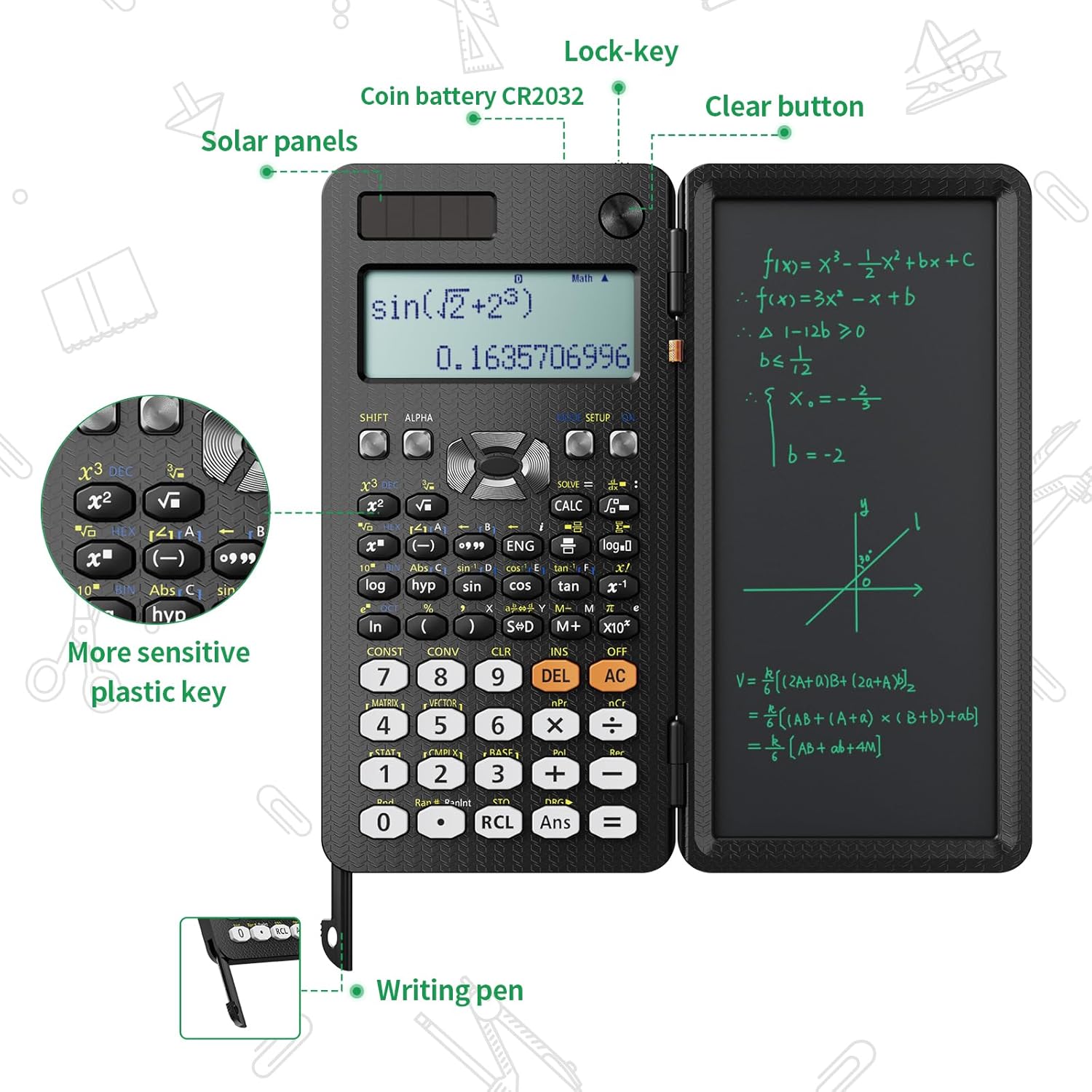
Image 4.1: The calculator and writing tablet in use with the stylus.

Image 4.2: Demonstrating the ability to take notes while calculating.

Image 4.3: The compact dimensions of the calculator, highlighting its portability.
5. Maintenance
5.1 Cleaning
To clean the calculator and writing tablet, use a soft, dry cloth. For stubborn marks on the writing tablet, a slightly damp cloth can be used, but ensure no liquid enters the device. Avoid using abrasive cleaners or solvents.
5.2 Battery Replacement
When the display becomes dim or the calculator functions erratically, it may be time to replace the CR2032 batteries. Follow the steps outlined in Section 3.1 for battery installation.
6. Troubleshooting
6.1 Writing Area Cannot Be Erased
If the content on the writing tablet cannot be erased, please check the 'LOCK KEY' switch. If it is in the locked position, the writing function is disabled to prevent accidental deletion. Simply slide the switch to the unlocked position to enable erasing.

Image 6.1: Location of the lock switch on the writing tablet.

Image 6.2: Visual guide for the lock key to prevent accidental deletion.
6.2 Calculator Not Turning On
Ensure the batteries are correctly installed and not depleted. If the issue persists, try replacing the batteries with new ones. The solar panel requires sufficient light to operate independently.
7. Technical Specifications
| Feature | Specification |
|---|---|
| Brand | NEWYES |
| Model Name | 991ES |
| Model Number | AB0607 |
| Display Type | LCD |
| Power Source | Battery Powered (Solar + CR2032) |
| Batteries Required | 2 CR2032 (included) |
| Battery Cell Composition | Lithium Manganese Dioxide |
| Material Type | Silicone |
| Product Dimensions | 16.2 x 8.1 x 1.75 cm |
| Item Weight | 153 g |
| Number of Functions | 417 |
8. Warranty and Support
NEWYES products are manufactured to high-quality standards. For warranty information or technical support, please refer to the contact details provided with your purchase or visit the official NEWYES website. Keep your purchase receipt as proof of purchase for warranty claims.


