
1. Product Overview
The EIGHTREE Smart WiFi LED Light Bulb offers advanced lighting control through a smartphone application and voice commands. This bulb provides a wide range of colors and adjustable brightness, designed for various home lighting needs. It is energy-efficient and compatible with popular smart home ecosystems.
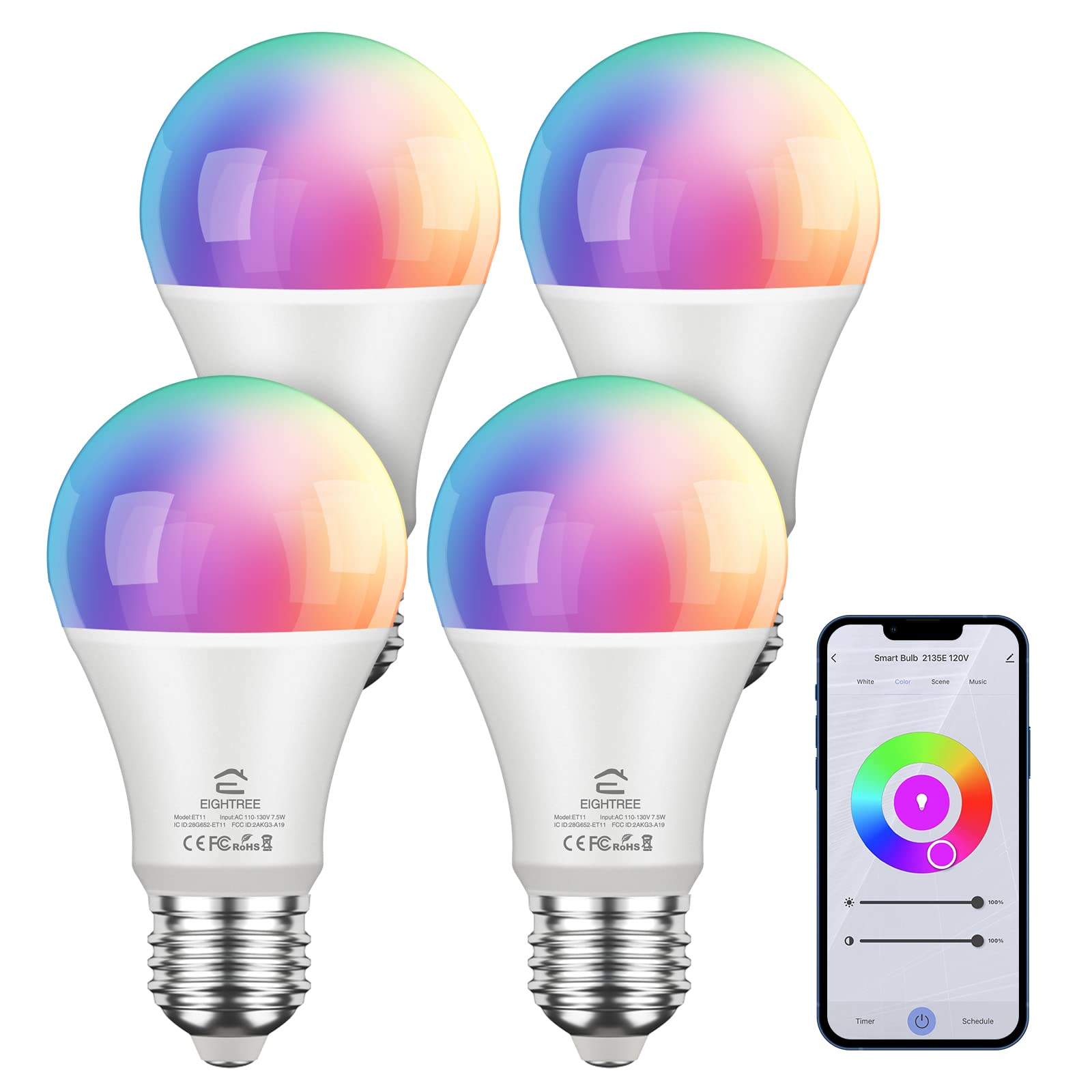
Image: EIGHTREE Smart WiFi LED Light Bulb highlighting its core functionalities.
Key Features:
- Remote Control: Manage lighting settings from anywhere using the Smart Life APP. (Note: Supports 2.4GHz Wi-Fi only).
- Voice Control: Compatible with Alexa, Google Home, and SmartThings for hands-free operation.
- Timing and Grouping: Schedule lighting operations and control multiple bulbs simultaneously.
- Dimmable & Multicolor: Offers 16 million RGB colors and adjustable color temperatures (2800K-6200K).
- Energy Efficient: 7.5W LED bulb provides 800LM brightness, equivalent to a 60W incandescent bulb, with over 80% less energy consumption.
2. Safety Information
Please read and follow all safety instructions to prevent injury or damage. This device is for indoor use only. Do not disassemble or modify the bulb. Ensure the power is off before installation or removal. Avoid exposure to water or high humidity. Use only in suitable fixtures and environments.
3. Getting Started
What's in the Box:
- EIGHTREE Smart WiFi LED Light Bulb(s)
- User Manual
Pre-installation Checklist:
- A stable 2.4GHz Wi-Fi network. (5GHz Wi-Fi is not supported).
- A smartphone or tablet running iOS or Android.
- The "Smart Life" application installed on your device.
4. Connection Guide
Bluetooth Connection (Recommended)
This method utilizes Bluetooth for initial device discovery, simplifying the connection process.
- Ensure Bluetooth is enabled on your smartphone.
- Install the smart bulb and turn it on. Turn the device off-on-off-on-off-on until the bulb blinks rapidly. This indicates pairing mode.
- Open the Smart Life App, tap '+' to Add Device, then select 'Lighting' and 'Light Source (BLE+Wi-Fi)'. The app should automatically discover the bulb.
- Confirm the blinking status in the app.
- Select your 2.4GHz Wi-Fi network and enter the password.
- Wait for the connection to complete. Once connected, you can rename the bulb.
Video: Detailed steps for Bluetooth-assisted connection of the smart bulb.
EZ Mode Connection (Without Bluetooth)
If Bluetooth is unavailable or preferred not to be used, follow these steps for EZ Mode connection.
- Install the smart bulb and turn it on. Turn the device off-on-off-on-off-on until the bulb blinks rapidly.
- Open the Smart Life App, tap '+' to Add Device, then select 'Lighting' and 'Light Source (Wi-Fi)'.
- Confirm the blinking status in the app.
- Select your 2.4GHz Wi-Fi network and enter the password.
- Wait for the connection to complete. Once connected, you can rename the bulb.

Image: Visual guide for the quick and easy setup process via the Smart Life app.
Video: Instructions for EZ Mode connection when Bluetooth is off.
Voice Assistant Integration (Alexa & Google Home)
After successfully connecting your smart bulb to the Smart Life App, you can link it with Amazon Alexa or Google Home for voice control.
- In the Smart Life App, navigate to the device page for your bulb.
- Look for "Third-party Control" options.
- For Alexa: Choose "Alexa", then "Sign In With Amazon", and follow the prompts to "Link" your account.
- For Google Home: Choose "Google Assistant", then "Link with Google Assistant". Select "Get started", then "Works with Google", find "Smart Life", and "Agree and Link" your account.
- Once linked, you can use voice commands such as:
- "Alexa, turn on the bedroom light."
- "Hey Google, turn on bedroom light."
- "Alexa, set the light to purple."
Video: Guide on how to connect your smart bulb with Alexa or Google Home for voice control.
5. Operating Instructions
App Control:
The Smart Life App provides comprehensive control over your EIGHTREE Smart WiFi LED Light Bulb.
- Brightness & Color Adjustment: Adjust the light intensity from 0-100% and choose from 16 million colors, including warm (2800K) and cool (6200K) white tones.

Image: Demonstrates warm, cool, and colored light options with app control interfaces.
- Scene Modes: Select from various pre-set scene modes or create custom ones to match your mood or activity.
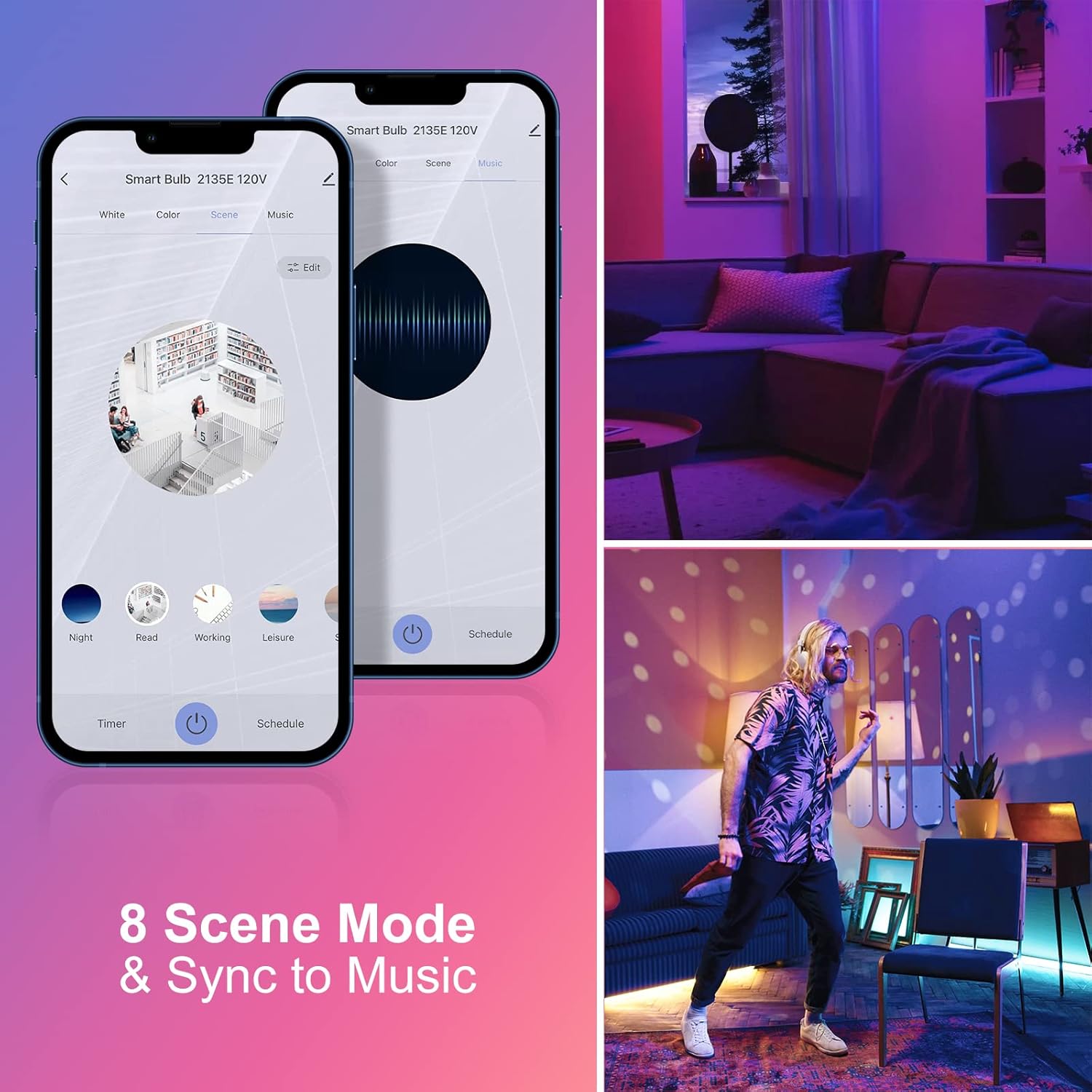
Image: Illustrates 8 scene modes and music synchronization capabilities.
- Timing & Scheduling: Set schedules for the bulb to turn on/off at specific times, or to change settings automatically.

Image: Examples of setting schedules for bedtime and wake-up routines.
- Group Control: Group multiple EIGHTREE smart bulbs together to control them simultaneously with a single command.

Image: Depicts group control functionality across different rooms in a house.
Voice Control:
Once integrated with Alexa or Google Home, use simple voice commands to manage your lighting:
- "Alexa, turn on [Light Name]."
- "Hey Google, dim [Light Name] to 50%."
- "Alexa, change [Light Name] to blue."
- "Hey Google, set [Light Name] to warm white."
6. Maintenance
To ensure optimal performance and longevity of your EIGHTREE Smart WiFi LED Light Bulb, keep it clean and free from dust. Use a soft, dry cloth for cleaning. Do not use liquid cleaners or abrasive materials. Ensure the bulb is completely cool before handling. No user-serviceable parts are inside.
7. Troubleshooting
If you encounter issues with your smart bulb, please refer to the following common solutions:
- Bulb not connecting: Ensure your Wi-Fi network is 2.4GHz. Confirm Bluetooth is enabled on your phone for recommended connection. Try resetting the bulb by cycling power off-on-off-on-off-on until it blinks rapidly.
- Voice control not working: Verify that your Smart Life account is correctly linked to Alexa or Google Home. Check your internet connection and ensure your voice assistant device is online.
- Bulb offline: Check your Wi-Fi router and internet connection. Ensure the bulb is within range of your Wi-Fi signal. Power cycle the bulb and your router if necessary.
- App not responding: Close and reopen the Smart Life App. Ensure the app is updated to the latest version.
For further assistance, please contact EIGHTREE customer support.
8. Specifications
| Feature | Detail |
|---|---|
| Brand | EIGHTREE |
| Model Number | ET11 |
| Light Type | LED |
| Wattage | 7.5 Watts (60W Incandescent Equivalent) |
| Brightness | 800 Lumens |
| Bulb Shape Size | A19 |
| Bulb Base | E26 |
| Color Temperature | 2800K-6200K (Warm, Amber, Cool, Blue Tones) |
| Color Rendering Index (CRI) | 80 |
| Connectivity Technology | Wi-Fi (2.4GHz only) |
| Controller Type | Amazon Alexa, Google Assistant |
| Voltage | 100-120 Volts |
| Frequency | 60 Hertz |
| Light Source Operating Life | Over 20,000 Hours |
| Indoor/Outdoor Usage | Indoor |
9. Warranty and Support
EIGHTREE products are designed for quality and reliability. This product comes with a 24-month worry-free warranty from the date of purchase, covering manufacturing defects.
Customer Support:
If you have any questions, require technical assistance, or experience any problems with your EIGHTREE Smart WiFi LED Light Bulb, please contact our customer support team. We are dedicated to providing prompt and helpful service.
For contact information, please refer to the product packaging or the official EIGHTREE website.