
ORICO 6626C3-C
ORICO Hard Drive Docking Station User Manual
Model: 6626C3-C | Brand: ORICO
1. Introduction
Thank you for choosing the ORICO Dual Bay USB C to SATA Hard Drive Docking Station (Model: 6626C3-C). This device is designed to provide a convenient and efficient solution for managing your 2.5-inch and 3.5-inch SATA SSDs and HDDs, offering both data transfer and offline cloning capabilities. Please read this manual carefully to ensure proper use and optimal performance.

Image: The ORICO 6626C3-C docking station, showcasing its dual bays and the included USB-C to USB-C and USB-C to USB-A cables.
2. Product Contents
Please check the package contents to ensure all items are present:
- 2-bay Hard Drive Docking Station x 1
- USB-C TO C 2-in-1 Cable x 1
- 12V 3A Power Adapter x 1
- User Manual x 1
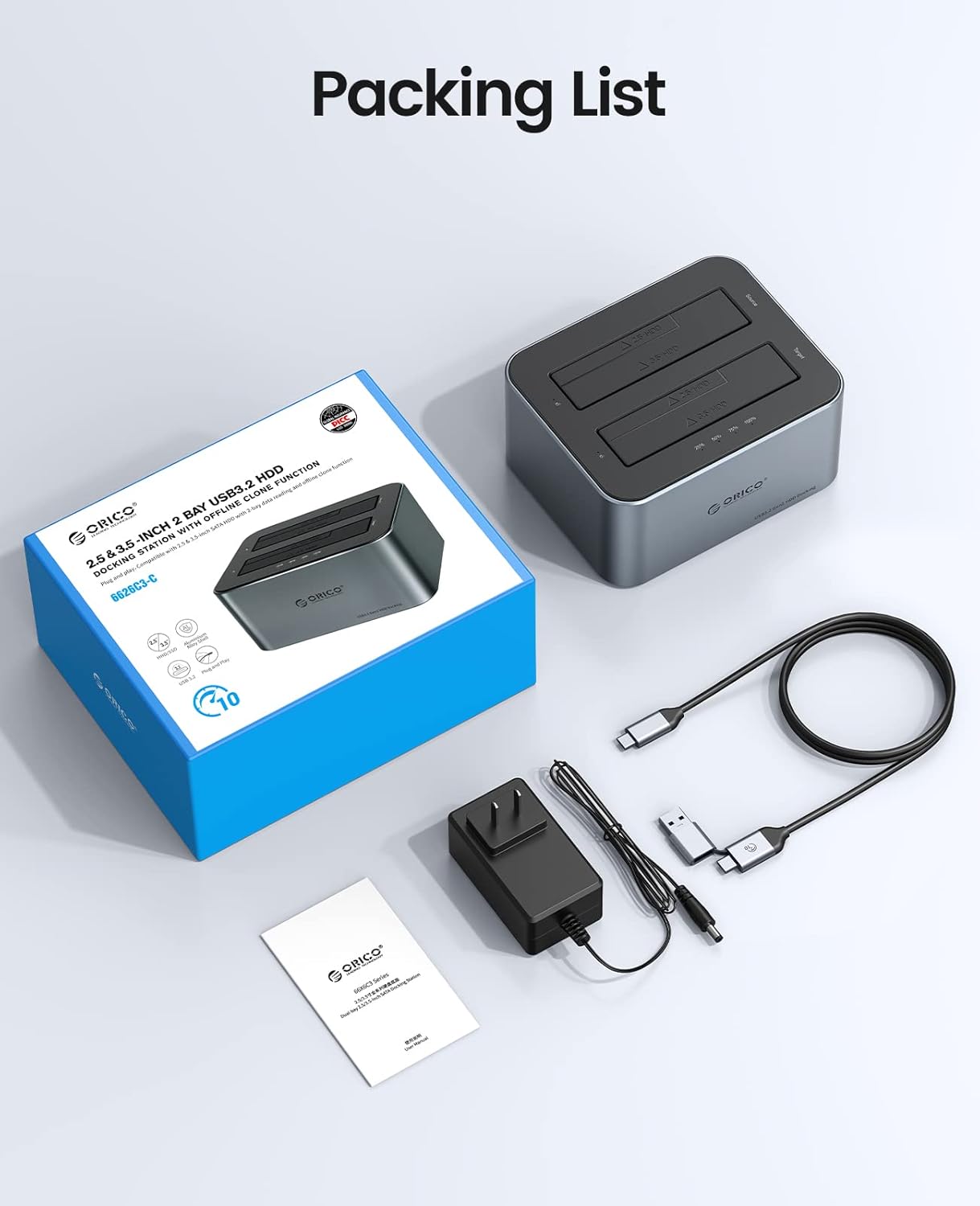
Image: A visual representation of the ORICO 6626C3-C package contents, including the docking station, USB cables, power adapter, and user manual.
3. Product Features
- Offline Clone Function: Allows direct disk-to-disk cloning without a computer connection. The target disk must be larger than the source disk.
- Dual Bay Design: Compatible with all 2.5-inch and 3.5-inch SATA I/II/III SSD/HDD hard drives, supporting up to 18TB per bay.
- High-Speed Transmission: Features a USB 3.2 Gen2 Type-C interface, supporting up to 6Gbps max transfer speed with UASP (USB Attached SCSI Protocol) acceleration, which is up to 70% faster than conventional USB 3.0. Supports S.M.A.R.T and TRIM.
- Universal Device Support: Comes with a durable USB 3.2 Gen2 Type-C to Type-C data cable and includes a USB-A adapter, ensuring compatibility with a wide range of USB-C and USB-A devices such as laptops, desktops, tablets, routers, and projectors.
- Premium Aluminum Alloy Material: Constructed from sturdy and durable aluminum alloy, providing excellent heat dissipation and a vertical design for efficient cooling.
- Plug and Play: Easy to connect without the need for driver installation.
- Intelligent Sleep Mode: Automatically enters sleep mode after 10 minutes of inactivity to save energy and prolong the lifespan of the docking station and hard drives.
- LED Indicator: Provides clear visual feedback on the working status and cloning progress.
Feature Highlights:

Image: Illustrates the 6Gbps Super Speed Transmission capability, highlighting UASP support, LED indicators, auto-sleep function, and S.M.A.R.T. compatibility.

Image: Shows the versatile USB-C to USB-C cable with an included USB-A converter, allowing connection to various devices.

Image: Details the offline clone feature, showing source and target disk slots and the capacity requirement for cloning.
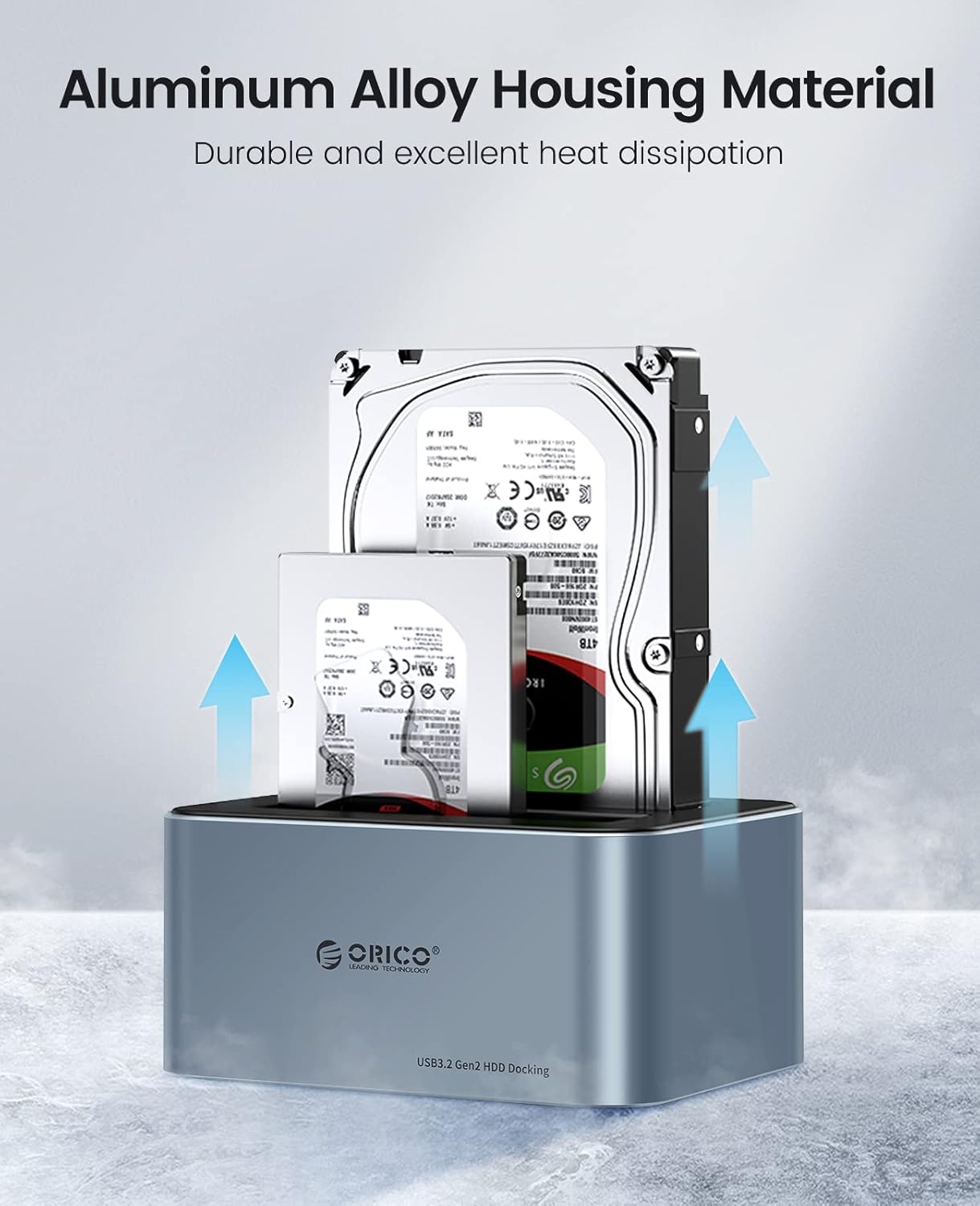
Image: Highlights the aluminum alloy construction, emphasizing its role in efficient heat dissipation for inserted hard drives.

Image: Demonstrates the wide compatibility of the docking station with different devices (PC, Laptop, TV, Router, iPad, Projector) and operating systems (Windows, Mac OS, Linux, iPad OS).

Image: Provides detailed views of the LED indicator, the sleek aluminum alloy body, and the stable non-slip silicone foot pads.
4. Setup and Installation
The ORICO docking station is designed for tool-free installation, making setup quick and easy.
- Power Connection: Connect the provided 12V 3A power adapter to the DC power port on the docking station and then plug it into a power outlet.
- Insert Hard Drives: Gently insert your 2.5-inch or 3.5-inch SATA SSD/HDD into the appropriate bay(s) until securely seated. Ensure the SATA connectors align properly.
- Connect to Computer (for PC Mode): If you intend to use the docking station for data transfer with a computer, connect the USB-C to USB-C cable (or USB-C to USB-A with adapter) from the docking station to an available USB port on your computer.

Image: A visual guide demonstrating the tool-free installation process, including connecting power, inserting hard drives, and initiating the offline clone function.
5. Operating Instructions
5.1. Data Transfer Mode (PC Mode)
To use the docking station for data transfer between your hard drives and computer:
- Ensure the docking station is powered on and hard drives are inserted.
- Slide the 'PC/Clone' switch on the back of the docking station to the 'PC' position.
- Connect the docking station to your computer using the provided USB cable.
- Your computer should automatically detect the drives. For new drives, you may need to initialize and format them via Disk Management (Windows) or Disk Utility (macOS) before they appear in 'This PC' or 'Finder'.
Video: Demonstrates the general usage of the ORICO 66 series hard drive docking station for data transfer with a computer, including connecting drives and accessing them.
5.2. Offline Clone Function
The offline clone function allows you to duplicate a source disk to a target disk without connecting to a computer. Important: All data on the target disk will be overwritten during the cloning process. Ensure you back up any important data on the target disk before proceeding. The target disk must have a capacity equal to or greater than the source disk.
- Prepare Drives: Insert the source hard drive into the 'Source' bay (usually the bay labeled 'A' or 'Source'). Insert the target hard drive into the 'Target' bay (usually the bay labeled 'B' or 'Target').
- Disconnect from PC: Ensure the docking station is not connected to a computer via USB.
- Set to Clone Mode: Slide the 'PC/Clone' switch on the back of the docking station to the 'Clone' position.
- Start Cloning: Press and hold the 'START' button (often labeled 'Clone/PC' or similar) for approximately 5 seconds until you hear a 'beep' sound and the progress indicator LEDs begin to light up. This indicates the cloning process has started.
- Monitor Progress: The LED indicators (25%, 50%, 75%, 100%) will illuminate sequentially to show the cloning progress.
- Completion: Once all LEDs are solid, the cloning process is complete. You will hear a long 'beep' sound.
- Remove Drives: Turn off the docking station, then safely remove the cloned hard drives.
Video: A detailed demonstration of the offline clone function for the ORICO 6626C3-C docking station, showing the steps to clone a hard drive without a computer connection.
6. Maintenance
To ensure the longevity and optimal performance of your ORICO docking station:
- Keep the device in a clean, dry environment, away from direct sunlight and extreme temperatures.
- Avoid dropping or subjecting the device to strong impacts.
- Do not disassemble the device. Any unauthorized repairs will void the warranty.
- Clean the exterior with a soft, dry cloth. Do not use liquid cleaners or aerosols.
- Ensure proper ventilation around the device, especially when multiple drives are in use.
7. Troubleshooting
If you encounter issues with your ORICO docking station, please refer to the following common solutions:
| Problem | Possible Cause | Solution |
|---|---|---|
| Drive not detected by computer. | Incorrect switch position, loose cable, uninitialized/unformatted drive, drive issue. | Ensure 'PC/Clone' switch is in 'PC' mode. Check USB cable connection. For new drives, initialize and format in Disk Management (Windows) or Disk Utility (macOS). Test drive directly in PC if possible. |
| Offline clone fails or does not start. | Target disk too small, PC connected, incorrect button press, faulty drive. | Ensure target disk capacity is larger than source disk. Disconnect USB cable from PC. Press and hold 'START' button for 5 seconds until beep. Check if drives are properly seated. |
| Slow transfer speeds. | USB port limitation, cable issue, UASP not enabled. | Ensure connected to a USB 3.0/3.2 port on your computer. Use the provided high-quality USB cable. Verify UASP support on your system (usually automatic with compatible hardware/OS). |
| Docking station enters sleep mode too quickly. | Intelligent sleep mode activated. | This is a normal function after 10 minutes of inactivity to save energy. Accessing the drive will wake it up. |
| Beeping sound during operation. | Normal operation feedback. | Some models emit a beep when powered on/off or when a connection is established. This is normal behavior. |
8. Specifications
| Feature | Detail |
|---|---|
| Product Dimensions | 5.67 x 4.57 x 2.75 inches |
| Item Weight | 1.63 pounds |
| Item Model Number | 2 Bay with Clone |
| Brand | ORICO |
| Color | Grey |
| Hardware Interface | USB Type C |
| Compatible Devices | Laptop, Intelligent Router, PC, Smart-TV, Smartphone |
| Total USB Ports | 2 |
| Number of Bays | 2 |
| Input Voltage | 12 Volts (DC) |
| Supported Drive Types | 2.5/3.5-inch SATA I/II/III SSD/HDD |
| Max Capacity | Up to 18TB per bay (36TB total) |
| Transfer Speed | Up to 6Gbps (USB 3.2 Gen2) with UASP |
9. Warranty and Support
ORICO products come with a standard manufacturer's warranty. For specific warranty terms and conditions, please refer to the warranty card included with your product or visit the official ORICO website. If you encounter any issues or require technical assistance, please contact ORICO customer support through their official channels. Provide your product model number (6626C3-C) and a detailed description of the issue for faster service.
Related documents6626C3-C


Ask a question about this manual
Ask about setup, troubleshooting, compatibility, parts, safety, or missing instructions. Manuals+ will review the question and use this page’s manual context to help answer it.