
1. Introduction
The Whisker Feeder-Robot is an automatic pet feeder designed to provide scheduled, portion-controlled meals for your cat or dog. This manual provides essential information for setting up, operating, and maintaining your Feeder-Robot, ensuring your pet receives consistent and timely nutrition.

Image: A calico cat enjoying a meal from the Whisker Feeder-Robot.
2. Safety Information
- Read all instructions thoroughly before operating the Feeder-Robot.
- Keep the device out of reach of children and pets when not in use or during maintenance.
- Use only dry or semi-moist kibble. Do not use wet food, canned food, or treats that may jam the dispenser.
- Do not immerse the main unit in water or any other liquid. Clean with a damp cloth.
- Unplug the Feeder-Robot from the power outlet before cleaning or performing any maintenance.
- Ensure the power cord is not chewed by pets. Consider using a chew-resistant cord protector if necessary.
3. Package Contents
Verify that all items are present in the package:
- Whisker Feeder-Robot Unit (Black with Smoke-Grey Hopper)
- Power Adapter
- Removable Food Bowl (Plastic)
- Quick Start Guide
4. Setup
- Placement: Place the Feeder-Robot on a flat, stable surface in a location accessible to your pet and near a power outlet.
- Power Connection: Connect the power adapter to the Feeder-Robot and plug it into a wall outlet.
- App Download & Connection: Download the "Whisker" app from your device's app store. Follow the in-app instructions to connect your Feeder-Robot to your home Wi-Fi network. This enables remote control and scheduling features.
- Fill Hopper: Open the lid of the smoke-grey hopper and pour your pet's dry or semi-moist kibble into the reservoir. The hopper can hold up to 32 cups of food.
- Install Food Bowl: Place the removable food bowl into the designated area at the base of the feeder.
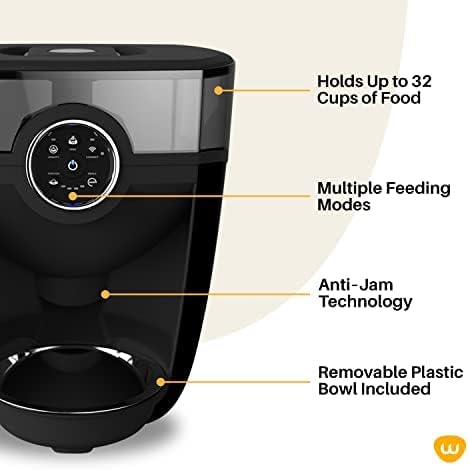
Image: Key features of the Feeder-Robot, including its large capacity and anti-jam technology.
5. Operating Instructions
5.1. Manual Feeding
To dispense food manually, press the "Feed" button on the control panel. Each press will dispense a small portion of food. You can also use the Whisker app to dispense food remotely.
5.2. Scheduled Feeding (via Whisker App)
For automated feeding, use the Whisker app to set up a feeding schedule. You can customize meal times and portion sizes (in 1/8-cup increments, up to 1/2 cup per meal, 1 to 8 times per day). The app allows you to monitor feeding habits and adjust schedules as needed.
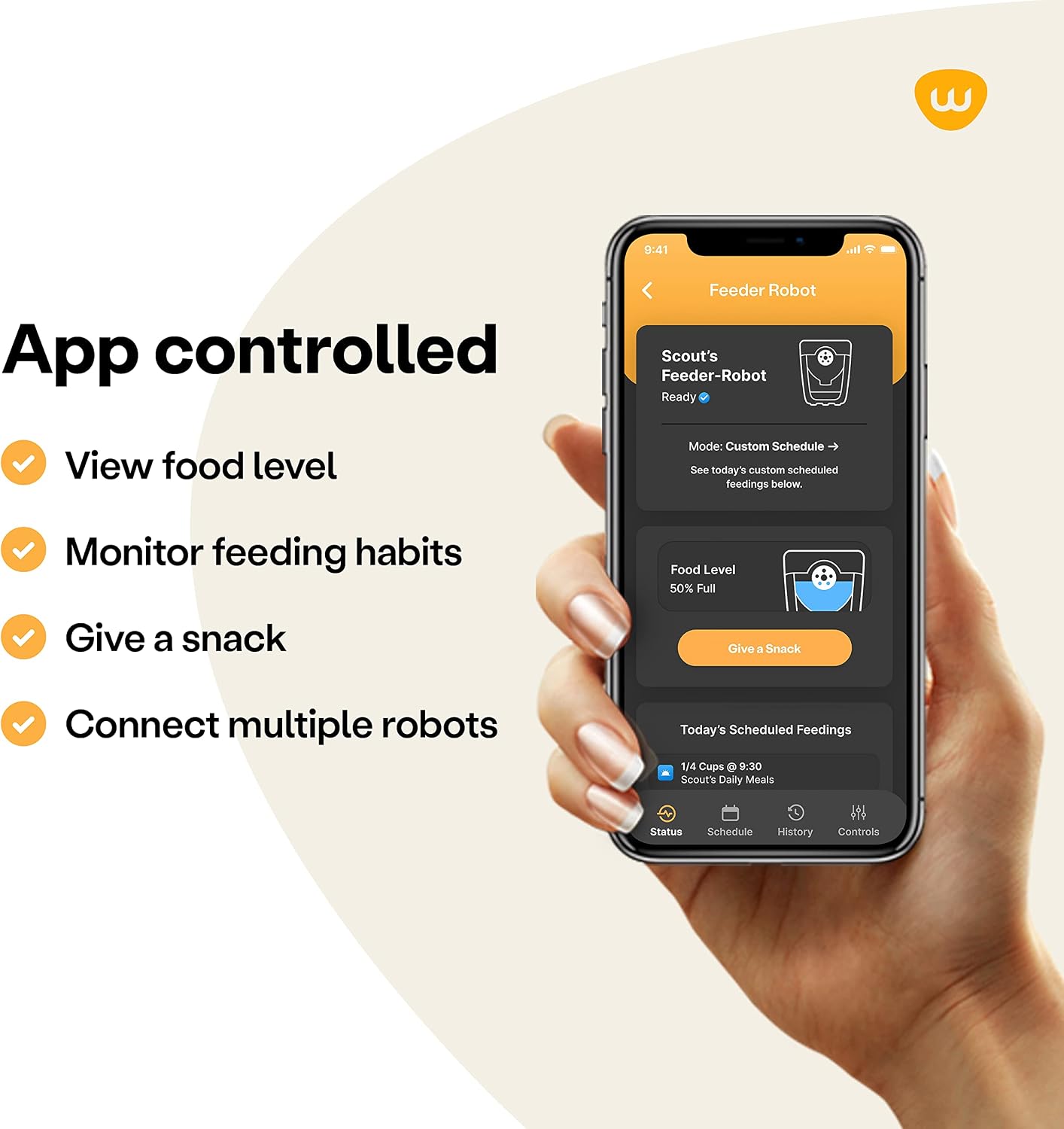
Image: The Whisker app interface, demonstrating remote control and monitoring capabilities.
5.3. Gravity Mode
The Feeder-Robot can operate in gravity mode, which automatically dispenses food when the bowl is empty. This mode is suitable if you prefer continuous access to food for your pet without strict portion control.
5.4. Portion Control
Portion sizes can be adjusted in 1/8-cup increments. This feature is crucial for managing your pet's diet and promoting healthier eating habits.
6. Maintenance and Cleaning
Regular cleaning ensures optimal performance and hygiene for your pet. All removable parts are designed for easy cleaning.
- Unplug: Always unplug the Feeder-Robot before cleaning.
- Remove Food Bowl: Detach the food bowl and wash it by hand with mild soap and water. Rinse thoroughly and dry completely before reattaching.
- Clean Hopper: The smoke-grey hopper can be removed for cleaning. Hand wash with mild soap and water, rinse, and dry completely. Ensure no moisture remains before refilling with kibble.
- Wipe Main Unit: Wipe the exterior of the main unit with a damp cloth. Do not use abrasive cleaners or submerge the unit in water.
7. Troubleshooting
If you encounter issues with your Feeder-Robot, refer to the following common solutions:
- Food Not Dispensing: Check for any obstructions in the dispenser chute. Ensure the hopper is not empty and the kibble size is appropriate for the feeder. The Feeder-Robot features anti-jam technology, but large or unusually shaped kibble may still cause issues.
- App Connectivity Issues: Ensure your Feeder-Robot is within range of your Wi-Fi router. Restart the feeder and your router if necessary. Verify your Wi-Fi password in the app settings.
- Food Backup Detection: The feeder is equipped with food backup detection to prevent overfilling. If food is backing up, check the bowl for obstructions or if it's already full.
- Power Issues: Ensure the power adapter is securely connected to both the feeder and the wall outlet.
For further assistance, visit the Whisker Support Portal or contact customer service.
8. Specifications
| Model Number | RF1-1000-BKS |
| Brand | Whisker |
| Dimensions (LxWxH) | 13 x 12.5 x 15 inches |
| Item Weight | 10.68 pounds |
| Hopper Capacity | Up to 32 cups (dry or semi-moist kibble) |
| Dispensing Increments | 1/8-cup increments (up to 1/2 cup per meal) |
| Feeding Frequency | 1 to 8 times per day |
| Material | Plastic |
| Care Instructions | Hand Wash Only |
| Target Species | Cat, Dog |

Image: Visual representation of the Feeder-Robot's dimensions.
9. Warranty and Support
9.1. WhiskerCare™ 1-Year Warranty
The Feeder-Robot comes with a comprehensive WhiskerCare™ 1-Year Warranty. This plan covers all Whisker robots from top to bottom, activating upon receipt of your robot. It provides hassle-free service for the length of the warranty period, resolving any robot issues at no charge, with no deductibles or hidden fees.
9.2. Extended Protection Plan
An extended protection plan is available for purchase to provide additional coverage beyond the standard 1-year warranty.
9.3. Customer Support
You will have access to a dedicated customer experience team. For repairs or replacements, claims can be filed quickly and easily through the Whisker Support Portal. For more information, visit the official Whisker website.
Video: An introductory video explaining WhiskerCare, the comprehensive protection plan for Whisker products.


