
Nokia Nokia 8210 4G
Nokia 8210 4G User Manual
Model: 8210 4G
Introduction
Welcome to the user manual for your Nokia 8210 4G. This guide provides essential information on setting up, operating, maintaining, and troubleshooting your device to ensure optimal performance and longevity.
Safety Information
Read these simple guidelines. Not following them may be dangerous or illegal.
- Switch off in restricted areas: Switch the device off when mobile phone use is not allowed or when it may cause interference or danger, for example, in aircraft, near medical equipment, fuel, chemicals, or blasting areas.
- Road safety comes first: Obey all local laws. Always keep your hands free to operate the vehicle while driving. Your first consideration while driving should be road safety.
- Interference: All wireless devices may be susceptible to interference, which could affect performance.
- Qualified service: Only qualified personnel may install or repair this product.
- Batteries, chargers, and other accessories: Use only batteries, chargers, and other accessories approved by HMD Global for use with this device. Do not connect incompatible products.
- Keep your device dry: Your device is not water-resistant. Keep it dry.
- Protect your hearing: To prevent possible hearing damage, do not listen at high volume levels for long periods. Exercise caution when holding your device near your ear while the loudspeaker is in use.
Getting Started (Setup)
Package Contents
Ensure your package contains the following items:
- Nokia 8210 4G device
- Battery
- Charger
- Quick Start Guide (This manual serves as a comprehensive guide)
Inserting the SIM Card and Battery
Your phone uses a Nano-SIM card.
- Open the back cover of the phone.
- If the battery is in, lift it out.
- Slide the SIM card into the SIM card slot with the contact area face down.
- If you have a dual-SIM phone, slide the second SIM into the SIM2 slot.
- Insert the battery.
- Replace the back cover.

Image: Front and back view of the Nokia 8210 4G smartphone, showing the display, keypad, and rear camera with Nokia branding.
Charging the Battery
Your battery has been partially charged at the factory, but you may need to recharge it before you can switch on your phone for the first time.
- Connect the charger to a wall outlet.
- Connect the charger to the phone.
- When the battery is full, disconnect the charger from the phone, then from the wall outlet.
If the battery is completely discharged, it may take several minutes before the charging indicator is displayed.
Basic Operation
Switching On/Off
To switch on your phone, press and hold the power key until the phone vibrates. To switch off, press and hold the power key, then select Power off.
Keypad Functions
The Nokia 8210 4G features a classic alphanumeric keypad.
- Navigation key: Scroll through menus and select items.
- Call key: Make or answer a call.
- End key: End a call or switch the phone on/off.
- Alphanumeric keys: Enter numbers and text.
- Function keys: Context-sensitive keys for various actions.
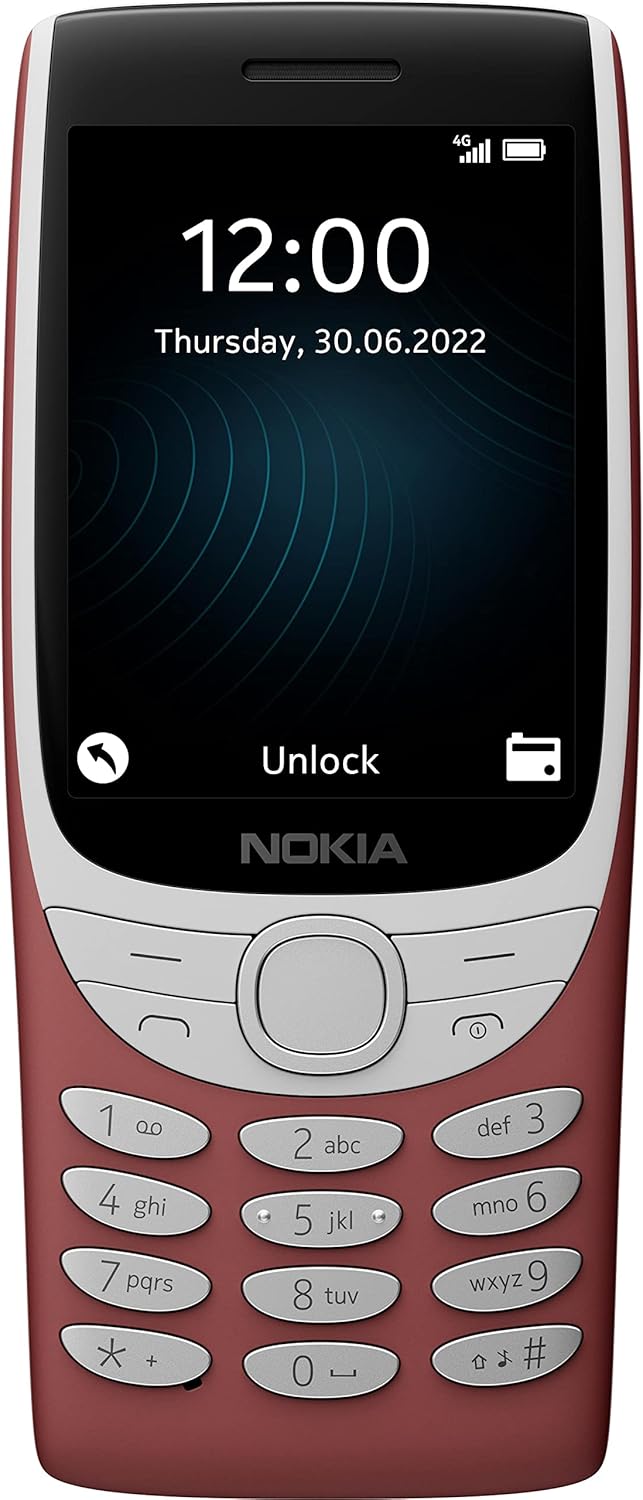
Image: Front view of the Nokia 8210 4G, highlighting the display showing time and date, and the physical keypad with navigation and function buttons.
Making Calls
- Enter the phone number.
- Press the call key.
- To end the call, press the end key.
Sending Messages
- Go to Menu > Messages > Create message.
- Write your message.
- Select Options > Send.
- Enter the recipient's number or select from contacts.
- Select Send.
Maintenance and Care
Handle your device with care. The following suggestions will help you keep your phone operational.
- Keep the device dry: Precipitation, humidity, and all types of liquids or moisture can contain minerals that will corrode electronic circuits. If your device gets wet, remove the battery, and allow the device to dry completely.
- Do not use or store the device in dusty or dirty areas.
- Do not store the device in high temperatures. High temperatures can shorten the life of electronic devices, damage batteries, and warp or melt certain plastics.
- Do not store the device in cold temperatures. When the device returns to its normal temperature, moisture can form inside the device and damage electronic circuits.
- Do not attempt to open the device other than as instructed in this guide.
- Do not drop, knock, or shake the device or battery. Rough handling can break internal circuit boards and fine mechanics.
- Only use a soft, clean, dry cloth to clean the surface of the device.
- Recycle: Recycle used electronic products, batteries, and packaging materials according to local regulations.
Troubleshooting
If you encounter issues with your Nokia 8210 4G, try the following solutions:
Phone Not Turning On
- Ensure the battery is properly inserted and charged.
- Connect the charger and wait a few minutes before attempting to turn it on.
- Try a different charger if available.
No Network Signal
- Check if the SIM card is correctly inserted.
- Move to an area with better network coverage.
- Restart the phone.
- Contact your network service provider to check for network outages or SIM card issues.
Battery Drains Quickly
- Reduce screen brightness.
- Close unused applications.
- Limit background data usage.
- If the battery is old, consider replacing it with an original Nokia battery.
Cannot Make/Receive Calls
- Check if the phone is in Airplane mode (if applicable).
- Ensure you have sufficient credit or an active plan.
- Verify the network signal strength.
- Check call barring settings.
Specifications
| Feature | Detail |
|---|---|
| Model Name | Nokia 8210 4G |
| Operating System | S30+ |
| RAM Memory Installed Size | 0.05 GB (48MB) |
| Memory Storage Capacity | 0.05 GB (128MB ROM) |
| Screen Size | 2.8 Inches |
| Resolution | 240 x 320 |
| Wireless Carrier | Unlocked for All Carriers (GSM Only | No CDMA) |
| Connectivity Technology | Wi-Fi, GSM, LTE |
Warranty and Support
For detailed warranty information and support, please refer to the official Nokia website or contact Nokia customer service.
Online Support: Visit www.nokia.com/phones/support
Customer Service: Refer to your regional Nokia support contact details provided with your purchase or on the official website.
Related documentsNokia 8210 4G


Ask a question about this manual
Ask about setup, troubleshooting, compatibility, parts, safety, or missing instructions. Manuals+ will review the question and use this page’s manual context to help answer it.