
1. Introduction
Welcome to your new JVC 50-Inch 4K UHD QLED Roku Smart TV. This manual provides detailed instructions to help you set up, operate, and troubleshoot your television, ensuring you get the most out of its advanced features, including 4K UHD resolution, QLED technology, HDR10 support, and integrated Roku Smart TV functionality.
2. Important Safety Information
Please read all safety instructions carefully before using your television. Keep this manual for future reference.
- Do not expose the TV to rain or moisture.
- Ensure proper ventilation around the TV.
- Do not block ventilation openings.
- Use only attachments/accessories specified by the manufacturer.
- Unplug the TV during lightning storms or when unused for long periods.
- Refer all servicing to qualified service personnel.
3. What's in the Box
Verify that all components are present:
- JVC 50-Inch 4K UHD QLED Roku Smart TV
- Remote Control
- TV Stand (2 pieces)
- Power Cord
- Quick Start Guide (not included in this manual)
- Screws for Stand Assembly
4. Setup
4.1 Attaching the TV Stand
Place the TV face down on a soft, clean surface to prevent screen damage. Align each stand leg with the corresponding slots on the bottom of the TV. Secure the legs with the provided screws.
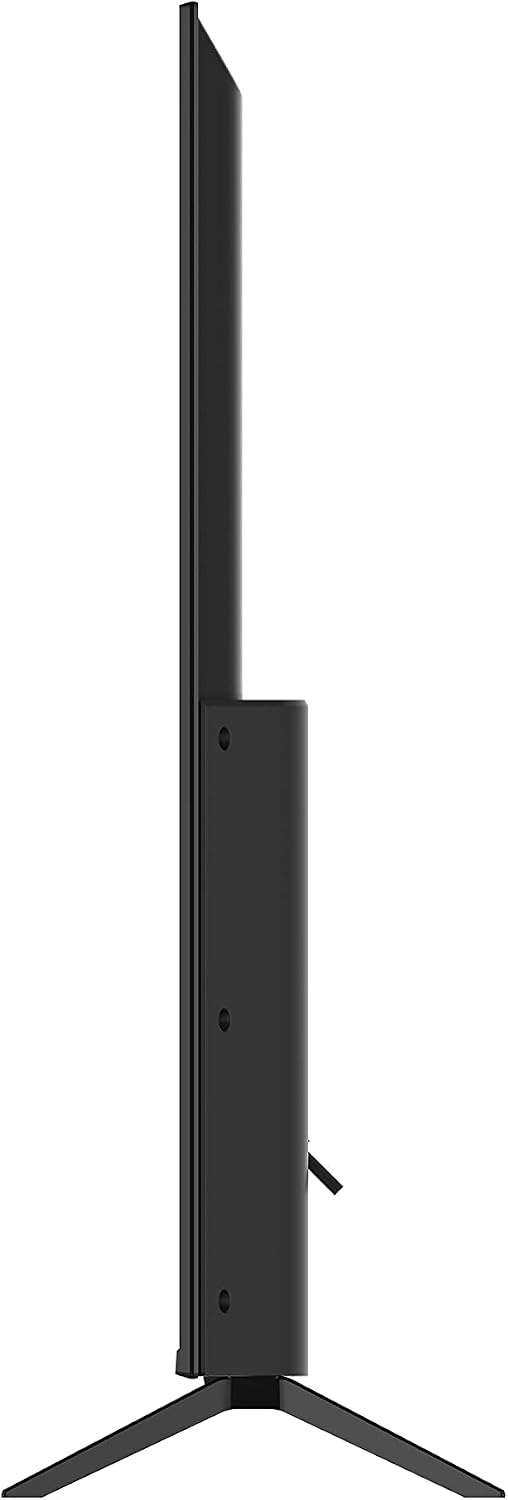
Image: Side view of the JVC TV showing the attached stand. This illustrates the TV's profile and how the stand supports it.
4.2 Connecting External Devices
Your JVC TV offers multiple connectivity options for various devices. Refer to the image below for port locations.

Image: Rear view of the JVC TV highlighting the connectivity panel. This image displays the location of 3 HDMI ports, 1 USB port, 1 Optical Audio output, 1 Composite AV input, 1 Antenna input, 1 Headphone jack, and 1 RJ-45 Ethernet port.
- HDMI Ports (3): Connect Blu-ray players, game consoles, cable boxes, and other HDMI-enabled devices.
- USB Port (1): For connecting USB storage devices to view media files.
- Optical Audio Output: Connect to a soundbar or home theater system for digital audio.
- Composite (AV) Jacks: For older devices using RCA cables.
- Antenna/Cable Input: Connect an antenna or cable TV feed.
- Headphone Jack: For private listening.
- RJ-45 Ethernet Port: For a wired internet connection. The TV also supports Wi-Fi.
4.3 Power Connection and Initial Setup
After connecting all desired devices, plug the power cord into the TV and then into a wall outlet. The TV will guide you through the initial setup process, including network connection, channel scanning, and Roku account setup.
5. Operating Your JVC Roku Smart TV
5.1 Roku TV Interface
The JVC Roku Smart TV features an intuitive home screen for easy navigation to streaming channels, inputs, and settings.

Image: The JVC Roku TV home screen, showing a clean interface with options like Home, Featured Free, My Feed, Search, Streaming Channels, and Settings on the left, and app tiles for Cable Box, Game Console, Live TV, Netflix, Disney+, Apple TV, Peacock, Roku Channel, and HBO Max on the right.
Use the included remote control to navigate the menus. The Roku integration allows you to control all streaming features and services directly from your TV remote.
5.2 Streaming Channels and Featured Free Content
Access a wide selection of apps from top-tier streaming services like Netflix, Disney+, and YouTube. The "Featured Free" section provides hundreds of free movies, TV episodes, and live content from various channels.

Image: A visual representation of the Roku TV interface showcasing various free streaming options, including Roku Originals, Live TV, and Featured Free content. The image also shows the Roku remote control.
5.3 Voice Control and Smart Home Integration
Your JVC Roku TV supports voice control through popular voice assistants like Alexa, Google Assistant, and Apple HomeKit. Connect your TV to your smart home ecosystem for convenient control.

Image: A graphic illustrating the JVC Roku TV's compatibility with Alexa, Google Assistant, and Apple HomeKit. It shows examples of voice commands and images of smart speakers like Amazon Echo, Google Home Mini, and Apple HomePod.
5.4 AirPlay and Screen Casting
Effortlessly share videos, photos, and music from your Apple devices to your TV using AirPlay. You can also mirror the screen from your iPhone, iPad, or Mac directly to the TV.
5.5 Roku Mobile App
Download the free Roku mobile app for iOS or Android devices to enhance your TV experience. The app allows you to:
- Control your Roku device with a convenient remote.
- Search by voice or mobile keyboard.
- Enjoy private listening with headphones connected to your phone.
- Cast personal media (photos, videos, music) to your TV.
- Stream The Roku Channel and other free content on the go.

Image: A collage demonstrating various features of the Roku mobile app, including its remote control functionality, search interface, private listening option with headphones, and the ability to cast photos and videos from a mobile device to the TV.
5.6 Picture Quality: 4K UHD, QLED, and HDR10
Your JVC TV features 4K UHD resolution (3840 x 2180) for a pristine image. QLED technology provides a high contrast ratio with brilliant, saturated colors, while HDR10 improves contrast with true-to-life shadows and a wider range of colors.

Image: A split-screen comparison on a TV, showing the difference between 4K UHD and 1080p resolution, highlighting the enhanced detail of 4K UHD with HDR10.

Image: A JVC TV screen displaying a vibrant image of a fish, with a section on the right illustrating QLED technology and local dimming zones for deep blacks and high contrast.
6. Maintenance
6.1 Cleaning Your TV
To clean the screen, gently wipe it with a soft, lint-free cloth. For stubborn marks, use a screen cleaner specifically designed for TVs. Do not spray cleaner directly onto the screen. For the TV casing, use a soft, dry cloth.
6.2 Software Updates
Your Roku TV will automatically receive software updates when connected to the internet. Ensure your TV remains connected to the internet for optimal performance and access to the latest features.
7. Troubleshooting
| Problem | Possible Cause | Solution |
|---|---|---|
| No power | Power cord disconnected; outlet issue. | Ensure power cord is securely plugged into TV and wall outlet. Test outlet with another device. |
| No picture, but sound is present | Incorrect input selected; device not powered on. | Press the Input button on your remote to cycle through inputs. Ensure connected devices are powered on. |
| No sound, but picture is present | Volume muted or too low; incorrect audio output. | Check volume and mute settings. Verify audio cables are correctly connected. |
| Cannot connect to Wi-Fi | Incorrect password; router issue; TV too far from router. | Double-check Wi-Fi password. Restart your router. Move TV closer to router or use a wired Ethernet connection. |
| Remote control not working | Dead batteries; obstruction. | Replace batteries. Ensure no obstructions between remote and TV's IR sensor. |
8. Specifications
| Feature | Detail |
|---|---|
| Brand | JVC |
| Model | LT50MAW8 |
| Screen Size | 50 Inches (127 cm diagonal) |
| Display Technology | QLED |
| Resolution | 4K UHD (3840 x 2180) |
| HDR Support | HDR10 |
| Smart TV Platform | Roku TV |
| Connectivity | 3x HDMI, 1x USB, 1x Optical Audio, 1x Composite AV, 1x Antenna, 1x Headphone Jack, 1x RJ-45 Ethernet, Wi-Fi |
| Aspect Ratio | 16:9 |
| Item Weight | 30.4 pounds |
| Package Dimensions | 48.81 x 29.92 x 5.51 inches |
| Included Components | Remote, Stand, TV |
9. Warranty and Support
For warranty information and technical support, please refer to the warranty card included with your product or visit the official JVC support website. Keep your proof of purchase for warranty claims.
Online Support: www.jvc.com/usa/support/ (Example link, actual link may vary)


