
Introduction
This manual provides detailed instructions for the installation, operation, and maintenance of your Imou Cruiser SE 4MP QHD Pan/Tilt WiFi Enabled Outdoor Security Camera (Model IPC-S41FP). Please read this manual thoroughly before using the product to ensure proper setup and functionality. Keep this manual for future reference.

Image: The Imou Cruiser SE 4MP QHD Outdoor Security Camera, showing its dome design and dual antennas, mounted on a wall.
What's in the Box
Verify that all components are present in the package:
- Imou Cruiser SE 4MP QHD Camera (IPC-S41FP)
- Power Adapter
- Mounting Template
- Mounting Screws and Wall Plugs
- Waterproof Connector
- Quick Start Guide
Note: The exact contents may vary slightly depending on the region.
Setup
1. Initial Device Connection
- Power On: Connect the camera to a power source using the provided power adapter. The indicator light will turn on.
- Download Imou Life App: Scan the QR code in the Quick Start Guide or search for "Imou Life" in your app store (Android/iOS).
- Create Account: Open the Imou Life app and register for an account if you don't have one.
- Add Device: Tap the "+" icon in the app to add your camera. Scan the QR code located on the camera body or packaging.
- Network Configuration: Follow the in-app instructions to connect the camera to your Wi-Fi network. Ensure your Wi-Fi signal is strong at the installation location.
2. Mounting the Camera
The Imou Cruiser SE is designed for outdoor use and can be wall-mounted or surface-mounted.
- Choose Location: Select a suitable outdoor location with a clear view and strong Wi-Fi signal.
- Use Mounting Template: Affix the mounting template to the desired surface. Drill pilot holes according to the template.
- Install Wall Plugs: Insert the wall plugs into the drilled holes if mounting on masonry.
- Secure Camera: Align the camera's mounting base with the holes and secure it using the provided screws.
- Adjust Angle: Loosen the adjustment screws to position the camera for optimal coverage, then tighten them.
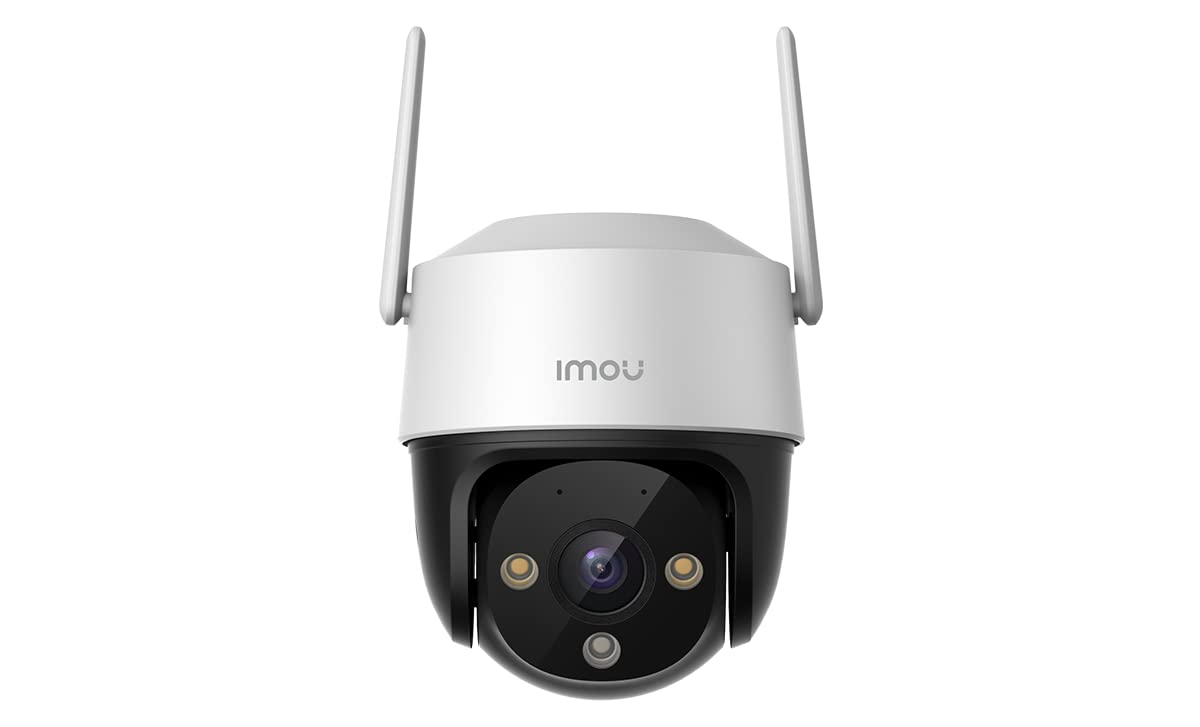
Image: The Imou Cruiser SE camera securely mounted on an exterior wall, demonstrating typical installation.
3. Weather Resistance
The camera features an IP66 weather-resistant design, ensuring protection against dust and water jets. This allows for year-round outdoor operation.

Image: The Imou Cruiser SE camera shown in a rainy environment, highlighting its IP66 weather-resistant rating.
Operating Instructions
1. Live View and Playback
- Open the Imou Life app and select your camera to view the live feed.
- Use the app interface to access recorded footage from the cloud or local storage (SD card, if installed).

Image: A smartphone screen displaying a smooth live stream from the Imou camera via the Imou Life app.
2. Pan and Tilt Control
The camera offers 360-degree coverage through its pan and tilt functionality. Use the controls within the Imou Life app to remotely adjust the camera's viewing angle.

Image: An illustration demonstrating the pan and tilt capabilities of the Imou Cruiser SE camera.
3. Smart Auto Tracking
Enable Smart Auto Tracking in the app settings. The camera will automatically detect and follow moving objects or persons within its field of view.
4. Smart Color Vision (Night Vision)
The camera provides clear color images even in low-light conditions. It automatically switches between infrared (black and white) and color night vision modes based on ambient light and detection events.

Image: A visual representation of the camera's smart color night vision capability, showing a clear, illuminated scene at night.
5. Built-in Microphone
The integrated microphone allows for audio monitoring of the camera's surroundings. Audio can be accessed via the Imou Life app.

Image: A person holding a smartphone displaying a notification, indicating the camera's built-in microphone picks up sounds clearly.
6. Real-Time Notifications
Configure motion detection and other alert types in the Imou Life app to receive real-time notifications on your smartphone when activity is detected.

Image: A smartphone screen showing a 'Human Detection' notification from the Imou Life app, demonstrating real-time alerts.
7. Storage Options
- Local Storage: Supports MicroSD card (up to 256GB, not included) for continuous recording or event-triggered recording.
- Cloud Storage: Optional cloud storage service available through the Imou Life app for secure off-site recording.
Maintenance
- Lens Cleaning: Gently wipe the camera lens with a soft, clean cloth to remove dust or smudges. Avoid abrasive cleaners.
- Firmware Updates: Regularly check for and install firmware updates via the Imou Life app to ensure optimal performance and security.
- Power Supply: Ensure the power adapter and cable are free from damage.
- Mounting Security: Periodically check that the camera is securely mounted and that all screws are tight.
Troubleshooting
| Problem | Possible Cause | Solution |
|---|---|---|
| Camera not powering on | No power, faulty adapter/cable | Check power connection. Try a different outlet. Inspect adapter and cable for damage. |
| Cannot connect to Wi-Fi | Incorrect Wi-Fi password, weak signal, camera too far from router | Verify Wi-Fi password. Move camera closer to router or use a Wi-Fi extender. Ensure router is 2.4GHz compatible. |
| Poor video quality | Weak Wi-Fi signal, dirty lens | Improve Wi-Fi signal strength. Clean the camera lens. |
| No motion detection alerts | Detection settings incorrect, app notifications disabled | Check motion detection sensitivity and zone settings in the Imou Life app. Ensure app notifications are enabled on your phone. |
| Camera offline | Network issue, power loss | Check your internet connection. Restart the camera by unplugging and replugging it. |
Specifications
| Feature | Detail |
|---|---|
| Model | IPC-S41FP |
| Resolution | 4MP QHD (Effective Still Resolution: 4 MP) |
| Pan/Tilt | Yes (360 Degrees Field Of View) |
| Connectivity | Wi-Fi (Wireless Communication Technology) |
| Night Vision | Smart Color Vision, Infrared Light Source Type |
| Audio | Built-in Microphone |
| Weather Resistance | IP66 (Waterproof) |
| Storage | MicroSD Card (up to 256GB), Cloud Storage |
| Power Source | Corded Electric (Wattage: 5.3 Watts) |
| Operating System Compatibility | Android, iOS |
| Control Method | App, Amazon Alexa |
| Dimensions | 20.1 x 15.9 x 15.9 cm |
| Weight | 750 g |
Warranty Information
Imou products typically come with a limited warranty. Please refer to the warranty card included in your product packaging or visit the official Imou website for the most current and detailed warranty terms and conditions applicable to your region. Keep your purchase receipt as proof of purchase for warranty claims.
Support
For technical assistance, product inquiries, or further support, please contact Imou customer service through one of the following methods:
- Online Support: Visit the official Imou website (www.imoulife.com) for FAQs, support articles, and contact forms.
- Imou Life App: Access support features directly within the Imou Life application.
- Email Support: Refer to your product packaging or the Imou website for regional email support addresses.
When contacting support, please have your product model (IPC-S41FP) and serial number ready.


