
LogiLink ID0209
LogiLink ID0209 Wireless Keyboard User Manual
1. Introduction
This manual provides instructions for the LogiLink ID0209 Wireless Keyboard. This keyboard is designed for comfortable, precise, and quiet typing, featuring an adjustable RGB backlight and a long-lasting battery. It connects wirelessly via 2.4 GHz radio technology and is compatible with various operating systems.

Figure 1: LogiLink ID0209 Wireless Keyboard
2. Package Contents
Please check the package for the following items:
- LogiLink ID0209 Wireless Keyboard
- USB 2.4 GHz Receiver Dongle
- USB-A to Micro USB Charging Cable
- User Manual (this document)
3. Setup
3.1 Charging the Keyboard
Before initial use, fully charge the keyboard. Connect the supplied USB-A to Micro USB cable to the keyboard's Micro USB port (located on the side) and the other end to a USB power source (e.g., computer USB port, USB wall adapter).
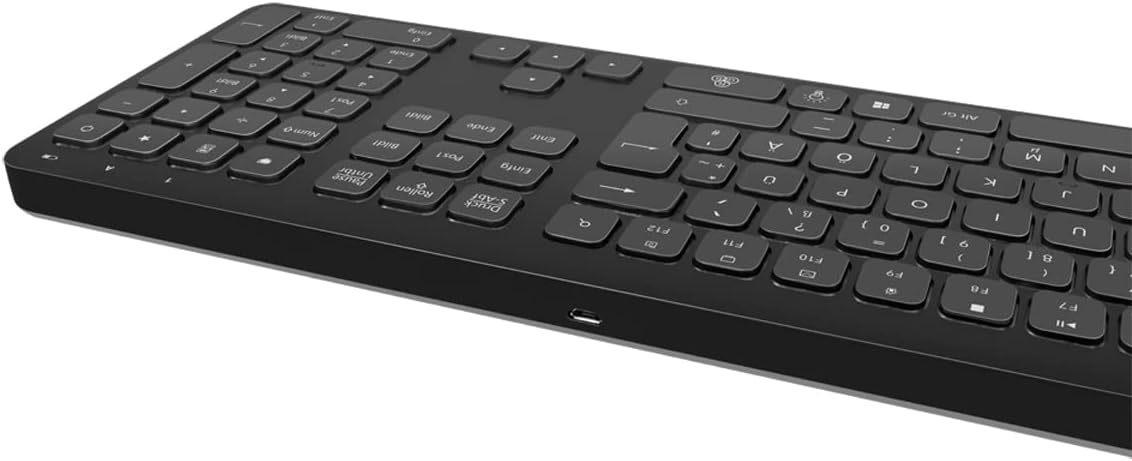
Figure 2: Keyboard side view with Micro USB charging port
3.2 Connecting the USB Receiver Dongle
Insert the 2.4 GHz USB receiver dongle into an available USB port on your computer or compatible device. The system will automatically detect and install the necessary drivers.

Figure 3: USB 2.4 GHz Receiver Dongle
3.3 Powering On/Off
Locate the ON/OFF switch on the back of the keyboard. Slide the switch to the 'ON' position to power on the keyboard. Slide it to 'OFF' when not in use to conserve battery life.
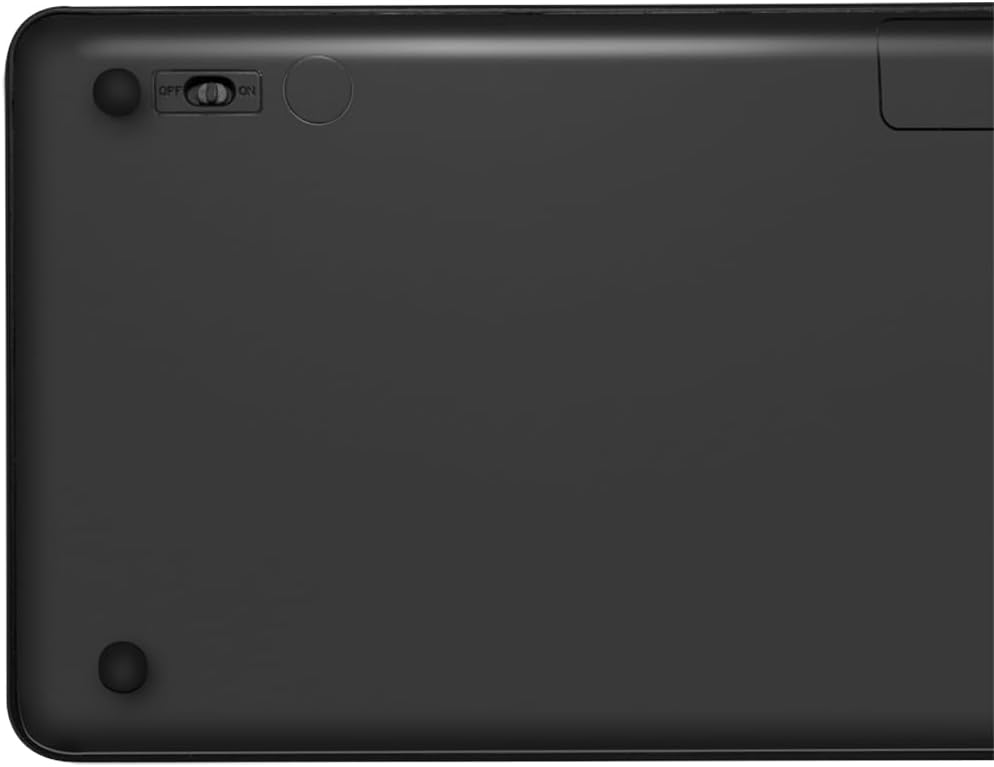
Figure 4: Keyboard back with ON/OFF switch
The keyboard should automatically connect to the USB receiver once both are powered on and within range (up to 10 meters).
4. Operating Instructions
4.1 Backlight Control
The keyboard features an adjustable RGB backlight with 7 colors and 3 brightness levels, including a breathing mode.
- Changing Colors: Press the Fn + Light Bulb key to cycle through the 7 available colors (green, blue, yellow, purple, cyan, white, red).
- Adjusting Brightness: Press the Fn + Up Arrow key to increase brightness and Fn + Down Arrow key to decrease brightness. There are 3 brightness levels.
- Breathing Mode: Press the Fn + RGB Cycle key (often depicted as a swirling icon) to activate or deactivate the breathing backlight mode.

Figure 5: Keyboard with RGB backlight in use
4.2 Shortcut Keys
The keyboard includes 17 shortcut keys for quick access to various functions. Some shortcut keys are specifically designed for Windows operating systems.
To use a shortcut key, press and hold the Fn key, then press the desired function key (e.g., F1-F12, multimedia keys).
- Multimedia Controls: Play/Pause, Stop, Previous Track, Next Track, Volume Up, Volume Down, Mute.
- Productivity: Open Mail, Web Browser, My Computer, Search.
- Other: Lock Screen, Calculator.

Figure 6: Close-up of keyboard keys, including numpad and function row
4.3 Automatic Energy-Saving Mode
The keyboard is equipped with an automatic energy-saving mode. After a period of inactivity, the keyboard will enter a sleep state to conserve battery. Press any key to wake it up.
5. Maintenance
To ensure the longevity and optimal performance of your keyboard, follow these maintenance guidelines:
- Cleaning: Use a soft, dry, lint-free cloth to wipe the keyboard surface. For stubborn dirt, slightly dampen the cloth with water or a mild cleaning solution. Avoid excessive moisture.
- Storage: Store the keyboard in a cool, dry place away from direct sunlight and extreme temperatures.
- Avoid Liquids: Do not expose the keyboard to liquids. In case of accidental spills, immediately power off the keyboard and allow it to dry completely before use.
- Handle with Care: Avoid dropping the keyboard or subjecting it to strong impacts.
6. Troubleshooting
If you encounter issues with your LogiLink ID0209 keyboard, refer to the following common problems and solutions:
| Problem | Possible Cause | Solution |
|---|---|---|
| Keyboard not responding | Keyboard is off Low battery USB receiver not connected Out of range | Ensure keyboard is ON Charge the keyboard Plug USB receiver firmly into a working USB port Move keyboard closer to the receiver (within 10m) |
| Backlight not working | Backlight is off Low battery | Press Fn + Light Bulb key to turn on/cycle Charge the keyboard |
| Keys are sticky or unresponsive | Dirt or debris under keys | Clean the keyboard as per maintenance instructions |
| Connection drops frequently | Interference Out of range Low battery | Move away from other wireless devices Move keyboard closer to the receiver Charge the keyboard |
7. Specifications
| Feature | Detail |
|---|---|
| Brand | LogiLink |
| Model Number | ID0209 |
| Connectivity Technology | 2.4 GHz Wireless (High-frequency) |
| Wireless Range | Up to 10 meters |
| Number of Keys | 111 keys |
| Shortcut Keys | 17 (some Windows-specific) |
| Backlight | Adjustable RGB (7 colors, 3 brightness levels, breathing mode) |
| Key Type | Flat keys |
| Compatible Devices | Windows, Mac OS, Android, iOS, Smart TV systems |
| Special Features | Ergonomic, Backlit, Automatic Energy-Saving Mode |
| Charging Port | Micro USB |
| Color | Black |
| Material | Plastic |
| Manufacturer | 2direct GmbH |
| Country of Origin | China |
8. Warranty and Support
For warranty information and technical support, please refer to the documentation provided with your purchase or visit the official LogiLink website. Keep your proof of purchase for warranty claims.
Related documentsID0209


Ask a question about this manual
Ask about setup, troubleshooting, compatibility, parts, safety, or missing instructions. Manuals+ will review the question and use this page’s manual context to help answer it.