
1. Product Overview
The Tropernic Smart Lock T8 Black is an advanced 5-in-1 keyless entry door lock designed for enhanced security and convenience. It offers multiple unlocking methods, including fingerprint, TTLock app, keypad, IC card, and traditional physical key. This smart lock is suitable for various environments such as homes, offices, hotels, and apartments, providing flexible access management.

Image 1.1: Tropernic Smart Lock T8 Black, showing the keypad, fingerprint sensor, handle, and included IC cards, alongside a smartphone displaying the TTLock app interface.
Key Features:
- Multiple Access Methods: Fingerprint, TTLock App, Keypad Passcode, IC Card, and Physical Key.
- TTLock App Integration: Full control via iOS/Android app for locking/unlocking, user management, access code generation, and activity log viewing.
- Fast Fingerprint Recognition: Bio-semiconductor sensor recognizes up to 120 fingerprints in approximately 0.3 seconds.
- Secure Keypad: Touchscreen keypad with downlighting for visibility in the dark and fingerprint-resistant surface to protect access codes.
- Emergency Power: Powered by 4 AAA batteries with a low battery alarm and a USB port for emergency power supply.
- Universal Compatibility: Fits standard US doors and is adaptable for both left and right-handed door installations.
2. Package Contents
Please verify that all components are present and in good condition before proceeding with installation.
- Smart Lock Assembly (Exterior and Interior Handles) x 1
- IC Cards x 5
- Physical Keys x 2
- Installation Hardware (Screws, Spindle, etc.)
- User Manual (this document)
3. Installation Guide
Installation of the Tropernic Smart Lock typically requires only a screwdriver and can be completed in minutes. Ensure your door meets the specified thickness requirements (1.37 to 1.96 inches).

Image 3.1: Diagram illustrating the dimensions of the smart lock and the compatible door thickness range (1.37 to 1.96 inches).
Pre-Installation Checks:
- Verify door thickness is between 1.37 and 1.96 inches.
- Ensure the door is prepared for a standard handle set installation.
- Determine if your door is left-handed or right-handed. The lock is universally adaptable.
Installation Steps (General):
- Install the latch bolt into the door edge.
- Attach the exterior handle assembly, ensuring the spindle passes through the latch.
- Connect the interior handle assembly, aligning the components and securing with screws.
- Insert 4 AAA batteries into the interior handle's battery compartment.
- Test the lock's functionality with a physical key and ensure the handle operates smoothly.

Image 3.2: Visual guide showing the smart lock's compatibility with standard US doors and its universal handle lever design, adaptable for both left and right-handed doors, along with door thickness requirements.
4. TTLock App Setup & Management
The TTLock app provides comprehensive control and management features for your smart lock. It connects via Bluetooth 4.0 Low Energy.
Downloading and Pairing the App:
- Download the "TTLock" app from the App Store (iOS) or Google Play Store (Android).
- Create an account and log in.
- Enable Bluetooth on your smartphone.
- In the app, tap "Add Lock" and select your smart lock from the list of nearby devices.
- Follow the on-screen instructions to complete the pairing process.

Image 4.1: Image demonstrating the TTLock app's capabilities, such as real-time power display, remote unlock (with gateway), unlock record checking, and temporary password generation.
App Functions:
- Lock/Unlock: Remotely lock or unlock the door via the app (requires Bluetooth proximity or a separate Wi-Fi gateway for remote access).
- Generate Passcodes: Create various types of passcodes (permanent, timed, one-time, recurring) for different users.
- Send eKeys: Grant access to other TTLock app users.
- User Management: Add, modify, or delete users and their access permissions.
- Activity Logs: View a 24/7 record of all lock activities, including who unlocked the door and when.
- Real-time Power Display: Monitor the battery level of your smart lock.

Image 4.2: Illustration of the 'Visiting Access' feature in the TTLock app, demonstrating how to generate passcodes for temporary guests like family, friends, colleagues, and housemaids.

Image 4.3: Illustrations showing how different access levels can be managed for family, friends, housekeepers, and delivery personnel using the smart lock.
5. Operation
The Tropernic Smart Lock offers five convenient ways to unlock your door.

Image 5.1: Visual representation of the five keyless entry methods: APP Unlock, Fingerprint Unlock, Password Unlock, IC Card Unlock, and Key Unlock.
Unlocking Methods:
- Fingerprint Unlock: Place your registered finger on the fingerprint sensor. The lock will unlock in approximately 0.3 seconds upon successful recognition.
- Keypad Passcode Unlock: Enter your valid passcode on the illuminated touchscreen keypad, then press the '#' key.
- IC Card Unlock: Tap a registered IC card against the designated card reader area on the lock.
- TTLock App Unlock: Open the TTLock app on your smartphone, ensure Bluetooth is enabled, and tap the unlock icon.
- Physical Key Unlock: Insert the physical key into the keyhole and turn to unlock the door. This method serves as a backup.
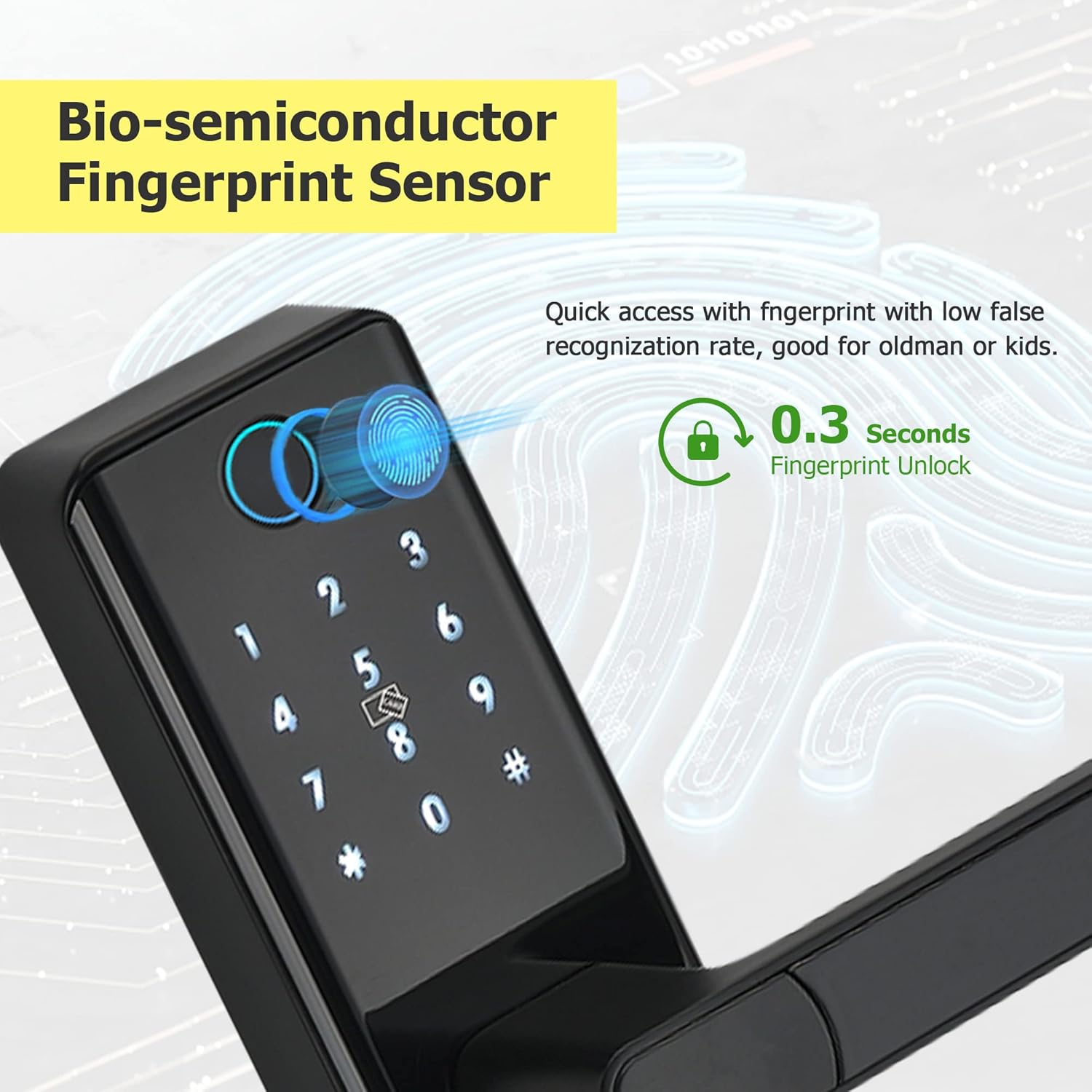
Image 5.2: Close-up view of the bio-semiconductor fingerprint sensor on the smart lock, emphasizing its quick recognition time of 0.3 seconds.
Locking the Door:
- The lock will automatically re-lock after a set period (configurable in the app).
- You can manually lock the door from the outside by pressing the '#' key or from the inside by turning the thumb-turn.
- Lock the door remotely via the TTLock app.
6. Power Management
The smart lock is powered by 4 AAA batteries. It features a low battery alarm and an emergency power option.
- Battery Installation: Open the battery cover on the interior handle and insert 4 new AAA batteries, observing polarity.
- Low Battery Alarm: The TTLock app will display a low battery warning when the battery level is critical. The lock may also emit an audible alert.
- Emergency Power Supply: If the batteries are completely depleted, you can power the lock temporarily using a standard power bank connected to the USB port located at the bottom of the exterior handle.

Image 6.1: Image showing the smart lock connected to an external power bank via its USB port for emergency power supply, with an indication of AAA battery power.

Image 6.2: Image detailing the smart lock's power management features: real-time power display in the app, emergency unlock via USB, and the location of the reset button, powered by 4 AAA batteries.
7. Maintenance
Regular maintenance ensures the longevity and optimal performance of your smart lock.
- Battery Replacement: Replace all 4 AAA batteries when the low battery alarm is triggered. Do not mix old and new batteries.
- Cleaning: Wipe the lock's surface with a soft, dry cloth. Avoid using abrasive cleaners or solvents that could damage the finish or electronic components.
- Fingerprint Sensor: Keep the fingerprint sensor clean and free of dirt or moisture for accurate recognition.
- Mechanical Parts: Periodically check that all screws are tight and that the handle operates smoothly. Do not lubricate the lock cylinder unless specifically instructed by the manufacturer.
8. Troubleshooting
If you encounter issues with your smart lock, refer to the following common problems and solutions:
| Problem | Possible Cause | Solution |
|---|---|---|
| Lock does not respond. | Dead batteries. | Replace batteries or use emergency USB power. |
| Fingerprint not recognized. | Finger dirty/wet, unregistered fingerprint, sensor dirty. | Clean finger/sensor, re-register fingerprint in app. |
| Keypad not responding. | Low battery, incorrect code. | Check/replace batteries. Ensure correct passcode is entered. |
| TTLock app cannot connect to lock. | Bluetooth off, lock too far, app not paired. | Ensure Bluetooth is on. Move closer to lock. Re-pair lock in app if necessary. |
| Lock is stuck or jammed. | Misalignment during installation, debris in latch. | Check installation alignment. Clear any obstructions from the latch bolt. |
Resetting the Lock:
If the lock is unresponsive or you need to clear all settings, a factory reset may be performed. Refer to the reset button location in Image 6.2. Consult the TTLock app or manufacturer's website for specific reset procedures, as this will erase all user data.
9. Specifications
| Feature | Detail |
|---|---|
| Brand | Tropernic |
| Model Name | T8 Black (FBA-T3) |
| Lock Type | Biometric |
| Material | Zinc |
| Dimensions (L x W x H) | 6.2 x 1.1 x 2.5 inches |
| Item Weight | 4.36 pounds |
| Power Supply | 4 x AAA Batteries |
| Connectivity | Bluetooth 4.0 (Wi-Fi with optional gateway) |
| Control Method | App, Keypad, Fingerprint, IC Card, Key |
| Fingerprint Capacity | Up to 120 |
| IC Card Capacity | Up to 200 |
| Passcode Capacity | Up to 150 groups |
| Compatible Door Thickness | 1.37 to 1.96 inches |
10. Support & Warranty
For further assistance or detailed warranty information, please refer to the manufacturer's official resources.
- Manufacturer: Tropernic
- Online Resources: For installation guides and troubleshooting videos, you may refer to resources such as https://youtu.be/jdepkW_gdFA.
- Warranty: Please consult the official Tropernic website or your purchase documentation for specific warranty terms and conditions.


