
1. Introduction
Thank you for choosing the HODO HD185D 14-in-1 USB C Docking Station. This versatile docking station is designed to expand the connectivity of your USB-C enabled laptop, providing multiple ports for displays, peripherals, network, and power delivery. Please read this manual carefully to ensure proper installation and operation.
2. Product Overview
The HODO HD185D docking station features a comprehensive array of ports to enhance your productivity.

Image: Overview of the HODO HD185D docking station with all ports labeled, including Ethernet, USB 3.0, USB 2.0, 3.5mm Audio/Mic, DisplayPort, HDMI 2, HDMI 1, SD/TF Card Slot, and USB-C PD port.
Port Descriptions:
- Ethernet (1000 Mbps): Provides a stable wired network connection.
- USB 3.0 (5Gbps): Three ports for high-speed data transfer with external drives, smartphones, and other USB 3.0 devices.
- USB 2.0 (480Mbps): Two ports ideal for connecting keyboard, mouse, or other low-bandwidth peripherals.
- 3.5mm Audio/Mic: Combined audio input/output jack for headphones or microphones.
- DisplayPort (DP): Supports video output up to 4K@60Hz.
- HDMI 1: Supports video output up to 4K@60Hz.
- HDMI 2: Supports video output up to 4K@30Hz.
- SD/TF Card Slot (104Mbps): For reading and writing data from SD and MicroSD cards.
- USB-C PD (Power Delivery): Input 100W, Output 85W for charging your laptop while using the docking station.
- USB Type-C Data Transfer Port (5Gbps): One port for data transfer.
3. System Requirements
To ensure full functionality of the HODO HD185D docking station, your laptop's USB-C port must support Power Delivery, DisplayPort Alternate Mode (Alt Mode), and Data Transfer. Look for a DP or Thunderbolt icon next to your laptop's USB-C port.

Image: Diagram illustrating different USB-C port protocols and their compatibility with the docking station. Ports supporting Data+Power Delivery+DisplayPort Alt or Thunderbolt 3/4 are fully compatible.
- Compatible Operating Systems: Windows 10/11, macOS, Linux.
- Incompatible USB-C Ports: USB-C ports that only support data transfer or data+power delivery without DisplayPort Alt Mode will not support video output.
4. Setup Instructions
4.1 Connecting the Docking Station to Your Laptop
- Connect the integrated USB-C cable from the docking station to a compatible USB-C port on your laptop.
- For power delivery, connect your laptop's original USB-C power adapter to the USB-C PD port on the docking station. It is recommended to use a 65W or higher charger for optimal performance.
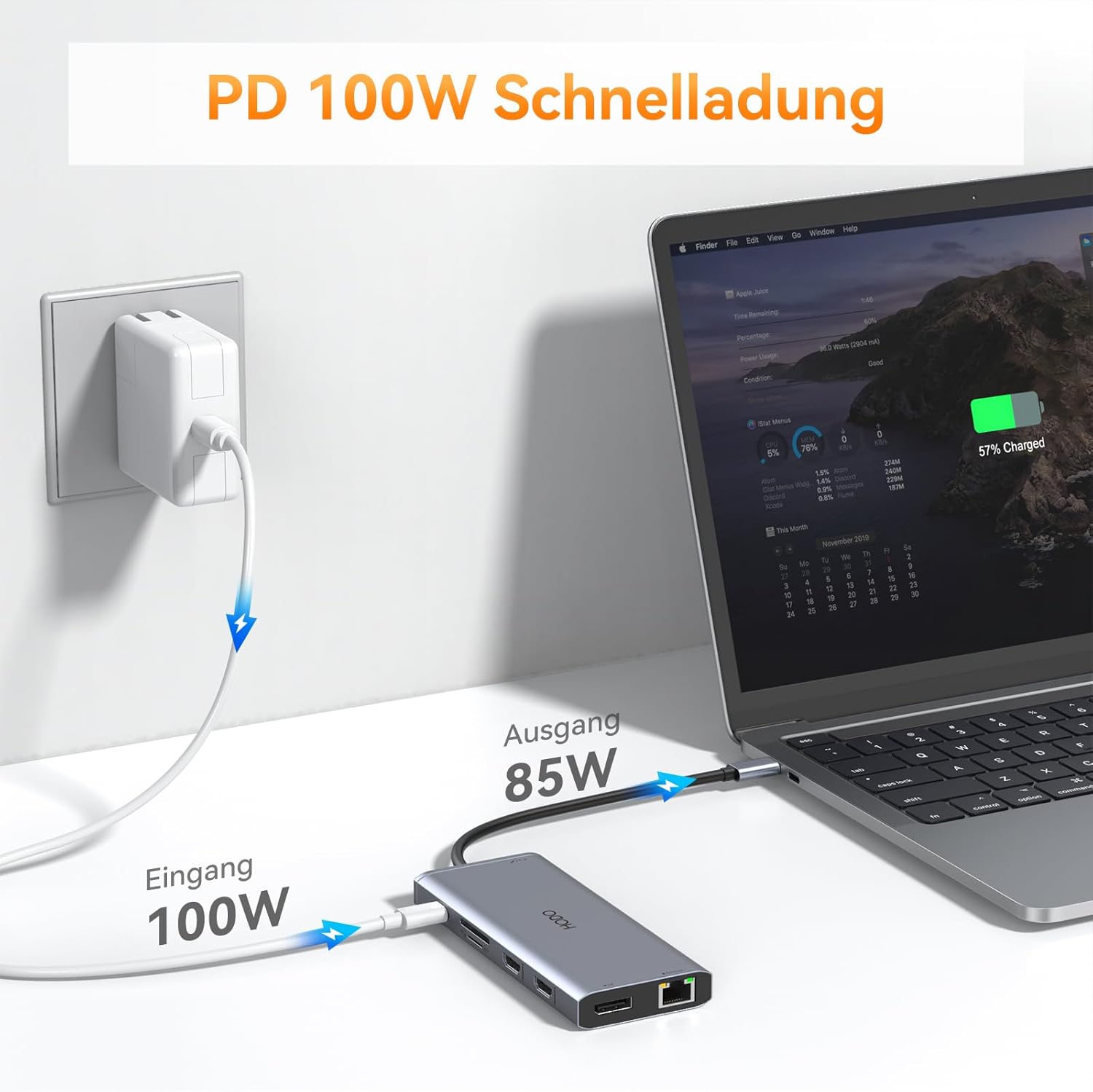
Image: Illustration showing a laptop connected to the docking station, with a 100W power adapter connected to the docking station's PD port, providing 85W output to the laptop.
4.2 Connecting External Displays
Connect your monitors to the HDMI 1, HDMI 2, and/or DisplayPort outputs on the docking station using appropriate cables.
4.3 Connecting Peripherals
- Connect USB devices (keyboard, mouse, external hard drives, USB drives) to the USB 3.0 or USB 2.0 ports.
- For a wired network connection, plug an Ethernet cable into the Gigabit Ethernet port.
- Connect headphones or a microphone to the 3.5mm Audio/Mic jack.
- Insert SD or TF cards into the corresponding card reader slots.

Image: A laptop connected to the docking station, demonstrating the connection of an Ethernet cable to the 1000Mbps Ethernet port and headphones to the 3.5mm Audio Jack.
5. Operating Instructions: Display Modes
The HODO HD185D supports various display configurations for both Windows and macOS systems.
5.1 Windows Display Modes
Windows systems support both dual and triple extended displays.
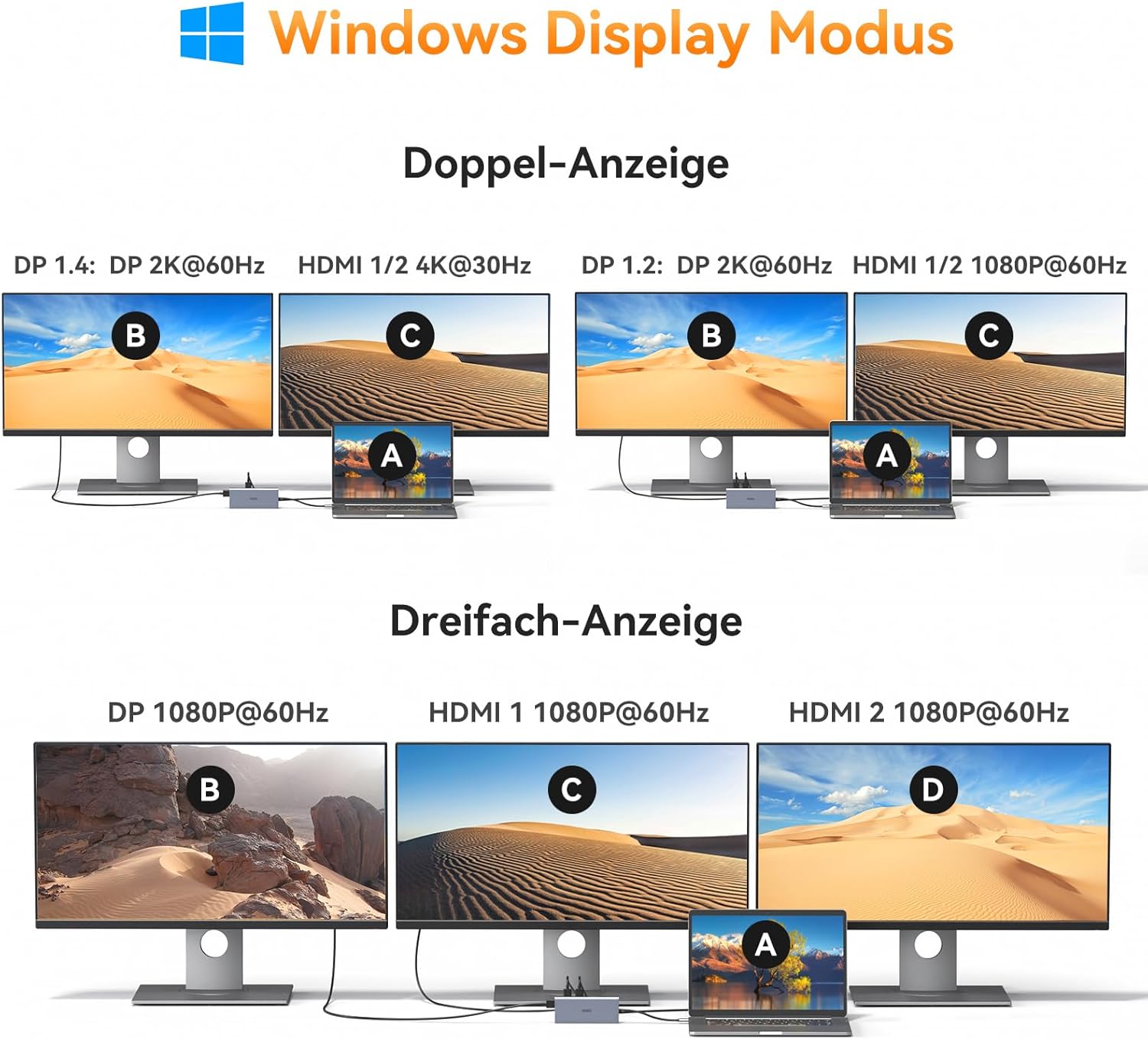
Image: Diagrams illustrating dual and triple display configurations for Windows. Dual display options include DP 2K@60Hz + HDMI 1/2 4K@30Hz or DP 1.2 2K@60Hz + HDMI 1/2 1080P@60Hz. Triple display is 1080P@60Hz across all three external monitors (DP, HDMI 1, HDMI 2).
- Single Display:
- HDMI 1: Up to 4K@60Hz
- HDMI 2: Up to 4K@30Hz
- DisplayPort: Up to 4K@60Hz
- Dual Display:
- HDMI 1 + HDMI 2: 4K@60Hz + 1080P@60Hz or 4K@29Hz + 2K@59Hz
- HDMI 1 + DisplayPort: 4K@60Hz + 4K@60Hz (or 4K@29Hz + 4K@29Hz)
- HDMI 2 + DisplayPort: 4K@30Hz + 4K@60Hz (or 2K@59Hz + 4K@29Hz)
- Triple Display (HDMI 1 + HDMI 2 + DisplayPort): All three external monitors will display at 1080P@60Hz.
Note: When configuring dual displays, if you desire 4K@29Hz resolution, you may need to adjust the settings for HDMI 1 from 4K@60Hz to 4K@29Hz.
5.2 macOS Display Modes
macOS systems support Mirror Mode and Extend Mode. Due to macOS limitations, Multi-Stream Transport (MST) for extended displays is not supported across multiple external monitors. Therefore, in Extend Mode, all external monitors will display the same extended content, distinct from the laptop screen.

Image: Diagrams illustrating Mirror Mode and Extend Mode for macOS. In Mirror Mode, all displays (laptop and external) show identical content. In Extend Mode, the laptop screen is extended, and all connected external monitors mirror each other, showing a single extended desktop.
- Mirror Mode: The laptop screen and all connected external monitors will display identical content.
- Extend Mode: The laptop screen will be extended, and all connected external monitors will mirror each other, displaying the same extended content.
5.3 Display Resolution Summary

Image: A table summarizing display resolutions for single, dual, and triple monitor setups across HDMI and DisplayPort connections.
6. Specifications
| Brand | HODO |
| Model Number | HD185D |
| Hardware Interface | 2x HDMI, 1x DisplayPort, 1x Ethernet, 3x USB 3.0, 2x USB 2.0, 1x USB Type-C Data, 1x USB-C PD, 1x SD Card, 1x MicroSD Card, 1x 3.5mm Audio/Mic |
| Total USB Ports | 6 (3x USB 3.0, 2x USB 2.0, 1x USB Type-C Data) |
| Data Transfer Rate | USB 3.0: 5 Gbps, USB 2.0: 480 Mbps, SD/TF: 104 Mbps |
| Ethernet Speed | 1 Gbps |
| Power Delivery | Input up to 100W, Output up to 87W (Safety) |
| Video Output | HDMI 1: 4K@60Hz, HDMI 2: 4K@30Hz, DisplayPort: 4K@60Hz |
| Compatible Devices | Laptops with full-featured USB-C ports (Power Delivery, DisplayPort Alt Mode, Data Transfer), including Dell XPS, HP Elitebook, Lenovo Thinkpad/Yoga, Surface Pro/Go, etc. |
| Operating System | Windows 10/11, macOS, Linux |
| Enclosure Material | Aluminum |
| Item Weight | 0.08 Kilograms |
7. Troubleshooting
- No Display Output:
- Ensure your laptop's USB-C port supports DisplayPort Alt Mode.
- Check all cable connections (USB-C from dock to laptop, HDMI/DP to monitors).
- Try connecting one monitor at a time to isolate the issue.
- Restart your laptop.
- Update your laptop's graphics drivers.
- Charging Not Working:
- Verify your laptop's USB-C port supports Power Delivery.
- Ensure your power adapter is connected to the docking station's USB-C PD port and is sufficient wattage (65W+ recommended).
- USB Devices Not Recognized:
- Reconnect the USB device.
- Try a different USB port on the docking station.
- Ensure the docking station is properly connected to your laptop.
- Ethernet Connection Issues:
- Check the Ethernet cable connection.
- Verify your network settings on your laptop.
- Ensure your router/modem is functioning correctly.
- MacBook External Monitors Mirroring:
- This is expected behavior for macOS. All external monitors will mirror each other in Extend Mode.
8. Care and Maintenance
- Keep the docking station away from water, fire, and corrosive liquids.
- Avoid dropping or subjecting the device to strong impacts.
- Do not attempt to disassemble or repair the device yourself.
- Clean the device with a soft, dry cloth.
9. Warranty and Support
HODO is committed to providing high-quality products and service. This product comes with a 1-year warranty from the date of purchase.
If you encounter any issues or have questions regarding your HODO HD185D docking station, please do not hesitate to contact our customer support team.
Customer Support Email: wirskpoke@hotmail.com