
Introduction
Thank you for choosing the Varmilo MA Series V2 Koi TKL EC Mechanical Keyboard. This keyboard combines a space-saving Tenkeyless (TKL) form factor with Varmilo's EC Ivy V2 electrocapacitive switches for a unique typing experience. It features durable Dye Sub PBT keycaps, USB-C connectivity, and a distinctive Koi design. This manual provides essential information for setting up, operating, maintaining, and troubleshooting your new keyboard.
Setup
Follow these steps to set up your Varmilo MA Series V2 Koi TKL keyboard:
- Unpack the Keyboard: Carefully remove the keyboard and included USB-C cable from its packaging.
- Connect the USB-C Cable: Insert one end of the provided USB-C cable into the USB-C port on the back of the keyboard. Connect the other end to an available USB port on your computer (PC, Laptop), smartphone, or tablet.
- Route the Cable: The keyboard features cable grooves on the bottom case, allowing the cable to exit from the left, right, or middle. Route the cable as desired for a tidy setup.
- Adjust Kickstands: The keyboard is equipped with double-section kickstands. Gently flip them out to adjust the typing angle to your preference.

Image: Bottom view of the keyboard, illustrating the double-section kickstands and cable routing grooves.
Your computer should automatically detect and install the necessary drivers. No additional software is typically required for basic functionality.
Operating
The Varmilo MA Series V2 Koi TKL keyboard is designed for intuitive use. Here are some key operational aspects:
- Typing: The keyboard uses Varmilo EC Ivy V2 electrocapacitive switches, known for their smooth and consistent feel. The keycaps are made from thick Dye Sub PBT, offering durability and a pleasant texture.
- Backlighting: This model features single-color LED backlighting. Specific key combinations (often involving the Fn key) can be used to adjust brightness or lighting modes. Refer to the quick guide or manufacturer's website for detailed key combinations.
- Indicator Lights: All indicator lights (e.g., Caps Lock, Scroll Lock) are located on the top right of the keyboard to minimize distractions during use.
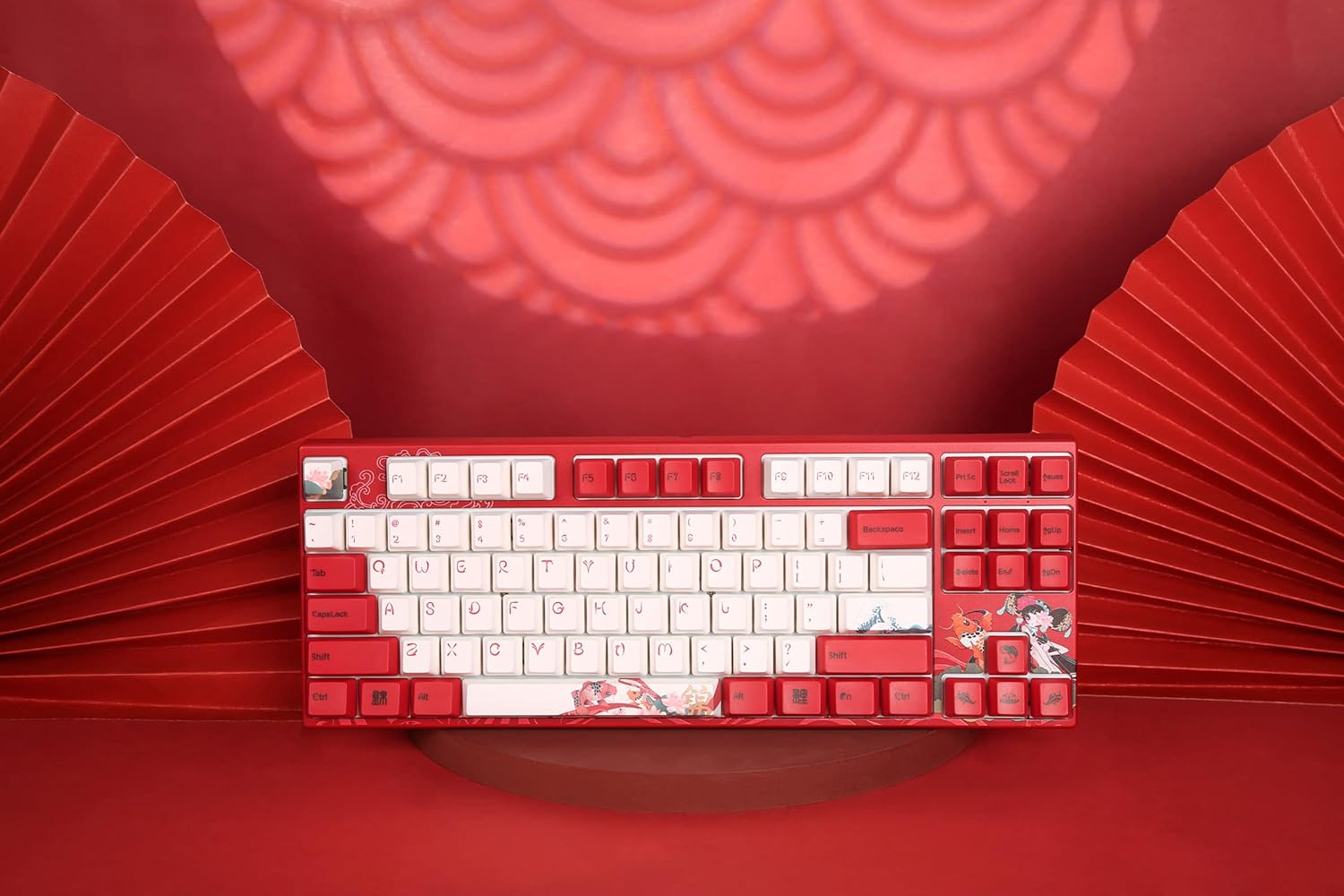
Image: Top-down view of the keyboard, highlighting the TKL layout and keycap design.
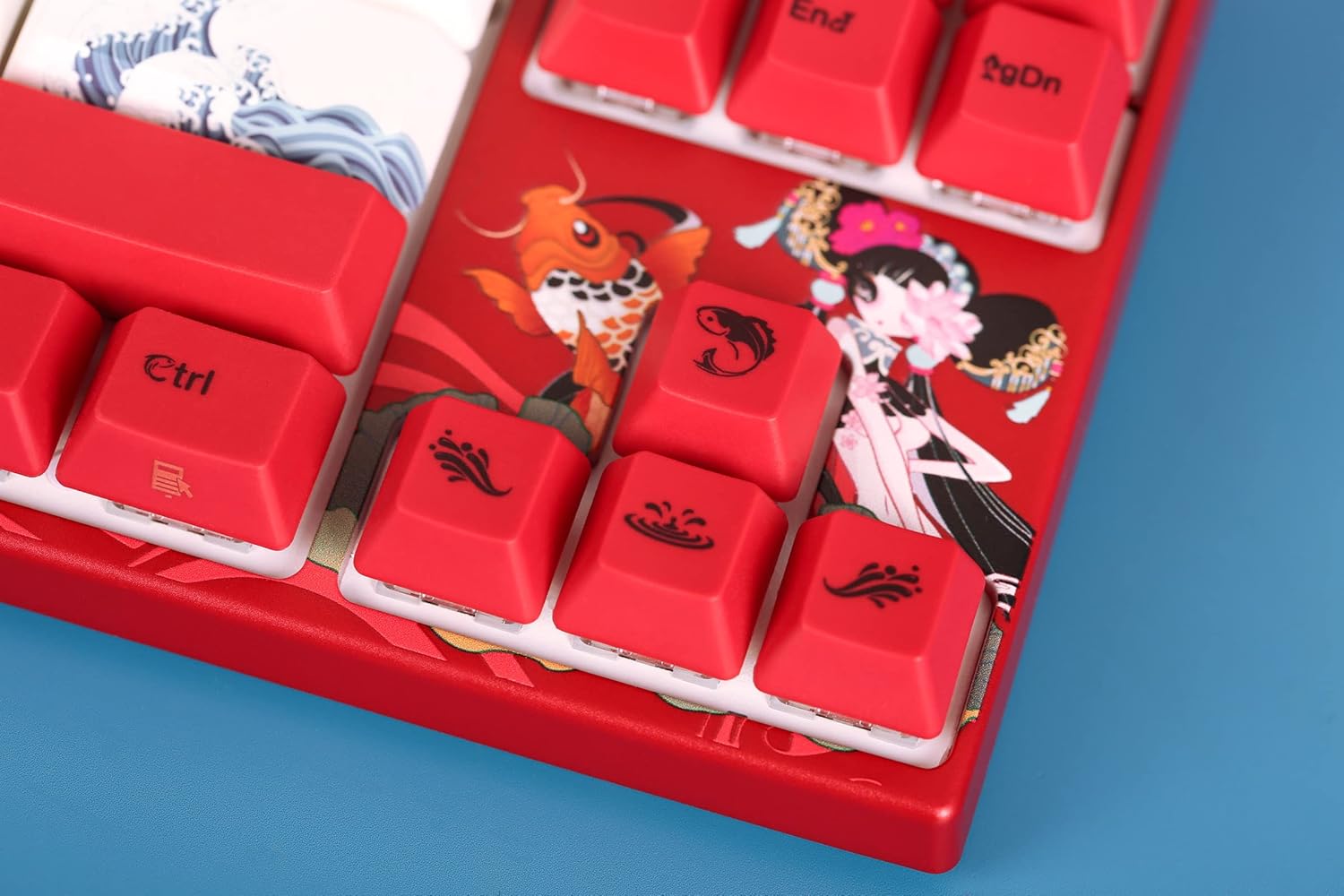
Image: Close-up of the keyboard's keycaps, detailing the unique Koi artwork and legends.
Maintenance
Proper maintenance ensures the longevity and performance of your keyboard:
- Cleaning the Keyboard: Regularly clean the keyboard with a soft, dry cloth. For dust and debris between keycaps, use compressed air. Avoid using harsh chemicals or abrasive materials.
- Keycap Removal: If you need to clean under the keycaps or replace them, use a keycap puller. Gently pull the keycap straight up to avoid damaging the switch stem. When reattaching, align the keycap with the switch stem and press down firmly until it clicks into place.
- Spill Prevention: Keep liquids away from the keyboard to prevent damage to the internal electronics.

Image: Loose keycaps and a keycap puller, useful for cleaning and customization.
Troubleshooting
If you encounter issues with your keyboard, try the following troubleshooting steps:
- Keyboard Not Responding:
- Ensure the USB-C cable is securely connected to both the keyboard and your computer.
- Try connecting the keyboard to a different USB port on your computer.
- Test the keyboard on another computer to determine if the issue is with the keyboard or the original computer.
- Restart your computer.
- Keys Not Registering:
- Remove the keycap of the problematic key and check for any obstructions or debris around the switch. Clean if necessary.
- Ensure the keycap is properly seated on the switch stem.
- Backlighting Issues:
- Check if the backlighting is turned off or set to the lowest brightness level using the keyboard's function keys.
- Ensure the keyboard is receiving sufficient power from the USB port.
If these steps do not resolve the issue, please refer to the Warranty and Support section for further assistance.
Specifications
| Feature | Detail |
|---|---|
| Model Name | MA Series V2 Koi TKL |
| Manufacturer | Varmilo |
| Item Model Number | 06924427360865 |
| Connectivity Technology | USB-C |
| Keyboard Description | Mechanical |
| Switch Type | Varmilo EC Ivy V2 (Electrocapacitive) |
| Keycap Material | Thick Dye Sub PBT |
| Keyboard Backlighting | Single Color LED |
| Compatible Devices | Laptop, Smartphone, Tablet, PC |
| Material | Polybutylene Terephthalate (PBT), Silicone |
| Included Components | USB Cable |
Warranty and Support
Varmilo products are manufactured with quality and reliability in mind. For specific warranty information regarding your Varmilo MA Series V2 Koi TKL EC Mechanical Keyboard, please refer to the warranty card included with your product or visit the official Varmilo website.
If you require technical support, have questions about your product, or need assistance with troubleshooting beyond what is covered in this manual, please contact Varmilo customer service through their official channels. Details can typically be found on the Varmilo website or product packaging.
