
Introduction
This manual provides detailed instructions for setting up, operating, and maintaining your TEZILON 4G Kids GPS Smart Watch (Model TB0036). Please read this guide thoroughly to ensure proper use and to maximize the watch's features, including real-time GPS tracking, two-way video calls, and emergency SOS functions.
What's in the Box
Upon opening your TEZILON 4G Kids GPS Smart Watch package, please verify that all the following items are included:
- TEZILON 4G Kids GPS Smart Watch (Model TB0036)
- Charging Cable
- SIM Card Slot Tool
- User Manual (this document)
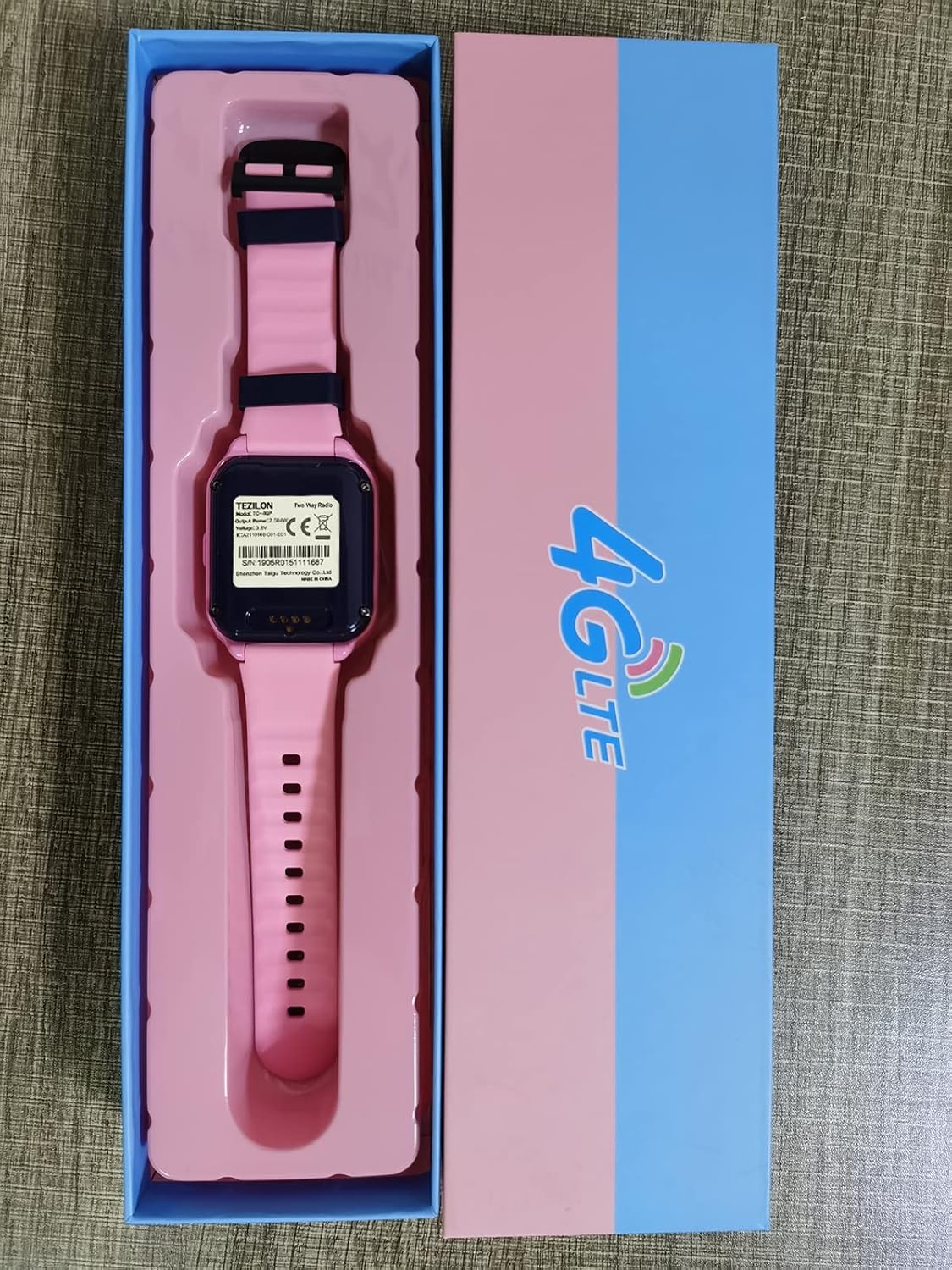
Image: Contents of the TEZILON 4G Kids GPS Smart Watch package, including the watch, charging cable, and SIM card tool.
Key Features
The TEZILON 4G Kids GPS Smart Watch is equipped with a range of features designed for communication, safety, and convenience:
- 4G Network Connectivity: Supports stable and fast communication for calls and data.
- Real-time GPS Tracking: Utilizes GPS, WiFi, and LBS for accurate location monitoring.
- Two-Way Communication: Make and receive voice and video calls with pre-approved contacts.
- SOS Emergency Alarm: One-touch button to alert emergency contacts.
- IP67 Waterproof Rating: Resistant to splashes and brief immersion, suitable for hand washing and light rain.
- Camera: Built-in camera for photos.
- Pedometer: Tracks daily steps and activity.
- Silent Mode (Class Mode): Disables calls and notifications during specified times to avoid distractions.
- Alarm Clock: Set reminders and alarms.
- Touch Screen: Intuitive navigation through the watch interface.
- Flashlight: Integrated light for convenience.

Image: Visual representation of the smartwatch's multifunctional capabilities.
Setup Guide
1. SIM Card Installation
The TEZILON 4G Kids GPS Smart Watch requires a 4G Nano SIM card for full functionality, including calls and GPS tracking. Ensure the SIM card is activated with a data plan before installation.
- Power off the watch completely.
- Locate the SIM card slot on the side of the watch.
- Use the provided SIM card slot tool to gently open the tray.
- Insert the Nano SIM card into the tray with the gold contacts facing up and the notched corner aligned correctly.
- Carefully push the tray back into the watch until it clicks into place.
- Power on the watch. The watch should detect the network within a few minutes.
2. App Download and Pairing
To manage the watch's features and track its location, you need to download the companion app on your smartphone. Refer to the watch's packaging or on-screen QR code for the specific app name (e.g., SeTracker2).
- Download the recommended app from your smartphone's app store (Google Play Store for Android or Apple App Store for iOS).
- Register a new account in the app.
- Add the watch to your account by scanning the QR code located on the watch's back or in its settings menu, or by manually entering the device ID.
- Configure essential settings such as emergency contacts, safe zones (Geo-Fence), and silent mode schedules within the app.
Operating Instructions
Making and Receiving Calls
- To Make a Call: Navigate to the "Contacts" or "Phone" icon on the watch screen, select a contact, and tap the call icon.
- To Receive a Call: When a call comes in, tap the green answer button on the watch screen.
- Video Calls: Select the video call option from the menu to initiate a video chat with approved contacts.

Image: The watch supports 4G HD video calls for clear communication.
Video: Demonstration of the 4G Kids GPS Smart Watch's video phone call and real-time tracking capabilities.
GPS Tracking and Geo-Fence
- Real-time Tracking: Open the companion app on your smartphone to view the watch's current location on a map.
- Historical Route: The app allows you to review the watch's past locations for up to 90 days.
- Geo-Fence: Set up safe zones (e.g., home, school) in the app. You will receive alerts if the watch enters or exits these predefined areas.

Image: The watch provides precision GPS, WiFi, and LBS tracking for monitoring children's location.

Image: SOS emergency call and Geo-Fence features for child safety.
SOS Emergency Function
In an emergency, the child can activate the SOS function:
- Press and hold the SOS button (usually on the side of the watch) for 3-4 seconds.
- The watch will automatically dial the pre-set emergency contacts in a loop until one answers.
- An alert notification will also be sent to the parent's app.

Image: The SOS button on the smartwatch for emergency situations.
Silent Mode (Class Mode)
To prevent distractions during school hours or other important times:
- Set specific time periods for "Silent Mode" within the companion app.
- During these times, the watch will block incoming calls and notifications, allowing the child to focus without interruption.

Image: Pedometer for activity tracking and Class Mode for focused learning.
Camera and Photo Album
- Access the camera function from the watch's main menu.
- Tap the screen to take photos.
- View saved photos in the "Photo Album" or "Gallery" application on the watch.
Pedometer
- The watch automatically tracks steps.
- View daily step counts and activity data through the pedometer app on the watch or the companion smartphone app.
Flashlight
- Activate the flashlight feature from the watch's menu for illumination.

Image: The smartwatch features a built-in flashlight.
Maintenance
Waterproofing (IP67)
The watch has an IP67 waterproof rating, meaning it is resistant to splashes, rain, and brief immersion in water (up to 1 meter for 30 minutes). It is suitable for activities like washing hands or playing in light rain.
Important: Do not wear the watch while swimming, bathing, or in hot water, as this can compromise the waterproof seals and cause damage.

Image: The IP67 waterproof rating allows the watch to be worn during hand washing and light water play.
Video: Demonstration of the GPS Smartwatch's IP67 waterproof capabilities, showing it being exposed to water.
Charging
- Use the provided magnetic charging cable to charge the watch.
- Align the magnetic pins of the cable with the charging contacts on the back of the watch.
- Connect the USB end of the cable to a standard USB power adapter (not included) or a computer USB port.
- A charging indicator will appear on the watch screen.
Troubleshooting
| Problem | Possible Cause | Solution |
|---|---|---|
| Watch cannot make/receive calls. | SIM card not installed correctly, SIM card not activated, no signal, or contacts not synced. | Ensure SIM card is properly inserted and activated. Check network signal strength. Sync contacts via the companion app. |
| GPS tracking is inaccurate or not working. | Poor GPS signal (indoors/dense areas), watch not connected to network, or APN settings incorrect. | Move to an open area for better GPS signal. Verify SIM card has data. Contact customer support for APN settings if needed. |
| Watch screen is unresponsive. | Low battery, software glitch, or physical damage. | Charge the watch. Restart the watch by holding the power button. If issues persist, contact support. |
| Watch is not waterproof as expected. | Exposed to hot water, prolonged immersion, or physical damage to seals. | The watch is IP67 rated for splashes and brief immersion only. Avoid swimming, bathing, or hot water. Ensure SIM tray is fully closed. |
| Cannot pair watch with app. | Incorrect device ID, watch not connected to network, or app issues. | Double-check the device ID/QR code. Ensure the watch has network connectivity. Try reinstalling the app. |
If you encounter problems not listed here or if the suggested solutions do not resolve the issue, please contact TEZILON customer support for further assistance.
Specifications
- Model: TB0036
- Brand: TEZILON
- Screen Size: 1.44 Inches
- Connectivity: 4G Cellular, GPS, 802.11ac (Wireless Communication Standard)
- GPS: Built-in GPS
- Waterproof Rating: IP67
- Battery Type: Lithium Ion (1 required)
- Item Weight: 6 ounces
- Package Dimensions: 6.3 x 2.8 x 1.54 inches
- Manufacturer: TEZILON
- First Available Date: July 12, 2022
Warranty and Support
For warranty information, please refer to the documentation included with your purchase or contact TEZILON customer support directly. The product typically comes with a standard manufacturer's warranty covering defects in materials and workmanship.
For technical support, troubleshooting assistance, or any questions regarding your TEZILON 4G Kids GPS Smart Watch, please reach out to the manufacturer's customer service. Contact details can usually be found on the product packaging or the official TEZILON website.