
1. Introduction
This manual provides detailed instructions for the setup, operation, maintenance, and troubleshooting of your ORICO Thunderbolt 3 Docking Station. This 15-in-1 docking station is designed to expand the connectivity of your Thunderbolt-enabled laptop, offering high-speed data transfer, multiple display outputs, and power delivery.
2. Product Overview
2.1. Device Layout
The ORICO Thunderbolt 3 Docking Station features a comprehensive array of ports to enhance your workstation. Below are diagrams illustrating the front and rear panels with their respective connections.

Figure 1: Front and Rear View of the Docking Station

Figure 2: 15-in-1 Port Diagram
2.2. Port Descriptions
- Thunderbolt 3 Ports (x2): One port provides up to 60W Power Delivery (PD) to the host laptop and 40Gbps data transfer. The second Thunderbolt 3 port provides 15W PD to downstream devices and 40Gbps data transfer.
- USB 3.1 Gen 2 Type-C (x2): 10Gbps data transfer speed.
- USB 3.1 Gen 2 Type-A (x1): 10Gbps data transfer speed.
- USB 3.1 Gen 1 Type-A (x2): 5Gbps data transfer speed.
- USB 2.0 Type-A (x2): 480Mbps data transfer speed, suitable for keyboards, mice, and other low-bandwidth peripherals.
- DisplayPort 1.4 (DP 1.4): Supports 4K@60Hz video output.
- Gigabit Ethernet (RJ45): Provides stable 1000Mbps network connectivity.
- SD/TF Card Reader: For reading and writing to SD and TF (MicroSD) memory cards.
- 3.5mm Audio In & Out: Combined port for headphones and microphone.
- S/PDIF OUT: Optical digital audio output for high-quality audio.
- DC-IN (20V/3.25A): Power input for the docking station.
3. Setup Guide
3.1. Package Contents
Before proceeding, please verify that all items are present in your package:
- ORICO Thunderbolt 3 Docking Station
- Power Adapter (20V/3.25A)
- Thunderbolt 3 Cable
- User Manual
3.2. Connecting the Docking Station
- Connect Power: Plug the included power adapter into the DC-IN port on the docking station, then connect the adapter to a power outlet.
- Connect to Host Laptop: Use the provided Thunderbolt 3 cable to connect the docking station's 60W Thunderbolt 3 port (indicated by a computer icon) to a Thunderbolt 3/4 port on your laptop.
- Connect Peripherals: Connect your external monitors, USB devices, Ethernet cable, and audio devices to the corresponding ports on the docking station.
Video 1: Demonstrates the setup and connectivity of the ORICO Thunderbolt 3 Docking Station, showing how to connect the power, host laptop, and various peripherals.
4. Operating Instructions
4.1. Power Delivery
The docking station provides efficient power delivery:
- Laptop Charging: The primary Thunderbolt 3 port delivers up to 60W Power Delivery to charge your connected laptop.
- Downstream Device Charging: The secondary Thunderbolt 3 port provides up to 15W of power for charging other devices like smartphones or tablets.

Figure 3: Power Delivery Capabilities
4.2. Data Transfer
Experience high-speed data transfer across various ports:
- Thunderbolt 3: Up to 40Gbps for ultra-fast data transfer with compatible devices.
- USB 3.1 Gen 2 (Type-C & Type-A): Up to 10Gbps.
- USB 3.1 Gen 1 (Type-A): Up to 5Gbps.
- USB 2.0 (Type-A): Up to 480Mbps.

Figure 4: Data Transfer Speeds
4.3. Display Configuration
The docking station supports various display setups:
- Single Monitor: Up to 5K (5120 x 2880 @ 60Hz) via the Thunderbolt 3 downstream port, or 4K (3840 x 2160 @ 60Hz) via the DP 1.4 port.
- Dual Monitors: Up to 4K (3840 x 2160 @ 60Hz) via both the Thunderbolt 3 downstream port and the DP 1.4 port.
- Triple Monitors: Possible by daisy-chaining a Thunderbolt 3 to dual HDMI adapter to the Thunderbolt 3 downstream port, achieving 4K@60Hz via DP 1.4 and two 4K@30Hz displays via the adapter.
Note: MacBooks with M1 chips can only extend one external display due to Apple chip limitations.

Figure 5: Extended and Mirrored Display Modes
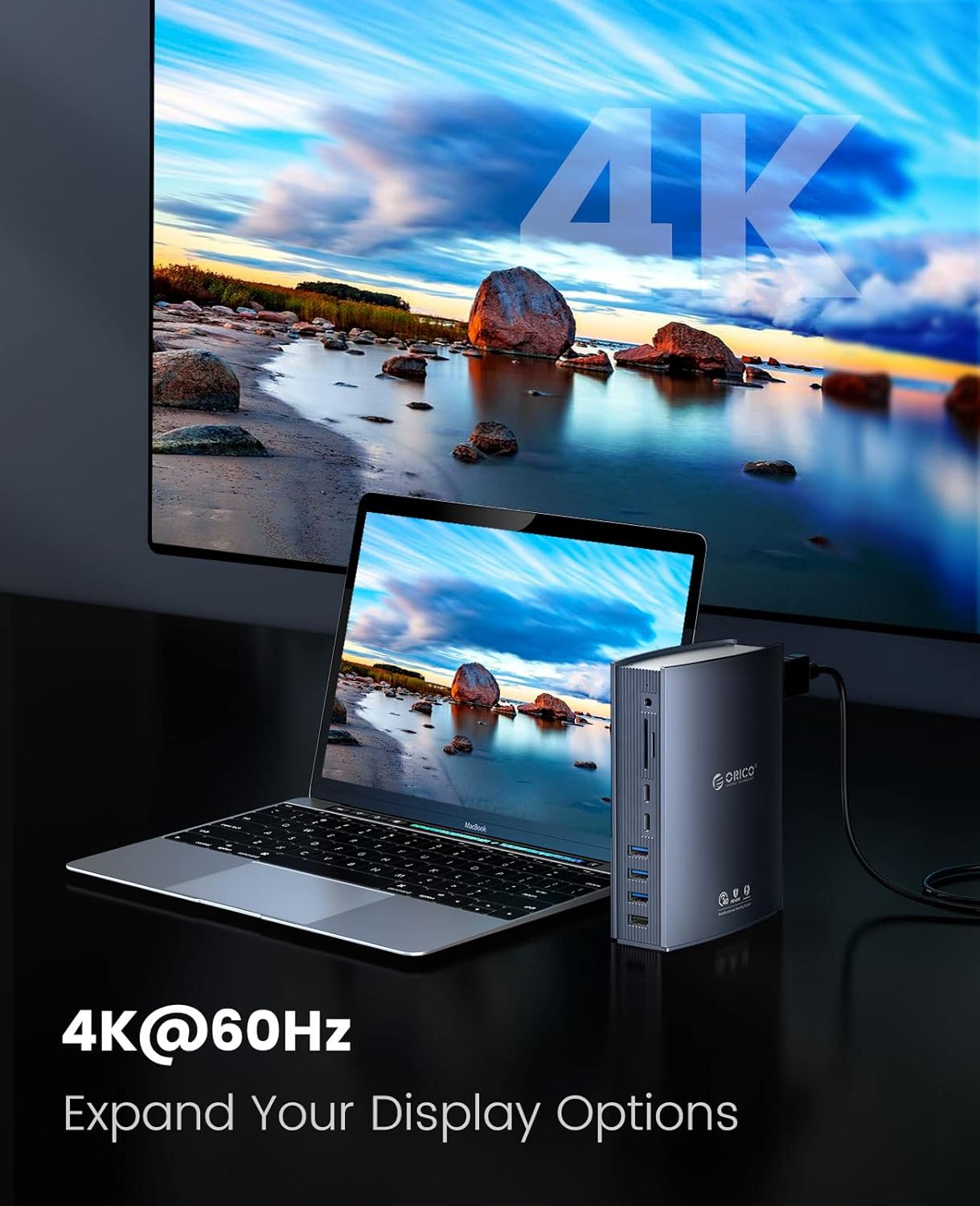
Figure 6: Multi-Stream Transport with Daisy Chain
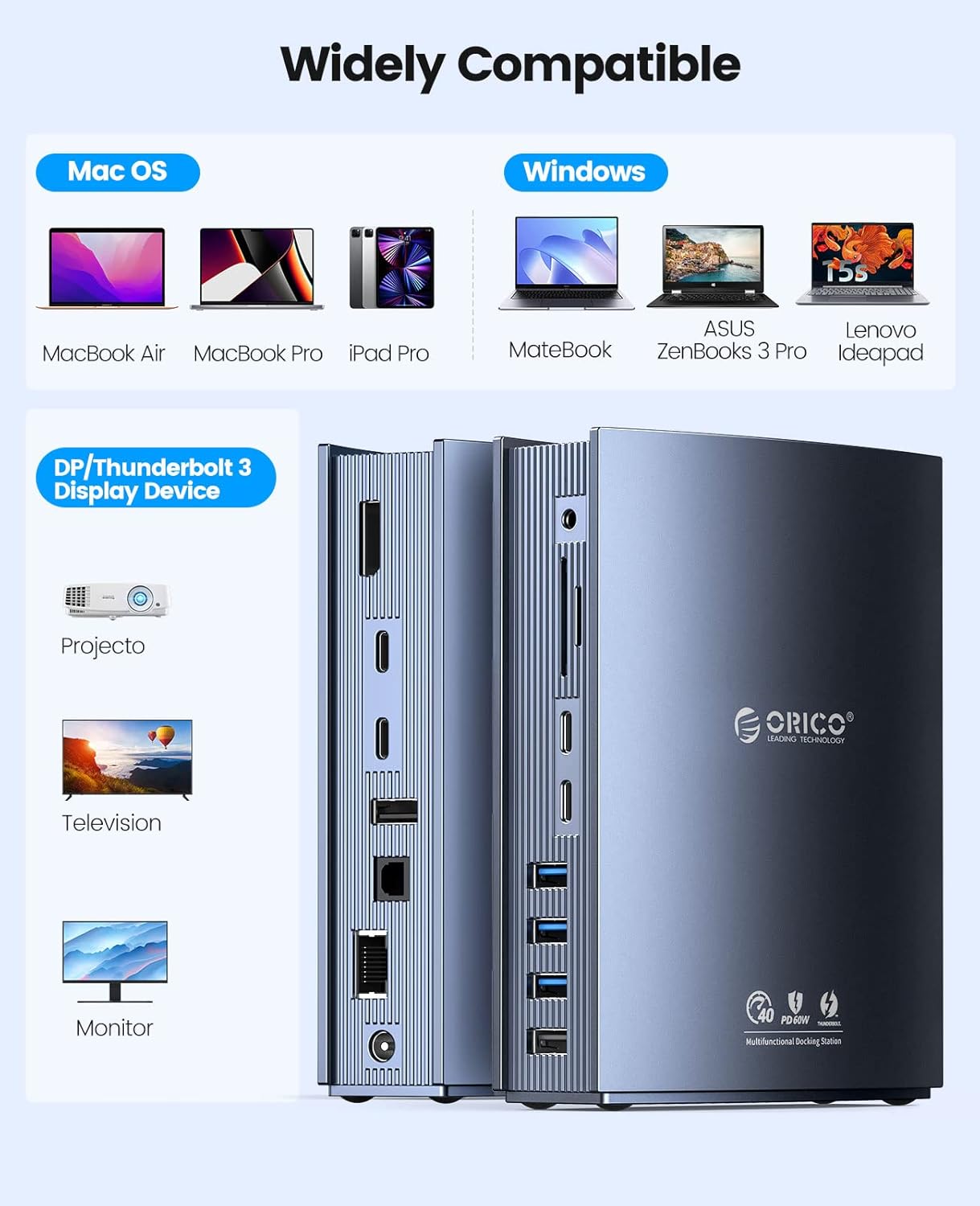
Figure 7: 4K@60Hz Display Expansion
4.4. Audio and Ethernet
- Audio: The 3.5mm audio jack supports headphone and microphone connections. The S/PDIF OUT port provides high-quality digital audio output, supporting PCM, Dolby, and DTS audio signals.
- Ethernet: The RJ45 Gigabit Ethernet port ensures a stable and fast wired network connection.
Video 2: Highlights the various features of the ORICO Thunderbolt 3 Docking Station, including its audio output capabilities and Ethernet connectivity, demonstrating its use in a professional setup.
4.5. SD/TF Card Reader
The integrated SD and TF card slots allow for convenient access to data from memory cards, supporting various formats for quick file transfers.
5. Compatibility
The ORICO Thunderbolt 3 Docking Station is compatible with laptops featuring Thunderbolt 3 or Thunderbolt 4 ports. It supports the following operating systems:
- macOS 10.12 or later (including MacBook Air, MacBook Pro, iPad Pro with Thunderbolt)
- Windows 8, 8.1, 10, or later (including various laptops with Thunderbolt ports)
Ensure your laptop is equipped with a Thunderbolt 3 or Thunderbolt 4 port for full functionality.

Figure 8: Wide Compatibility
6. Maintenance
6.1. Cleaning
To maintain optimal performance and appearance, clean the docking station regularly. Use a soft, dry cloth to wipe the exterior. Avoid using liquid cleaners or solvents, as these may damage the device.
6.2. Heat Dissipation
The ORICO Thunderbolt 3 Docking Station is constructed with an aluminum alloy casing, which aids in efficient heat dissipation. During high-speed data transfer or charging, it is normal for the device to feel warm. Ensure adequate ventilation around the docking station to prevent overheating.

Figure 9: Aluminum Alloy for Fast Heat Dissipation
7. Troubleshooting
If you encounter issues with your docking station, please refer to the following common problems and solutions:
- Dock feels warm: This is normal during charging or high-speed data transfer due to the aluminum alloy's heat dissipation properties. Ensure proper ventilation.
- Charging is slower than original laptop charger: The dock provides up to 60W PD. If your laptop requires higher wattage (e.g., 87W/96W MacBook charger), charging may be slower but will still occur.
- Screen loss, black screen, or flickering: Initial flickering after connecting is normal and should disappear. If issues persist, try reconnecting the dock or connecting it to a different Thunderbolt port on your laptop. Ensure all display cables are securely connected.
- Dock does not enter sleep mode when laptop is off: The dock may consume low power if still connected after the laptop is powered off. It is recommended to disconnect the host laptop from the dock when not in use to avoid continuous power consumption.
- Peripherals not recognized or inconsistent connection: Ensure all cables are securely connected. Try connecting the dock to a different Thunderbolt port on your laptop. Verify that your laptop's Thunderbolt drivers are up to date.
8. Technical Specifications
| Feature | Specification |
|---|---|
| Model Number | ORICO-TB3-S3-US-GY-NEW |
| Product Dimensions | 5.75"L x 4.22"W x 1.87"H (or 2.26 x 1.66 x 0.74 inches) |
| Item Weight | 2.01 pounds |
| Number of Ports | 15 |
| Total USB Ports | 7 |
| Total HDMI Ports | 1 (via DP 1.4, or additional via daisy-chain adapter) |
| Wattage (Power Delivery) | 60W (Host), 15W (Downstream) |
| Data Transfer Speed | Up to 40Gbps (Thunderbolt 3) |
| Video Output | Single 5K@60Hz, Dual 4K@60Hz |
| Network Interface | Gigabit Ethernet (RJ45) |
| Card Reader | SD/TF |
| Audio Ports | 3.5mm Audio In & Out, S/PDIF OUT |
| Compatible Devices | Laptops with Thunderbolt 3/4 ports (MacBook Air, MacBook Pro, etc.) |
| Operating System Support | macOS 10.12+, Windows 8/8.1/10+ |
9. Warranty and Support
9.1. Warranty Information
The ORICO Thunderbolt 3 Docking Station typically comes with a 1-year limited warranty from the date of purchase. This warranty covers manufacturing defects and malfunctions under normal use. Please retain your proof of purchase for warranty claims.
9.2. Customer Support
For technical assistance, troubleshooting beyond this manual, or warranty inquiries, please visit the official ORICO website or contact their customer support directly. Contact information can usually be found on the product packaging or the ORICO official website.


