
1. Introduction
The RedThunder K10 Wireless Gaming Keyboard and Mouse Combo offers a high-performance solution for both work and gaming. This combo features 2.4G wireless connectivity, LED backlighting, and a rechargeable battery system, designed for an enhanced user experience. The keyboard provides a mechanical feel with anti-ghosting capabilities, while the mouse offers adjustable DPI and dynamic lighting effects.
2. Package Contents
- RedThunder K10 Wireless Gaming Keyboard
- RedThunder Wireless Gaming Mouse
- USB Receiver (located in the bottom of the mouse)
- Charging Cable
3. Product Overview
The RedThunder K10 combo is designed for optimal performance and aesthetics. Below are key features and components:

Figure 3.1: RedThunder K10 Wireless Gaming Keyboard and Mouse Combo. This image displays the pink keyboard and mouse, along with the USB receiver, highlighting their integrated design and vibrant backlighting.

Figure 3.2: Rechargeable Wireless Set. The image shows the keyboard and mouse in a typical desktop setup, emphasizing their wireless capability and compatibility with various devices.

Figure 3.3: Super Battery Life. This graphic illustrates the high capacity batteries: 3000mAh for the keyboard and 800mAh for the mouse, ensuring extended usage.

Figure 3.4: Shining Your Gaming Desk. This image demonstrates the keyboard's three groups of rainbow backlight effects, showing how to switch breathing modes, light colors, and adjust brightness using FN key combinations.
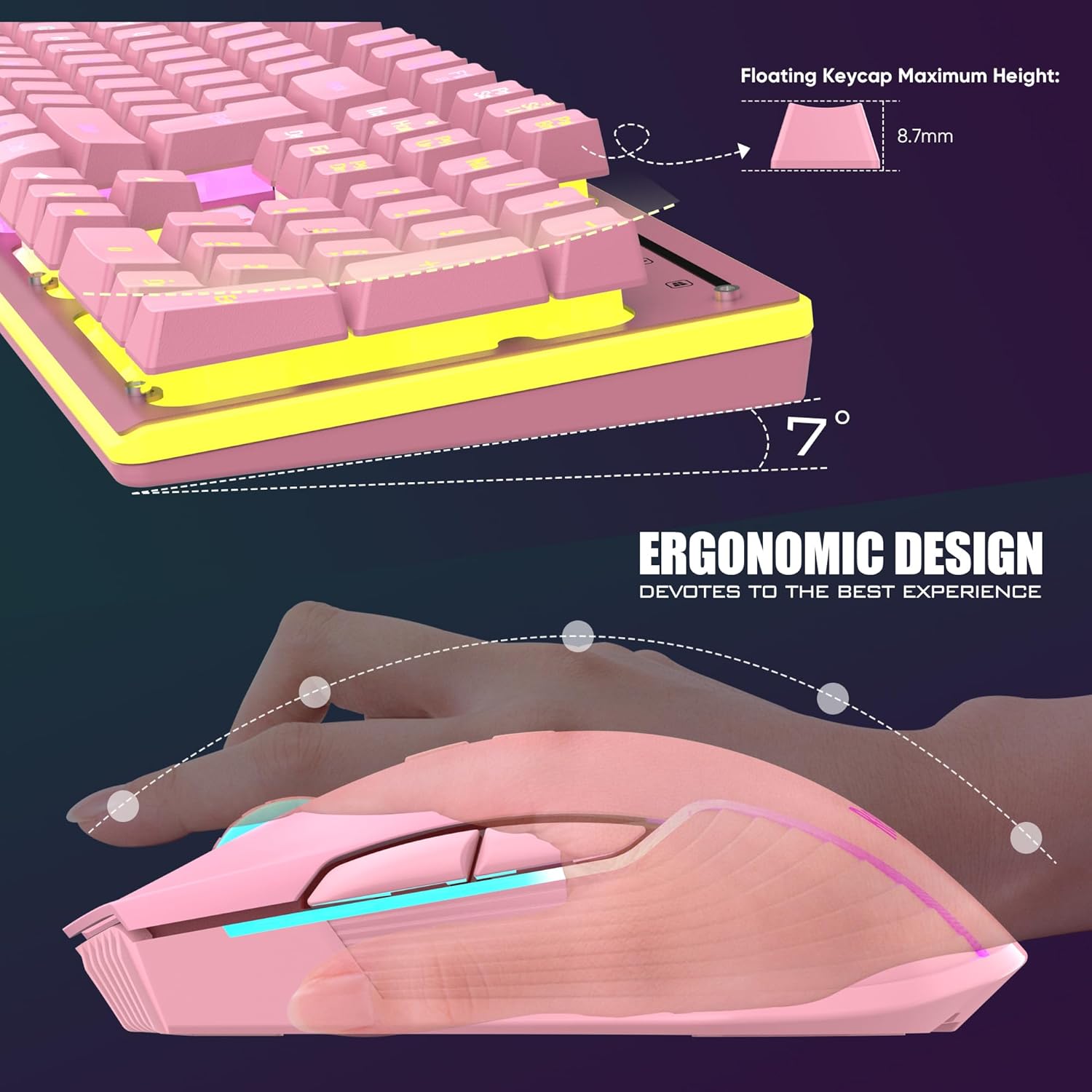
Figure 3.5: Ergonomic Design. The image highlights the ergonomic features of both the keyboard (floating keycap height) and the mouse (contour fitting the palm), designed for comfortable long-term use.

Figure 3.6: 7 Buttons Gaming Mouse. This visual showcases the mouse's 7-button layout and its dynamic 7-color cyclic gradual lighting effect. Note that the mouse's light mode is not adjustable.

Figure 3.7: Wide Compatibility and Product Size. This image details the dimensions of both the keyboard and mouse, and confirms their compatibility with Windows XP, 7, 8, 10, WIN2000/WINXP/WIN7/WIN8/WIN10, Mac OS, and Linux. For Mac, a USB-C adapter may be required.
4. Setup
- Initial Charging: Before first use, fully charge both the keyboard and mouse for approximately 8 hours. Use the provided charging cable.
- Locate USB Receiver: The 2.4G USB receiver is conveniently stored in the bottom compartment of the mouse. Remove it before use.
- Plug and Play: Insert the USB receiver into an available USB port on your computer.
- Power On: Turn on the power switches for both the keyboard and the mouse. They are pre-paired from the factory and should connect automatically.
- Re-pairing (if needed): If the connection is lost or the devices do not respond, you may need to reset the code pairing. Refer to the troubleshooting section for detailed steps.
5. Operating Instructions
5.1 Keyboard Operation
- Backlight Control: The keyboard features three groups of rainbow backlight effects.
- Breathing Modes: Press FN + LED to cycle through 2 breathing modes.
- Static Modes: Press LED (without FN) to cycle through 3 static modes.
- Brightness Adjustment: Press FN + PU (Page Up) to increase brightness and FN + PD (Page Down) to decrease brightness. There are 4 brightness levels.
- Anti-Ghosting: The keyboard supports anti-ghosting for multiple key presses, ensuring accuracy during intense gaming sessions.
- Multimedia Keys: Use FN + F1-F12 for various multimedia functions.
- WASD/Arrow Key Swap: Press FN + W to swap the functionality of WASD keys with the arrow keys.
- Windows Key Lock: Press FN + WIN to lock the Windows key, preventing accidental presses during gaming.
5.2 Mouse Operation
- DPI Adjustment: The mouse supports adjustable DPI up to 3200DPI for precise control. Use the DPI button located on the top of the mouse to cycle through settings.
- Lighting Effect: The mouse has a built-in 7-color cyclic gradual lighting effect. Note that the mouse's light mode cannot be manually set or changed.
- 7D Buttons: The mouse features 7 programmable buttons for enhanced functionality.
5.3 Power Management
- Automatic Sleep Mode: Both the keyboard and mouse are equipped with smart energy-saving functions. If there is no operation within 2 minutes, they will automatically enter sleep mode to conserve battery.
- Waking Up Devices: To wake up the devices from sleep mode, simply press any key on the keyboard or move/click the mouse.
6. Maintenance
- Cleaning: Use a soft, dry cloth to clean the surfaces of the keyboard and mouse. For deeper cleaning, especially between keycaps, use compressed air. Avoid using harsh chemicals or abrasive materials.
- Battery Care: To prolong battery life, avoid fully discharging the devices frequently. Charge them regularly, especially if they will be stored for an extended period.
- Storage: Store the devices in a cool, dry place away from direct sunlight and extreme temperatures.
- USB Receiver: When not in use, store the USB receiver in its designated slot in the mouse to prevent loss.
7. Troubleshooting
- Devices Not Connecting/Responding:
- Ensure the USB receiver is securely plugged into a working USB port.
- Make sure both the keyboard and mouse are powered on.
- Check battery levels and charge if necessary.
- Re-pairing: If connection is lost, turn off both devices. Unplug the USB receiver, then plug it back in. Turn on the mouse first, then the keyboard. They should automatically re-pair. - Keyboard/Mouse Lights Not Working Properly:
- Ensure the devices are charged. Low battery can affect lighting.
- For the keyboard, cycle through lighting modes and brightness levels using the FN key combinations (FN+LED, LED, FN+PU/PD).
- Note that the mouse's lighting is a fixed cyclic effect and cannot be manually adjusted. - Lag or Unresponsiveness:
- Ensure the USB receiver is not too far from the devices or obstructed by metal objects.
- Try plugging the USB receiver into a different USB port.
- Check for other 2.4G wireless devices that might cause interference. - Short Battery Life:
- Ensure devices are fully charged (8 hours initial charge recommended).
- High brightness settings on the keyboard will consume more power. Reduce brightness if longer battery life is desired.
- Ensure devices are entering sleep mode when idle.
8. Specifications
| Feature | Detail |
|---|---|
| Product Dimensions | 16.93 x 5.12 x 1.18 inches |
| Item Weight | 2.09 pounds |
| Manufacturer | RedThunder |
| Item Model Number | K10 |
| Batteries | 1 A batteries required (included) |
| Brand | RedThunder |
| Color | Pink |
| Connectivity Technology | USB (2.4G Wireless via USB receiver) |
| Special Features | Ergonomic, Rechargeable, LED Backlit, Anti-ghosting |
| Compatible Devices | Laptop, Personal Computer (Windows XP/7/8/10, Mac OS, Linux) |
9. Warranty and Support
For warranty information and customer support, please contact RedThunder directly through their official website or the retailer where the product was purchased. Keep your purchase receipt as proof of purchase for any warranty claims.

