
HP 14-ek0033dx
HP Pavilion x360 2-in-1 14" Touch-Screen Laptop User Manual
Model: 14-ek0033dx | Brand: HP
1. Product Overview
The HP Pavilion x360 2-in-1 14" Touch-Screen Laptop is a versatile computing device designed for various uses, from productivity to entertainment. It features a convertible design, allowing it to function as a traditional laptop, a tent-style display, or a tablet.

Figure 1.1: HP Pavilion x360 2-in-1 Laptop in its standard laptop configuration.
Key Features:
- Operating System: Windows 11 Home, offering a modern and intuitive user experience.
- Display: 14.0-inch diagonal Full HD (1920 x 1080) multitouch-enabled IPS display with edge-to-edge glass and micro-edge bezels. Provides crystal-clear visuals with wide 178-degree viewing angles and 250 nits brightness.
- Processor: 12th Generation Intel Core i5-1235U Quad-Core CPU, with a base clock of 1.0 GHz and Turbo Boost up to 3.6 GHz, optimizing performance for various tasks.
- Memory: 8 GB DDR4-3200 MHz RAM (2 x 4 GB), providing substantial high-bandwidth for smooth multitasking and application usage. Upgradable to 16GB, with some reports suggesting compatibility up to 32GB.
- Storage: 512 GB PCIe NVMe M.2 Solid State Drive (SSD), offering significantly faster performance compared to traditional hard drives. Upgradable to 1TB.
- Graphics: Integrated Intel Iris Xe Graphics, suitable for creative tasks, gaming, and entertainment with crisp visuals.
- Audio: Audio by Bang & Olufsen with dual speakers, custom-tuned for enhanced sound quality.
- Wireless Connectivity: Wi-Fi 6E (2x2) and Bluetooth combo, supporting Gigabit data rates for faster speeds and improved performance.
- Webcam: HP True Vision 5MP camera with a physical camera shutter for privacy, temporal noise reduction, and integrated dual array digital microphones.
- Security: Integrated fingerprint reader for secure and convenient login.
- Battery Life: Approximately 8-10 hours of battery life with typical usage, and supports fast charging, reaching a full charge in about 90 minutes.
2. Setup Guide
2.1 Initial Power On and Windows Setup
- Connect Power: Plug the AC adapter into the laptop's power port and then into a wall outlet. Ensure the battery is sufficiently charged before first use.
- Power On: Press the power button, typically located on the side or top right of the keyboard deck.
- Follow On-Screen Prompts: Windows 11 will guide you through the initial setup process. This includes selecting your region, language, connecting to a Wi-Fi network, accepting terms and conditions, and setting up your user account.
- Fingerprint Setup: During Windows setup, you will have the option to configure the fingerprint reader for quick and secure logins. Follow the instructions to register your fingerprint.
2.2 Port Identification
Familiarize yourself with the various ports available on your laptop for connecting peripherals and accessories.

Figure 2.1: Port layout of the HP Pavilion x360 2-in-1 Laptop.
- Left Side: USB 3.0 Type-A port, Headphone/Microphone combo jack, Fan Vent.
- Right Side: AC Smart Pin (Power Plug), SuperSpeed USB Type-A port, Micro SD media card reader, SuperSpeed USB Type-C port, HDMI 2.1 port.
3. Operating Your Laptop
3.1 Convertible Modes
The HP Pavilion x360 offers multiple modes to adapt to your needs:
- Laptop Mode: Standard clamshell configuration for typing and traditional computing.
- Tent Mode: Fold the display back to stand the laptop in a tent shape, ideal for watching videos or presentations in confined spaces.
- Tablet Mode: Fold the display completely back against the base to use it as a tablet, perfect for touch-based interactions and portability.

Figure 3.1: Laptop in Tablet Mode.
3.2 Keyboard and Touchpad
The laptop features a spacious and responsive keyboard and a large touchpad with multi-finger gesture support.
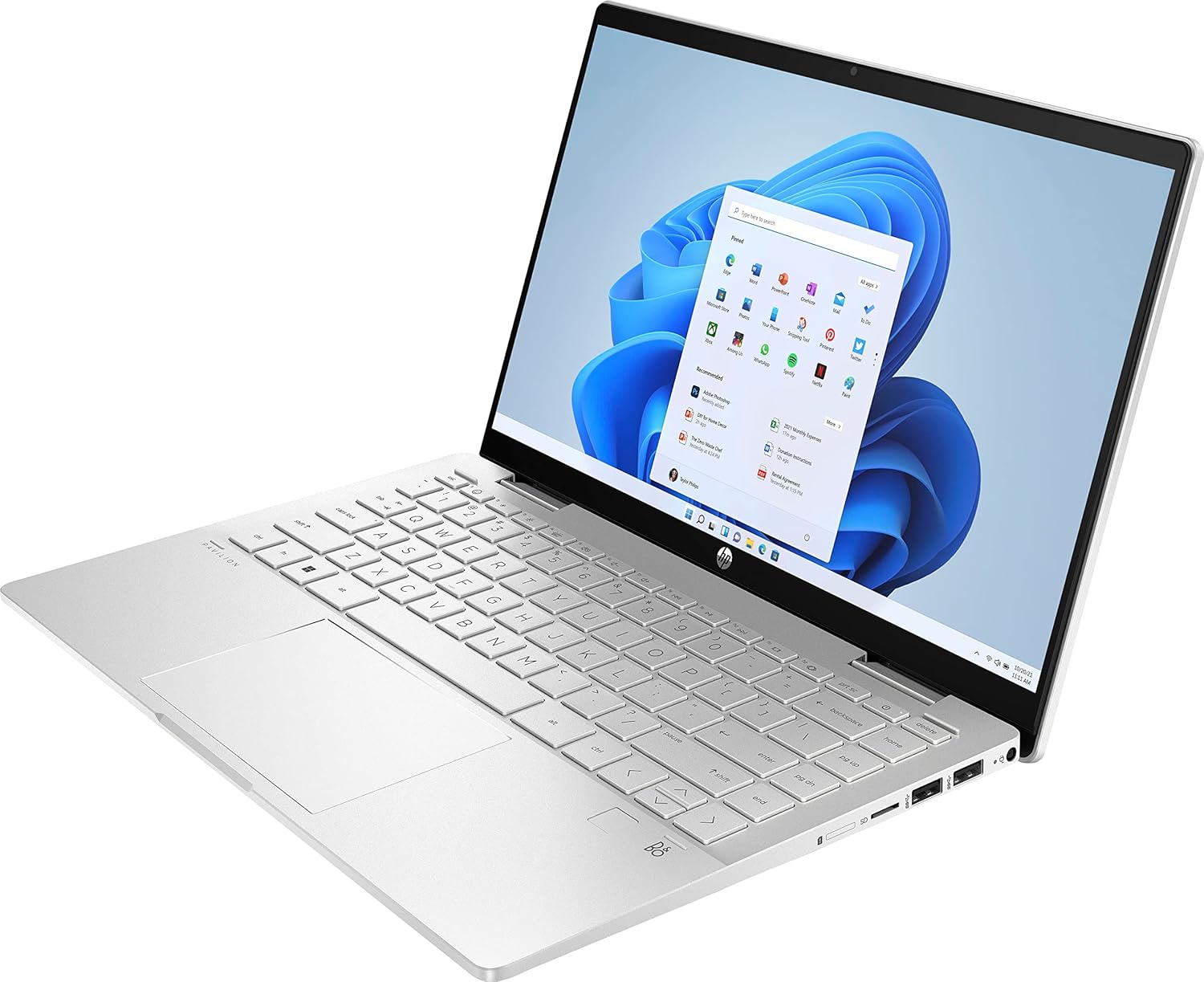
Figure 3.2: Keyboard and Touchpad with Backlighting.
- Backlit Keyboard: The keyboard includes backlighting with two brightness settings for comfortable typing in low-light conditions.
- Touchpad Gestures: The touchpad supports various multi-finger gestures for navigation, including:
- Single-finger tap for click.
- Two-finger scroll and pinch-to-zoom.
- Three-finger gestures for multitasking (e.g., showing desktop, switching apps).
- Four-finger gestures for additional functions.
3.3 Display and Audio
The 14-inch Full HD touch-screen display provides vibrant visuals, complemented by high-quality audio from Bang & Olufsen speakers.
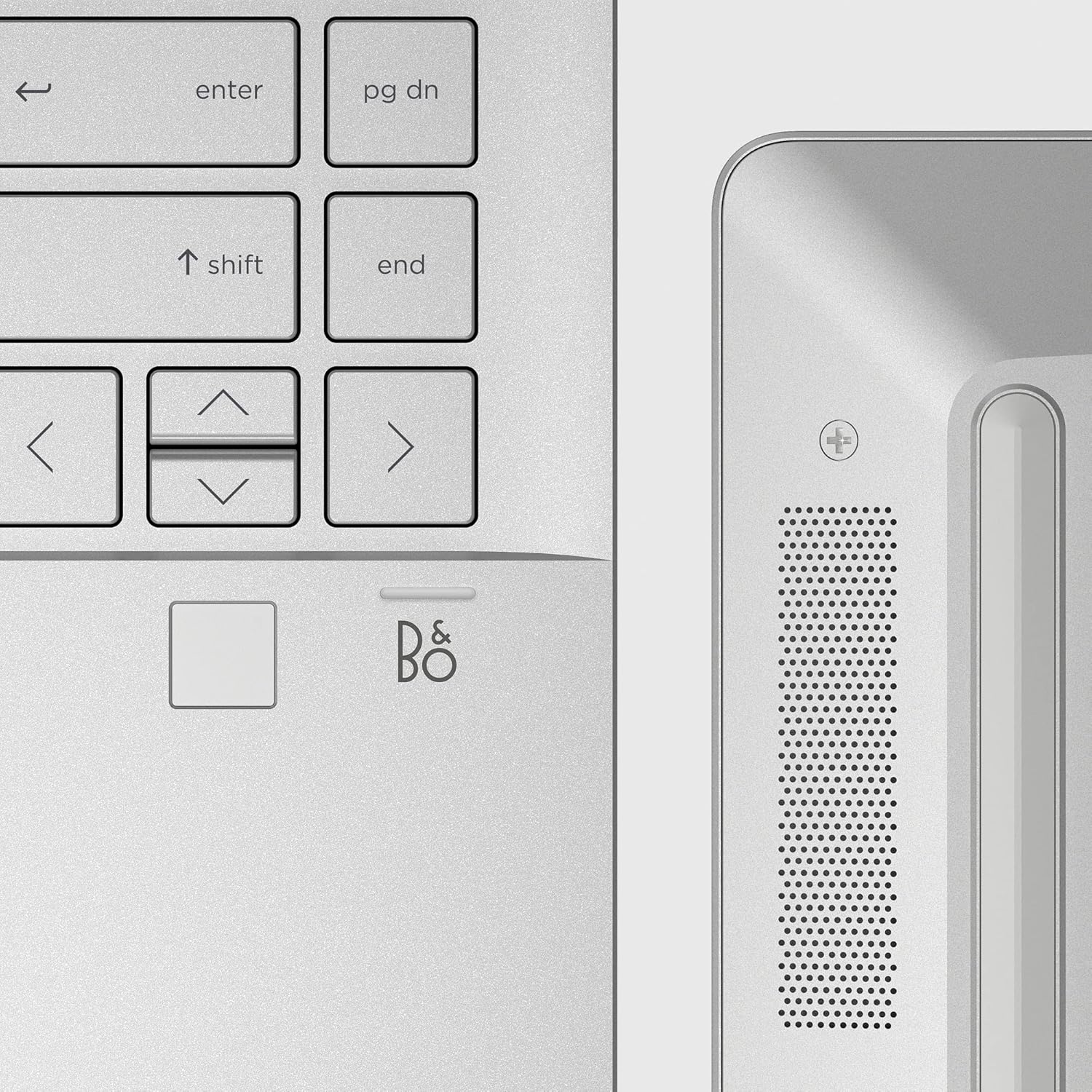
Figure 3.3: Bang & Olufsen Speaker Grille and Fingerprint Reader.
- Touch Functionality: Interact directly with the screen using touch gestures, especially useful in tablet and tent modes.
- Speaker Placement: Dual speakers are strategically placed to deliver clear stereo sound.
4. Maintenance and Care
4.1 Battery Care
- To maximize battery lifespan, avoid consistently draining the battery to 0% or keeping it at 100% for extended periods.
- Store the laptop in a cool, dry place when not in use.
4.2 Cleaning
- Use a soft, lint-free cloth slightly dampened with water or a screen cleaner to clean the display. Avoid harsh chemicals.
- For the keyboard and chassis, use a soft, dry cloth. Compressed air can be used to clear dust from between keys.
4.3 Software Updates
- Regularly check for and install Windows updates to ensure your system has the latest security patches and performance improvements.
- Update HP drivers and software through the HP Support Assistant application or HP's official website.
5. Troubleshooting
5.1 Common Issues and Solutions
- Laptop Not Powering On: Ensure the AC adapter is securely connected and the power outlet is functional. Try a different outlet. If the battery is completely drained, allow it to charge for a few minutes before attempting to power on again.
- Screen Issues (No Display/Flickering): Try restarting the laptop. If connected to an external monitor, disconnect it. Check display settings in Windows.
- Slow Performance: Close unnecessary applications. Check Task Manager for high CPU/memory usage. Ensure sufficient free storage space on the SSD. Run a disk cleanup.
- Wi-Fi/Bluetooth Connectivity Problems: Toggle Wi-Fi/Bluetooth off and on. Restart your router/modem. Update wireless drivers.
- Keyboard/Touchpad Unresponsive: Restart the laptop. Check for any physical obstructions. Ensure drivers are up to date.
- Overheating/Loud Fan: Ensure the fan vents are not obstructed. Use the laptop on a hard, flat surface. Reduce heavy workload if possible.
5.2 Restoring System
- System Restore: Windows allows you to revert your system to a previous restore point, which can resolve software-related issues without affecting your personal files. Search for "Create a restore point" in Windows Search.
- Reset This PC: If issues persist, you can use the "Reset this PC" option in Windows Settings (Settings > System > Recovery). This allows you to reinstall Windows, with options to keep or remove your personal files.
6. Specifications
| Feature | Specification |
|---|---|
| Brand | HP |
| Model Name | Pavilion x360 2-in-1 |
| Item Model Number | 14-ek0033dx |
| Hardware Platform | PC |
| Operating System | Windows 11 Home |
| Screen Size | 14 Inches |
| Screen Resolution | 1920 x 1080 pixels (FHD) |
| Max Screen Resolution | 1920x1080 |
| Processor Brand | Intel |
| CPU Model | Intel Core i5-1235U |
| Number of Processors | 10 |
| RAM Memory Installed Size | 8 GB DDR4 |
| Memory Speed | 3200 MHz |
| Hard Disk Size | 512 GB SSD |
| Hard Drive Interface | Solid State (PCIe NVMe M.2) |
| Graphics Coprocessor | Intel Iris Xe Graphics |
| Graphics Card Description | Integrated |
| Graphics Card RAM Size | 8 GB (shared) |
| Wireless Type | Wi-Fi 6E (2x2) and Bluetooth Combo |
| Number of USB 3.0 Ports | 1 (SuperSpeed USB Type-A) |
| Other Ports | HDMI 2.1, SuperSpeed USB Type-C, Micro SD media card reader, Headphone/Microphone combo |
| Color | Natural Silver |
| Item Weight | 3.3 pounds |
| Product Dimensions (LxWxH) | 12.68 x 8.27 x 0.74 inches |
| Batteries | 1 Lithium Polymer battery required (included) |
| Included Components | AC Adapter |
7. Warranty and Support
For detailed warranty information, please refer to the warranty card included with your product or visit the official HP support website. HP provides various support resources, including online documentation, drivers, and customer service contact options.
You can find additional support and contact information on the HP Store on Amazon.
Related documents14-ek0033dx


Ask a question about this manual
Ask about setup, troubleshooting, compatibility, parts, safety, or missing instructions. Manuals+ will review the question and use this page’s manual context to help answer it.