
5062
User Manual for T-Mobile Revvl 4+ Plus 5062 USB Charging Port Flex Cable Replacement
Model: 5062 | Brand: Generic
Product Overview
This document provides essential information for the T-Mobile Revvl 4+ Plus 5062 USB Charging Port Flex Cable Replacement. This component is designed to replace a damaged or non-functional charging port on compatible devices, restoring charging capabilities.
It is compatible with T-Mobile REVVL 4+ 6.52" models (5062, 5062W, 5062Z) and Metro REVVL 4+ 6.52" 5062. Please note: This part is not compatible with T-Mobile REVVL 4 6.22" (5007) models.
Setup and Installation
The installation of this flex cable requires technical proficiency and careful handling of delicate electronic components. This item does not include detailed installation instructions. It is highly recommended that installation be performed by a qualified technician or by individuals with prior experience in mobile phone repair.
For visual guidance, many users find it helpful to refer to online video tutorials specific to the T-Mobile Revvl 4+ charging port replacement. Search for "T-Mobile Revvl 4+ charging port replacement" on video platforms for step-by-step demonstrations.
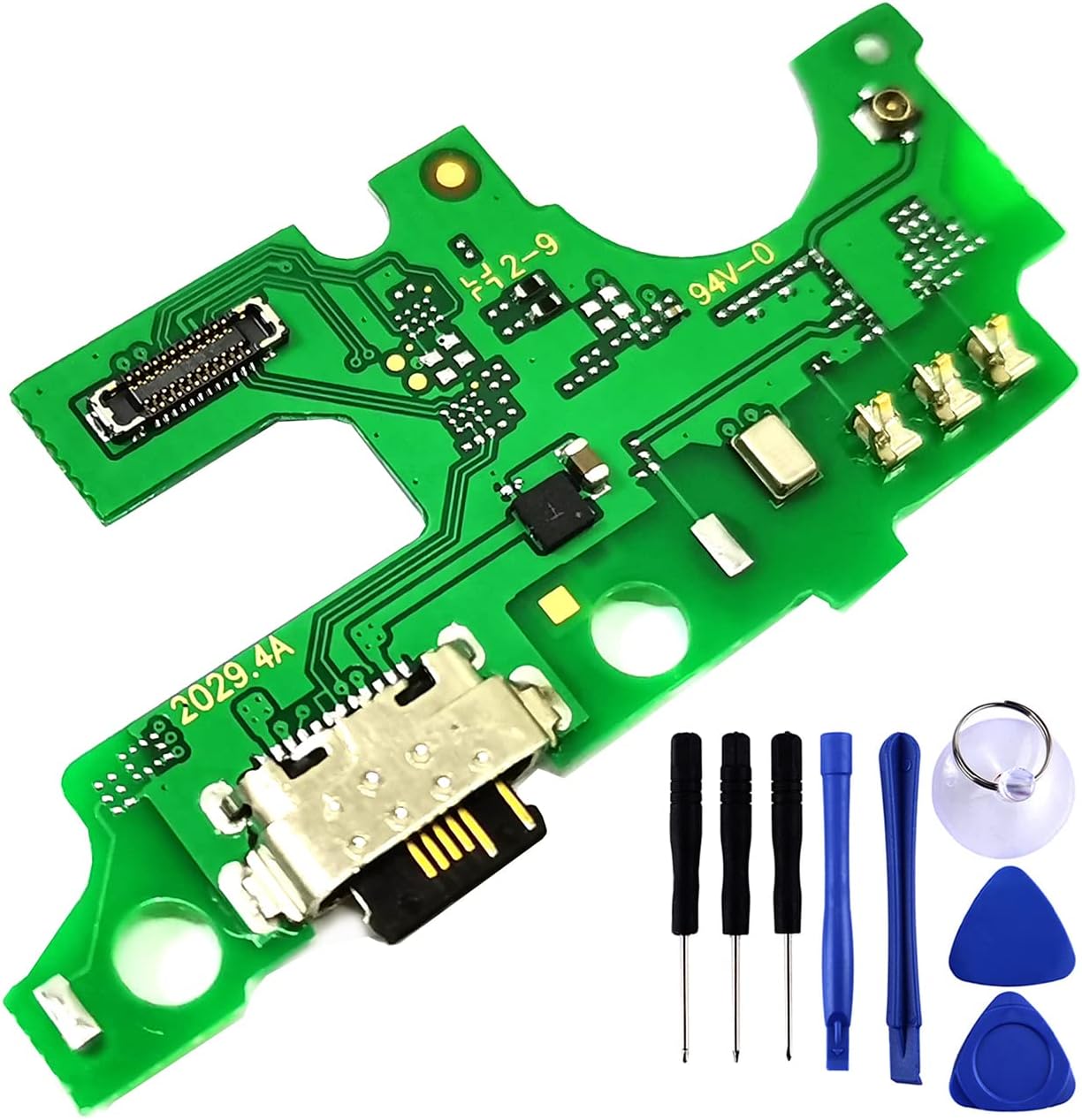
Image: The USB charging port flex cable alongside the basic repair tools provided.
Included Tools: The package typically includes miniature screwdrivers, plastic prying tools, and a suction cup to assist with phone disassembly. These tools are designed to aid in the careful opening of the device and removal of the old component.

Image: A closer look at the repair tools supplied with the flex cable.
Pre-Installation Check: Before beginning installation, ensure your phone model is indeed the REVVL 4+ 6.52" (5062 series). Verify the new flex cable matches the original component visually.
Operating the Charging Port
Once successfully installed, the flex cable restores the functionality of your device's USB Type-C charging port. To operate, simply connect a compatible USB Type-C charging cable to the port and a power source.
The port supports fast charging, allowing for efficient power delivery to your device. Ensure you use a charger and cable that also support fast charging to utilize this feature.

Image: Top view of the flex cable, showing the USB Type-C connector and circuit board.
Maintenance
The USB charging port flex cable is a sealed electronic component and requires minimal maintenance. To ensure longevity and optimal performance:
- Keep the Port Clean: Periodically inspect the charging port for dust, lint, or debris. Use a non-conductive tool, such as a wooden toothpick or a soft brush, to gently clear any obstructions. Avoid using metal objects that could damage the pins.
- Handle with Care: When connecting or disconnecting the charging cable, do so gently to avoid stressing the port. Avoid bending or twisting the cable while it is connected.
- Avoid Liquid Exposure: Protect your device from water and other liquids, as moisture can corrode the charging port and internal components.

Image: Bottom view of the flex cable, showing the contact points and overall design.
Troubleshooting
If you encounter issues after replacing the charging port flex cable, consider the following troubleshooting steps:
- No Charging:
- Ensure the charging cable and adapter are functional by testing them with another device.
- Verify the charging port is free of debris.
- Check all internal connections made during installation to ensure they are secure. A loose connection can prevent charging.
- Weak or No Cellular Signal:
- Some users have reported issues with cellular signal strength after replacing the charging port. This can occur if antenna connections are not properly re-seated or if the replacement board has a manufacturing defect affecting signal reception.
- Carefully re-open the phone and inspect all antenna connections near the charging port flex cable. Ensure they are firmly attached.
- If the issue persists, consider re-installing the original charging port (if available and functional for signal) to determine if the problem is with the new flex cable.
- Device Not Recognizing USB Connection:
- Ensure the USB cable is correctly inserted into both the phone and the computer/other device.
- Try a different USB cable and a different USB port on your computer.
- Check device settings to ensure USB connection preferences are correctly configured (e.g., File Transfer, PTP).
If troubleshooting steps do not resolve the issue, professional assistance may be required.
Specifications
| Brand | Generic |
| Model Name | for T-Mobile Revvl 4+ Plus 5062 |
| Compatible Devices | T-Mobile REVVL 4+ 6.52" (5062, 5062W, 5062Z), Metro REVVL 4+ 6.52" (5062) |
| Connector Type | USB Type C |
| Special Feature | Fast Charging |
| Manufacturer | Bestdealing |
| Item Weight | 1.44 ounces |
| UPC | 770887299889 |
Warranty and Support
Warranty: This product typically comes with a 30-day return policy for refund or replacement, as per the seller's terms. Please refer to your purchase details for specific warranty information and return procedures.
Support: For any questions regarding the product, installation, or troubleshooting that cannot be resolved using this manual, please contact the seller directly through the platform where the purchase was made. Provide your order number and a detailed description of the issue for prompt assistance.
Related documents5062


Ask a question about this manual
Ask about setup, troubleshooting, compatibility, parts, safety, or missing instructions. Manuals+ will review the question and use this page’s manual context to help answer it.