
ZTE Blade V40 Vita (P606F02B)
ZTE Blade V40 Vita Smartphone User Manual
Model: Blade V40 Vita (P606F02B)
Introduction
This user manual provides comprehensive instructions for the safe and efficient operation of your ZTE Blade V40 Vita Smartphone. Please read this manual thoroughly before using your device to ensure proper functionality and to prevent damage.

Image: Front and back view of the ZTE Blade V40 Vita Smartphone, showcasing its design and triple camera setup.
Package Contents
Ensure all items are present in the package before initial setup. If any item is missing or damaged, contact your retailer.
- ZTE Blade V40 Vita Smartphone
- USB Type-C Cable
- Power Adapter (22.5W Fast Charger)
- SIM Ejector Tool
- Quick Start Guide
- Safety Information Booklet
Device Overview
Familiarize yourself with the physical components of your ZTE Blade V40 Vita.
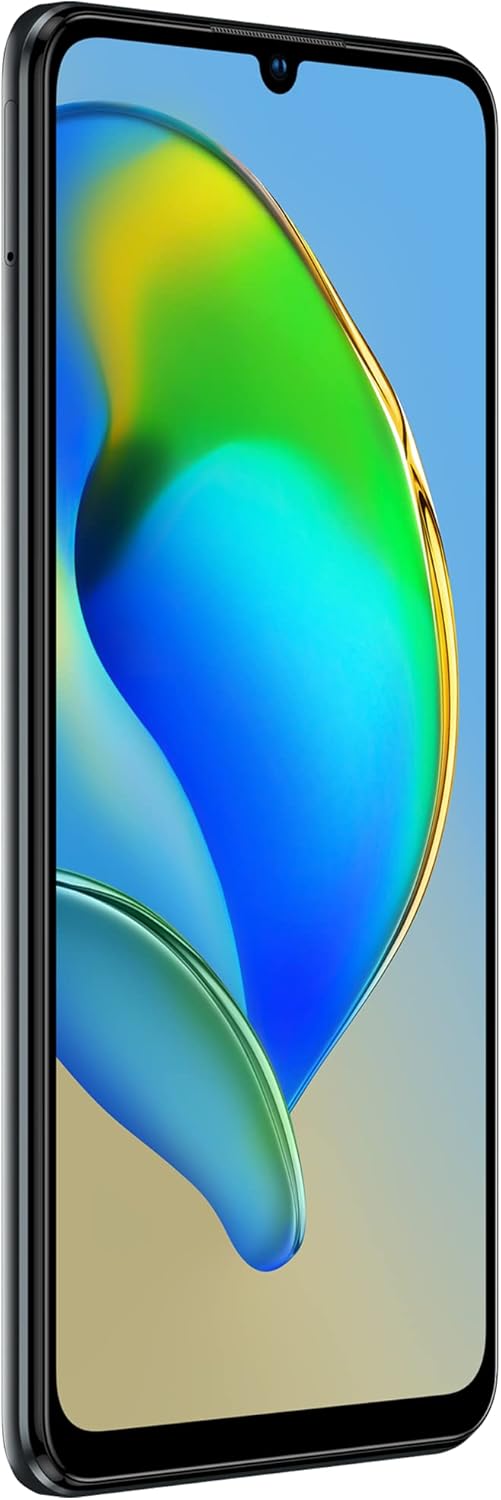
Image: Right side of the phone showing the power button with integrated fingerprint sensor and volume rocker.

Image: Close-up of the triple camera module on the rear of the ZTE Blade V40 Vita, highlighting the 48MP main sensor.
- Front: 6.74-inch HD+ Display, Front Camera, Earpiece.
- Right Side: Power Button (with integrated Fingerprint Sensor), Volume Up/Down Buttons.
- Bottom: USB Type-C Port, Speaker, Microphone, 3.5mm Headphone Jack.
- Top: Secondary Microphone.
- Left Side: SIM/microSD Card Tray.
- Rear: Triple Camera System (48MP Main, 2MP Depth, 2MP Macro), LED Flash.
Setup
1. Inserting SIM and microSD Cards
Your device supports dual SIM cards and a microSD card for expandable storage up to 1TB.
- Locate the SIM/microSD card tray on the left side of the phone.
- Insert the SIM ejector tool into the small hole next to the tray to open it.
- Carefully pull out the tray.
- Place your Nano-SIM card(s) and/or microSD card into the designated slots on the tray, ensuring correct orientation.
- Gently push the tray back into the phone until it clicks into place.

Image: Illustration of the SIM and microSD card tray, showing how to insert the cards.
2. Initial Power On and Setup Wizard
To power on your device for the first time:
- Press and hold the Power button on the right side until the ZTE logo appears.
- Follow the on-screen instructions to complete the initial setup, including language selection, Wi-Fi connection, Google account setup, and security settings (fingerprint, PIN/pattern).
3. Charging the Device
Before first use, it is recommended to fully charge the battery.
- Connect the USB Type-C cable to the phone's charging port and the other end to the provided 22.5W power adapter.
- Plug the power adapter into a wall outlet.
- The charging indicator will appear on the screen.
- The device supports 22.5W fast charging, allowing for 50% charge in approximately 55 minutes.

Image: Visual representation of the 5130mAh battery capacity and 22.5W fast charging capability.
Operating Instructions
1. Basic Navigation
The ZTE Blade V40 Vita features a responsive 6.74-inch HD+ display with a 90Hz refresh rate for smooth interaction.
- Tap: Select an item or open an application.
- Touch and Hold: Access contextual menus or move items.
- Swipe: Navigate through screens, scroll lists, or dismiss notifications.
- Pinch-to-Zoom: Zoom in or out on images and web pages.
- Fingerprint Sensor: Unlock your device quickly and securely using the side-mounted fingerprint sensor.

Image: Depiction of the 6.74-inch display size of the ZTE Blade V40 Vita.

Image: Graphic illustrating the 90Hz refresh rate for smoother scrolling and gaming experience.
2. Making Calls and Sending Messages
- Calls: Open the Phone app, enter the number or select a contact, and tap the call icon.
- Messages: Open the Messages app, tap the new message icon, enter the recipient and your message, then tap send.
3. Using the Camera
The ZTE Blade V40 Vita is equipped with a 48MP triple camera system for high-quality photos and videos.
- Open the Camera app from your home screen or app drawer.
- Select your desired mode (Photo, Video, Portrait, Macro).
- Tap the shutter button to capture an image or start/stop video recording.
- The AI camera automatically adjusts settings for optimal results.

Image: Close-up view of the triple camera setup on the ZTE Blade V40 Vita, highlighting the lens arrangement.
4. Connectivity Features
- Bluetooth: Pair with wireless headphones, speakers, or other Bluetooth-enabled devices. Go to Settings > Connected devices > Bluetooth.
- NFC: Use Near Field Communication for quick pairing with compatible devices or for mobile payments. Ensure NFC is enabled in Settings > Connected devices > Connection preferences > NFC.
- Wi-Fi: Connect to wireless networks for internet access. Go to Settings > Network & internet > Wi-Fi.
5. Memory Fusion Technology
The ZTE Blade V40 Vita features Memory Fusion Technology, which allows you to expand the 4GB RAM by utilizing up to 2GB of internal storage, enhancing multitasking and overall performance.

Image: Diagram illustrating the 4GB RAM expandable with an additional 2GB using Memory Fusion Technology.
6. DTS Sound
Enhance your audio experience with DTS Sound. This feature allows you to customize sound settings for movies and games, boosting bass and improving treble for a more immersive experience.
- Access DTS Sound settings through the Sound & vibration menu in Settings or via quick settings panel.
- Adjust presets or manually fine-tune audio parameters to suit your preferences.
Maintenance
1. Battery Care
- Avoid exposing the device to extreme temperatures.
- Use only the original charger and cable provided with the device.
- Do not leave the device charging for extended periods after it is fully charged.
- For optimal battery longevity, try to keep the charge level between 20% and 80%.
2. Software Updates
Regularly check for software updates to ensure your device has the latest features, security patches, and performance improvements.
- Go to Settings > System > System update.
- Connect to a stable Wi-Fi network before downloading updates.
- Ensure your battery is sufficiently charged before starting an update.
3. Cleaning Your Device
- Use a soft, lint-free cloth to clean the screen and body of the phone.
- Avoid using harsh chemicals, abrasive cleaners, or aerosol sprays.
- For stubborn smudges, slightly dampen the cloth with water or a screen cleaner solution.
Troubleshooting
This section addresses common issues you might encounter with your ZTE Blade V40 Vita.
Device Not Powering On
- Ensure the battery is charged. Connect the charger and wait a few minutes before attempting to power on.
- Press and hold the Power button for at least 10-15 seconds to force a restart.
Charging Issues
- Verify that the charging cable and adapter are securely connected to both the phone and the power outlet.
- Try using a different power outlet.
- Inspect the charging port on the phone for any debris or damage.
Poor Call Quality or No Network
- Check if your SIM card is properly inserted.
- Ensure you are in an area with network coverage.
- Restart the phone.
- Go to Settings > Network & internet > Mobile network and ensure your preferred network type is selected.
Apps Crashing or Freezing
- Close and reopen the app.
- Clear the app's cache and data (Settings > Apps > [App Name] > Storage & cache).
- Ensure the app is updated to its latest version from the Google Play Store.
- Restart your phone.
Specifications
Key technical specifications for the ZTE Blade V40 Vita Smartphone.
| Feature | Specification |
|---|---|
| Model Name | Blade V40 Vita |
| Model Number | P606F02B |
| Display | 6.74 inches HD+ (1600 x 720), 90Hz Refresh Rate |
| Operating System | Android 11.0, MyOS 11 |
| Processor | Mediatek Dimensity 1100 (Octa-core 1.6 GHz) |
| RAM | 4 GB (expandable up to 6 GB with Memory Fusion Technology) |
| Internal Storage | 128 GB (UFS 2.2) |
| Expandable Storage | Up to 1 TB via MicroSD |
| Rear Camera | Triple Camera: 48 MP (Main), 2 MP (Depth), 2 MP (Macro) |
| Battery | 5130 mAh Lithium-ion |
| Charging | 22.5W Fast Charge |
| Connectivity | 4G, Bluetooth, NFC, Wi-Fi, GPS |
| Audio Jack | 3.5 mm |
| SIM Type | Dual SIM |
| Color | Zeus Black |
Warranty and Support
For warranty information and technical support, please refer to the warranty card included in your product package or visit the official ZTE website.
- Spare Parts Availability: 10 Years (as per manufacturer information).
- Software Updates: Information not available regarding guaranteed software update period.
- For further assistance, contact ZTE customer support or your point of purchase.
Related documentsBlade V40 Vita (P606F02B)


Ask a question about this manual
Ask about setup, troubleshooting, compatibility, parts, safety, or missing instructions. Manuals+ will review the question and use this page’s manual context to help answer it.