
1. Introduction
Thank you for purchasing the TOPTRO Projector TR81. This projector is designed to provide a high-quality visual experience with its Full HD 1080P native resolution, 4K support, and advanced features like Bluetooth 5.0 and 4D keystone correction. This manual provides essential information for setting up, operating, maintaining, and troubleshooting your projector to ensure optimal performance and longevity.
2. Safety Instructions
- Do not block the ventilation openings. Ensure adequate space around the projector for proper airflow.
- Do not look directly into the projector lens when the lamp is on, as the bright light can cause eye damage.
- Use only the power adapter supplied with the projector.
- Avoid placing the projector in direct sunlight, near heat sources, or in environments with high humidity or dust.
- Do not attempt to disassemble or repair the projector yourself. Refer all servicing to qualified personnel.
- Keep the projector away from water or other liquids.
3. Package Contents
Please check the box for the following items:
- TOPTRO Projector TR81
- Power Cable
- HDMI Cable
- AV Cable
- Remote Control
- User Manual
4. Product Overview
The TOPTRO TR81 projector features a sleek design with intuitive controls and multiple connectivity options. Below is an overview of its main components.
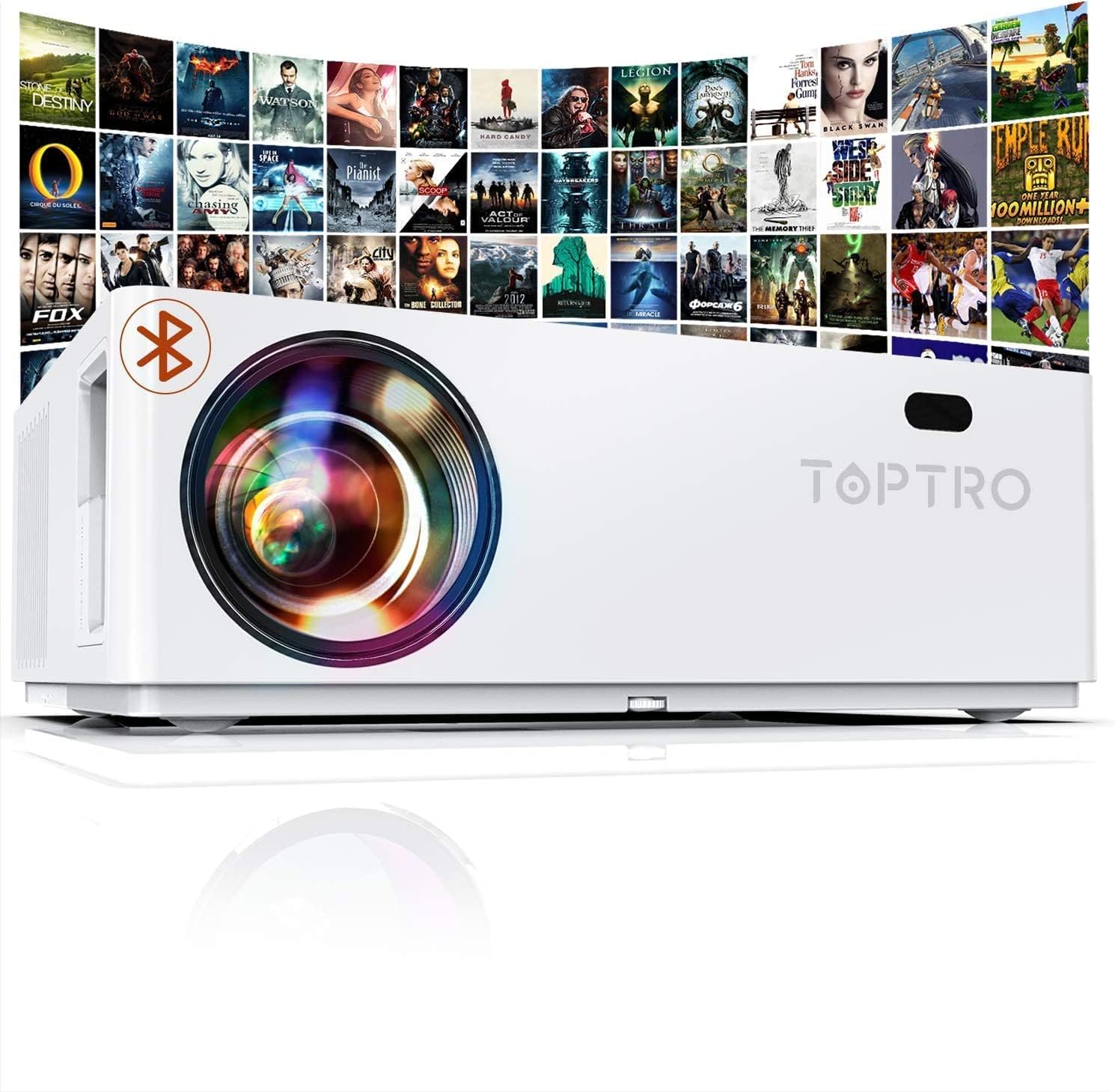
Front view of the TOPTRO Projector TR81, showcasing the lens and overall design.
4.1. Components and Controls
- Lens: Projects the image onto the screen.
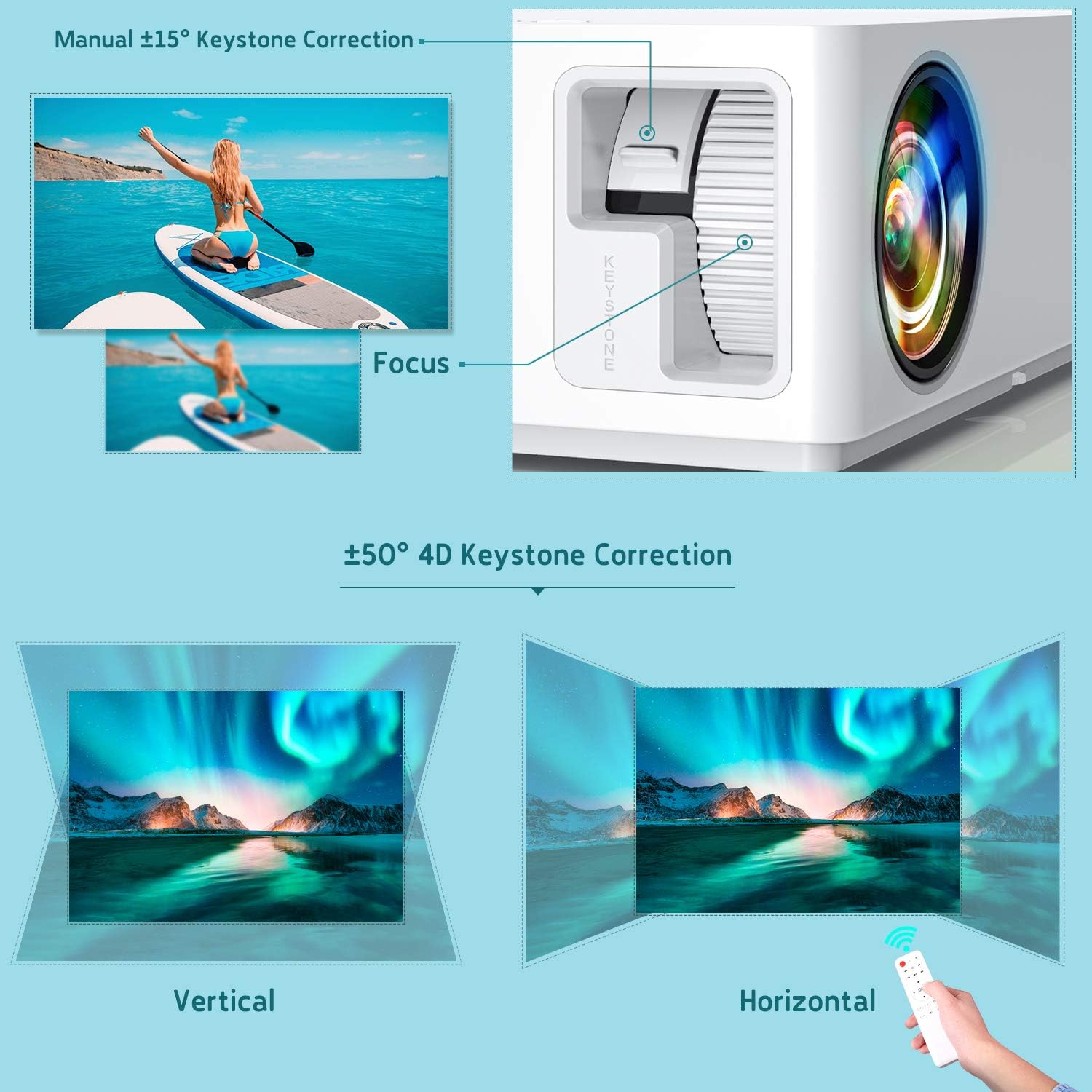
- Focus Ring: Adjusts the clarity of the projected image.
- Keystone Correction Dial: Manually corrects vertical image distortion.
- Control Panel: Buttons for power, menu navigation, and source selection.
- Ventilation Openings: For heat dissipation.
- Input Ports: HDMI, VGA, AV, USB, 3.5mm Audio Jack.
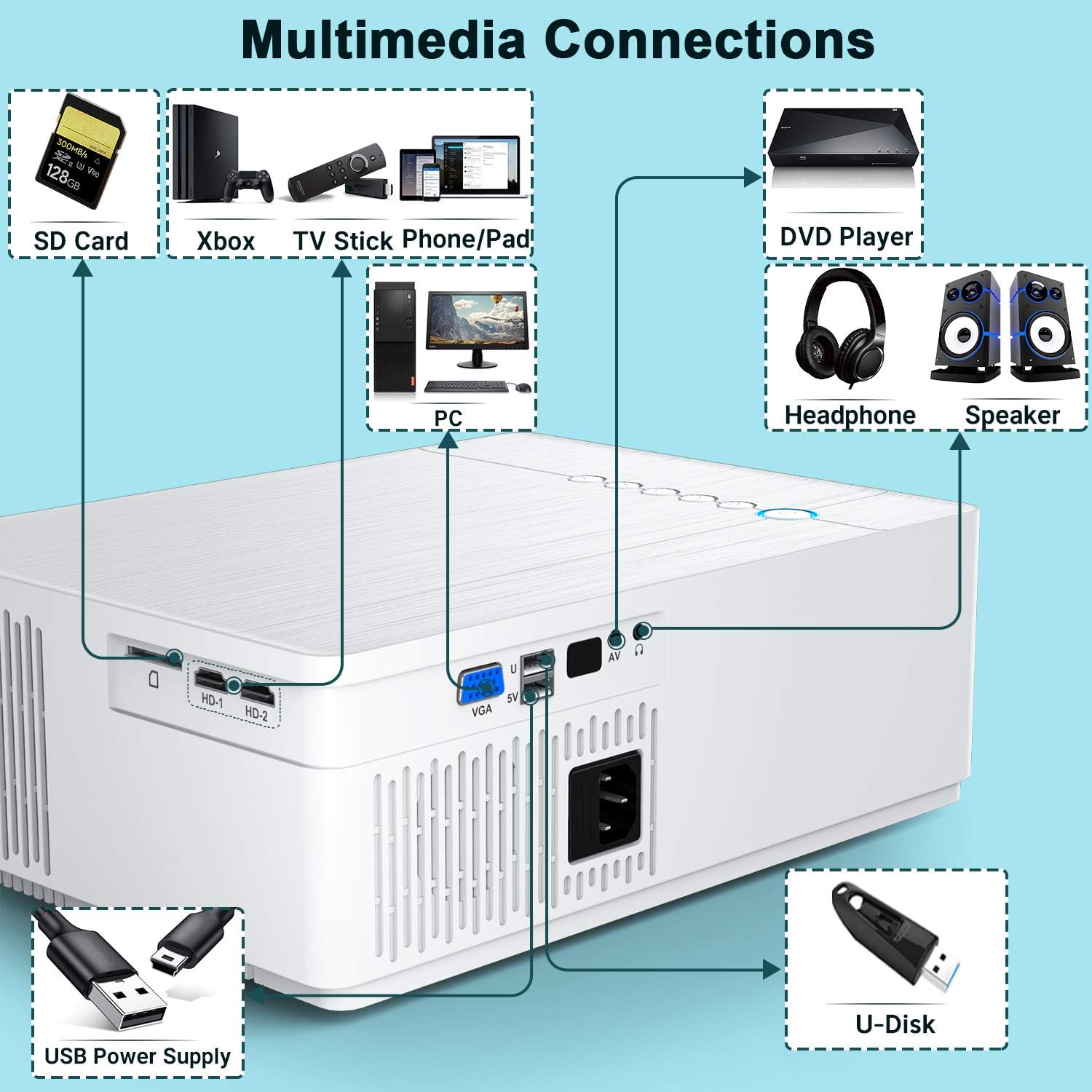
Detailed view of the multimedia connection ports on the TOPTRO Projector TR81, including HDMI, VGA, AV, USB, and audio out.
5. Setup
5.1. Placement
Place the projector on a stable, flat surface or mount it to the ceiling. Ensure the projector is positioned directly in front of the projection surface (screen or wall) for the best image quality. The projector can produce ultra-high definition images up to 350 inches, suitable for a 30ft viewing range.

Illustration of the TOPTRO Projector TR81 projecting a large 350-inch image, demonstrating its capability for giant projection sizes.
5.2. Power Connection
- Connect the power cable to the projector's power input.
- Plug the other end of the power cable into a power outlet.
- Press the power button on the projector or remote control to turn it on.
5.3. Focus and Keystone Adjustment
After powering on, adjust the image clarity and shape:
- Focus: Rotate the focus ring around the lens until the image appears sharp and clear.
- Keystone Correction: The projector features 4D ±50° keystone correction. Use the keystone dial or the remote control to adjust the image shape until it forms a perfect rectangle. This is particularly useful for ceiling-mounted setups. The X/Y ZOOM function allows direct reduction of the projection size.

Diagram illustrating the manual focus and ±50° 4D keystone correction capabilities of the TOPTRO Projector TR81, showing how to achieve a rectangular image from various angles.
6. Operating Instructions
6.1. Basic Operation
- Power On/Off: Press the power button on the projector or remote control.
- Source Selection: Use the 'Source' button on the remote or projector to select the desired input (HDMI1, HDMI2, VGA, AV, USB).
- Menu Navigation: Use the arrow keys and 'OK' button on the remote to navigate through the on-screen menu.
6.2. Adjusting Settings
Access the projector's menu to adjust various display and audio settings:
- Picture Mode: Select from preset modes (e.g., Standard, Dynamic, Movie) or customize brightness, contrast, color, and sharpness. The projector offers 9000 lumens brightness and a 10000:1 ultra-high contrast ratio for vivid images.
- Aspect Ratio: Choose between 16:9, 4:3, or Auto.
- Sound Mode: Adjust audio settings or connect external speakers via Bluetooth.
Comparison image showing the difference in brightness between the TOPTRO TR81 (7000LM) and another projector (5000LM), highlighting the superior brightness and clarity of the TR81.
7. Connectivity
The TOPTRO TR81 projector offers a wide range of connectivity options for various devices.
7.1. Wired Connections
The projector features HDMI, VGA, AV, and USB ports. These can be used to connect devices such as:
- Laptops/PCs
- DVD Players
- Gaming Consoles (PS4, Xbox)
- TV Boxes
- USB drives for media playback
Diagram illustrating various multimedia connections available on the TOPTRO Projector TR81, including SD Card, Xbox, TV Stick, Phone/Pad, PC, DVD Player, Headphones, Speaker, USB Power Supply, and U-Disk.
7.2. Wireless Connections (Bluetooth)
The built-in Bluetooth 5.0 chip allows you to connect the projector to external Bluetooth speakers or headphones for enhanced audio without distortion.
- Go to the projector's settings menu.
- Select 'Bluetooth' and turn it on.
- Put your Bluetooth device (speaker/headphones) into pairing mode.
- Select your device from the list on the projector's screen to connect.

Image demonstrating the TOPTRO Projector TR81's Bluetooth 5.0 support, showing it wirelessly connected to an external speaker for an enhanced audio experience.
7.3. Streaming Devices
Easily connect streaming devices like Fire TV Stick or Chromecast to enjoy your favorite content from various platforms.
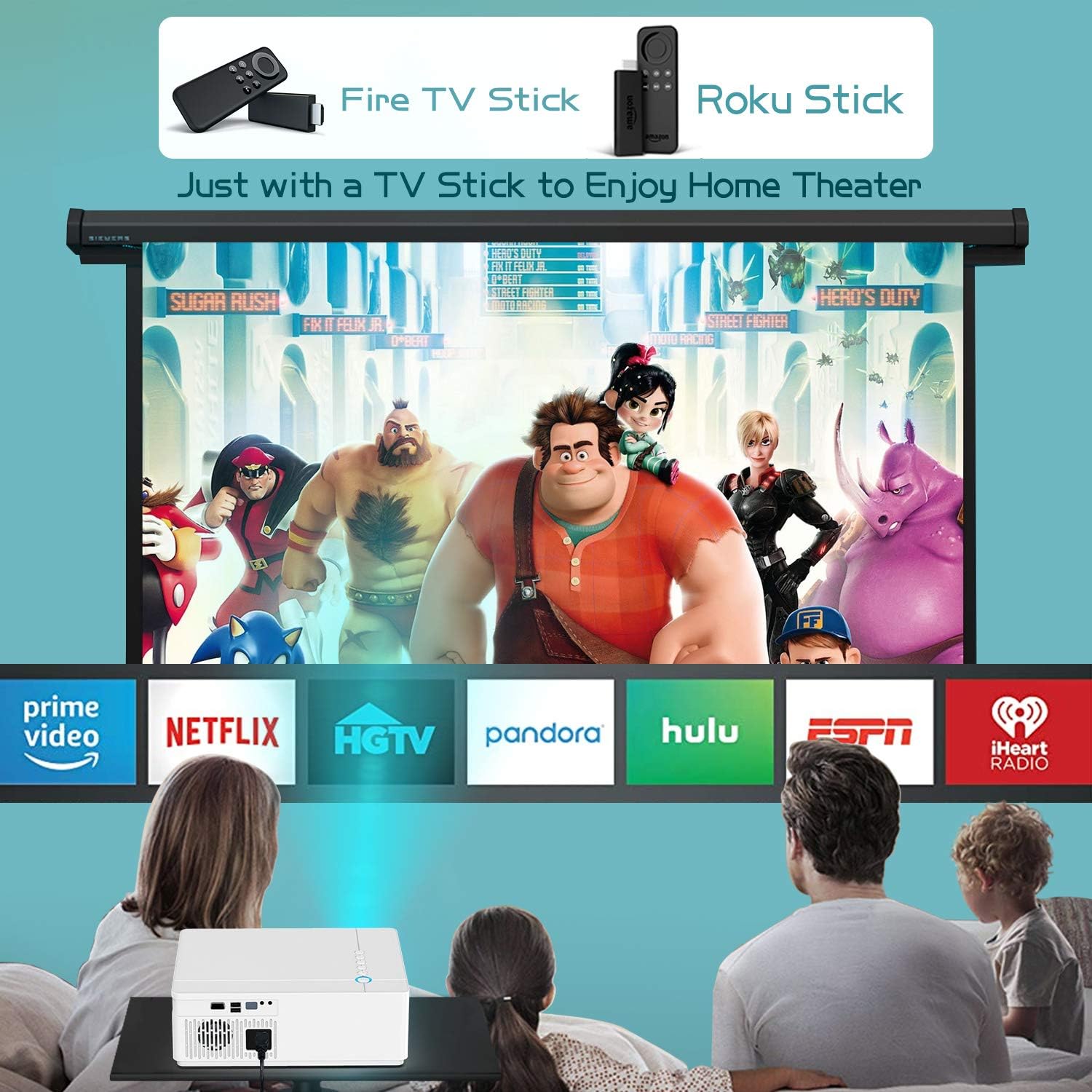
Image showing the TOPTRO Projector TR81 connected to a Fire TV Stick and Roku Stick, enabling access to various streaming services for a home theater experience.
8. Maintenance
Proper maintenance ensures the longevity and performance of your TOPTRO Projector TR81.
- Lens Cleaning: Use a soft, lint-free cloth specifically designed for optical lenses to gently wipe the projector lens. Do not use abrasive cleaners.
- Vent Cleaning: Regularly clean the ventilation openings to prevent dust buildup, which can affect cooling and performance. Use a soft brush or compressed air.
- Lamp Life: The projector utilizes the latest patented technology, providing an impressive lamp life of 150,000 hours. No regular lamp replacement is typically needed under normal usage.
- Storage: When not in use for extended periods, store the projector in a cool, dry place, protected from dust.
9. Troubleshooting
If you encounter issues with your projector, refer to the following common problems and solutions:
| Problem | Possible Cause | Solution |
|---|---|---|
| No image on screen | Power cable loose; Incorrect input source; Device not connected properly. | Check power connection; Select correct input source; Reconnect HDMI/VGA cable. |
| Blurry image | Out of focus; Incorrect keystone adjustment. | Adjust focus ring; Use 4D keystone correction. |
| No sound | Volume too low; Muted; External audio device not connected/paired. | Increase volume; Unmute; Check Bluetooth connection or 3.5mm audio cable. |
| Remote control not working | Batteries low/dead; Obstruction between remote and projector. | Replace batteries; Remove obstructions; Point remote directly at projector's IR receiver. |
| Overheating | Blocked ventilation. | Ensure clear space around vents; Clean vents if dusty. |
10. Specifications
Key technical specifications for the TOPTRO Projector TR81:
| Feature | Specification |
|---|---|
| Brand | TOPTRO |
| Model Number | TR81 |
| Native Resolution | 1920 x 1080P Full HD |
| Supported Resolution | Up to 4K |
| Brightness | 9000 Lumens |
| Contrast Ratio | 10000:1 |
| Keystone Correction | 4D ±50° |
| Connectivity Technology | USB, HDMI, VGA, AV, 3.5mm Audio Jack, Bluetooth 5.0 |
| Lamp Life | 150,000 Hours |
| Product Dimensions | 23 x 10.9 x 30.9 cm |
| Item Weight | 2.7 kg |
| Wattage | 10 watts |
11. Warranty and Support
TOPTRO projectors come with a lifetime warranty and lifetime professional technical support. If you encounter any problems with the product or require assistance, please contact TOPTRO customer service through the official channels or the retailer where you purchased the product. Please have your model number (TR81) and purchase details ready when contacting support.


