
Introduction
Welcome to your new HP 2022 All-in-One Desktop. This manual provides essential information to help you get started, operate, and maintain your computer. The HP All-in-One Desktop combines the computer tower and monitor into a single unit, offering a streamlined and space-saving design.
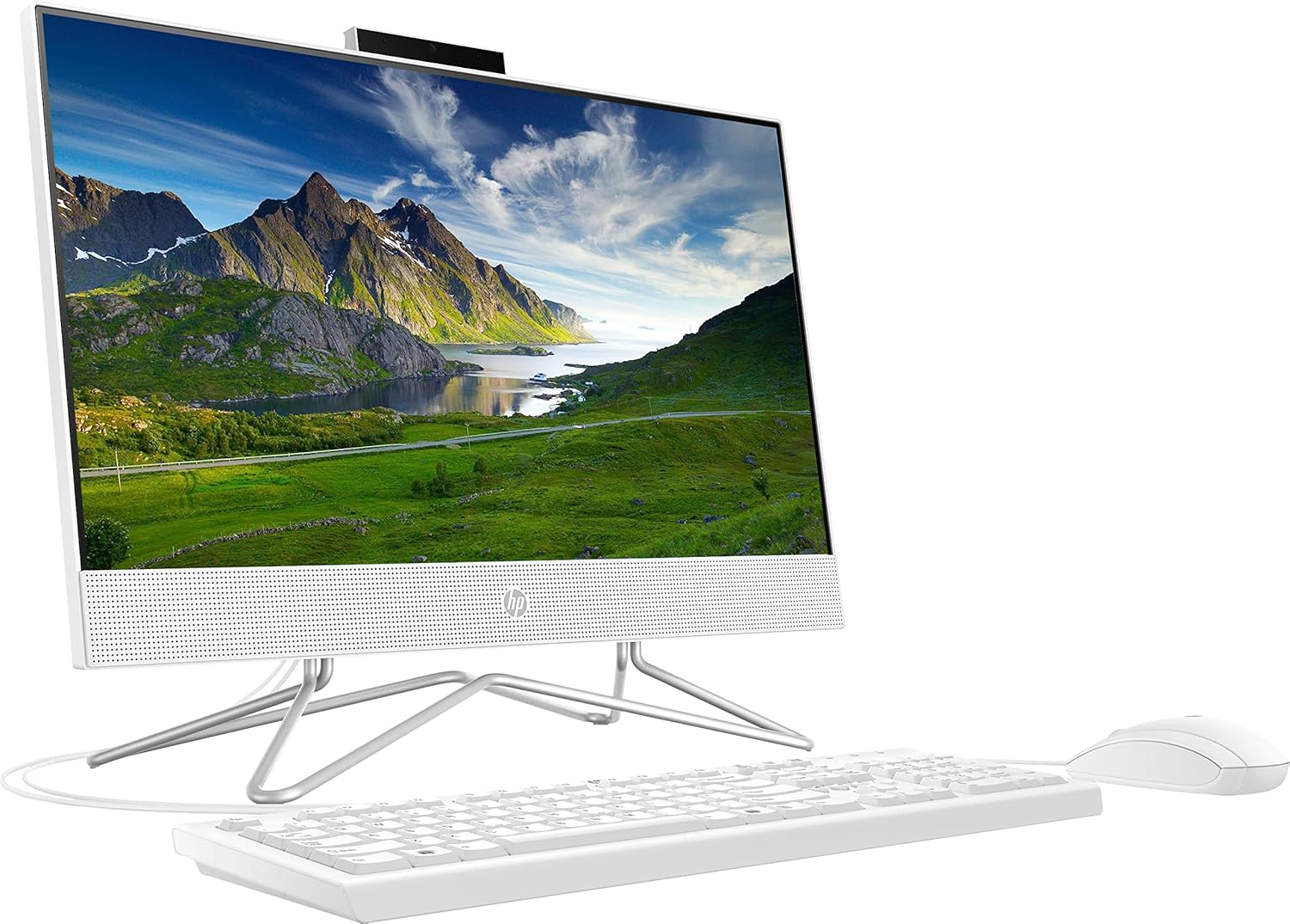
This model features a 21.5-inch Full HD display, an Intel Celeron J4025 processor, 16GB of DDR4 RAM, and a 512GB PCIe SSD, running on Windows 11 Home. It comes with a wired keyboard and mouse for immediate use.
Setup
1. Unboxing and Placement
Carefully remove all components from the packaging. Ensure you have the HP All-in-One Desktop, wired keyboard, wired mouse, and power adapter. Place the desktop on a stable, flat surface, ensuring adequate ventilation around the unit.

The HP All-in-One Desktop, including the display, wired keyboard, and wired mouse.
2. Connecting Peripherals
- Power Connection: Connect the power adapter to the desktop's power port and then plug it into a wall outlet.
- Keyboard and Mouse: Connect the wired keyboard and mouse to the available USB ports on the back of the desktop.
- Network Connection (Optional): For a wired internet connection, connect an Ethernet cable from your router or modem to the RJ-45 port on the back of the desktop. For wireless, the system will guide you through Wi-Fi setup during initial Windows configuration.
- External Display (Optional): If connecting an additional monitor, use an HDMI cable to connect it to the HDMI Out port on the desktop.

Rear view of the HP All-in-One Desktop, illustrating the location of various ports including USB, HDMI, and RJ-45.
3. Initial Power-On and Windows Setup
Press the power button, typically located on the bottom right side of the display. The system will boot up, and you will be guided through the Windows 11 Home setup process. Follow the on-screen instructions to configure your language, region, network, user account, and privacy settings.
Operating Instructions
1. Windows 11 Home Basics
Familiarize yourself with the Windows 11 interface. The Start menu provides access to applications, settings, and power options. The taskbar at the bottom of the screen displays open applications and system icons. Explore the Settings app for personalization, system updates, and device management.
2. Using the Integrated Webcam
Your HP All-in-One Desktop includes an integrated webcam designed for privacy. The webcam is a pop-up mechanism that only extends when in use. To use the webcam, gently press the top of the webcam module to extend it. To retract it for privacy, gently push it back down until it clicks into place.

The integrated pop-up webcam, designed for privacy and convenience.
3. Adjusting the Display
The 21.5-inch Full HD display offers tilt adjustment for ergonomic viewing. You can tilt the screen from -5° to 20° to find your preferred viewing angle. Gently hold the sides of the display and adjust it to the desired position.
Side view of the HP All-in-One Desktop demonstrating the tilt adjustment feature.
4. Connecting to Wi-Fi
If you did not connect via Ethernet during setup, you can connect to Wi-Fi through Windows 11 settings. Click the network icon in the taskbar, select your desired Wi-Fi network, enter the password, and click Connect.
Maintenance
1. Cleaning the Desktop
To clean the display, use a soft, lint-free cloth specifically designed for screens. For the chassis, use a soft, damp cloth. Avoid using harsh chemicals, abrasive cleaners, or spraying liquids directly onto the device. Ensure the desktop is powered off and unplugged before cleaning.
2. Software Updates
Regularly check for and install Windows updates to ensure your system has the latest security patches and performance improvements. Go to Settings > Windows Update to manage updates.
3. Data Backup
It is recommended to regularly back up your important files to an external drive or cloud storage service to prevent data loss.
Troubleshooting
Common Issues and Solutions
- No Power: Ensure the power adapter is securely connected to both the desktop and a working electrical outlet. Try a different outlet.
- No Display: Check that the desktop is powered on. If an external monitor is connected, ensure it is also powered on and correctly connected.
- Slow Performance: Close unnecessary applications. Check for background processes in Task Manager (Ctrl+Shift+Esc). Ensure Windows is up to date. Consider running a disk cleanup.
- Network Connectivity Issues: For wired connections, check the Ethernet cable. For Wi-Fi, ensure your router is working and you have entered the correct password. Restart your router and the desktop.
- Keyboard/Mouse Not Responding: Ensure the USB cables are securely plugged into the correct ports. Try plugging them into different USB ports.
Specifications
| Feature | Detail |
|---|---|
| Model Number | 22-df0224 |
| Display | 21.5-inch FHD (1920 x 1080) VA ZBD anti-glare WLED-backlit three-sided micro-edge display, 250 nits, 72% NTSC |
| Processor | Intel Celeron J4025 (2 Cores, 2 Threads, 4MB Cache, Base 2.0GHz up to 2.4GHz Max Turbo Frequency) |
| RAM | 16 GB DDR4 |
| Storage | 512 GB PCIe M.2 SSD |
| Graphics | Intel UHD Graphics (Integrated) |
| Operating System | Windows 11 Home |
| Wireless Connectivity | 802.11ac Wi-Fi |
| Ports | 2 x SuperSpeed USB Type-A 5Gbps, 2 x USB 2.0 Type-A, 1 x HDMI 1.4 Out, 1 x Headphone/Microphone Combo, 1 x RJ-45 (Ethernet) |
| Webcam | Integrated Pop-up Webcam |
| Dimensions (LxWxH) | 8.05 x 19.3 x 14.99 inches |
| Weight | 15.32 pounds |
| Color | White |
Warranty and Support
For detailed warranty information, please refer to the warranty card included with your product packaging or visit the official HP support website. HP provides various support resources, including online documentation, driver downloads, and customer service contact options.
You can typically find support by visiting www.hp.com/support and entering your product's serial number or model number (22-df0224).


