
WiMiUS S4
WiMiUS S4 Projector User Manual
Model: S4
1. Introduction
Welcome to the WiMiUS S4 Projector User Manual. This guide provides detailed instructions on how to set up, operate, and maintain your new projector. Please read this manual thoroughly before using the product to ensure proper functionality and to maximize your viewing experience. Keep this manual for future reference.
2. Product Overview
The WiMiUS S4 Projector is a high-performance home theater projector designed to deliver stunning visuals and immersive audio. With its advanced features and versatile connectivity options, it is perfect for movies, gaming, and presentations.
2.1 Key Features
- High Brightness: 600 ANSI Lumens for clear and vibrant images.
- Resolution: Native 1080P Full HD with support for 4K input.
- Wireless Connectivity: Dual-band 5G & 2.4G Bluetooth for seamless audio streaming.
- Zoom Function: Adjust projection size without moving the projector.
- Built-in Speaker: Integrated audio for convenience.
- Versatile Mounting: Supports ceiling mount installation.
- Multiple Inputs: HDMI, USB, VGA for various devices.
2.2 Package Contents
- WiMiUS S4 Projector
- Power Cable
- Remote Control
- HDMI Cable
- User Manual (Japanese)
- Storage Bag
- Cleaning Set
2.3 Product Diagram
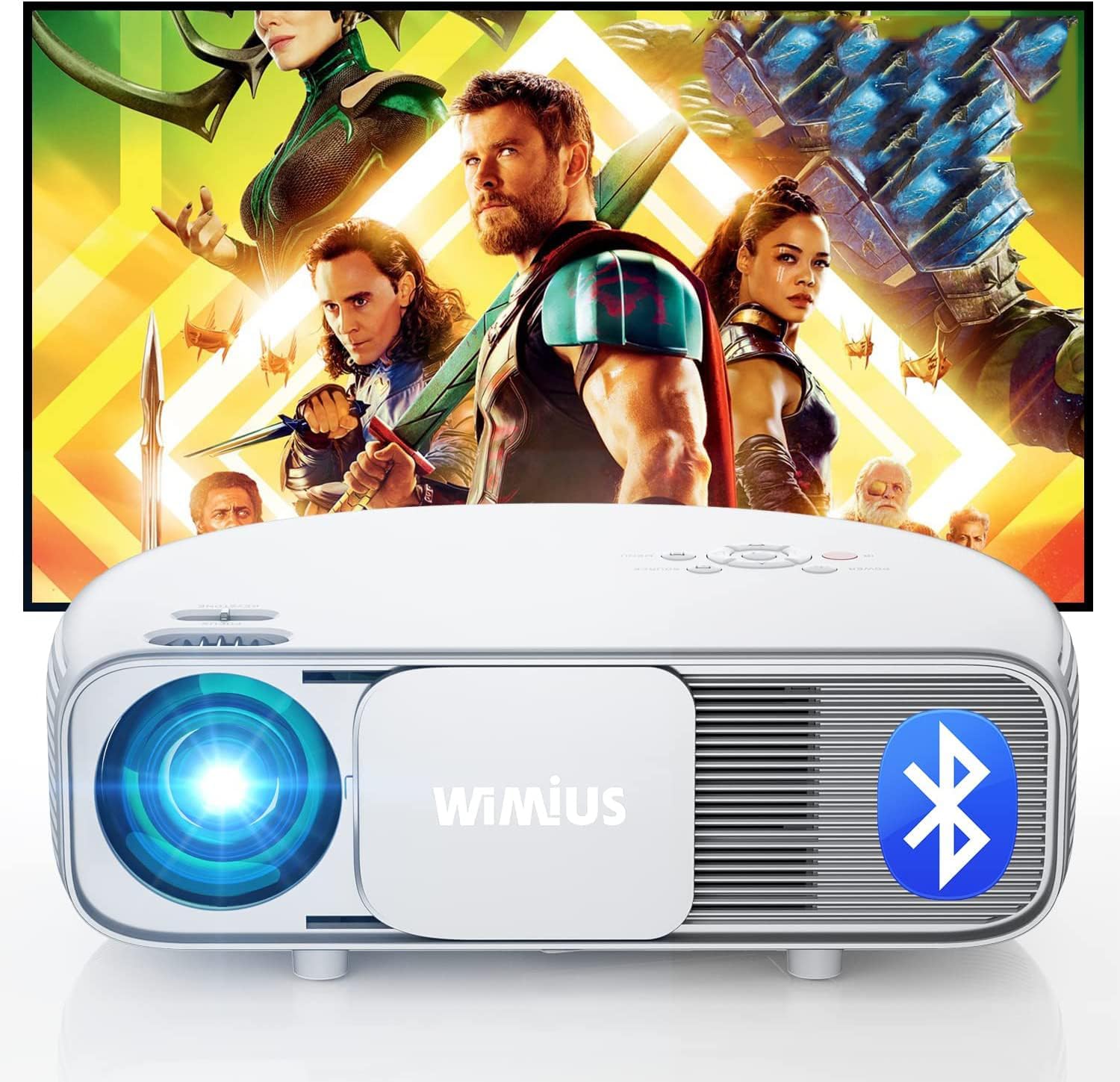
Figure 2.3.1: Front view of the WiMiUS S4 Projector, showcasing its sleek design and a projected movie scene in the background.

Figure 2.3.2: Rear view of the WiMiUS S4 Projector, highlighting the available input/output ports including HDMI, USB, and VGA.
3. Setup
3.1 Placement
Choose a flat, stable surface for the projector. Ensure there is adequate ventilation around the unit. For optimal viewing, position the projector directly in front of the screen or wall.

Figure 3.1.1: The projector can be placed at various distances to achieve different screen sizes, with the zoom function allowing fine-tuning.
3.2 Power Connection
- Connect the power cable to the projector's power input port.
- Plug the other end of the power cable into a power outlet.
- The power indicator light on the projector will illuminate.
3.3 Focus and Keystone Correction
Adjust the focus ring on the projector lens until the image is clear. Use the keystone correction feature (if available, typically via remote or menu) to correct any trapezoidal distortion of the image, ensuring a rectangular projection.
4. Operating Instructions
4.1 Power On/Off
- Power On: Press the power button on the projector or the remote control. The projector will start up and display the main interface.
- Power Off: Press the power button again. A confirmation message may appear; select 'Yes' to shut down.
4.2 Source Selection
Use the 'Source' button on the remote control or projector panel to select the desired input source (e.g., HDMI 1, HDMI 2, USB, VGA).
4.3 Menu Navigation
Use the arrow keys on the remote control or projector panel to navigate through the on-screen menu. Press 'OK' or 'Enter' to confirm selections. Use 'Back' or 'Exit' to return to the previous menu or exit the menu.
4.4 Zoom Function
The WiMiUS S4 Projector features a digital zoom function. This allows you to adjust the size of the projected image without physically moving the projector. Access the zoom settings through the projector's menu (usually under 'Picture' or 'Display' settings).
5. Connectivity
The WiMiUS S4 Projector offers multiple ways to connect your devices.
5.1 HDMI Connection
Connect your laptop, game console, DVD player, or streaming device (e.g., Fire TV Stick, Roku Stick) to the projector using an HDMI cable. Select the corresponding HDMI input source.

Figure 5.1.1: The projector supports various streaming devices like Fire TV Stick and Roku Stick, enabling access to popular streaming services.
5.2 USB Connection
Insert a USB flash drive into the USB port to play media files (photos, videos, music) directly from the drive. Navigate to the 'Media' or 'USB' input source.
5.3 VGA Connection
Connect older computers or devices using a VGA cable. Select the VGA input source.
5.4 Bluetooth Connection
The projector supports 5G & 2.4G Bluetooth for connecting external audio devices like Bluetooth speakers or headphones.
- Go to the projector's Bluetooth settings menu.
- Enable Bluetooth and search for available devices.
- Select your Bluetooth speaker or headphones from the list to pair.

Figure 5.4.1: The projector's Bluetooth 5.0 capability allows connection to various audio devices for an enhanced sound experience.
6. Maintenance
6.1 Cleaning the Lens
Use a soft, lint-free cloth or a lens cleaning brush to gently wipe the projector lens. Do not use abrasive cleaners or solvents.
6.2 Cleaning the Projector Body
Wipe the exterior of the projector with a soft, dry cloth. For stubborn stains, a slightly damp cloth can be used, followed by a dry cloth.
6.3 Air Filter Cleaning
Regularly check and clean the air filter to prevent dust buildup, which can affect performance and lifespan. Refer to the specific instructions in the Japanese manual for filter location and cleaning procedure.
6.4 Storage
When not in use for extended periods, store the projector in a cool, dry place, away from direct sunlight and extreme temperatures. Use the provided storage bag to protect it from dust.
7. Troubleshooting
If you encounter issues with your WiMiUS S4 Projector, please refer to the following common problems and solutions:
| Problem | Possible Cause | Solution |
|---|---|---|
| No image displayed | Power cable loose, incorrect input source, device not connected | Check power connection, select correct input source, ensure device is properly connected. |
| Image is blurry | Lens out of focus, keystone not adjusted | Adjust the focus ring, use keystone correction. |
| No sound | Volume too low, external audio device not connected/paired, audio format not supported | Increase volume, check Bluetooth connection or audio cable, ensure audio format is compatible. |
| Remote control not working | Batteries dead, obstruction, not pointed at IR receiver | Replace batteries, remove obstructions, point remote directly at the projector's IR receiver. |
| Projector overheats or shuts down | Blocked ventilation, prolonged use | Ensure vents are clear, allow projector to cool down, avoid blocking airflow. |
8. Specifications
| Feature | Detail |
|---|---|
| Brand | WiMiUS |
| Model | S4 |
| Brightness | 600 ANSI Lumens |
| Native Resolution | 1080P Full HD |
| Supported Resolution | Up to 4K |
| Connectivity Technology | HDMI, USB, VGA, 5G & 2.4G Bluetooth |
| Mounting Type | Ceiling Mount |
| Compatible Devices | DVD Player, Smartphone, PC, Game Consoles, TV Stick, Tablet |
| Special Features | Built-in Speaker, Zoom Function |
| Item Weight | 3.31 Kilograms |
| Package Dimensions | 40.79 x 30.3 x 14.7 cm |
9. Warranty and Support
WiMiUS is committed to providing high-quality products and excellent customer service. For any product-related inquiries, technical support, or warranty claims, please contact WiMiUS customer support through the official channels provided at the time of purchase or on the WiMiUS official website.
Please retain your proof of purchase for warranty purposes. The product comes with a Japanese instruction manual and a cleaning set to assist with maintenance.
Related documentsS4


Ask a question about this manual
Ask about setup, troubleshooting, compatibility, parts, safety, or missing instructions. Manuals+ will review the question and use this page’s manual context to help answer it.