
1. Introduction
Welcome to the user manual for your GOODTEL G10 10-inch Android 12 Tablet. This guide provides essential information for setting up, operating, maintaining, and troubleshooting your device. The G10 tablet is designed for versatility, featuring an Octa-Core processor, 4GB RAM, 64GB internal storage (expandable), a 10-inch IPS display, and an 8000mAh battery. It comes with a suite of accessories including a Bluetooth keyboard, mouse, stylus, protective case, and screen protector, allowing it to function as a portable workstation.

Image 1.1: Overview of GOODTEL G10 Tablet key features including Android 12 OS, 64GB ROM, 10.1-inch Smart Display, 4GB RAM, 4GB-1TB MicroSD/TF Expansion, Octa-Core processor, 8000mAh Battery, 2-in-1 Tablet functionality with Bluetooth Keyboard and Wireless Mouse, Bluetooth, WiFi, Dual Camera (5MP front, 8MP rear), Screen Record, Parental Controls, SD/TF Card Slot, and Type-C charging/data ports.
2. Setup
2.1 Unboxing and Initial Inspection
Carefully remove all items from the packaging. Verify that all accessories are present:
- GOODTEL G10 Tablet
- Bluetooth Keyboard
- Wireless Mouse
- OTG Adapter
- Charger
- USB Type-C Cable
- Screen Protector (pre-applied or spare)
- Protective Case
- Stylus
2.2 Charging the Tablet and Keyboard
Before first use, fully charge the tablet and the Bluetooth keyboard. Connect the charger to the tablet's Type-C port and to a power outlet. The keyboard typically charges via a Micro USB cable (included).
2.3 Powering On/Off
- To Power On: Press and hold the Power button (usually on the side) until the screen lights up.
- To Power Off: Press and hold the Power button, then select 'Power off' from the on-screen options.
- To Restart: Press and hold the Power button, then select 'Restart' from the on-screen options.
2.4 Initial Setup Wizard
Upon first power-on, the tablet will guide you through the initial setup process:
- Select your preferred language.
- Connect to a Wi-Fi network.
- Sign in with your Google account or create a new one. This is essential for downloading apps from the Google Play Store.
- Review and accept the terms and conditions.
- Set up screen lock (PIN, pattern, or password).
2.5 Connecting Accessories
Bluetooth Keyboard and Mouse:
- Ensure the keyboard and mouse are charged and powered on.
- On the tablet, go to Settings > Connected devices > Bluetooth.
- Turn Bluetooth on.
- The tablet will scan for available devices. Select the keyboard and mouse from the list to pair. Follow any on-screen prompts.
Stylus: The included stylus is typically a passive capacitive stylus and does not require pairing. Simply use it directly on the screen.
OTG Adapter: The OTG adapter allows you to connect USB devices (like flash drives) to your tablet's Type-C port.
2.6 Inserting a MicroSD/TF Card
To expand storage, locate the MicroSD/TF card slot on the side of the tablet. Gently insert the card with the gold contacts facing down until it clicks into place. The tablet supports up to 256GB expansion.
3. Operating Instructions
3.1 Basic Navigation and Android 12 Features
The G10 tablet runs on Android 12, offering an intuitive user experience. Use touch gestures for navigation:
- Tap: Select an item.
- Swipe: Scroll through pages or lists.
- Pinch-to-zoom: Zoom in or out on images and web pages.
- Long press: Access contextual menus or move icons.
Android 12 includes features like multi-user support, multi-window mode for multitasking, and enhanced parental controls via Google Family Link.

Image 3.1: The GOODTEL G10 Tablet displaying a game, illustrating the smooth performance provided by the Octa-Core processor and Android 12 OS for application processing.
3.2 Display and Visuals
The 10-inch IPS display provides clear and rich colors. It features flexible response and anti-blue light technology for comfortable viewing.
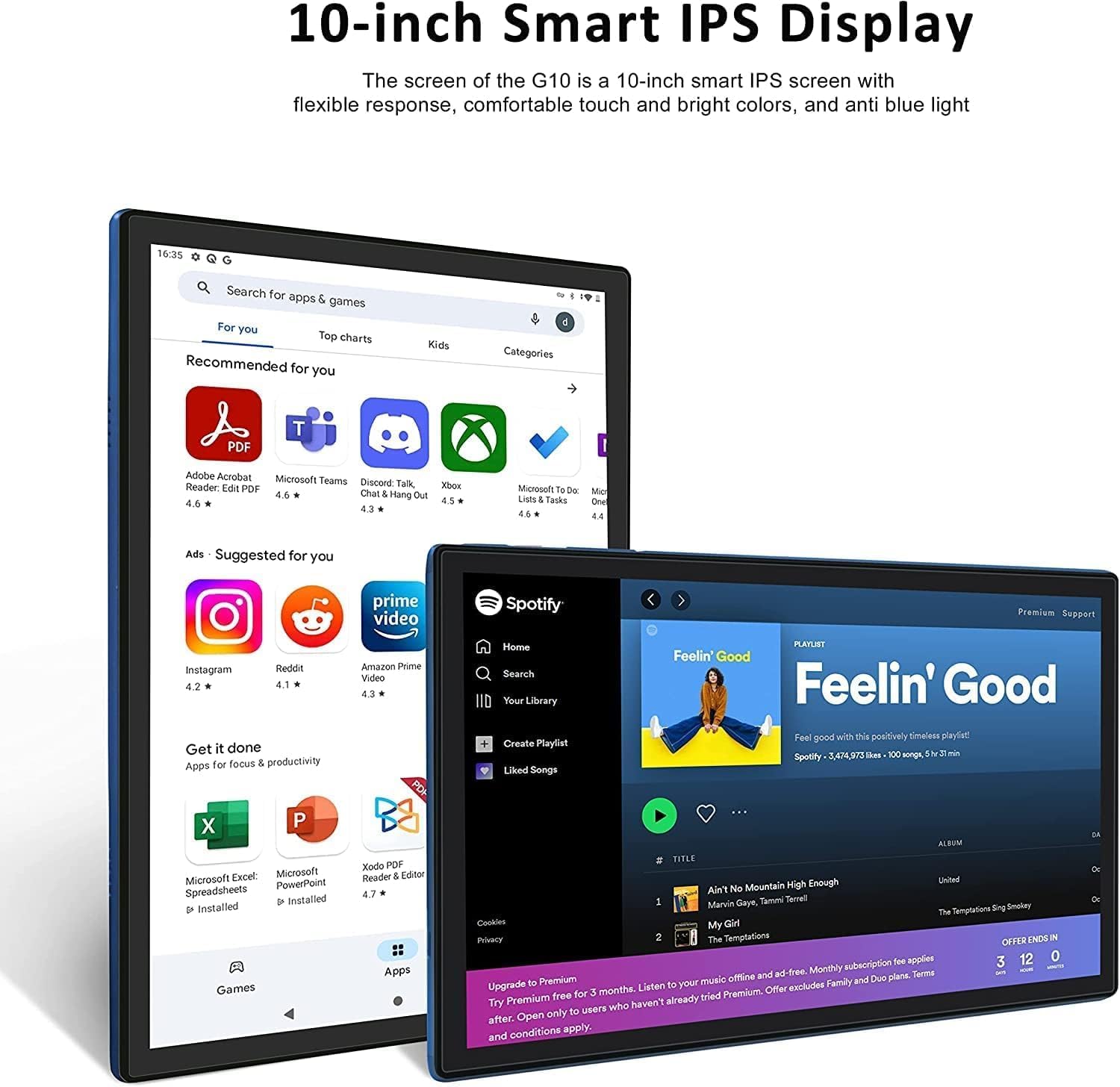
Image 3.2: The 10-inch Smart IPS Display of the GOODTEL G10 Tablet, showcasing its ability to render applications like PDF readers, communication apps, and media players with clarity and vibrant colors.
3.3 Connectivity (Wi-Fi and Bluetooth)
Wi-Fi: The tablet supports both 2.4GHz and 5GHz Wi-Fi for faster and more stable internet access. To connect, go to Settings > Network & internet > Wi-Fi, turn it on, and select your network.

Image 3.3: The GOODTEL G10 Tablet highlighting its 2.4G/5G WiFi support for faster internet access, enabling smoother browsing and application usage.
Bluetooth: For connecting wireless headphones, speakers, or other Bluetooth devices, go to Settings > Connected devices > Bluetooth, turn it on, and pair with your desired device.
3.4 Cameras
The tablet features a 5MP front camera and an 8MP rear camera. Open the Camera app to take photos or record videos. These are suitable for video calls and casual photography.
3.5 Storage Management
The tablet comes with 64GB of internal storage. You can expand this by inserting a MicroSD/TF card (up to 256GB, sold separately). To manage storage, go to Settings > Storage. Here you can see storage usage and free up space.
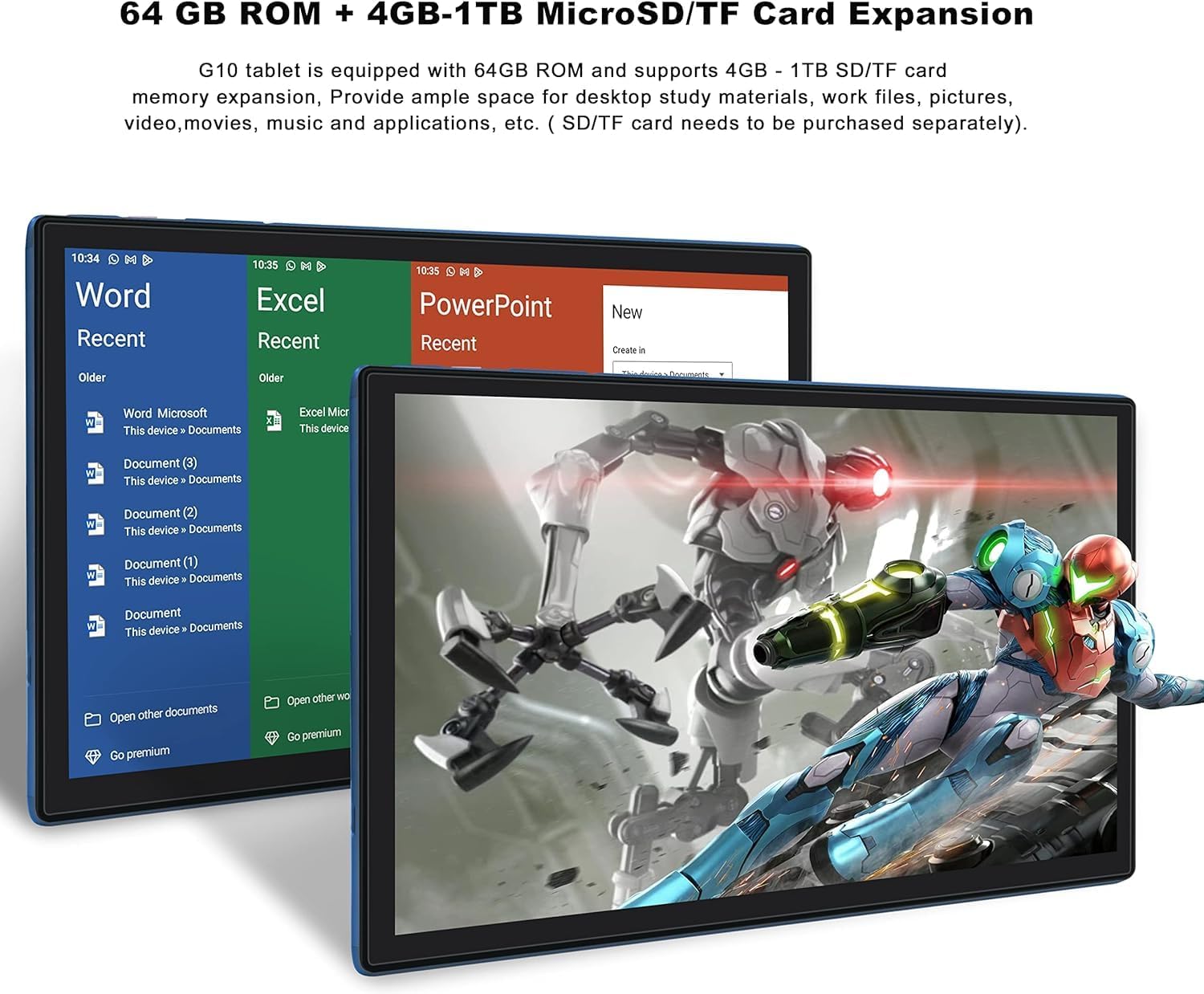
Image 3.4: The GOODTEL G10 Tablet illustrating its 64GB ROM and 4GB RAM, with support for 4GB-1TB MicroSD/TF card expansion for additional storage of documents, media, and applications.
3.6 Parental Controls
Utilize Google Family Link to set up parental controls. This allows remote management of the device, setting usage limits, and content filtering for children's profiles.
4. Maintenance
4.1 Cleaning the Device
Use a soft, lint-free cloth to clean the screen and body of the tablet. For stubborn smudges, slightly dampen the cloth with water or a screen-safe cleaning solution. Avoid harsh chemicals or abrasive materials.
4.2 Battery Care
The G10 tablet is equipped with an 8000mAh battery. To prolong battery life:
- Avoid extreme temperatures.
- Do not let the battery drain completely regularly.
- Use the provided charger for optimal charging.
- Unplug the charger once the tablet is fully charged.
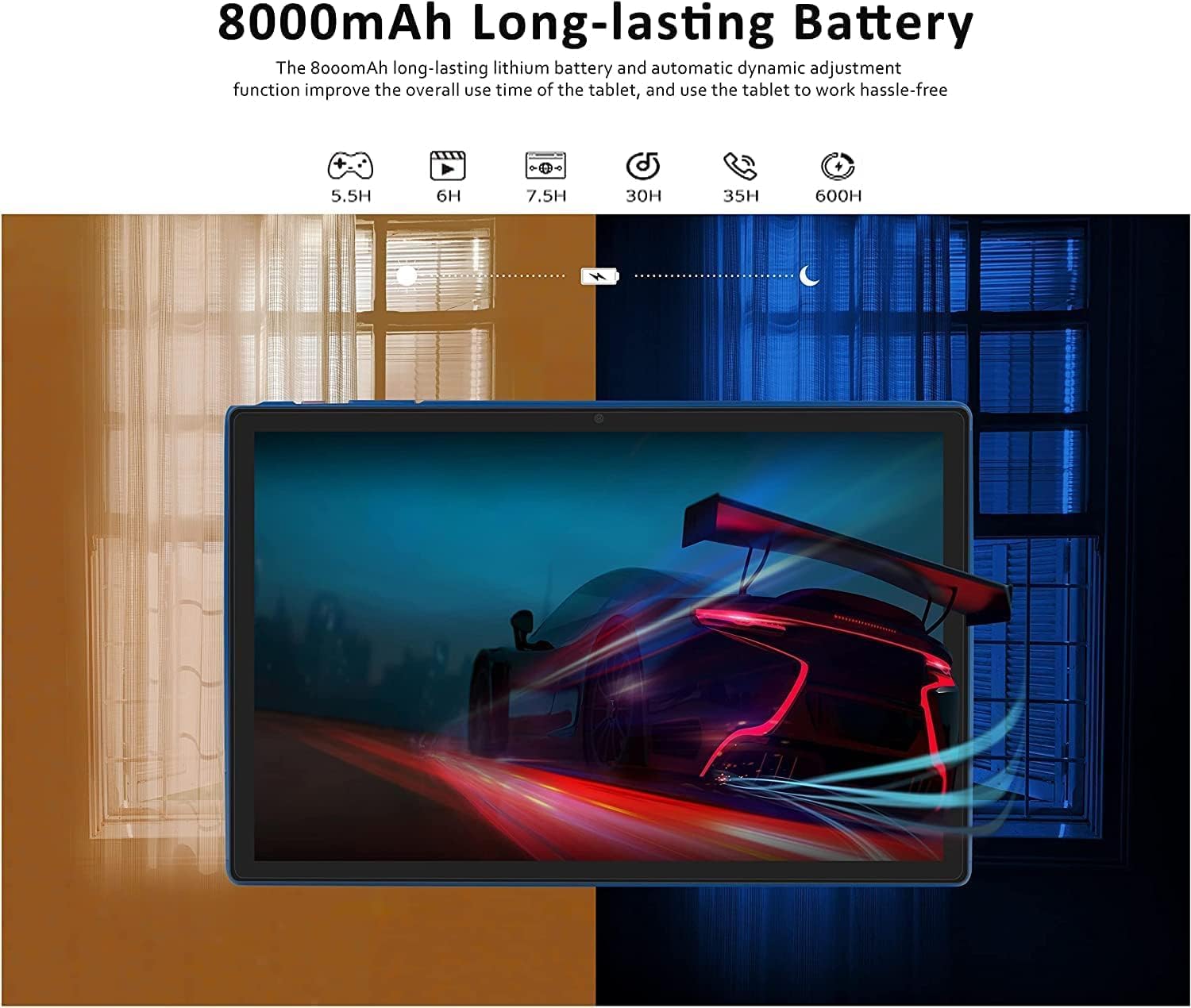
Image 4.1: The GOODTEL G10 Tablet highlighting its 8000mAh long-lasting battery, with estimated usage times for various activities such as gaming (5.5H), video playback (6H), web browsing (7.5H), standby (30H), call time (35H), and music playback (600H).
4.3 Software Updates
Regularly check for system updates to ensure your tablet has the latest features and security patches. Go to Settings > System > System update.
4.4 Storage Optimization
Periodically clear cache data from apps, uninstall unused applications, and transfer large files (photos, videos) to your MicroSD card or cloud storage to maintain optimal performance.
5. Troubleshooting
5.1 Common Issues and Solutions
- Tablet not powering on: Ensure the battery is charged. Connect the charger and try again. If unresponsive, press and hold the power button for 10-15 seconds to force a restart.
- Wi-Fi connectivity issues: Check if Wi-Fi is enabled in settings. Restart your router and the tablet. Forget the network and reconnect.
- Slow performance: Close unused apps, clear app caches, free up storage space, and restart the tablet.
- Apps crashing or freezing: Clear the app's cache and data in Settings > Apps. If the issue persists, uninstall and reinstall the app.
- Touchscreen unresponsive: Restart the tablet. If the issue continues, ensure the screen is clean and free of debris.
5.2 Factory Reset (Last Resort)
If persistent issues cannot be resolved, a factory reset may be necessary. Warning: This will erase all data on your tablet. Back up important files before proceeding.
- Go to Settings > System > Reset options.
- Select Erase all data (factory reset).
- Confirm your decision and follow the on-screen instructions.
6. Specifications
| Feature | Specification |
|---|---|
| Model | G10 |
| Operating System | Android 12 OS |
| Processor | Octa-Core, 2 GHz |
| RAM | 4GB |
| Internal Storage (ROM) | 64GB |
| Expandable Storage | MicroSD/TF card up to 256GB |
| Display Size | 10 inches |
| Display Technology | IPS Smart Touchscreen |
| Display Resolution | 1280 x 800 pixels |
| Front Camera | 5MP |
| Rear Camera | 8MP |
| Battery Capacity | 8000mAh Lithium-ion |
| Wi-Fi | 2.4G/5G (802.11ac) |
| Bluetooth | Bluetooth 5.0 |
| Ports | 1x Type-C, 1x 3.5mm AUX, 1x MicroSD/TF slot |
| Other Connectivity | Hotspot, AGPS, Gravity Sensor, FM Radio |
| Dimensions (L x W x H) | 26 x 17.6 x 0.9 cm |
| Weight | 450 Grams |
7. Warranty and Support
Specific warranty details are not available in the provided product information. For warranty claims, technical support, or service inquiries, please refer to the documentation included with your purchase or contact GOODTEL customer support directly through their official website or the retailer where the product was purchased.

