
I-SHUNFA PIR-1
I-SHUNFA LED Cabinet Light Motion Sensor User Manual
Model: PIR-1 | Brand: I-SHUNFA
Product Overview
The I-SHUNFA LED Cabinet Light with Motion Sensor (Model PIR-1) is a versatile and energy-efficient lighting solution designed for various indoor applications such as cabinets, bed frames, hallways, and more. This rechargeable LED rope light features a built-in 1500 mAh battery, offering extended use on a single charge. It incorporates a motion sensor with multiple operating modes and adjustable timing, along with an infinitely dimmable light output to suit different lighting needs.

Figure 1: I-SHUNFA LED Cabinet Light components.
The system includes the LED light strip, a motion sensor controller, and a micro USB charging cable. Installation is simplified with options for adhesive backing and hook-up methods, allowing for flexible placement and easy re-installation after charging.
Package Contents
Please verify that all items are present in the package:
- LED Light Strip
- Motion Sensor Controller
- Micro USB Charging Cable
- Adhesive Velcro Strip
- Hook-Up Clips (2 pieces)
- User Manual

Figure 2: Complete Packing List.
Installation Guide
Follow these steps for proper installation of your LED Cabinet Light:
- Prepare the Surface: Ensure the installation surface is clean, dry, and smooth. Wipe down the area with a clean cloth to remove any dust or debris.

Figure 3: Cleaning the installation surface.
- Attach the Controller: The controller can be installed using either the provided hook-up clips or the adhesive Velcro strip.
- Using Hook-Up Clips: Peel the protective film from the back of the hook-up clip and firmly press it onto the desired installation spot. Slide the controller onto the clip.
- Using Velcro: Attach one side of the Velcro strip to the back of the controller and the other side to the installation surface.


Figure 4: Attaching the hook-up clip and controller.
- Apply the Light Strip: Connect the light strip to the controller. Carefully peel the adhesive backing from the LED light strip and press it firmly along your desired path. The light strip can be cut at designated points to fit your specific length requirements.

Figure 5: Installation options and cuttable light strip.

Figure 6: Peeling the adhesive backing.
Installation Demonstration Video
Video 1: This video demonstrates the unboxing, installation, and various operating modes of the I-SHUNFA LED Cabinet Light. It shows how to attach the controller and light strip, and how the motion sensor and different light modes function in a practical setting.
Operating Instructions
Charging the Device
The LED Cabinet Light features a built-in 1500 mAh rechargeable lithium-ion battery. To charge, connect the provided Micro USB cable to the controller and a suitable USB power source (e.g., wall adapter, computer USB port). The charging indicator light will illuminate during charging and turn off when fully charged.

Figure 7: Micro USB charging port and compatible power sources.

Figure 8: Charging indicator behavior.
Operating Modes
The controller features a multi-function button to cycle through three distinct operating modes and a shutdown option:
- Night Mode: Press the button once. The red indicator light will be on. In this mode, the light will only activate in low-light conditions when motion is detected.
- Day Mode: Press the button a second time. The blue indicator light will be on. In this mode, the light will activate when motion is detected, regardless of ambient light conditions.
- Constant Light Mode: Press the button a third time. The green indicator light will be on. In this mode, the light remains continuously on, overriding the motion sensor.
- Shutdown: Press the button a fourth time. All three indicator lights will flash, and the device will power off.

Figure 9: Multi-mode selection via button press.

Night Mode

Day Mode

Constant Light Mode
Motion Sensor Function (Infrared Sensor)
The integrated infrared motion sensor detects movement within a range of 0-3 meters. When motion is detected in Night or Day mode, the light will automatically turn on. After leaving the induction area, the light will automatically turn off after a set delay.

Figure 10: Infrared Sensor operation.

Figure 11: Motion sensor activation in a kitchen setting.
Timer and Dimmer Functions
The controller features two additional functions controlled by dedicated buttons:
- Timer Button (Function 1): This button controls the delay before the light turns off after motion ceases.
- Default: 10 seconds
- Press once: 30 seconds
- Press twice: 60 seconds
- Press three times: 120 seconds
- Press four times: Resets to 10 seconds (three lights will flash to confirm reset).
- Dimmer Button (Function 2): This button allows for infinite dimming of the light.
- Press and hold: Light gradually dims. Release at desired brightness.
- Press and hold again: Light gradually brightens. Release at desired brightness.
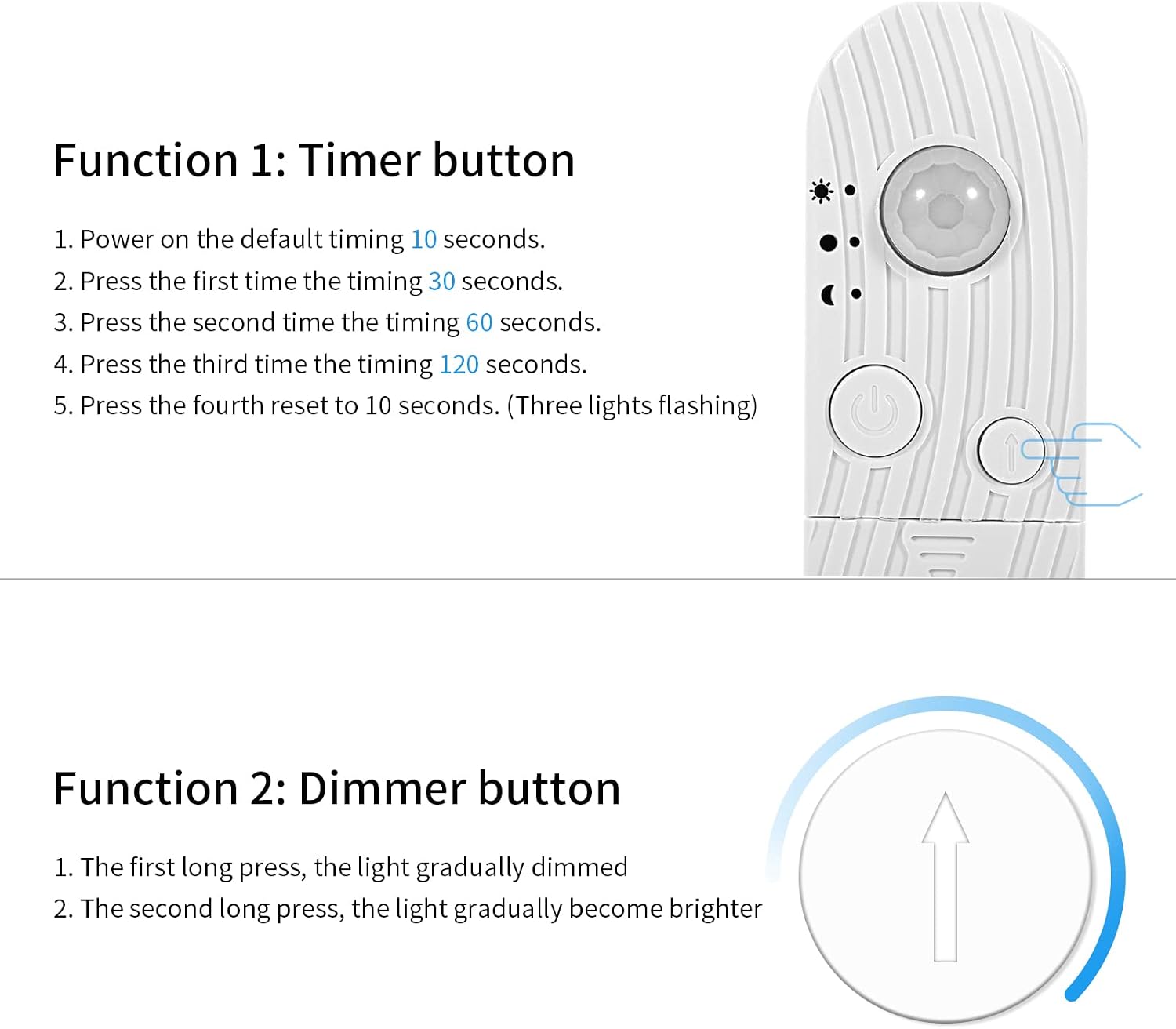
Figure 12: Timer and Dimmer button functions.
Maintenance
To ensure the longevity and optimal performance of your I-SHUNFA LED Cabinet Light, please follow these maintenance guidelines:
- Cleaning: Use a soft, dry cloth to gently wipe the light strip and controller. Avoid using abrasive cleaners, solvents, or excessive moisture, as these can damage the components.
- Battery Care: The built-in lithium-ion battery does not require replacement. Recharge the device when the light output becomes dim or the motion sensor responsiveness decreases. Avoid fully depleting the battery for extended periods to prolong its lifespan.
- Storage: If storing the device for an extended period, ensure it is fully charged and store it in a cool, dry place away from direct sunlight and extreme temperatures.
Troubleshooting
If you encounter any issues with your LED Cabinet Light, please refer to the following common troubleshooting steps:
| Problem | Possible Cause | Solution |
|---|---|---|
| Light does not turn on. | Battery is low or depleted. Incorrect operating mode selected. Motion sensor obstructed or out of range. | Charge the device fully. Cycle through modes to ensure Day or Night mode is active. Ensure sensor is clear and within 0-3 meters of motion. |
| Light turns on unexpectedly or stays on. | Constant Light Mode is active. Continuous motion in sensor range. Sensor sensitivity. | Switch to Night or Day mode. Ensure no continuous motion is present. Re-position the sensor if false triggers occur. |
| Light is too dim or too bright. | Brightness level is not set correctly. | Use the Dimmer button to adjust brightness to your preference. |
| Light does not turn off after motion stops. | Timer setting is too long. Continuous motion detected. | Adjust the timer setting using the Timer button (e.g., to 10s). Ensure no continuous motion is present in the sensor's field of view. |
If the problem persists after trying these steps, please contact I-SHUNFA customer support for further assistance.
Specifications
| Feature | Detail |
|---|---|
| Model Number | PIR-1 |
| Light Source Type | LED |
| Color Temperature | 3000 Kelvin (Warm White) |
| Brightness | Up to 1000 Lumen |
| Power Source | Battery Powered (Rechargeable Lithium Ion) |
| Battery Capacity | 1500 mAh |
| Charging Interface | Micro USB (5 Volts) |
| Motion Sensor Type | Infrared (PIR) |
| Motion Detection Range | 0-3 meters |
| Adjustable Timer Settings | 10s, 30s, 60s, 120s |
| Dimming | Infinitely Dimmable |
| Material | Plastic |
| Mounting Type | Adhesive, Hook-Up |
| Product Dimensions (Controller) | Approx. 5"D x 1"W x 0.5"H |
| Indoor/Outdoor Usage | Indoor Use Only |
Warranty and Support
I-SHUNFA products are designed for quality and reliability. For information regarding warranty coverage, technical support, or any product-related inquiries, please refer to the contact information provided on the product packaging or visit the official I-SHUNFA website. Please retain your proof of purchase for warranty claims.
For direct support, you may also contact the seller through the platform where the product was purchased.
Ask a question about this manual
Ask about setup, troubleshooting, compatibility, parts, safety, or missing instructions. Manuals+ will review the question and use this page’s manual context to help answer it.