
1. Product Overview
The VENTION USB C Hub Multiport Adapter M-6 in 1 is designed to expand the connectivity of your USB-C enabled devices, such as laptops, tablets, and smartphones. It transforms a single USB-C port into multiple essential ports, enhancing productivity and versatility.
Key features include:
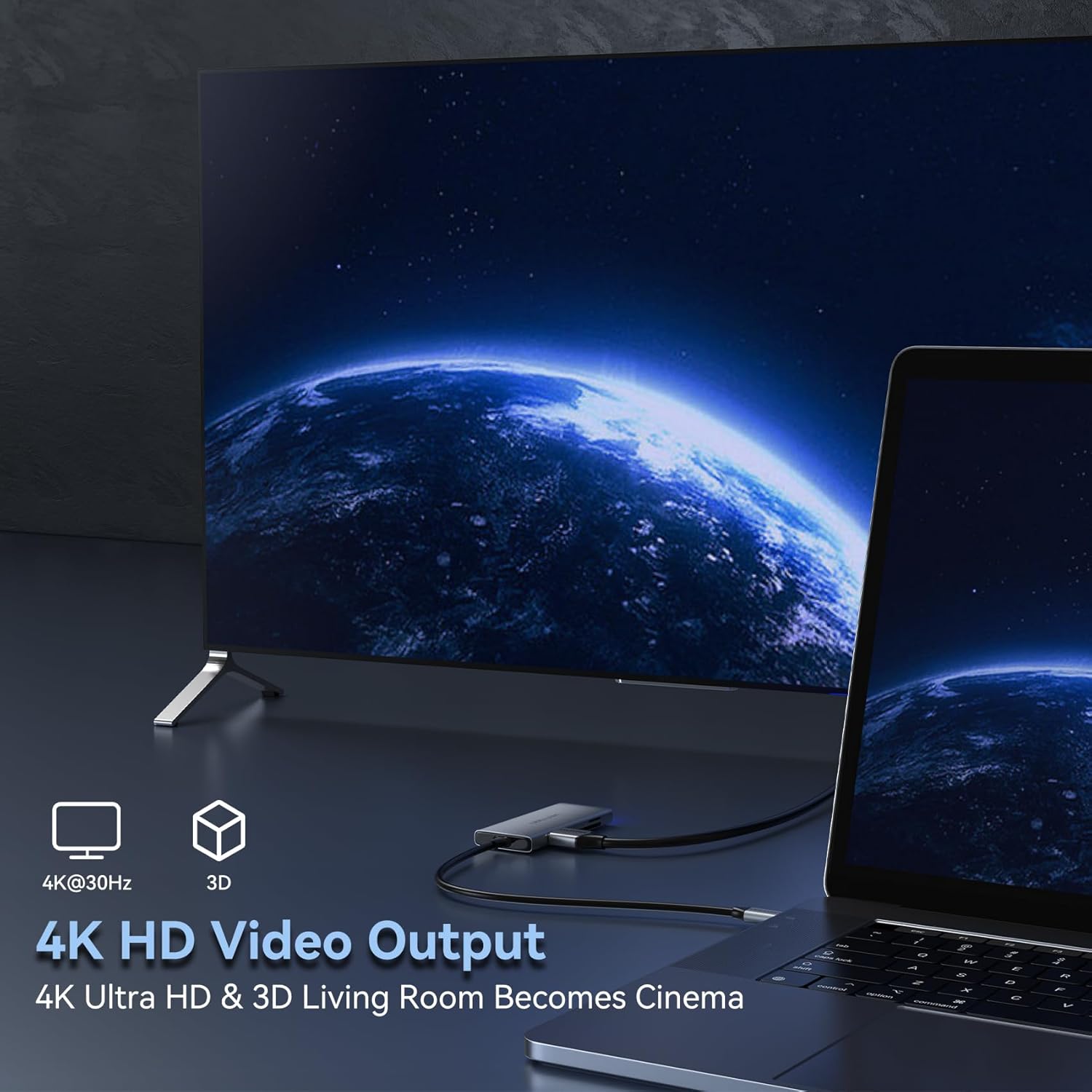
- 4K HDMI Output: Supports video output up to 4K resolution at 30Hz for external displays.
- Three USB 3.0 Ports: Provides high-speed data transfer up to 5Gbps, compatible with USB 2.0 and earlier versions.
- SD and TF Card Readers: Allows simultaneous reading and writing of standard SD and Micro SD cards with transfer speeds up to 104MB/s.
- Compact Design: Features a sleek aluminum finish with a blue indicator light to show operational status.

2. Setup Instructions
Follow these steps to set up your VENTION USB C Hub:
- Connect to Host Device: Plug the USB-C connector of the hub into an available USB-C port on your laptop, tablet, or smartphone. Ensure the USB-C port on your device supports video output (DisplayPort Alternate Mode) for HDMI functionality.
- Power (Optional): This hub does not feature Power Delivery (PD) input. Ensure your host device is adequately charged or connected to its own power source.
- Indicator Light: A blue indicator light on the hub will illuminate, confirming it is powered and operational.

3. Operating the Hub
3.1. HDMI Video Output
To connect an external display:
- Connect an HDMI cable (not included) from your monitor, HDTV, or projector to the HDMI port on the VENTION USB C Hub.
- Ensure your host device's USB-C port supports DisplayPort Alternate Mode.
- Your device should automatically detect the external display. You may need to adjust display settings (e.g., mirror, extend) in your operating system.
- The hub supports resolutions up to 4K (3840x2160) at 30Hz.
Video 1: Demonstration of the VENTION 6-IN-1 USB C Hub Multiport Adapter's features, including HDMI connectivity.
3.2. USB 3.0 Data Transfer
The hub features three USB 3.0 ports for connecting various USB devices:
- Plug your USB flash drives, external hard drives, keyboards, mice, or other USB peripherals into the available USB 3.0 ports.
- These ports support data transfer speeds up to 5Gbps.
- The ports are backward compatible with USB 2.0 and USB 1.1 devices.

3.3. SD and TF Card Reader
To access data from memory cards:
- Insert your standard SD card into the SD card slot.
- Insert your Micro SD (TF) card into the TF card slot.
- The hub supports simultaneous reading and writing for both card types.
- Transfer speeds can reach up to 104MB/s.
- The card reader supports memory cards up to 256GB capacity.

Video 2: Overview of the VENTION 6-IN-1 USB C Hub, highlighting its various ports and compatibility.
4. Maintenance
- Keep the hub clean by wiping it with a soft, dry cloth.
- Avoid exposing the hub to extreme temperatures, humidity, or direct sunlight.
- Do not attempt to disassemble or repair the device yourself. This may void the warranty and cause damage.
- Disconnect the hub from your device when not in use for extended periods.
5. Troubleshooting
- No display on external monitor:
- Ensure your host device's USB-C port supports DisplayPort Alternate Mode.
- Check all cable connections (USB-C to hub, HDMI to monitor).
- Verify the external monitor is set to the correct input source.
- Try restarting your host device.
- USB devices not recognized:
- Ensure the USB device is properly inserted into the hub's USB 3.0 port.
- Try connecting the USB device directly to your host device (if possible) to confirm it's functional.
- Disconnect and reconnect the hub to your host device.
- Slow data transfer speeds:
- Ensure you are using USB 3.0 compatible devices and cables for optimal speeds.
- Large file transfers can be affected by the performance of your host device and storage media.
- Hub feels warm:
- It is normal for the hub to become warm during operation, especially when multiple ports are in use or during high data transfer. The aluminum casing helps dissipate heat.
6. Specifications
| Feature | Detail |
|---|---|
| Model Number | TOOHB |
| Brand | VENTION |
| Ports | 1x HDMI, 3x USB 3.0, 1x SD Card Reader, 1x TF Card Reader |
| HDMI Resolution | Up to 4K@30Hz |
| USB 3.0 Transfer Speed | Up to 5Gbps |
| Card Reader Speed | Up to 104MB/s |
| Supported Card Capacity | Up to 256GB |
| Hardware Interface | HDMI, MicroSD, USB 3.0, USB Type C |
| Compatible Devices | Laptops, Tablets, Smartphones, Monitors, Projectors, PCs, iMac, iPad (with USB-C) |
| Item Weight | 2.89 ounces |
| Dimensions | 5.91 x 3.62 x 0.75 inches (Package) |
| Color | Grey |
7. Warranty and Support
VENTION products are designed for reliability and performance. For specific warranty information and technical support, please refer to the warranty card included with your product or visit the official VENTION website. Keep your purchase receipt for warranty claims.


