
1. Introduction
Thank you for purchasing the iDance GROOVE 119 Portable Bluetooth Speaker. This manual provides essential information for the safe and efficient operation of your device. Please read it thoroughly before use and retain it for future reference.
2. Safety Information
- Do not expose the speaker to water, moisture, or extreme temperatures.
- Avoid placing the speaker near heat sources or in direct sunlight.
- Do not attempt to disassemble or modify the speaker. This will void the warranty.
- Use only the specified charging adapter (if included) or a compatible 5V USB charger.
- Keep out of reach of children.
- Clean the speaker with a soft, dry cloth only.
3. Package Contents
Please check that all items are present in the package:
- iDance GROOVE 119 Portable Bluetooth Speaker
- Wired Microphone
- Remote Control
- USB Charging Cable (Type-A to Micro-USB, typically)
- User Manual (this document)

This image displays the iDance GROOVE 119 Portable Bluetooth Speaker, featuring a black casing with a purple illuminated speaker grille. Alongside the speaker are a black wired microphone and a compact black remote control, indicating the full package contents.
4. Product Overview
Familiarize yourself with the main components of your iDance GROOVE 119 speaker.

This image provides a clear front view of the iDance GROOVE 119 speaker. The top panel features controls for volume, mode selection, playback, and inputs for USB, SD card, and microphone. The main speaker grille is illuminated with a purple light, and a retractable handle is visible at the top.
Control Panel Features:
- Volume Knob: Adjusts the master volume.
- Mode Button: Switches between Bluetooth, USB, SD, and AUX input modes.
- Play/Pause Button: Controls media playback.
- Previous/Next Track Buttons: Navigates through tracks.
- USB Port: For USB flash drive playback.
- SD Card Slot: For SD card playback.
- Microphone Input: Connect the wired microphone.
- AUX Input: For connecting external audio devices via a 3.5mm cable.
- Charging Port: For connecting the USB charging cable.
- Power Switch: Turns the speaker ON/OFF.
5. Setup
5.1. Charging the Speaker
- Locate the charging port on the control panel.
- Connect the small end of the USB charging cable to the speaker's charging port.
- Connect the larger end of the USB cable to a compatible USB power adapter (e.g., smartphone charger, computer USB port) or a power bank.
- The charging indicator light will illuminate (color may vary) to show that the speaker is charging. It will typically turn off or change color when fully charged.
- Allow approximately 3-4 hours for a full charge.
5.2. Powering On/Off
- To power on, slide the Power Switch to the "ON" position. You will hear an audible prompt.
- To power off, slide the Power Switch to the "OFF" position.
6. Operating Instructions
6.1. Bluetooth Pairing
- Ensure the speaker is powered on and in Bluetooth mode. If not, press the "Mode" button until you hear the Bluetooth prompt. The Bluetooth indicator light will flash.
- Enable Bluetooth on your smartphone, tablet, or other Bluetooth-enabled device.
- Search for available devices. You should see "iDance GROOVE 119" (or similar) in the list.
- Select "iDance GROOVE 119" to connect. Once paired, you will hear a confirmation sound, and the Bluetooth indicator light will stop flashing.
- You can now play audio from your device through the speaker.
6.2. USB/SD Card Playback
- Insert a USB flash drive or SD card (pre-loaded with MP3 audio files) into the respective port/slot on the control panel.
- The speaker should automatically switch to USB or SD mode and begin playing the first track. If not, press the "Mode" button to select the correct input.
- Use the Play/Pause and Previous/Next Track buttons on the speaker or remote control to manage playback.
6.3. AUX Input
- Connect one end of a 3.5mm audio cable (not included) to the AUX input port on the speaker.
- Connect the other end of the cable to the headphone jack or audio output of your external device.
- Press the "Mode" button until you select AUX input.
- Control playback and volume from your external device.
6.4. Microphone Usage
- Connect the wired microphone to the Microphone Input jack on the speaker's control panel.
- Ensure the microphone's ON/OFF switch is in the "ON" position.
- Adjust the master volume knob on the speaker to control the microphone's output level.
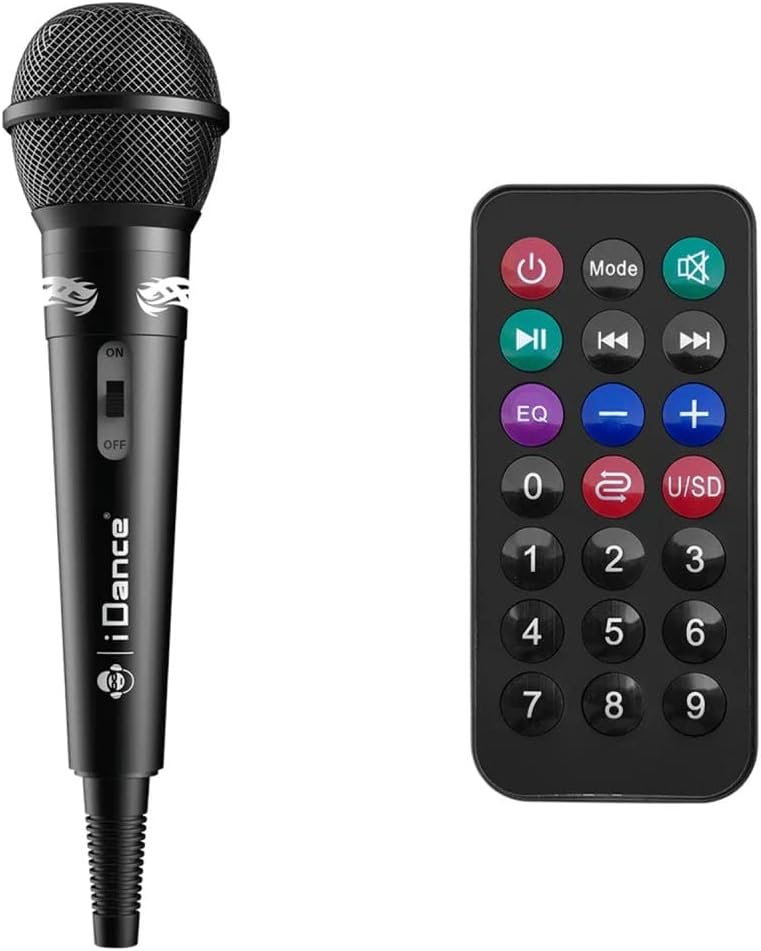
A detailed view of the included accessories: a black wired microphone with an ON/OFF switch and an iDance logo, and a black remote control with various buttons for power, mode, playback, volume, EQ, and number selection.
6.5. Remote Control Functions
The included remote control provides convenient access to various functions:
- Power Button: Turns the speaker ON/OFF.
- Mode Button: Cycles through input modes (Bluetooth, USB, SD, AUX).
- Play/Pause: Starts or pauses playback.
- Previous/Next: Skips to the previous or next track.
- Volume +/-: Adjusts the volume level.
- EQ: Cycles through equalizer presets (if available).
- Mute: Mutes the audio output.
- Number Buttons (0-9): For direct track selection on USB/SD mode.
6.6. LED Light Modes
The speaker features integrated LED lights. These lights typically cycle through various patterns and colors automatically. There may be a dedicated button on the control panel or remote control to change or turn off the light modes, if available.
7. Maintenance
- Cleaning: Use a soft, dry, lint-free cloth to clean the speaker's exterior. Do not use abrasive cleaners, waxes, or solvents.
- Storage: When not in use for extended periods, store the speaker in a cool, dry place, away from direct sunlight and extreme temperatures.
- Battery Care: To prolong battery life, avoid fully discharging the battery frequently. Charge the speaker regularly, even if not in use, to maintain battery health.
8. Troubleshooting
| Problem | Possible Cause | Solution |
|---|---|---|
| No power | Battery is discharged; Power switch is OFF. | Charge the speaker; Ensure power switch is ON. |
| No sound | Volume too low; Incorrect input mode; Device not paired (Bluetooth). | Increase volume; Press "Mode" button to select correct input; Re-pair Bluetooth device. |
| Bluetooth not connecting | Speaker not in pairing mode; Device too far; Interference. | Ensure speaker is in Bluetooth pairing mode; Move device closer; Turn off other Bluetooth devices. |
| Microphone not working | Microphone switch OFF; Not fully plugged in. | Ensure microphone switch is ON; Check connection to input jack. |
9. Specifications
| Model Name | GROOVE 119 |
| Brand | iDance |
| Connectivity | Bluetooth |
| Compatible Devices | Smartphone, Tablet |
| Dimensions (L x W x H) | 30 x 40 x 20 cm |
| Weight | 2.57 kg |
| Color | Multi |
| Power Input | DC 5V (via USB) |
10. Warranty and Support
iDance products are designed and manufactured to the highest quality standards. For specific warranty details and support information, please refer to the warranty card included with your product or visit the official iDance website. Keep your proof of purchase for any warranty claims.
For technical assistance or customer service inquiries, please contact iDance customer support through their official channels.


