
Introduction
This manual provides essential information for setting up, operating, maintaining, and troubleshooting your Fujitsu Esprimo P757/E85+ Business Tower PC. Designed for both professional and home use, this system offers robust performance and reliability. Please read this manual thoroughly before using your new computer.
Package Contents
Verify that all items listed below are included in your package:
- Fujitsu Esprimo P757/E85+ Business Tower PC
- Power Cable
- Documentation (various manuals)
Setup Guide
1. Unpacking
Carefully remove the PC and all accessories from the packaging. Retain the packaging for future transport or storage.
2. Connecting Peripherals
Connect your monitor, keyboard, mouse, and other external devices to the appropriate ports on the PC. The Fujitsu Esprimo P757/E85+ features a variety of ports for connectivity:
- Front Ports: 1 x USB 3.1 Type-C (Gen 1), 2 x USB 3.0 (Gen 1), 2 x USB 2.0 (Gen 1), Audio I/O (Headphone/Microphone)
- Rear Ports: 4 x USB 3.0 (Gen 1), 2 x USB 2.0 (Gen 1), 2 x DisplayPort, 1 x DVI-D, 2 x PS/2, Audio I/O, 1 x RJ-45 LAN Port

Image: Front panel of the Fujitsu Esprimo P757/E85+ PC, highlighting the accessible USB ports and audio connections.

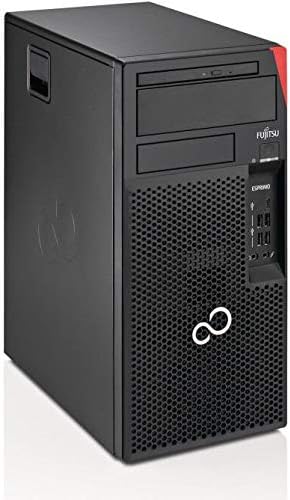
Image: An angled view of the Fujitsu Esprimo P757/E85+ PC tower, showcasing its compact design.
3. Power Connection
Connect the provided power cable to the power input on the rear of the PC and then to a grounded electrical outlet.
4. Initial Boot and Windows 11 Setup
Press the power button on the front of the PC. The system will boot into Windows 11 Pro. Follow the on-screen instructions to complete the initial setup, including language selection, network connection, and user account creation.
Operating Instructions
Power On/Off
To power on, press the power button on the front panel. To power off, click the Start button in Windows, then select Power > Shut down. Avoid unplugging the PC directly without proper shutdown to prevent data loss.
Using the DVD-RW Drive
The PC is equipped with a DVD-RW drive. To open the tray, press the eject button located on the drive. Insert a disc and gently push the tray back in. The operating system will typically detect the disc automatically.
Connecting to Network (Wi-Fi/Ethernet)
For a wired connection, connect an Ethernet cable to the RJ-45 port on the rear of the PC. For Wi-Fi, Windows 11 Pro will guide you through connecting to available wireless networks during initial setup or via the Network & Internet settings.
USB Ports Usage
Utilize the various USB 2.0, USB 3.0, and USB 3.1 Type-C ports for connecting external storage, printers, and other USB-compatible devices. USB 3.0 and 3.1 ports offer faster data transfer speeds.
Maintenance
Cleaning
Regularly clean the exterior of the PC with a soft, dry cloth. For dust accumulation in vents, use compressed air. Ensure the PC is powered off and unplugged before cleaning.
Software Updates
Keep your Windows 11 Pro operating system and drivers updated to ensure optimal performance and security. Windows Update can be accessed via Settings > Windows Update.
Troubleshooting
This section addresses common issues you might encounter:
- PC Not Powering On: Check power cable connections to the PC and the wall outlet. Ensure the power button is fully pressed.
- No Display on Monitor: Verify that the monitor is powered on and correctly connected to the PC's DisplayPort or DVI-D output. Try a different cable or monitor if available.
- Slow Performance: Close unnecessary applications. Check for sufficient free space on the SSD. Run a system scan for malware. Ensure Windows and drivers are up to date.
- DVD Drive Not Reading Discs: Ensure the disc is clean and inserted correctly. Try a different disc to rule out disc issues.
Technical Specifications
| Feature | Specification |
|---|---|
| Brand | Fujitsu |
| Model Series | Fujitsu Esprimo P757/E85+ |
| Processor Brand | Intel |
| Processor Type | Core i7 |
| Processor Speed | 3.4, 4.0 GHz |
| Number of Processors | 4 |
| RAM Size | 32 GB |
| RAM Technology | DDR4 |
| Max Supported Memory | 64 GB |
| Memory Clock Speed | 2133 MHz |
| Hard Drive Size | 1024 GB |
| Hard Drive Type | SSD (Solid State) |
| Graphics Coprocessor | Intel HD Graphics 530 |
| Graphics Card Description | Integrated Intel HD Graphics 530 |
| Connectivity Type | Wi-Fi (802.11ac) |
| Optical Drive Type | DVD-RW |
| Operating System | Windows 11 Pro |
| Product Dimensions | 30.4 x 18 x 37.5 cm |
| Item Weight | 7.65 Kilograms |
Warranty and Support
Your Fujitsu Esprimo P757/E85+ PC comes with a 12-month warranty provided by the distributor. For technical assistance or warranty claims, please contact your point of purchase or the distributor directly. Ensure you have your purchase details and product serial number available.
Product Visuals and Videos
Product Images


Official Product Videos
Intel i7 6700 8-Thread 4.00 GHz Computer Business e Office
Video: An official product video from the seller, COMPUTERS PARTS SRL, showcasing the Intel i7 6700 processor and its suitability for business and office tasks. This video provides a visual overview of the computer's capabilities and design.


