
1. Introduction
This manual provides essential information for setting up, operating, maintaining, and troubleshooting your Dell OptiPlex 3000 Small Form Factor desktop computer. Please read this manual thoroughly before using your system to ensure proper functionality and to prevent damage.
The Dell OptiPlex 3000 SFF is a compact and efficient desktop solution designed for business and everyday use, featuring a 12th Gen Intel Core i5-12500 processor, 8GB DDR4 memory, and a 256GB NVMe SSD, with Windows 11 Pro pre-installed.
2. Package Contents
Verify that all items are present in your package. If any items are missing or damaged, contact your vendor immediately.
- Dell OptiPlex 3000 Small Form Factor Desktop PC
- System Power Cord (US)
- Wired Keyboard (Standard QWERTY)
- Wired Mouse
- Documentation (Quick Start Guide, Safety Information)
3. Product Overview
The Dell OptiPlex 3000 SFF is designed for optimal performance in a compact chassis. Below is an overview of its external features.
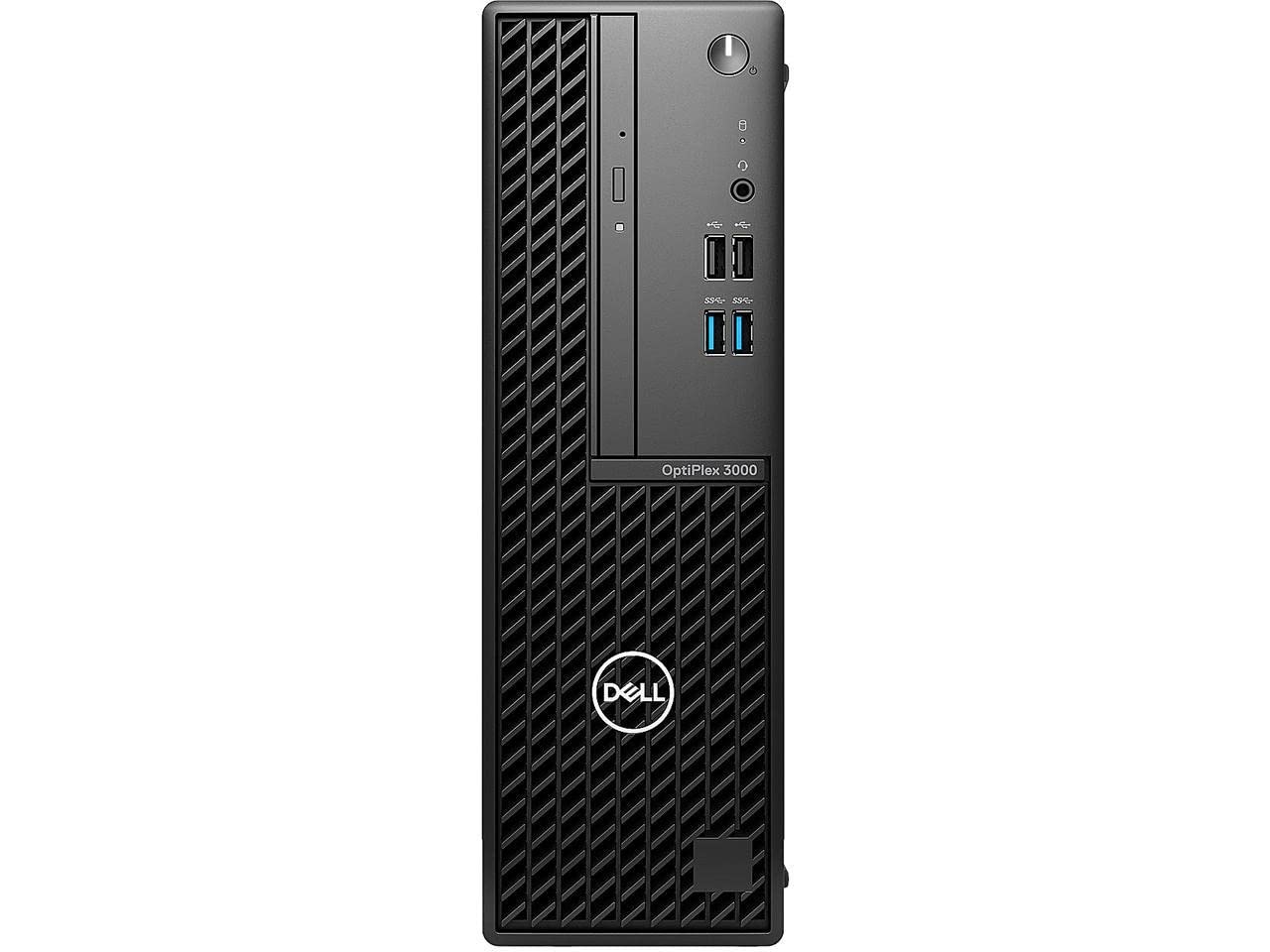
Image 3.1: Dell OptiPlex 3000 Small Form Factor Desktop PC. This image shows the front and side view of the compact black desktop tower.
3.1 Front Panel Features
- Power Button: To turn the system on or off.
- Optical Disk Drive (8x DVD+/-RW): For reading and writing CDs/DVDs.
- USB Ports: For connecting peripherals like USB drives, keyboards, and mice.
- Audio Jacks: Headphone and microphone ports.
3.2 Rear Panel Features
- Video Output Ports (HDMI, DisplayPort): For connecting monitors.
- USB Ports: Additional ports for peripherals.
- Ethernet Port (RJ-45): For wired network connection.
- Power Connector: For connecting the power cord.
4. Setup
Follow these steps to set up your Dell OptiPlex 3000 SFF desktop computer.
- Unpack the System: Carefully remove the computer and all accessories from the packaging.
- Connect Peripherals:
- Connect your monitor(s) to the HDMI or DisplayPort video output ports on the rear of the computer.
- Connect the wired keyboard and mouse to any available USB ports.
- If using a wired network, connect an Ethernet cable to the RJ-45 port.
- Connect Power: Connect the power cord to the power connector on the rear of the computer, then plug the other end into a grounded electrical outlet.
- Initial Boot-up: Press the power button on the front panel. The system will power on, and the Windows 11 Pro setup process will begin. Follow the on-screen instructions to complete the initial setup, including language selection, network configuration, and user account creation.
5. Operating Instructions
5.1 Turning On and Off
- To Turn On: Press the power button on the front of the computer.
- To Turn Off: Click the Start button in Windows, then select Power > Shut down. Alternatively, you can press and hold the power button for 4 seconds to force a shutdown (use only if the system is unresponsive).
5.2 Using the Optical Disk Drive
The integrated 8x DVD+/-RW drive supports reading and writing of CDs and DVDs.
- To Open: Press the eject button on the drive bezel.
- To Insert a Disc: Place the disc onto the tray with the label side up and gently push the tray back into the drive until it clicks shut.
- To Eject a Disc: Press the eject button or right-click the drive icon in "This PC" and select "Eject".
5.3 Connecting to a Network
- Wired Connection: Connect an Ethernet cable from your router or modem to the RJ-45 port on the rear of the computer. The system should automatically detect the network.
- Wireless Connection (if applicable): If your model includes Wi-Fi, click the network icon in the Windows taskbar, select your Wi-Fi network, enter the password, and click Connect.
6. Maintenance
Regular maintenance helps ensure the longevity and optimal performance of your Dell OptiPlex 3000 SFF.
- Cleaning: Use a soft, lint-free cloth to clean the exterior of the computer. For stubborn dirt, slightly dampen the cloth with water. Avoid using harsh chemicals or abrasive cleaners.
- Ventilation: Ensure that the ventilation openings on the computer are not blocked to prevent overheating. Maintain adequate space around the computer for airflow.
- Software Updates: Regularly check for and install Windows updates and Dell driver updates to ensure system stability and security. Go to Settings > Windows Update to check for updates.
- Data Backup: Periodically back up your important data to an external drive or cloud storage to prevent data loss.
7. Troubleshooting
This section provides solutions to common issues you might encounter.
| Problem | Possible Solution |
|---|---|
| No Power |
|
| No Display on Monitor |
|
| System is Slow |
|
| Optical Drive Not Reading Discs |
|
8. Specifications
Key technical specifications for the Dell OptiPlex 3000 Small Form Factor.
| Feature | Detail |
|---|---|
| Processor | 12th Gen Intel Core i5-12500 (6 Cores, 12 Threads, 3.00 GHz to 4.60 GHz Turbo, 18 MB Cache, 65 W) |
| Operating System | Windows 10 Pro (Windows 11 Pro license included) |
| Memory (RAM) | 8 GB DDR4 (1 x 8 GB) |
| Storage | 256 GB M.2 2230 PCIe NVMe SSD, Class 35 |
| Optical Drive | 8x DVD+/-RW 9.5mm Optical Disk Drive |
| Graphics | Intel Integrated Graphics |
| Video Output | HDMI, DisplayPort |
| USB Ports | Total 4 USB ports (specific types/generations may vary by model) |
| Network | Ethernet (RJ-45), Wi-Fi (802.11ac), Bluetooth |
| Power Supply | 180 W internal PSU, 85% Efficient, 80 Plus Bronze |
| Dimensions (Item) | 29 x 29 x 29 inches (Note: This dimension appears to be for packaging. Please refer to official Dell documentation for precise product dimensions.) |
| Model Number | JPVG8 |
| UPC | 884116424895 |
9. Warranty and Support
Your Dell OptiPlex 3000 Small Form Factor comes with a 3-year Manufacturer Hardware Service warranty. This warranty covers defects in materials and workmanship under normal use.
For technical support, warranty claims, or additional information, please visit the official Dell support website or contact Dell customer service directly. Have your service tag or express service code ready when contacting support.
Dell Support Website: www.dell.com/support


