
ROYALAXE R68
ROYALAXE R68 60% Wireless Mechanical Keyboard User Manual
Model: R68
Introduction
Welcome to the ROYALAXE R68 60% Wireless Mechanical Keyboard user manual. This guide provides detailed instructions on setting up, operating, maintaining, and troubleshooting your new keyboard. Please read this manual thoroughly to ensure optimal performance and longevity of your device.
Setup
Unboxing and Initial Inspection
Upon opening the package, ensure all components are present and in good condition. Your ROYALAXE R68 keyboard package should include:
- ROYALAXE R68 Mechanical Keyboard
- USB Type-C Cable
- Keycap Puller
- Switch Puller
- Extra Gateron Pro Yellow Switches (4 pieces)

Image: ROYALAXE R68 keyboard and its accessories, including the USB dongle and extra switches.
Connection Modes
The ROYALAXE R68 supports three versatile connection modes:
- 2.4GHz Wireless Connection:
Locate the 2.4GHz USB dongle, typically stored in a dedicated slot on the keyboard's underside. Insert the dongle into an available USB port on your computer. Switch the keyboard to 2.4GHz mode using the mode selector knob located on the top right of the keyboard. The keyboard should automatically connect.
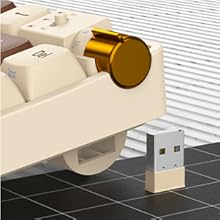
Image: The mode selector knob and the convenient storage for the 2.4GHz wireless dongle.
- Bluetooth 5.0 Connection:
The R68 can connect to up to three Bluetooth devices simultaneously. Use the mode selector knob to switch to one of the Bluetooth channels (BT1, BT2, BT3). On your device (PC, laptop, tablet, mobile phone), enable Bluetooth and search for "ROYALAXE R68". Select it to pair. You can easily switch between paired devices using the mode selector knob.

Image: The keyboard seamlessly connected to a smartphone, tablet, and laptop, demonstrating its multi-device capability.
- USB Wired Connection:
Connect the provided USB Type-C cable from the keyboard's port to an available USB port on your computer. The keyboard will automatically switch to wired mode and begin charging.
Battery Charging
The keyboard is equipped with a 2100mAh large-capacity battery. To charge, simply connect the keyboard via the USB Type-C cable to a power source (e.g., computer USB port, USB wall adapter). The charging indicator will show the battery status.
Operating Your Keyboard
Key Layout and Functions
The ROYALAXE R68 features a compact 68-key, 60% layout, optimizing desktop space while retaining essential keys for gaming and productivity, including arrow keys.
RGB Backlighting
Experience vibrant visuals with 16.8 million RGB lighting colors and 18+4 dynamic lighting effects. You can adjust brightness and speed using FN key combinations. The keyboard also supports cool music rhythm lighting effects via the ROYALAXE driver software.

Image: The keyboard showcasing its diverse RGB lighting effects, adding an immersive atmosphere.
Hot-Swappable Switches
The R68 comes equipped with pre-lubed Gateron Pro Yellow switches, known for their smooth typing feel and pleasant sound. The hot-swappable base supports both 3-pin and 5-pin switches, allowing for easy customization without soldering.

Image: A detailed view of the hot-swappable Gateron Pro Yellow switches, emphasizing ease of customization.
Double-Shot PBT Keycaps
The keycaps are made from durable double-shot PBT material, ensuring excellent touch experience and resistance against wear and oil over time.

Image: A detailed shot of the double-shot PBT keycaps, showcasing their quality and feel.
Programmable Features
Utilize the ROYALAXE driver software to customize single keys or key combinations for macro functions, enhancing your gaming performance and work efficiency. The keyboard supports N-key rollover and includes a WIN key lock to prevent accidental presses during intense gaming sessions.
Official Product Video
Video: An official product video from ROYALAXE DIRECT demonstrating the features and functionality of the ROYALAXE Mechanical Keyboard with Gateron G Pro Yellow Switches.
Maintenance
Cleaning Your Keyboard
Regular cleaning helps maintain the keyboard's appearance and functionality. Use a soft brush or compressed air to remove dust and debris from between the keycaps. For keycap cleaning, gently remove them using the provided keycap puller and wipe with a damp cloth. Ensure keycaps are completely dry before reattaching.
Replacing Switches
Thanks to the hot-swappable design, you can easily replace individual switches. Use the provided switch puller to carefully remove the desired switch. Align the pins of the new switch with the sockets on the PCB and gently press down until it clicks into place. Ensure the pins are not bent during installation.
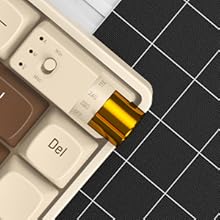
Image: A Gateron switch being removed from the keyboard, demonstrating the ease of switch replacement.
Troubleshooting
- Keyboard Not Connecting:
Ensure the mode selector knob is set to the correct connection mode (2.4GHz, BT1/2/3, or Wired). For wireless modes, check battery level. For Bluetooth, ensure the keyboard is in pairing mode and visible to your device. For 2.4GHz, ensure the dongle is securely inserted. Try restarting your device or the keyboard.
- RGB Lighting Issues:
If the lighting is not working or behaving unexpectedly, try adjusting brightness/speed using FN key combinations. Ensure the keyboard is sufficiently charged. If using the driver software, ensure it is updated and correctly configured.
- Keys Unresponsive:
Check if the specific key switch is properly seated. If not, remove the keycap and gently press the switch down. If the issue persists, consider replacing the switch with one of the provided spares.
- Input Lag/Delay:
Ensure the keyboard is within optimal range for wireless connections. Minimize interference from other wireless devices. For critical tasks, consider using the wired connection.
Specifications
| Feature | Detail |
|---|---|
| Model Number | R68 |
| Connection Type | Bluetooth 5.0, 2.4GHz Wireless, USB Type-C Wired |
| Key Layout | 68-key (60% layout) |
| Switches | Pre-lubed Gateron Pro Yellow (Hot-swappable 3-pin/5-pin) |
| Keycaps | Double-shot PBT |
| Backlighting | 16.8 Million RGB (18+4 effects) |
| Battery Capacity | 2100mAh Lithium Ion |
| Product Dimensions | 12.2 x 4 x 1.6 inches |
| Item Weight | 2.44 pounds |
Warranty and Support
For warranty information and further support, please refer to the official ROYALAXE website or contact customer service. You can also find additional resources, including a detailed user guide, at the following link:
Related documentsR68


Ask a question about this manual
Ask about setup, troubleshooting, compatibility, parts, safety, or missing instructions. Manuals+ will review the question and use this page’s manual context to help answer it.