Introduction
The Rapoo M500 is a versatile multi-mode wireless mouse designed for seamless connectivity across various devices. It supports Bluetooth 3.0, Bluetooth 4.0, Bluetooth 5.0, and 2.4G wireless connections, allowing you to switch between up to three devices with ease. Featuring silent click technology and adjustable DPI settings, the M500 provides a quiet and precise user experience. This manual provides detailed instructions for setting up, operating, maintaining, and troubleshooting your Rapoo M500 mouse.

Figure 1: Rapoo M500 Silent Multi-Mode Wireless Mouse (Camo Red)
Setup
Package Contents
- Rapoo M500 Silent Multi-Mode Wireless Mouse
- USB Receiver (stored inside the mouse)
- 2 x AA Batteries (pre-installed)
- Quick Start Guide (not included in this digital manual)
Battery Installation and USB Receiver Location
The Rapoo M500 mouse comes with two AA batteries pre-installed. The USB receiver is conveniently stored within the battery compartment at the bottom of the mouse. To access the battery compartment and the USB receiver:
- Gently slide open the battery cover located on the underside of the mouse.
- Remove the plastic pull-tab from between the battery contacts to activate the pre-installed batteries.
- Locate the small USB receiver stored next to the batteries. Remove it for 2.4G wireless connection.
- Close the battery cover securely.
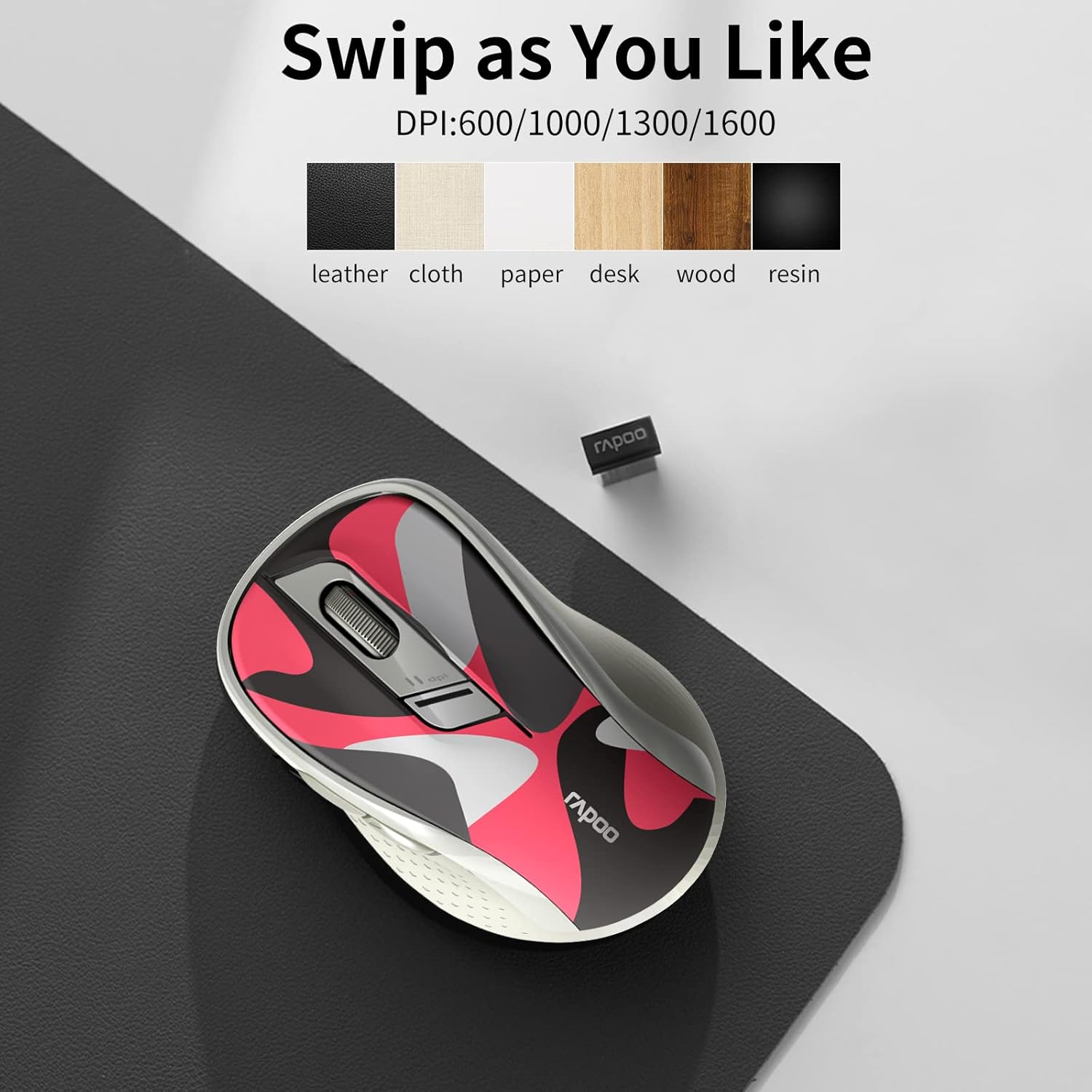
Figure 2: Underside of the mouse with ON/OFF switch and Bluetooth pairing button. The battery compartment and USB receiver are located here.
Connecting Your Mouse
The Rapoo M500 supports multiple connection modes: 2.4G Wireless via USB receiver and Bluetooth (3.0/4.0/5.0). You can connect to up to three devices simultaneously and switch between them.

Figure 3: Multi-device connection capabilities of the Rapoo M500 mouse.
2.4G Wireless Connection
- Remove the USB receiver from the battery compartment of the mouse.
- Insert the USB receiver into an available USB port on your computer or device.
- Turn on the mouse using the ON/OFF switch located on the bottom. The mouse will automatically connect to the receiver.
Bluetooth Connection (Bluetooth 3.0/4.0/5.0)
The mouse can store up to two Bluetooth connections (BT1 and BT2).
- Turn on the mouse using the ON/OFF switch on the bottom.
- Short press the device switch button (located on the top of the mouse, near the scroll wheel) to select either BT1 or BT2 channel. The indicator light will flash quickly.
- Press and hold the Bluetooth pairing button on the bottom of the mouse for 3-5 seconds until the indicator light flashes slowly. This puts the mouse into pairing mode.
- On your device (laptop, tablet, etc.), go to Bluetooth settings and search for new devices. Select "RAPOO M500" from the list to pair.
- Once connected, the indicator light on the mouse will stop flashing.

Figure 4: Detailed connection steps for 2.4G wireless and Bluetooth modes.
Operating Instructions
Switching Between Connected Devices
The Rapoo M500 allows you to quickly switch between the three connected devices (one 2.4G wireless and two Bluetooth devices).
- To switch, simply short press the device switch button located on the top of the mouse, behind the scroll wheel.
- Each press will cycle through the connected channels: 2.4G (indicated by a specific light pattern), BT1, and BT2.
Adjusting DPI (Sensitivity)
The mouse features 4 adjustable DPI levels to control cursor speed and precision: 600, 1000, 1300, and 1600 DPI.
- To change the DPI setting, press the DPI button located on the top of the mouse, just below the scroll wheel.
- Each press will cycle through the available DPI levels. The cursor speed will change accordingly.

Figure 5: The mouse supports various surfaces and adjustable DPI settings.
Silent Click Feature
The Rapoo M500 utilizes silent micro-motion technology, significantly reducing click noise by up to 90%. This feature is ideal for quiet environments such as libraries, offices, or late-night use, ensuring a disturbance-free experience.

Figure 6: Experience quiet operation with the silent click feature.
Ergonomics and Portability
Designed with ergonomics in mind, the Rapoo M500 features a streamlined arc and finger rest to reduce strain during prolonged use, maximizing comfort. Its compact and lightweight design also makes it highly portable, fitting easily into a pocket or bag for travel.

Figure 7: The compact design ensures easy portability.
Driver Customization
For advanced customization of buttons and functions, you can download the official driver from the Rapoo website. This software allows you to assign specific functions to the mouse buttons, enhancing your productivity.
- Visit the official Rapoo website (www.rapoo.com) to download the latest driver for the M500 model.
- Install the driver and follow the on-screen instructions to customize button assignments and other settings.
- Note: The Windows version driver supports 2.4G wireless connection for code matching operations. Bluetooth 3.0 connection may not support the Windows version driver.

Figure 8: Driver software allows for advanced customization of mouse functions.
Maintenance
Battery Life and Replacement
The Rapoo M500 mouse is designed for long-lasting battery performance, providing up to 12 months of usage on two AA batteries. To conserve battery life when not in use, utilize the ON/OFF switch located on the bottom of the mouse.

Figure 9: Extended battery life of up to 12 months.
When the mouse performance degrades or the indicator light suggests low power, replace the two AA batteries. Ensure correct polarity when inserting new batteries.
Cleaning Your Mouse
To maintain optimal performance and hygiene, clean your mouse regularly:
- Turn off the mouse before cleaning.
- Use a soft, lint-free cloth slightly dampened with water or a mild cleaning solution to wipe the exterior.
- Avoid using harsh chemicals, abrasive cleaners, or spraying liquids directly onto the mouse.
- For the optical sensor, use a dry cotton swab to gently remove any dust or debris.
Troubleshooting
| Problem | Possible Cause | Solution |
|---|---|---|
| Mouse not responding / No cursor movement. |
|
|
| Intermittent connection / Laggy movement. |
|
|
| DPI setting not changing. |
|
|
Specifications
| Feature | Detail |
|---|---|
| Model | RAPOO M500 |
| Connectivity | Bluetooth 3.0, Bluetooth 4.0, Bluetooth 5.0, 2.4G Wireless |
| DPI Levels | 600, 1000, 1300, 1600 (Adjustable) |
| Movement Detection | Optical |
| Number of Devices | Up to 3 (1 x 2.4G, 2 x Bluetooth) |
| Power Source | 2 x AA Batteries |
| Battery Life | Up to 12 months |
| Product Dimensions | 3.25 x 2.02 x 0.62 inches (8.26 x 5.13 x 1.57 cm) |
| Item Weight | 4.6 ounces (130.4 grams) |
| Compatibility | Windows 7/8/10/XP, Vista 7/8, Linux, macOS, Android (Bluetooth) |
Warranty and Support
Rapoo products are designed with quality and reliability in mind. For information regarding warranty coverage, technical support, driver downloads, and frequently asked questions, please visit the official Rapoo website or contact their customer service directly.
- Official Website: www.rapoo.com
- Customer Service: Refer to the contact information available on the official website for your region.
Please retain your proof of purchase for any warranty claims.


